
TL;DR: Best AI Image Generators (2026)
An AI image generator turns your text into visuals using machine learning. You describe what you want — like “a course creator recording a lesson in a modern studio” — and the AI builds a brand-new image from scratch. Most use a text-to-image diffusion process, which starts with random noise and refines it step-by-step until it looks like a real photo, illustration, or digital render.
Here are the best AI image tools you can use in 2026:
ChatGPT-5 (DALL·E 3) – All-purpose image generation and creative prompt ideas.
Google Nano Banana – Free, precise image editing inside Gemini and AI Studio.
Midjourney – Cinematic, artistic visuals with exceptional lighting and depth.
Leonardo AI – Realistic marketing visuals, product shots, and campaign assets.
Recraft AI – Branded graphics, mockups, and consistent vector-style visuals.
Pikzels – YouTube thumbnail maker trained on real viral data.
Grok (xAI) – Realistic storytelling and cinematic concept visuals.
Ideogram – Text-accurate posters, ads, and social media visuals.
Piktochart – Infographics and data-driven visuals for educators and marketers.
Adobe Firefly – Commercial-safe, high-end visuals, video, and sound creation.
Canva AI (Magic Media / Dream Lab) – All-in-one AI design platform for creators.
Jasper AI Image Suite – Enterprise-grade bulk editing, brand consistency, and automation.
Top Picks (2026):
🏆 Best Overall: Leonardo AI — unmatched realism and creative control.
💡 Best Free Tool: Google Nano Banana — edit, enhance, and refine for free.
🎨 Best for Artistic Work: Midjourney — the gold standard for cinematic imagery.
📈 Best for Marketers & Brands: Jasper AI Image Suite — scalable, brand-safe automation.
🧩 Best for Small Businesses & Creators: Recraft AI — fast, consistent on-brand visuals.
📹 Best for YouTubers: Pikzels — data-driven thumbnails that grab clicks.
\A 2024 study found that over 34 million AI images are generated every day. That number is likely much higher now because the AI image generation space is growing fast, with new and easier tools launching almost every week.
In fact, this space is evolving so quickly that an article I wrote about the best AI image generators just six or seven months ago already feels outdated.
And it’s not limited to artists or designers anymore. Marketers, YouTubers, course creators, and small business owners are now using AI image tools to create thumbnails, social media posts, ads, and campaign visuals without relying on professional designers.
But the important thing to remember is that not every AI image tool excels at every marketing task. Some are great for mockups, others are perfect for editing existing visuals. Certain tools produce stunning realistic photos, while others shine when turning text and data into infographics or stylized graphics.
As a marketer, you need a few specialized tools for different parts of your content workflow.
I’ve used dozens of these tools over the past year for everything from blog illustrations to product mockups and short-form video backgrounds. Some are perfect for quick ideas, while others give you deeper control over lighting, detail, and character consistency.
In this guide, I’ll share the best AI image generators marketers and edupreneurs should use in 2026. These are the tools that save time, fit into everyday workflows, and produce visuals you can actually use.
Comparison Of The Best Free & Paid AI Image Creation Tools & Software
Let’s quickly take a bird’s eye view of the tools I’ve handpicked for you before diving deeper.
| AI Image Generator | Best For | Starting Price* |
| ChatGPT-5 (DALL·E 3) | Ideation, prompt generation, basic images | $20/mo (Plus) |
| Google’s Nano Banana | Precise editing, object removal, consistency | Free |
| Midjourney | Artistic, cinematic visuals | $10/mo |
| Leonardo AI | Realistic product visuals, creative flexibility | Free (with daily tokens) |
| Recraft AI | Branded graphics, logos, vector-style visuals | Free |
| Pikzels | YouTube thumbnails, video visual personalization | Free trial / subscription |
| Grok (by xAI) | Story-driven visuals, emotional scenes | Free / SuperGrok $30/mo |
| Ideogram | Text-based visuals, posters, ad creatives | $7/mo |
| Piktochart | Infographics, data visuals | Free / Pro $14/mo |
| Adobe Firefly | Brand-safe, image + video + generative content | Free (credits) / $9.99/mo |
| Canva AI (Magic Media / Dream Lab) | All-in-one design + AI image creation | Free / Pro tier |
| Jasper AI Image Suite | High-volume editing, brand consistency | $59/mo (Pro) |
Note: “Starting Price” means the lowest paid level or the free tier with limitations. Always verify on official sites, as pricing may change.
The Best AI Text To Image Generators, Editors, And Enhancers For Marketers And Creators
Instead of listing dozens of AI image generators that all do the same thing, I’ve handpicked the most efficient tools to create, edit, and enhance images for real marketing and content creation use cases.
Every tool in this list serves a specific purpose.
Some are ideal for quick text-to-image generation, others for AI image editing or enhancing photos for campaigns and social media. Together, they form a complete AI image generation stack for marketers, creators, and small business owners who want fast, reliable visuals without spending hours in design apps.
I’ve tested each of these tools personally across real projects from YouTube thumbnails and blog graphics to ad creatives and product mockups. Each one complements the other, and when combined, they cover almost every creative scenario you’ll face.
Let’s get started.
Read: The best online course platforms with AI features
1. ChatGPT-5 (DALL·E 3)
Strength: All-purpose AI image creator for everyday use
Starting Price: $20/month (ChatGPT Plus)
Free Version: Yes, but without image generation
Best For: Creating prompts and concept visuals for blogs, ads, and YouTube thumbnails
ChatGPT now has built-in text-to-image generation where you can simply describe an image and generate it right inside your chat. It’s the best all-purpose AI image creator for everyday use, especially when you want quick results without switching tools. You can create everything from product photos and social media graphics to course thumbnails or ad concepts.
For example, here’s an image I created for one of my presentations.
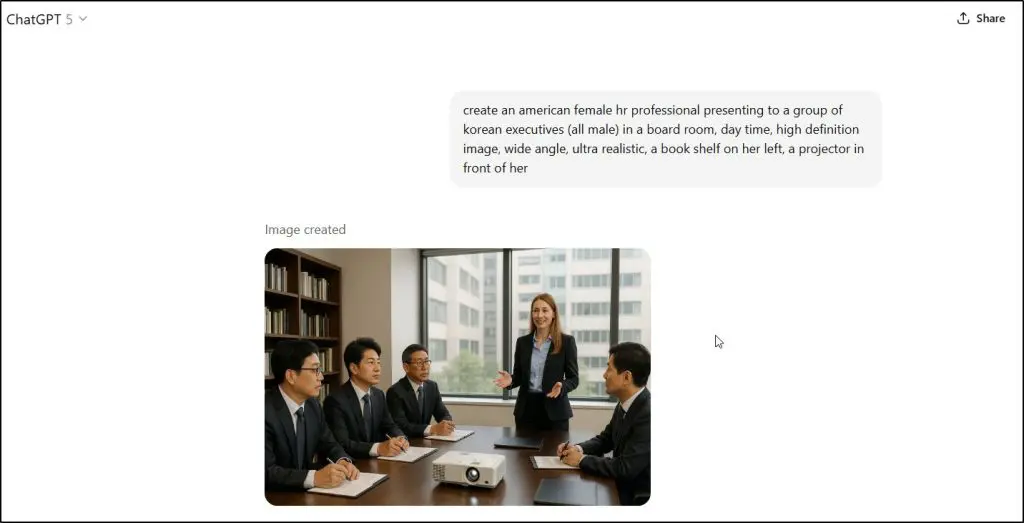
I often use it for blog illustrations and creative brainstorming. One of my favorite tricks is using ChatGPT to reverse-engineer prompts.
Instead of guessing how to describe something, I upload a sample image and ask it to write a prompt that would recreate the same visual in Leonardo or Midjourney.
It’s a massive time-saver when you’re testing different styles or refining a campaign’s visual direction.
ChatGPT is also great for creating a quick infographic or visualizing data. For example, here’s how created a visual for one of my social media posts.
First, I generated the content for the image.

Then, I asked ChatGPT to turn it into an infographic.

Pretty impressive, right?
It’s a great tool for repurposing raw data into engaging visuals people love sharing on social media.
When it comes to image generation, ChatGPT’s biggest drawback is character consistency. When generating multiple images with the same person or object, small changes appear that can break continuity.
It’s also slower than most dedicated AI image tools. Still, if you want one place to generate, refine, and plan your visuals, ChatGPT-5 is hard to beat.
Tips for using ChatGPT-5 for accurate image generation
- Always describe your subject, lighting, camera angle, and background in one prompt. ChatGPT follows structured prompts better than vague ones.
- If you want photo-realistic results, start your prompt with “a professional studio photo of…” or “a cinematic still of…”
- Upload a reference image before prompting and ask ChatGPT to “match this visual style.” It drastically improves accuracy.
- For consistent visual identity, save your best prompts and reuse them with small edits instead of starting from scratch.
- When creating characters or mascots, add a name and key traits to your prompt. For example, “A digital mascot named Max wearing a red hoodie.”
Read: 90+ eye-opening generative AI facts & statistics
2. Google’s Nano Banana
Strength: Best AI image editor and enhancer
Starting Price: Free
Free Version: Yes, daily edit limits apply
Best For: Precise edits, object removal or addition, and visual consistency across campaigns
Nano Banana is one of the most advanced AI image editors available right now. It’s powered by Google’s Imagen 3 model and built directly into several Google products like Gemini, Google AI Studio and NotebookLM.
You can use Nano Banana to transform and enhance existing images, create new perspectives from a single photo, or fuse elements from multiple pictures into one.
For example, I gave Nano Banana the pictures of the Learning Revolution team members and prompted it to show them together as a team.

Outstanding work!
I often use it to polish course thumbnails, add subtle design details to email banners, and generate matching visuals for community pages and membership dashboards.
It’s great for marketers who want realism such as adding props, changing backgrounds, or refining brand visuals without losing authenticity.
The main issues I’ve noticed are occasional hallucinations and prompt fatigue. Sometimes it adds random artifacts like extra fingers or blurred textures, and if you keep layering edits in one session, it starts repeating or ignoring changes.
But when used in short, clear steps, Nano Banana delivers results that look far more natural than most paid tools.
Tips for using Nano Banana for accurate image editing
- Use it inside Google Gemini for quick in-chat edits or Google AI Studio for advanced image modifications.
- Apply one edit per pass. Separate prompts for lighting, background, and objects work best.)
- Include context cues like camera angle, lighting type, and environment for better realism.
- Add a reference image when keeping the same instructor, product, or theme across visuals.
- If it repeats results, start a new Gemini chat or session before re-uploading your latest image.
3. Midjourney
Strength: Most artistic and detailed image generation
Starting Price: $10/month (Basic plan)
Free Version: No
Best For: High-end visuals, cinematic scenes, and stylized marketing art
Midjourney remains the gold standard for artistic image generation. It runs through Discord, where you use the /imagine command to turn text into stunning visuals. The results often look like professional photography or digital art — rich in texture, lighting, and emotional tone.
It’s the go-to tool when you need visuals that feel cinematic or handcrafted rather than AI-made.
It’s perfect for projects that rely on visual storytelling, for example ad creatives, landing pages, thumbnails and concept visuals. Its ability to balance realism with artistic flair makes it stand out when you want something bold, polished, and unique.
Compared to most AI tools, Midjourney captures lighting, perspective, and realism in a way that feels deliberate and thoughtfully composed.
The main downside is the workflow.
Running it through Discord takes getting used to, and there’s no direct way to fine-tune or edit a specific part of an image. You’ll often need a second tool like Nano Banana for touch-ups or ChatGPT for crafting better prompts.
Tips for using Midjourney for accurate image generation
- Add aspect ratios using –ar (for example, –ar 16:9 for thumbnails or –ar 4:5 for Instagram).
- Use version tags like –v 6 for the most accurate and realistic output.
- Try /blend to merge 2–3 reference images and keep a consistent color palette or brand tone.
- Add camera terms such as “cinematic lighting,” “depth of field,” or “shot on 85mm lens” for better realism.
- Use ChatGPT to refine your prompt wording before sending it to Midjourney for sharper results.
- Save your best prompts in a separate note — Discord doesn’t make it easy to retrieve them later.
Read: The best generative AI tools for course creators
4. Leonardo AI
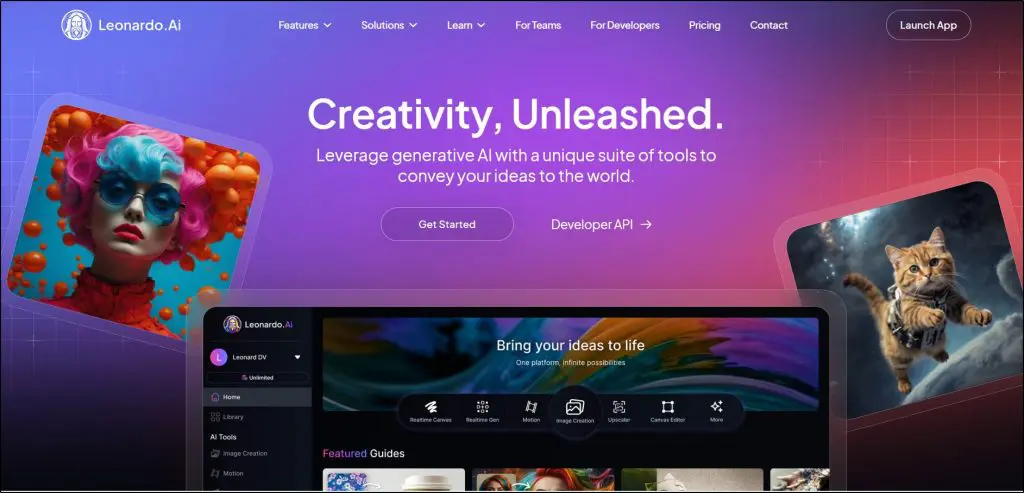
Strength: Most powerful all-round AI image and video generator for creators and marketing teams
Starting Price: Free (Paid plans from $10/month)
Free Version: Yes, includes 150 daily Fast Tokens and public images
Best For: Product photography, ad creatives, concept art, marketing visuals, and branded campaigns
Leonardo AI is one of the most advanced and complete AI image generators available today. It gives you everything from text-to-image creation and photo editing to video generation and 3D textures in a single creative suite. The platform has earned its place as a favorite among marketers, designers, and teams because of its fine-tuned models, speed, and creative flexibility.
What makes Leonardo stand out is the balance between power and usability. You can create realistic product shots, campaign images, or training visuals that look like they were shot in a studio. It’s also excellent for turning ideas into brand-ready assets — whether that’s course thumbnails, ad mockups, or social content. I often use it to create visual assets for online course landing pages and promotional banners, where image realism and brand consistency matter the most.
Leonardo also offers features you rarely find together: an AI canvas for inpainting and outpainting, 3D texture tools for product mockups, and a transparent PNG generator for quick ad variations. You can even train personal AI models to match your brand’s look or visual tone across all your designs.
Its community is another strong point. With over 18 million users, including professionals in marketing, architecture, and gaming, you get access to shared styles and fine-tuned models that drastically reduce your setup time.
The main weakness is the token-based system. If you’re creating visuals frequently, you’ll run through tokens quickly, especially at higher quality settings. It also occasionally struggles with small text inside images. Still, given the detail, realism, and creative control it offers, Leonardo remains one of the best tools for anyone serious about AI-powered content creation.
Tips for using Leonardo AI for accurate image generation
- Use reference images to maintain character consistency and brand tone across multiple designs.
- Train your own custom AI models with 10–50 sample images to match your unique style or niche.
- For ads and course visuals, use Enhanced Quality Generation and Upscaling to get sharper outputs.
- Combine AI Canvas and Background Remover to edit objects or refine lighting without leaving the platform.
- For product photography or mockups, try Flow State mode for high realism with faster rendering.
- Avoid stacking too many edits in one go. Make small, separate refinements to prevent visual “hallucinations.”
5. Recraft AI

Strength: Best all-in-one AI design tool for scalable marketing visuals
Starting Price: Free (Pro plan from $10/month)
Free Version: Yes, with limited credits and public images
Best For: Logos, ad creatives, mockups, branded illustrations, and consistent course visuals
Recraft AI is a complete AI design platform made for marketers, course creators, and teams who need professional visuals without hiring designers. It lets you generate vector-style images, logos, ads, posters, icons, product mockups, and even photo-realistic visuals, all from a single workspace.
Its in-house Recraft V3 text-to-image model ranks among the best in accuracy and detail. You can easily switch between styles like illustration, vector, or photorealism while keeping your brand’s colors, fonts, and tone consistent across every asset. That makes it perfect for course creators building slide visuals, email marketers designing campaign banners, or business owners creating product mockups and social media content.
Recraft also includes a vectorizer, AI photo editor, upscaler, and mockup generator, making it one of the most complete AI image solutions available. You can even extract prompts from existing images, generate multiple assets in the same style, or use external models like Nano Banana, Seedream, GPT-4o, and Flux for more refined results.
Its biggest advantage is workflow familiarity. If you’ve ever used tools like Figma or Canva, you’ll feel right at home with layers, frames, comments, and an infinite canvas for collaboration. It’s a natural upgrade for creators who need speed, brand consistency, and print-quality exports.
The only drawback is credit-based limits on the free plan and occasional style drift when generating large sets of visuals. Still, for most marketing workflows, Recraft replaces multiple design tools in one interface.
Tips for using Recraft AI for accurate image generation
- Use the Custom Style feature to maintain brand identity across ads, course visuals, and website graphics.
- Combine “Generate Illustration Set” and “Mockup Generator” to create entire campaigns in one consistent look.
- Use AI Vectorizer and export in SVG for crisp, editable graphics suitable for both web and print.
- Enable Creative Upscale to get 4K-quality outputs for product displays and course banners.
- Add short style cues like “on-brand color palette,” “flat minimal design,” or “studio lighting” for the most relevant output.
- If you want natural realism, switch to Photo Mode and use Nano Banana or Flux as external engines.
6. Pikzels

Strength: Best AI thumbnail maker for YouTubers and video marketers
Starting Price: Free trial (Paid plans from $14/month billed annually)
Free Version: Yes, limited trial available
Best For: YouTube thumbnails, video titles, FaceSwap thumbnails, and high-engagement visuals
Pikzels is built for one purpose: to help creators design YouTube thumbnails that actually get clicks. It is the first AI thumbnail generator trained on real viral video data, helping you produce designs that follow proven patterns of color, emotion, and layout used by top creators.
More than 500,000 users trust Pikzels, including popular channels like Veritasium, Preston, and Top Trending. Unlike generic AI image generators, Pikzels is designed specifically for YouTube. You can generate thumbnails from text prompts, recreate designs from existing video links, and instantly add your face to any concept using the FaceSwap feature.
Its biggest strength is how accurate and context-aware it is. When you paste a YouTube link, Pikzels analyzes the title, subject, and tone before generating designs that fit your content. It even creates matching video titles, saving you hours of brainstorming and testing. Whether you make educational content, gaming videos, or documentaries, Pikzels helps your videos stand out in crowded feeds without using Photoshop or Canva.
You can choose from pre-built styles and personas, then refine text, lighting, or background right inside the editor. The platform’s data-driven design engine ensures your thumbnails match the latest visual trends in your niche. For creators focused on growing views and engagement, Pikzels is one of the most practical AI tools available.
The only real drawback is that it focuses only on YouTube and short-form video content. It is not made for general image generation or brand design. But if your goal is video growth, Pikzels gives you professional thumbnails faster than any other tool.
Tips for using Pikzels for accurate thumbnail generation
- Paste your YouTube video link to automatically create thumbnails based on real data from high-performing videos.
- Use the FaceSwap feature to replace faces in trending thumbnails with your own for stronger personal branding.
- Try the Title Generator to create matching video titles that complement your thumbnail.
- Experiment with different personas and styles to match your channel’s tone, such as cinematic, dramatic, or playful.
- Use the Edit and Enhance tools to adjust lighting, contrast, and background to increase emotional impact.
- Keep your designs simple with one clear subject to make your thumbnail more clickable.
Read: 10 ways to make money on YouTube for creators
7. Grok (by xAI)
Strength: Best emerging AI for realistic, story-driven image generation
Starting Price: Free (Basic), SuperGrok: $30/month, SuperGrok Heavy: $300/month
Free Version: Yes, with limitations
Best For: Visual storytelling, concept art, and promotional content for online courses or communities
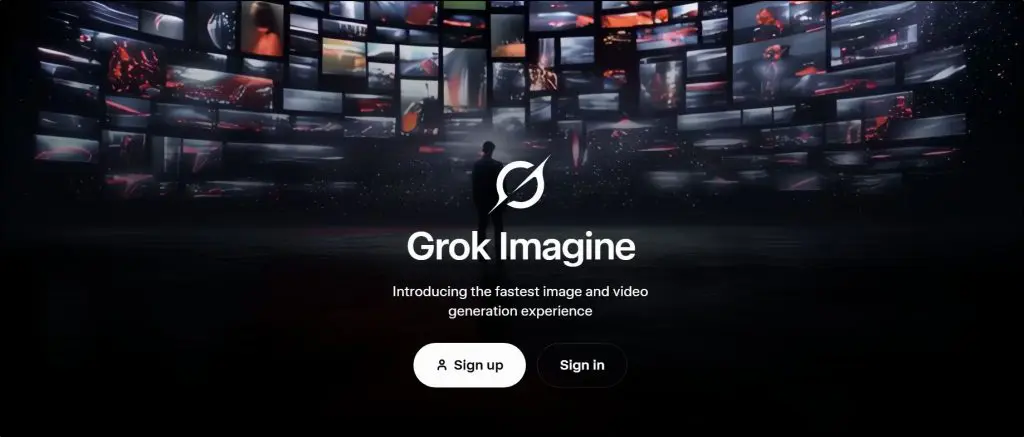
While most people see Grok as a chatbot, its real creative strength comes from Imagine, its built-in image model. Grok uses the Imagine AI engine, which produces photo-realistic visuals with cinematic detail, closer to Midjourney or FLUX than Canva-style renders.
For course creators and coaches, this means you can generate illustrations, backgrounds, or visual metaphors that make lessons feel alive. For example, if you’re teaching personal growth, you can prompt Grok to create “a person climbing a glowing staircase representing mindset growth”, and it will return a cinematic, emotional scene you can use in your slides or social posts.
Businesses and content creators can use Grok’s image capabilities to design brand visuals, cover art, and ad imagery that feel natural, not stock-like. Its context memory also lets you refine visuals through multiple rounds, keeping the same look, tone, or lighting across a series of designs.
The SuperGrok plan ($30/month) gives you access to the Imagine model, which focuses on vivid realism, accurate lighting, and human emotion. The SuperGrok Heavy plan ($300/month) offers early access to Grok 4 Heavy, which pushes those visuals even further, ideal if you’re working on full video storyboards or course campaigns that need detailed scenes.
Tips for using Grok 4’s image generator effectively
- Use Imagine for cinematic and realistic visuals — perfect for YouTube thumbnails, storytelling lessons, or ad visuals.
- Include clear mood and lighting directions in your prompt (e.g., “sunset glow,” “studio lighting,” or “high-contrast style”).
- Build a consistent series of visuals by referencing your last image in follow-up prompts. Grok remembers style and tone across chats.
- Use Aurora model (available on the free plan) for quicker concept sketches before refining them in Imagine.
- Combine Grok’s text and image generation to create visual posts, course intros, or short lesson recaps that pair script + scene.
8. Ideogram

Strength: Best AI image generator for text-based visuals and marketing graphics
Starting Price: $7/month (billed yearly)
Free Version: Yes, limited access with slow credits
Best For: Posters, ad creatives, product visuals, and YouTube thumbnails with accurate text
Ideogram stands out because it can generate text accurately inside images, something most AI tools still fail to do. You can create clean, readable titles, slogans, and labels directly in your visuals, which makes it ideal for marketers, advertisers, and content creators who need branded assets fast.
As a course creator or coach, this can save you hours of design work. I’ve used Ideogram to create lesson cover images, webinar banners, and announcement posts that look fully designed even when I start with just a short text prompt. If you run a community or membership site, you can also use Ideogram to make motivational quote posts, event flyers, or weekly update visuals that look on-brand.
The Plus and Pro plans unlock powerful options like character consistency, Canvas editing, and Magic Fill, which let you upload your own photos or templates and expand or modify them. You can add product images, tweak headlines, or even extend a banner for an upcoming launch or email campaign without starting from scratch.
Ideogram also lets you use your brand colors, upscale to 2K, and generate repeating patterns for digital products or community graphics. It’s one of those tools that feels like a mix of Canva and DALL·E but much faster for text-based content.
Its biggest weakness is realism. Faces and complex scenes sometimes lack natural detail, and repeated edits in the same prompt can lead to near-duplicate results. But for coaches, creators, and consultants who regularly design posts, course graphics, or promotional images with text, Ideogram is a huge time-saver.
Tips for using Ideogram for accurate image generation
- Add your headline or offer name directly in the prompt for clean, centered text.
- Use quotation marks around your title to improve spelling accuracy.
- Describe your brand colors and tone (for example, “minimal, blue and white design for a coaching program”).
- Use Magic Fill to extend images for banners, lead magnets, or course page headers.
- Experiment with Canvas to remix your visuals and create matching sets for your lessons or community posts.
- Combine Ideogram text designs with backgrounds from Leonardo or ChatGPT for a complete, realistic layout.
9. Piktochart
Strength: Best AI infographic and data visualization tool for marketers and educators
Starting Price: Free (Pro from $14/month billed annually)
Free Version: Yes, 7-day access with 60 AI credits
Best For: Infographics, reports, data visuals, social media graphics, and educational content
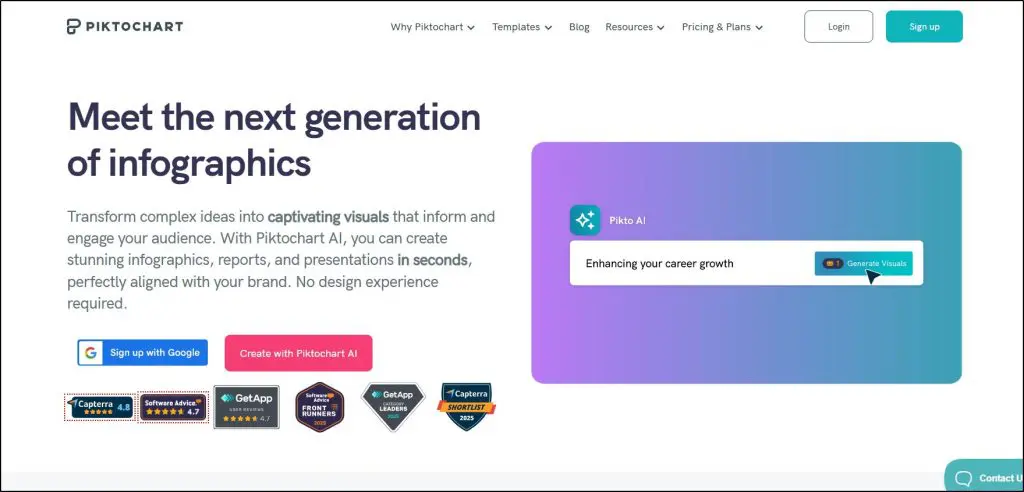
Piktochart’s AI suite turns long-form content and data into clean, visually engaging infographics in seconds. You can paste your text, upload a PDF or DOCX, and it instantly transforms that content into a structured, branded visual that looks professionally designed.
What makes Piktochart different is how it combines AI generation with full design control. The tool creates a base infographic using your prompt or uploaded content, then lets you edit, rearrange, or style every element. You can add charts, maps, timelines, and AI-generated images directly inside the same workspace.
I use it to convert course outlines, webinar takeaways, and community discussions into infographics that are easy to share on LinkedIn or embed in course dashboards. Coaches and consultants can use it to visualize frameworks, strategies, and progress data for clients. It’s also a great fit for marketers who want to turn blog posts or research summaries into shareable visuals.
The new Pikto AI Studio now includes tools for generating banners, reports, social media posts, and even YouTube thumbnails. That makes it one of the most complete visual creation platforms for small teams who want everything in one place.
Its main limitation is flexibility. While the AI-generated results are polished, the system sometimes locks you into fixed layouts that need manual adjustments to fit your data perfectly. But even then, it saves hours compared to starting from scratch.
Tips for using Piktochart for accurate image and infographic generation
- Start with a short prompt or uploaded file to give Piktochart context for layout and tone.
- Use the AI Outline feature to organize your content into sections before generating visuals.
- Choose templates for your goal, such as “marketing infographic,” “course summary,” or “data report.”
- Use Magic Fill and drag-and-drop elements to refine data visuals or add AI-generated icons.
- Combine visuals from Piktochart with branded backgrounds or hero images from Leonardo or Recraft for campaigns.
- Keep each infographic focused on one main idea for clarity and higher engagement.
10. Adobe Firefly

Strength: Best AI image, video, and sound generator for brand-safe professional content
Starting Price: Free (Standard from $9.99/month)
Free Version: Yes, limited credits
Best For: AI-generated visuals, marketing videos, course visuals, and branded content
Adobe Firefly is the most advanced creative AI suite out there. It lets you generate images, videos, sound effects, and even vector graphics inside your favorite Adobe apps like Photoshop, Express, and Premiere Pro. You can also use it directly on the web or mobile, making it ideal for both individuals and teams.
The biggest advantage of Firefly is that everything you create is commercially safe. Adobe trains its models only on licensed and public domain content, so you can confidently use Firefly-generated visuals in your ads, course materials, or client projects without copyright worries.
For creators, it’s perfect for building course thumbnails, promo videos, and branded social media posts that stay consistent across every channel. Coaches can use Firefly Boards to brainstorm lesson visuals, storyboard video lessons, or generate quick explainer videos from text. Agencies can instantly produce multiple campaign versions and finalize visuals inside Photoshop or Illustrator without switching tools.
Its Text to Image and Image to Video models produce stunning visuals that are easy to control. You can adjust lighting, composition, and color directly from sliders. The Translate Video feature even turns your English course recordings into multiple languages while keeping your tone natural.
If you’re serious about content quality, Firefly feels like a professional assistant that speeds up every part of your creative workflow.
Tips for using Firefly effectively
- Start inside Adobe Express or Photoshop to use Firefly’s Generative Fill and refine results instantly.
- Use Firefly Boards to build concept boards for new course visuals, ad campaigns, or brand identities.
- Try Text to Video for short explainer or teaser clips for your lessons or community posts.
- Use Generate Sound Effects for background audio in video lessons or podcast intros.
- Mix outputs from different partner models like OpenAI, Pika, or Runway directly inside Firefly for unique results.
- Add Content Credentials to your exports to show your visuals were AI-generated and commercially safe.
11. Canva AI (Magic Media & Dream Lab)

Strength: Best all-in-one design and AI image suite for course creators and marketers
Starting Price: Free; Pro: about $50/year, Teams: about $49/year per user (min. 3 users)
Free Version: Yes
Best For: Designing course visuals, marketing assets, and brand-ready templates with AI
Canva AI gives you everything you need to turn ideas into visuals fast. It’s a complete creative suite for designing social posts, lesson slides, thumbnails, and branded content from one dashboard.
It has been my go to image creation tool for almost a decade and now with its AI image creation features, it’s even more useful.
Canva’s two main AI engines, Magic Media and Dream Lab, let you create stunning visuals from text prompts. Magic Media turns your ideas into lifelike or artistic images in styles like watercolor, neon, and 3D.
Dream Lab goes further by letting you upload a reference image to generate new variations with fresh colors, textures, or aesthetics, perfect for maintaining a consistent course or brand theme.
Coaches can use Canva AI to quickly design lesson visuals, quote posts, and ad graphics without hiring a designer. Community owners can use Text to Video to generate short teaser clips or lesson highlights straight from a prompt.
Businesses can produce infographics, pitch decks, and email visuals faster than ever with its built-in templates and brand kits.
The free plan gives you basic AI credits and access to millions of assets. Canva Pro adds advanced tools like Magic Edit for changing elements with text, Magic Eraser for quick cleanup, background removal, and Translate to automatically turn your designs into 100+ languages, a huge plus if you serve global learners.
Tips for using Canva AI effectively for image generation
- Use Magic Media → Text to Image for thumbnails, ad visuals, or social content that fits your brand tone.
- Try Dream Lab to re-style your own visuals with new textures or lighting while keeping the same composition.
- Use Magic Edit to replace or enhance parts of your existing designs — for example, swap a classroom for a modern studio background in a promo image.
- Use Translate to instantly localize course visuals for different audiences.
- Organize brand colors, fonts, and logos inside Brand Kits so every AI-generated design stays on-brand.
- Schedule posts directly from Canva’s Content Planner to publish across platforms automatically.
12. Jasper AI Image Suite
Strength: Best enterprise-grade AI image editing and automation tool for marketers
Starting Price: $59/month (Pro plan)
Free Version: 7-day trial
Best For: High-volume marketing teams that need scalable image editing, personalization, and on-brand visuals
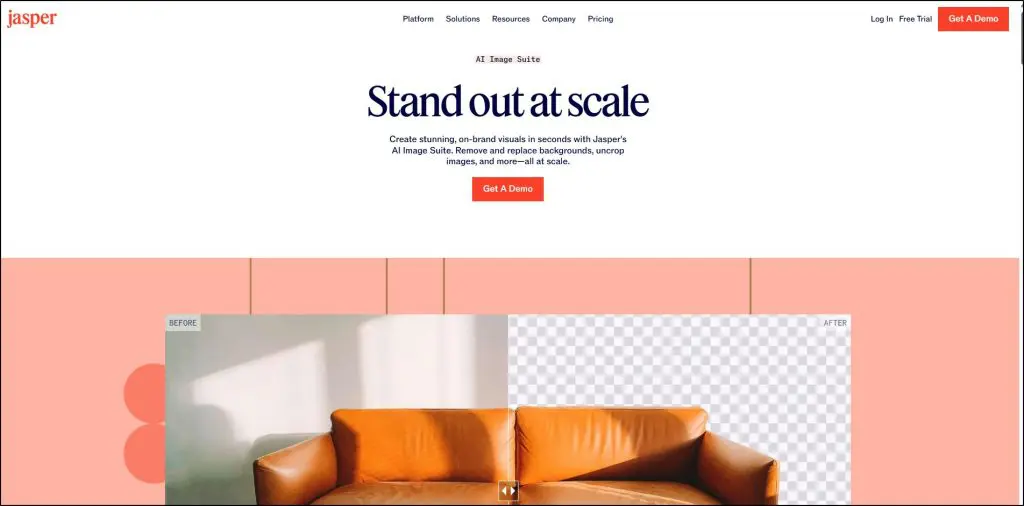
Jasper’s AI Image Suite is built for marketers who need to produce hundreds or even thousands of visuals quickly, while staying consistent with brand guidelines.
Unlike most AI tools focused on creative generation, Jasper’s image features revolve around editing, transformation, and bulk automation.
You can remove or replace backgrounds, upscale images by up to 16x, uncrop or resize for campaigns, and remove unwanted text, all with natural, prompt-based commands.
Its enterprise-grade system lets teams transform product catalogs, ads, and campaign visuals in seconds without touching Photoshop.
The real edge lies in its marketing integration. Jasper connects your Brand Voice, Visual Guidelines, and Style Guides to ensure every image you generate or edit stays on-brand.
You can even personalize visuals at scale. For instance, it allows automatically adapting product photos or ad backgrounds for different audiences or regions.
For creators and educators, Jasper makes it easy to rework course visuals, reframe old thumbnails, or adapt content for new platforms without starting over. And since it guarantees full data privacy (your uploads are never used for model training), it’s safe for business and client use.
Big brands like Adidas, Wayfair, and Ulta already use it to speed up campaign visuals — a clear sign it’s moving from copywriting to creative automation at scale.
Tips for using Jasper AI Image Suite effectively:
- Use Replace Background to instantly switch locations or color schemes for seasonal campaigns.
- Try Uncrop when repurposing visuals for different aspect ratios (e.g., YouTube thumbnails → Instagram posts).
- Use Remove Text to clean signage, apparel, or presentation slides without redoing the image.
- Combine Jasper’s Brand Voice + Visual Guidelines to maintain tone and color consistency across images and copy.
- Run bulk edits with AI Workflows if you’re managing large product or content libraries.
What Is an AI Image Generator?
An AI image generator is a tool that creates completely new images from written descriptions. You type a short prompt, like “a teacher recording an online course in a cozy studio”, and the tool instantly turns that text into a realistic or artistic image.
Unlike stock photo sites that search for existing pictures, AI image generators build visuals from scratch. Every image is unique and created using machine learning models trained on millions of text–image pairs.
For marketers, educators, and content creators, this changes everything. Instead of spending hours searching for the “right” stock photo or paying for custom graphics, you can create visuals that perfectly match your idea in seconds.
Course creators can generate banners, thumbnails, and lesson images; businesses can design ads and social posts; and community owners can make branded visuals without hiring a designer.
AI image generators save money and unlock creative control. You decide the style, lighting, and composition, and the tool brings your vision to life instantly.
How AI Image Generators Work
AI image generators don’t just pull images from the web. They actually create them from nothing.
Here’s how it works.
These tools are trained on millions of image–text pairs. They learn how certain words, colors, and objects relate to one another.
So, when you type something like “a fitness coach teaching a live class on Zoom,” the AI already knows what a fitness coach, gym lighting, and a live class setup usually look like.
Most modern generators use a diffusion process.
It starts with a random field of visual noise — basically, static — and then gradually refines it step by step, adjusting pixels to match your description. Each step makes the image clearer until it looks like a real photo, painting, or illustration.
Your prompt is what guides that entire process.
Even small word changes can lead to completely different outcomes. Saying “a cinematic photo of a teacher” versus “a cartoon-style illustration of a teacher” produces totally different visuals.
If you want consistent and realistic results, focus on precision. The clearer you are, the better your images will turn out.
5 ways to improve accuracy when generating images:
- Use clear prompts. Include details about the subject, setting, style, and purpose.
- Add negative prompts. Tell the AI what to avoid — for example, “no text, no blurry background.”
- Specify lighting and camera angles. Phrases like “studio lighting” or “shot from above” make a big difference.
- Upload reference images. They help maintain character consistency and visual tone.
- Iterate, don’t regenerate blindly. Make small prompt changes instead of starting over each time.
Once you understand this basic flow — prompt → diffusion → refinement — using AI image tools becomes much easier and far more predictable.
Do AI Image Creation Tools Violate Copyright or Privacy Rules?
It’s a fair question — and one a lot of creators worry about.
AI image generators don’t “copy and paste” real images. Instead, they learn patterns from huge datasets of existing photos, artwork, and graphics to understand how things should look. Then, they create new images from scratch based on what you describe.
However, copyright and privacy issues depend on how the model was trained and how you use the generated image.
Platforms like Adobe Firefly, Canva, and Recraft are on the safe side because they train their models only on licensed or public-domain content.
That means anything you create with them is commercially safe. You can use those visuals in ads, courses, or social media without worrying about ownership disputes.
But some open-source or lesser-known tools may use datasets that include copyrighted material scraped from the internet. If you use those images commercially, there’s a small chance of legal grey areas, especially if your output closely resembles an existing artist’s style.
When it comes to privacy, avoid uploading private or sensitive photos (like real people without consent) into AI systems unless the platform explicitly states that uploads aren’t stored or reused for training.
In short:
- Stick with reputable tools like Adobe Firefly, Canva, or Leonardo AI for commercial use.
- Always read the tool’s licensing policy before publishing your visuals.
- Avoid replicating real people, brands, or logos unless you have permission.
Used responsibly, AI image creation tools are perfectly legal — and becoming safer every year as more platforms move toward transparent, rights-cleared training data.
15 Ways Course Creators, Coaches & Consultants Can Use AI Image Creators
AI image generators aren’t just for designers, they’re powerful tools for educators, coaches, and consultants who want to grow their audience and create high-quality content faster.
Here are 15 practical ways you can use them in your business:
- Infographics for presentations – Turn complex topics or frameworks into clean, engaging visuals your audience can instantly understand.
- Images for course content – Create lesson thumbnails, module covers, or concept visuals that make your course look more professional.
- YouTube thumbnails – Design attention-grabbing thumbnails that boost clicks and help your channel grow faster.
- Social media posts – Generate motivational quotes, key takeaways, and carousel visuals that reflect your brand tone and niche.
- Ad creatives – Produce scroll-stopping visuals for Facebook, Instagram, or LinkedIn campaigns without hiring a designer.
- Email banners and graphics – Design on-brand visuals for your newsletters and sales emails that reinforce your authority.
- Blog and article illustrations – Add unique, context-relevant visuals to your blog posts to increase engagement and reduce bounce rate.
- Course or product mockups – Create professional-looking mockups for your online courses, eBooks, or digital downloads.
- Webinar and workshop visuals – Design hero images, slides, and event banners that attract sign-ups and set a professional tone.
- Community graphics – Generate banners, announcement visuals, and milestone posts for your private groups or learning communities.
- Podcast or video cover art – Make branded thumbnails and cover art that give your podcast or video series a cohesive visual identity.
- Testimonials and student success posts – Combine photos, quotes, and AI-designed backgrounds to highlight real transformations.
- Lesson recaps or key concept visuals – Create visual summaries for your course lessons to make learning easier and more memorable.
- Ebook and lead magnet covers – Design professional covers that increase downloads and make your offers stand out.
- Brand storytelling and visual metaphors – Use AI-generated art to illustrate abstract ideas — like “growth,” “resilience,” or “transformation” — in your marketing visuals.
How to Maintain AI Character Consistency in Image Generators
One of the biggest challenges when using AI image tools is keeping your characters and visuals consistent across different designs. You might get a great image once, but when you try to recreate the same person or scene, small details like face shape, outfit, or lighting, suddenly change.
For brands, course creators, and storytellers, this inconsistency can break trust. Whether you’re designing a course instructor for lesson slides, a mascot for a campaign, or a character in a video series, maintaining a uniform visual identity makes your content look professional and credible.
Here’s how to do it effectively:
- Use reference images. Upload one strong image of your character or brand style and ask the AI to “match this visual.” It helps lock facial features, colors, and tone.
- Reuse seed numbers. Many AI tools let you use a “seed” value that controls randomness. Keeping the same seed ensures small variations still look consistent.
- Train a LoRA or personal model. In tools like Leonardo AI, you can train your own lightweight model using 10–20 reference images to preserve your character or brand style.
- Keep visual descriptors constant. Use the same phrases for traits like “wearing a blue blazer” or “soft daylight portrait” to maintain consistency.
- Control lighting and angles. Specify “front-facing,” “studio lighting,” or “shot at eye level” to keep results visually aligned.
- Edit instead of regenerating. If you just need small tweaks, use inpainting or editing tools instead of a new prompt. Regenerating resets all the details.
- Log prompts, seeds, and images. Save every successful combination in a prompt sheet so you can reproduce visuals later.
- Combine tools for continuity. Generate your base design in Leonardo, refine details in Firefly, and finalize layouts in Canva for perfectly matched results.
The more consistent your visuals, the stronger your brand recognition becomes. People begin to associate certain characters, colors, or visual tones with your content—whether it’s a course, community, or marketing campaign. Over time, that consistency builds credibility, trust, and a clear creative identity.
How to Choose the Best AI Image Tool
There’s no single “best” AI image generator. It all depends on what you’re trying to create. The right tool for a YouTube thumbnail isn’t the same as the one for a course banner or a product mockup.
The smartest approach is to pick tools that specialize in your specific use case instead of expecting one app to do everything perfectly.
Here’s a quick guide to help you match your needs with the right tool:
- Realistic visuals and product shots → Try Leonardo AI or Adobe Firefly. They’re great for lifelike results and commercial use.
- Artistic or cinematic visuals → Use Midjourney or Grok to create storytelling-style images and bold ad concepts.
- Branded graphics and marketing content → Go with Recraft or Canva, which make it easy to maintain consistent fonts, colors, and layouts.
- Quick ideas or campaign mockups → Start with ChatGPT-5 or Nano Banana to experiment and generate creative directions fast.
- Infographics or data visuals → Use Piktochart, which converts complex text or data into clean, professional visuals automatically.
- YouTube thumbnails and video visuals → Pikzels is your go-to tool for thumbnail templates that follow real engagement patterns.
If you’re running a business, focus on three things:
- Licensing and safety: choose tools that guarantee commercial rights (like Firefly or Canva).
- Ease of workflow: pick apps that integrate smoothly with your daily tools.
- Scalability — use tools that can grow with your team and handle multiple projects or styles.
You don’t have to pick just one tool. In fact, most professionals use two or three tools together: one for generating, one for editing, and one for branding.
For example, you could create a product image in Leonardo, refine it in Firefly, and finalize the ad layout in Canva.
The goal isn’t to find the flashiest AI — it’s to build a workflow that fits your creative and business needs.
What’s the Best Free AI Picture Generation Software?
Most of the top AI image generators now offer free plans — though they come with daily limits or smaller image credits. The good news is, you can easily mix and match a few to build a complete workflow without paying anything.
Here are the best free AI image tools right now:
- ChatGPT-5 (DALL·E 3) – Lets you generate images directly in chat. Great for quick concepts, blog visuals, and creative brainstorming.
- Nano Banana (Google) – Free inside Gemini and other Google products. Ideal for editing, enhancing, and refining images.
- Leonardo AI – Gives you daily Fast Tokens to create realistic product photos, ad visuals, and concept art.
- Perchance AI – 100% free, browser-based image generator with no login required. Great for testing prompt ideas or experimenting with styles.
- Canva Magic Media – Includes free monthly AI credits and a full editing suite to finalize your designs.
- Recraft AI – Offers 30 free daily credits for illustrations, mockups, and branded graphics.
- Adobe Firefly – Free plan with limited generative credits, but every output is fully commercially safe.
Combine these tools for the best results. Here’s a simple free workflow that many creators use:
- Plan and prompt in ChatGPT-5
- Generate the image in Leonardo or Perchance
- Edit and brand it in Canva or Recraft
Each tool has its own strengths and the best one for you is the one that fits naturally into your workflow and creative style.
Build Your AI Image Stack as an Edupreneur
For course creators, coaches, consultants, community managers and content creators in general, AI image tools can become one of your biggest creative advantages.
These platforms are improving faster than any design trend we’ve seen. Every few months, they’re producing sharper, more realistic, and more brand-aware visuals.
The secret isn’t to try every new app that launches, but to build a small toolkit that fits your daily work. Use one tool for planning visuals for your blog posts or YouTube videos, another for refining lesson images or email graphics, and a third for keeping everything visually consistent across your website and community.
As you get better at writing prompts and adding the right context — like your audience, tone, and brand personality — these AI tools start feeling less like shortcuts and more like creative partners. Over time, they’ll help you publish faster, stay on-brand across all channels, and keep your audience visually engaged — without needing a full design team behind you.
Frequently Asked Questions (FAQs)
Q1. Can AI image generators really replace hiring a designer?
Not entirely. AI tools can handle 70–80% of visual creation — things like thumbnails, course banners, and ad mockups — in minutes. But for branding, custom illustrations, or complex design systems, human designers still play a key role. The best results come when you combine both.
Q2. How do I keep my AI visuals consistent with my brand?
Save and reuse your best prompts. Upload reference images and define your brand’s color palette, fonts, and tone in every project. Tools like Canva, Recraft, and Jasper let you set brand kits or visual guidelines so every output stays on-brand automatically.
Q3. What’s the biggest mistake creators make when using AI image tools?
They treat AI like a one-click solution. The truth is, the output depends on your input. Vague prompts create generic results. The more detail, emotion, and context you give, the better your images will match your intent.
Q4. How do I use AI-generated visuals legally in my courses or marketing?
Always check the platform’s licensing terms. Stick with tools like Adobe Firefly, Canva, or Recraft that use licensed data and guarantee commercial rights. Avoid using AI visuals that copy specific real people or brand logos without consent.
Q5. How can I make AI visuals look less “AI-generated”?
Add real textures, shadows, and imperfections using editing tools. Use consistent lighting, limit over-saturation, and blend AI visuals with real photography when possible. Tools like Firefly and Leonardo give you natural-looking results if you guide them well.
Q6. Can I train AI image tools to recognize my face or my students’?
Yes — some tools like Leonardo and Ideogram support custom model training or consistent character features. Just be careful with privacy: only upload images you own the rights to or have consent for.
Q7. Which AI image tool works best for YouTube creators?
Pikzels is the top choice for thumbnails, but Canva Magic Media and Ideogram are great for adding text-based graphics or overlays. You can even use Grok or Midjourney for cinematic storytelling visuals for your videos.
Q8. Do AI image generators work well for email marketing visuals?
Absolutely. Recraft and Canva are perfect for creating email banners, illustrations, and product mockups that match your campaigns. You can also use ChatGPT-5 to brainstorm visual concepts directly from your email copy.
Q9. What if I’m not good with prompts?
Start simple. Describe your subject, action, setting, and style in plain language. Then, refine your prompt step by step — for example, add lighting, emotion, or background details later. You’ll improve fast by saving and reusing prompts that worked well.
Q10. How can AI image tools help me grow my audience?
High-quality visuals grab attention faster than text alone. Using AI tools, you can create more content consistently — thumbnails, social posts, infographics, and email visuals — helping you publish faster, look more professional, and stay top-of-mind with your audience.
How We Evaluate and Test Tools & Platforms
Reviews of tools and platforms on the Learning Revolution site are overseen by the site’s founder, Jeff Cobb, an e-learning industry expert with more than 20 years of experience working with online course platforms. All evaluations are conducted by a team of analysts who have extensive experience using, testing, and writing about these types of platforms. We dedicate numerous hours to researching each platform, ensuring each aligns with the needs of online course sellers, and vetting specific areas like core features, usability, pricing, and customer satisfaction. Our reviews are unbiased, and while we will participate in affiliate programs, if available, we do not accept payment for placement in our articles or links to external websites.