
TL;DR — The Best Screen Recording Software for Course Creators (2026)
Screen recorders help you teach more effectively by capturing your screen, slides, voice, and webcam so you can create clear, professional lessons.
Here are the 8 tools from this guide, sorted by what they’re best for in real course-creation workflows:
1. Camtasia: Best for full-featured recording + editing in one tool
2. ScreenFlow: Best for Mac-based creators who want power & polish
3. ScreenPal: Best for simple, reliable recording on any device
4. Loom: Best for quick, personal lessons and coaching-style videos
5. Descript: Best for editing videos like a document with AI
6. Adobe Captivate: Best for instructional designers & corporate training
7. VEED: Best for branded, captioned, and repurposed lesson videos
8. Tella: Best for clean, branded webcam + screen lessons with minimal effort
Screen recording software is one of your most important tools as an online course creator and e-learning professional.
Whether you’re teaching how to use a platform, walking through a slide deck, or demoing a process step-by-step, a good screen recorder helps you capture everything clearly and professionally.
Most course creators use screen recording software to:
- Record presentations or slide-based lessons with voice narration
- Walk students through software, websites, or design tools
- Show both their screen and webcam to build trust and connection
- Trim mistakes, highlight key points, and export high-quality videos for their course platform
In short, it’s how you turn your knowledge into visual lessons.
In this guide, we’ve reviewed the best screen recording software for course creators, including options for beginners, budget users, and more advanced educators.
Read: The best online course platforms for video courses
The Best Screen Recording Software Comparison (2026)
| Tool | Platform | Best For | Price |
|---|---|---|---|
| Camtasia | Windows & Mac | Full-featured recording + editing in one tool | From $179.88/yr |
| ScreenFlow | Mac only | Mac creators who want power & polish | $169 one-time |
| ScreenPal | Windows, Mac, iOS, Android, Chromebook | Simple, reliable recording on any device | Free; Paid from ~$4/mo |
| Loom | Windows, Mac, Chrome, iOS, Android | Quick, personal lessons & coaching-style videos | Free; Paid from $15/user/mo |
| Descript | Windows & Mac | Editing videos like a document with AI | Free; Paid from $16/mo |
| Adobe Captivate | Windows & Mac | Instructional designers & corporate training | $39.99/mo |
| VEED.io | Browser-based (any OS) | Branded, captioned & repurposed lesson videos | Free; Paid from $9/mo |
| Tella | Browser + Mac/PC app | Clean, branded webcam + screen lessons with minimal effort | From $13/user/mo |
The Best Screen Recorders For Course Creators
Some screen recording tools on this list include built-in editing features enough to trim clips, cut out mistakes, add annotations, or even drop in transitions.
For most creators, that’s all you need.
But if you want to add advanced effects or multi-track edits, you can always export your recordings to a professional video editor like Final Cut Pro, Adobe Premiere, or DaVinci Resolve.
Read: The best video editing software for course creators
1. ScreenPal (formerly Screencast-O-Matic)

Best for: Simple, reliable screen recording without the learning curve
I’ve used ScreenPal (back when it was still Screencast-O-Matic) on and off for years, and it still stays one of the easiest ways to record your screen and publish a lesson fast.
You open it, hit record, choose your screen, webcam, or both, and start talking. When you finish, you trim the rough edges, add text or arrows if you need them, and export or share with a link. You don’t fight the interface, and you don’t need editing skills.
For simple course walkthroughs, software demos, or slide narration, that alone makes it a great pick for first-time course creators.
The newer versions now add a strong AI layer on top of that simple flow. ScreenPal can auto-generate transcripts, captions, titles, summaries, and even chapters from your videos.
You can translate captions and voiceovers into dozens of languages, add quizzes and polls, and host everything in the cloud with basic analytics for engagement.
It still doesn’t export SCORM packages like Camtasia, but if you upload to platforms like Teachable, Kajabi, Thinkific, or even embed from ScreenPal itself, you probably never miss that.
You get a clean, budget-friendly recorder that scales nicely when you start adding more lessons.
If you want a tool that feels light, runs on almost any device, and now gives you helpful AI tools without getting in your way, ScreenPal is very easy to recommend.
Key ScreenPal Features
- Record any part of your screen, webcam, or both
- Draw and annotate while recording
- Built-in video editor to trim, cut, add text, overlays, and music
- AI speech-to-text captions and full transcripts
- AI-generated titles, summaries, chapters, and quiz questions
- AI text-to-speech voiceovers and translation into 100+ languages
- Interactive quizzes, polls, ratings, and call-to-action buttons
- Secure cloud hosting with sharing links, embeds, and basic analytics
- Works on Windows, Mac, Chromebook, iOS, and Android
ScreenPal Pricing
- Free plan: Up to 15-minute recordings with basic tools
- Solo Deluxe: Around $4/month, billed annually — full recorder and editor with captions, basic quizzes, and stock assets
- Solo Max: Around $10/month, billed annually — unlimited ScreenPal AI use, AI dubbing and translation, unlimited quizzes and polls, premium stock, and branding options
- Team Business: From roughly $10/user/month, billed annually — all Max features plus collaboration, team management, and integrations
Free and paid plans all stay very affordable compared to most “pro” tools, which is why I still keep ScreenPal near the top of my list for new course creators.

2. Loom
Best for: Fast, polished recordings when you want to keep things personal
I’ve recommended Loom to a lot of first-time course creators, especially coaches, consultants, and experts who don’t want to fight with video editing but still want content that feels personal.
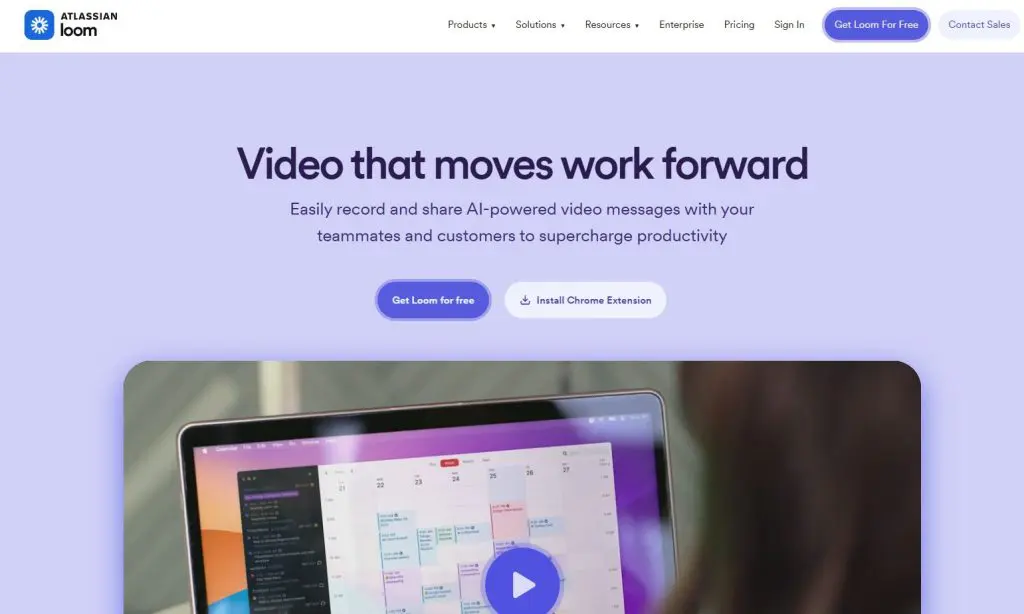
You click record, talk through your screen with or without your camera bubble, and Loom gives you a shareable link right away. For mini-courses, welcome lessons, quick updates, or coaching feedback, that speed really matters. It removes friction and helps you publish more often.
Loom’s built-in editor stays simple. You trim, stitch a couple of clips, add text, boxes, or arrows, pick a background, and you’re done. You can also add comments, emojis, and simple calls to action so your students or team can respond directly on the video.
The newer Loom AI features make it even more useful. Loom can clean up your recording, remove filler words and silences, create titles, summaries, chapters, and even generate written notes or recaps from your videos. If you record a lot of meetings, walkthroughs, or lesson drafts, those auto meeting notes and recaps save a lot of time.
For more complex editing, you can still download your Loom and finish it in a tool like Camtasia or ScreenFlow. But for many course creators, especially when you just need short, human, to-the-point videos, Loom on its own is enough.
Key Features in Loom
- One-click recording of screen, webcam, or both
- Works on Mac, Windows, Chrome, iOS, and Android
- Simple trim and stitch editing with overlays, text, arrows, and backgrounds
- HD video (up to 4K on paid plans) with camera frames and virtual backgrounds
- Transcriptions and closed captions in 50+ languages
- Loom AI for auto titles, summaries, chapters, and filler word/silence removal
- Auto meeting notes and recaps on supported plans
- Viewer insights and engagement analytics
- Emoji reactions, comments, and tasks right on the video
- Easy sharing and embedding in tools like Slack, Gmail, Notion, Jira, and more
Loom Pricing
- Starter (Free): Up to 25 videos, 5-minute screen recordings, unlimited meeting length, captions and transcripts, comments, and reactions
- Business: $15/user/month (billed annually) — unlimited videos, unlimited recording time, basic editing, remove Loom branding, upload/download videos
- Business + AI: $20/user/month (billed annually) — everything in Business plus auto video enhancement, advanced editing, video-to-text automation, variables, auto meeting notes and recaps
If you want quick, personal videos that feel like face-to-face explanations without setting up a full production workflow, Loom is still one of the easiest tools I recommend.
3. Camtasia
Best for: Full-featured screen recording and editing in one place
Camtasia has been a core part of my course-creation workflow for years, and the 2025 version pushes it even further. It’s still the easiest all-in-one tool when you want to record your screen, camera, mic, and system audio together — but now it adds powerful AI tools that speed up editing and help you polish your videos faster.
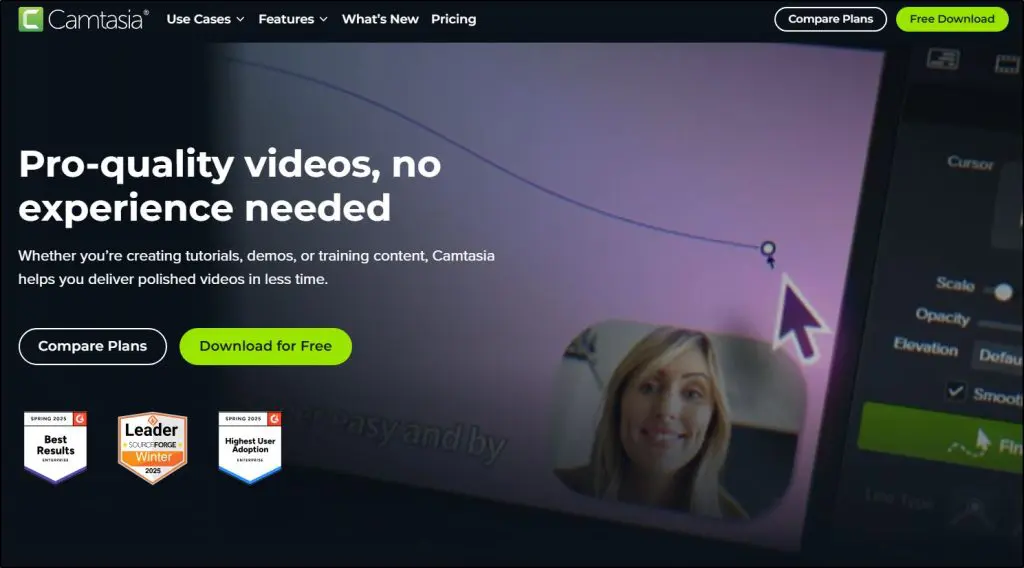
You can record every source on separate tracks, edit everything in a clean timeline, and use text-based editing through Audiate to cut mistakes just by deleting words. That alone saves hours when you’re recording long tutorials or slide-based lessons.

Camtasia works really well for software demos, walkthroughs, design tutorials, and any lesson where students need to see your screen clearly. If you create courses for businesses or corporate clients, you also get SCORM export — something most screen recorders don’t offer.
The newer AI features make a big difference too. You can generate scripts, remove filler words, create captions or translations, clean up background noise, or even produce AI voiceovers and avatars if you don’t want to get on camera. It still has a learning curve, but once you get used to it, it becomes your main video creation hub.
If you want one tool to record, edit, caption, translate, and publish your course content, Camtasia remains the best long-term choice.
Key Features of Camtasia
- Multitrack recording for screen, webcam, mic, and system audio
- Full timeline editor with transitions, callouts, cursor effects, and animations
- Text-based editing through Audiate (delete words to cut video)
- AI voiceovers, script generation, background noise removal
- AI avatars and automatic captions/translations (Pro plan)
- Add quizzes and export SCORM packages for LMS delivery
- Works on Mac and Windows
Camtasia Pricing
- Essentials: $179.88/year
- Create: $249/year (adds text-based editing + AI scripts + AI voiceovers)
- Pro: $599/year (adds AI avatars, translations, 100M+ assets, and sharing tools)
- Free trial available

4. Adobe Captivate

Best for: Instructional designers and corporate training teams with advanced needs
Adobe Captivate still sits in a different category from tools like Loom or ScreenPal. It’s not just a screen recorder. It’s a full e-learning authoring tool for teams that need structured training, compliance modules, and rich interactivity.
The new Captivate focuses heavily on speed and AI. You can import a PowerPoint deck, and Captivate converts each slide into editable objects. You then tweak text, swap images, add animations, drop in quizzes, and turn a static slide deck into a real course.
Generative AI gives you a big boost if you build courses all day. You can generate images with Firefly, rewrite or clean up text, add AI avatars, create AI voiceovers in different languages and tones, and auto-generate transcripts and captions. That saves a lot of production time for large training projects.
Captivate also helps you build interactive learning: branching scenarios, simulations, drag-and-drop widgets, hotspots, timelines, accordions, and more. Courses are responsive by default, so you design once and deliver on desktop, tablet, and mobile without rebuilding layouts from scratch.
It’s still overkill for a solo creator building a simple Kajabi or Thinkific course. But if you work in L&D, HR, or corporate training and need full control over instructional design, team review, and LMS delivery, Captivate fits that world very well. You also get Captivate Classic in the same subscription so you can maintain older projects.
Adobe Captivate Key Features
- Import PowerPoint decks and convert slides into fully editable objects
- Use generative AI to create images, rewrite text, and speed up content creation
- Add AI-generated avatars and multi-language voiceovers
- Build interactive courses with widgets, branching, quizzes, and simulations
- Responsive by default: design once for all screen sizes
- Share for review and collect comments from stakeholders in the browser
- Output in LMS-friendly formats for corporate delivery
- Includes both the new Captivate and Captivate Classic for legacy courses
Adobe Captivate Pricing
- Individual subscription: $39.99/month – includes new Adobe Captivate, Captivate Classic, 100GB storage, and a monthly pool of generative AI credits
- Teams and Enterprise plans: Volume licensing with admin console and higher generative credit limits (contact sales for pricing)
- Education plans: Discounted pricing for eligible institutions (via sales)
If you’re a solo edupreneur, Captivate is usually more than you need. If you’re an instructional designer building formal training for an LMS, it’s one of the most capable tools you can use.
5. Descript
Best for: Editing your course videos like you’re editing a doc
Descript is still one of the most unique tools I recommend for course creators who talk a lot on camera or over slides. It treats your audio and video like a document. You record (or import a file), Descript instantly transcribes it, and you edit your video by editing the text.
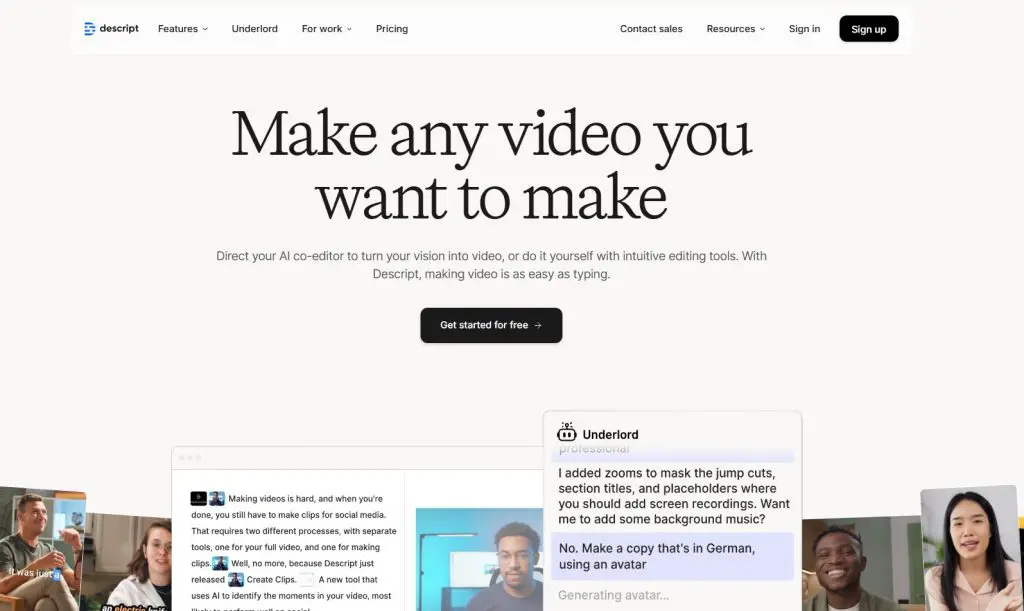
Now, with Underlord (Descript’s AI co-editor), it goes even further. You can ask it to write or improve your script, cut filler, clean up the audio, add B-roll, fix your eye contact, and design layouts for you. You tell it what you want, and most of the heavy lifting happens in the background.
This works really well if your course relies on lessons, walkthroughs, or screen-based teaching. You can record your screen inside Descript, get an instant transcript, and then delete sentences, reorder sections, or clean up mistakes without thinking about a traditional timeline editor.
On top of that, you get Studio Sound to clean your audio, Eye Contact to fix your gaze, Green Screen to replace your background, automatic captions and translations, and even AI avatars and text-to-speech so you can stay off camera when you need to.
Descript doesn’t give you Camtasia-style cursor effects or SCORM export, so I don’t treat it as a full authoring tool. But if you want to produce a lot of lessons, refine them quickly, and turn them into clips for YouTube or social, Descript can easily cut your editing time in half.
Descript’s Key Features
- Screen + webcam recording built into the desktop app
- Instant AI transcription and true text-based editing
- Underlord AI co-editor for scripting, edits, clips, and layouts
- Studio Sound, Eye Contact, Green Screen, and automatic filler word removal
- AI captions and translation for multi-language audiences
- AI avatars and AI Speech with custom voice clones and regenerate
- Quick Design and AI-generated B-roll for fast visual polish
- Great for podcasts, talking-head lessons, and repurposing long recordings into short clips
- Works on Mac and Windows
Descript Pricing
- Free: 1 media hour/month, 100 AI credits, 720p exports with watermark, limited Underlord and AI tools
- Hobbyist: $16/person/month – 10 media hours, 400 AI credits, 1080p exports, access to Underlord and core AI tools (Studio Sound, Remove Filler Words, Create Clips, etc.), AI Speech with custom voice clones
- Creator: $24/person/month – 30 media hours, 800 AI credits, 4K exports, full Underlord access, advanced AI tools, AI video generation, and unlimited stock media
For course creators who want to move fast and hate traditional editing, Descript is one of the best “brains + speed” tools you can add to your stack.

6. Screenflow
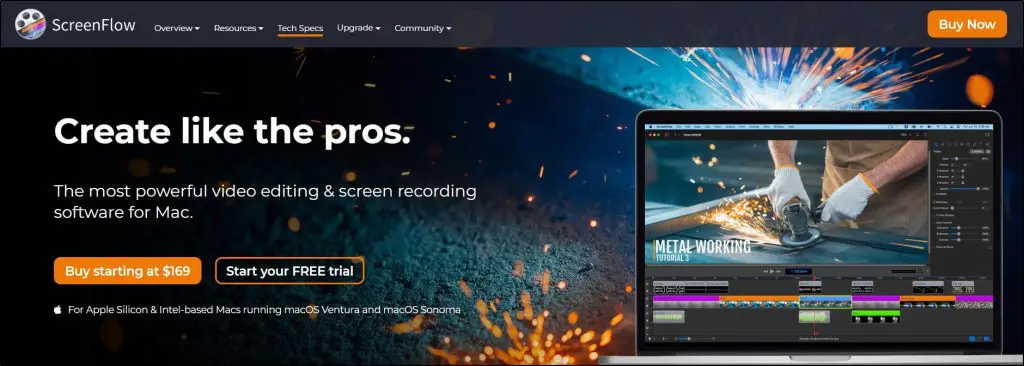
Best for: Mac-based course creators who want Camtasia-level features without switching platforms
ScreenFlow has been my go-to screen recording and editing tool on macOS for years. If you live in the Apple ecosystem and want Camtasia-level control without leaving the Mac world, ScreenFlow still feels like the most natural fit.
You can record your screen, camera, and microphone at the same time, all perfectly in sync.
It handles app switching really well, so if you jump between slides, browser tabs, and software during a lesson, ScreenFlow keeps everything clean on the timeline.
Editing stays straightforward but powerful. You get transitions, text and video animations, freehand annotations, multi-channel audio, filters, and a customizable title library.
That mix makes it ideal for software tutorials, slide-based lessons, marketing videos, or full course modules where you want a more cinematic look.
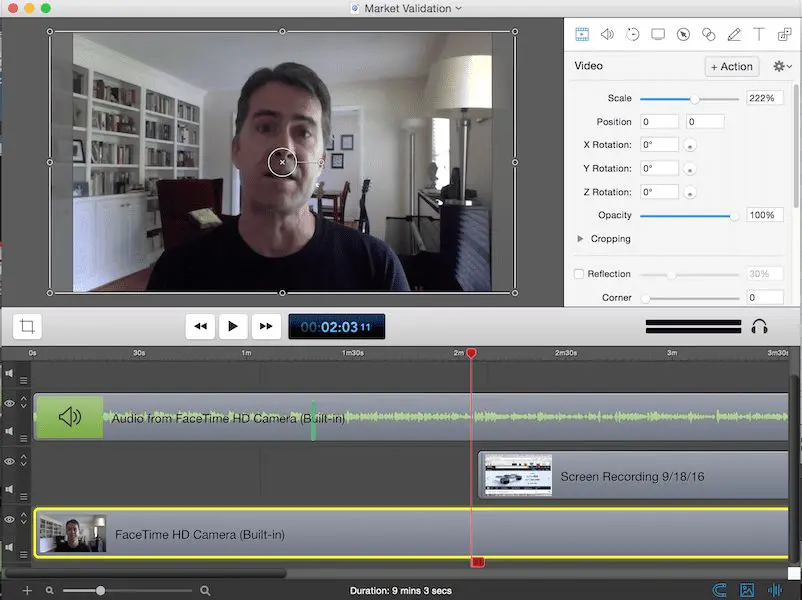
I also like the extras for educators and trainers. You can record iOS screens for mobile app demos, create templates and styles for recurring series, and export in multiple formats, including animated GIFs or PNGs for quick loops and visual explainers.
If you want a Mac-only tool that feels fast, gives you real editing control, and can handle full courses from start to finish, ScreenFlow remains a very strong option.
Key ScreenFlow Features
- Simultaneous recording of screen, camera, and microphone
- Easy-to-learn editor with transitions, text and video animations, and annotations
- Multi-track editing with markers, nested clips, and color labels
- iOS screen recording for iPhone and iPad demos
- Customizable title library and cinematic video filters
- Built-in stock media library (images, audio, and video) via add-on
- Closed caption editor for ADA-compliant subtitles
- Export to MP4, ProRes, GIF, and animated PNG
- Direct publishing to popular platforms and hosting services
- Mac only (Apple Silicon and Intel-based Macs)
ScreenFlow Pricing
- ScreenFlow license: $169 (one-time purchase)
- ScreenFlow Super Pak: $229 (ScreenFlow + Stock Media Library first year, discounted)
- ScreenFlow Super Pak + Premium Support: $259 (adds priority support and upgrade discount)
- Optional Stock Media Library: typically $79/year after the first-year discount
If you already work on a Mac and want a serious editor that also handles screen recording beautifully, ScreenFlow deserves a spot near the top of your shortlist.

7. VEED.io
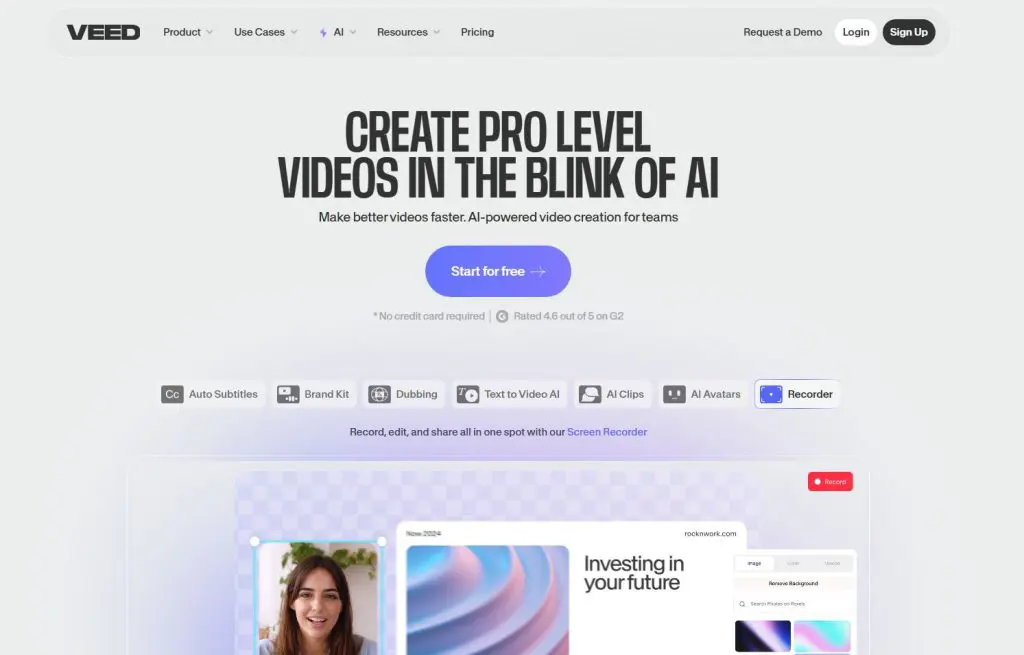
Best for: Polishing and repurposing course videos with captions, branding, and edits, all in your browser
VEED.io still isn’t the first tool I’d pick to record an entire course from scratch, but it has become one of the best browser-based “finishers” for course creators.
You can record your screen and webcam directly in the browser, but the real value kicks in after you hit stop. VEED gives you a full online editor plus a stack of AI tools that help you clean, brand, and repurpose your lessons without touching desktop software.
For example, you can:
- Auto-generate subtitles in a couple of clicks
- Translate them into dozens of languages
- Use AI dubbing and text-to-speech to “speak” another language
- Fix eye contact, remove background noise, and cut filler words automatically
That mix makes VEED especially useful when you want to turn raw course recordings into:
- Branded lesson videos for your LMS
- Short promo clips for social media
- Captioned versions for accessibility and global students
The stock library (2M+ video and audio assets) also helps you add B-roll, background music, and overlays if you don’t have your own media. And if you work with a team, the collaboration features, brand kits, and review mode make it much easier to keep everything on-brand.
It’s not meant for deep timeline editing like Camtasia or ScreenFlow, and you’ll want to watch the credit-based AI models if you go heavy on AI video generation. But as an online recording + editing hub that makes your course content look more professional and more accessible, VEED is very hard to ignore.
Key VEED.io Features
- Browser-based screen + webcam recorder (no software download needed)
- Timeline editor for cutting, trimming, and adding text, overlays, and music
- Auto subtitles and caption generator with translation to 50+ languages
- AI tools for eye contact correction, background removal, clean audio, and filler word removal
- AI avatars and text-to-speech for talking head and dubbed videos
- Brand Kit, custom templates, and progress bars for on-brand content
- 2M+ royalty-free stock video and audio assets
- Team collaboration with review mode, comments, and asset sharing
- Hosting and embeddable video player with privacy controls and analytics
VEED.io Pricing
- Free plan: Basic editor and recorder, watermark, lower limits
- Lite plan: From $9/month per editor (billed yearly) – no watermark, 1080p exports, stock media, basic Brand Kit
- Pro plan: From $24/month per editor (billed yearly) – everything in Lite plus full Brand Kit, more AI tools, AI dubbing, text-to-speech, and more translation hours
- Enterprise: Custom pricing for larger teams, custom templates, multiple brand kits, SSO, advanced security, and priority support
If you already have a main recorder but want a fast, AI-assisted way to caption, translate, and repurpose your course videos, VEED is a great companion tool to add to your stack.
8. Tella

Best for: Branded micro-lessons, welcome videos, and polished webcam presentations
Tella feels like what Loom would look like if it was built for creators and course sellers first.
Instead of forcing you into one long, stressful take, Tella lets you record in clips. You record short segments, fix mistakes as you go, reshuffle clips, and end up with a clean lesson or demo without redoing the whole thing.
For recording course content, that one change alone reduces a lot of mental friction.
You can record in the browser or with the desktop app, add speaker notes right in the interface, and switch layouts and backgrounds so your videos actually look branded, not like quick screen dumps.
Tella now leans heavily on AI to clean things up for you:
- Remove silences in one click
- Cut all your “ums” and “uhs”
- Edit via transcript instead of hunting in the timeline
- Auto-trim the awkward start and end of your recording
For course creators, this is perfect when you want videos that feel closer to “proper production” but you don’t want to jump into something heavier like Camtasia or ScreenFlow. I’d use Tella for:
- Course lessons where you talk to camera + show your screen
- Product or platform walkthroughs for your students
- Quick bonus lessons, updates, and feedback videos
You also get 4K export, 60 FPS (up to 5 minutes), instant sharing links, and simple hosting with embeds, so you can drop videos into your course platform, sales pages, or help docs without extra tools.
It’s not a full-blown editor for complex multi-track projects, but for everyday course and client-facing videos, it hits a very comfortable sweet spot.
Key Tella Features
- Record in clips instead of one long take
- Screen + camera recording in browser or desktop app
- Speaker notes for scripts and talking points
- AI editing: remove silences, remove filler words, edit with text
- Automatic trimming at the start and end
- Customizable backgrounds and layouts
- 4K and 60 FPS export (with limits)
- Instant sharing links and video hosting
- Embeds for sites, apps, and course platforms
- Team workspace for shared content
Tella Pricing
- Pro: From $13 per user/month (yearly) – unlimited videos, unlimited recording duration, upload your own clips, AI editing, instant sharing, 60 FPS export (up to 5 minutes), 4K export, team workspace
- Premium: From $19 per user/month (yearly) – everything in Pro plus custom branding, custom domain, and more advanced export/branding options
Both paid plans come with a 7-day free trial (no credit card required), which is usually enough to see if it fits your course workflow.
What’s The Best Screen Recording Tool For Course Creators?
The best screen recording tool for you depends on what kind of content you’re creating, how much editing control you want, and how quickly you need to get lessons out into the world.
Some tools are built for polish. Others are built for speed. The right fit is the one that helps you teach more effectively.
Here’s a quick recap of our top 5 picks:
- Camtasia – Best for full-featured recording and editing in one place
- ScreenFlow – Best for Mac-based creators who want power and polish
- ScreenPal – Best for simple, budget-friendly screen recording
- Loom – Best for cloud-based recording and instant sharing
- Descript – Best for AI-powered editing and script-driven content
If you’re not sure which one to choose, try their free trials.
Most of these tools offer generous free plans or trial periods, and there’s no better way to find your fit than actually using them.
How We Evaluate and Test Online Course Platforms & Related Software
Reviews of platforms and software on the Learning Revolution site are overseen by the site’s founder, Jeff Cobb, an e-learning industry expert with more than 20 years of experience working with online course platforms. All evaluations are conducted by a team of analysts who have extensive experience using, testing, and writing about these types of platforms. We dedicate numerous hours to researching each platform, ensuring each aligns with the needs of online course sellers, and vetting specific areas like core features, usability, pricing, and customer satisfaction. Our reviews are unbiased, and while we will participate in affiliate programs, if available, we do not accept payment for placement in our articles or links to external websites.

ABOUT YOUR HOST
Learning Revolution founder Jeff Cobb is an expert in online education and the business of adult lifelong learning. Over the past 20+ years he has built a thriving career based on that expertise – as an entrepreneur, a consultant, an author, and a speaker. Learning Revolution is a place where Jeff curates tips, insights, and resources to help you build a thriving expertise-based business.

This is a really helpful roundup for anyone creating online courses! I appreciate the clear breakdown of features and pricing for each software. It makes it much easier to compare options and choose the right tool for specific needs. Thanks for putting this together!