
TL;DR: The Best Screen Recording Software for Course Creators (2026)
Screen recorders help you teach more effectively by capturing your screen, slides, voice, and webcam so you can create clear, professional lessons.
Here are the 8 tools from this guide, sorted by what they do best in real course-creation workflows.
Camtasia is best for full-featured recording and editing in one tool. From $179.88/year.
ScreenFlow is best for Mac-based creators who want power and polish. $199 one-time.
ScreenPal is best for simple, reliable recording on any device. Paid plans from $4/mo on annual billing.
Loom is best for quick, personal lessons and coaching-style videos. Paid plans from $15/user/mo on annual billing.
Descript is best for editing videos like a document with AI. Paid plans from $16/mo on annual billing.
Adobe Captivate is best for instructional designers and corporate training. $39.99/mo.
VEED is best for branded, captioned, and repurposed lesson videos. Paid plans from $10/user/mo on annual billing.
Tella is best for clean, branded webcam and screen lessons with minimal effort. From $13/user/mo on annual billing.
Screen recording software is one of your most important tools as an online course creator and e-learning professional.
A good screen recorder helps you capture everything clearly and professionally, whether you’re teaching a platform, walking through a slide deck, or demoing a process step by step.
Most course creators use screen recording software for four jobs.
- Record presentations or slide-based lessons with voice narration. If that’s your main format, see my guide on how to record a PowerPoint presentation.
- Walk students through software, websites, or design tools
- Show both their screen and webcam to build trust and connection, which matters when you sell courses online
- Trim mistakes, highlight key points, and export high-quality videos for their course platform
In short, it’s how you turn your knowledge into visual lessons. The same recordings also work for tutorials if you plan to start a YouTube channel.
In this guide, I review the best screen recording software for course creators, including options for beginners, budget users, and more advanced educators. I checked every price against the vendor’s live pricing page.
Read: The best online course platforms for video courses
The Best Screen Recording Software Comparison (2026)
| Tool | Best For | Starting Price |
|---|---|---|
| Camtasia | Full-featured recording and editing in one tool | $179.88/year for Essentials |
| ScreenFlow | Mac creators who want power and polish | $199 one-time |
| ScreenPal | Simple, reliable recording on any device | $4/mo on annual billing |
| Loom | Quick, personal lessons and coaching-style videos | $15/user/mo on annual billing |
| Descript | Editing videos like a document with AI | $16/mo on annual billing |
| Adobe Captivate | Instructional designers and corporate training | $39.99/mo |
| VEED | Branded, captioned, and repurposed lesson videos | $10/user/mo on annual billing |
| Tella | Clean, branded webcam and screen lessons with minimal effort | $13/user/mo on annual billing |
The Best Screen Recorders For Course Creators
Some screen recording tools on this list include built-in editing features. They let you trim clips, cut out mistakes, add annotations, and drop in transitions.
For most creators, that’s all you need. Good sound matters as much as the picture, so pair your recorder with a decent microphone. My equipment guide covers microphones, cameras, and lighting.
If you want advanced effects or multi-track edits, you can always export your recordings to a professional video editor like Final Cut Pro, Adobe Premiere, or DaVinci Resolve.
Read: The best video editing software for course creators
1. ScreenPal

- Best for: Simple, reliable screen recording without the learning curve
- Starting price: $4/month on annual billing for the Solo Deluxe plan
- Free plan or trial: Free plan (15-minute recordings, 10 hosted videos)
- Works on: Windows, Mac, Chromebook, iOS, and Android
I’ve used ScreenPal on and off for years, going back to when it was called Screencast-O-Matic. It’s still one of the easiest ways to record your screen and publish a lesson fast.
You open it, hit record, choose your screen, webcam, or both, and start talking. When you finish, you trim the rough edges, add text or arrows if you need them, and export or share with a link. You don’t fight the interface, and you don’t need editing skills.
For simple course walkthroughs, software demos, or slide narration, that alone makes it a great pick for first-time course creators.
The newer versions add a strong AI layer on top of that simple flow. ScreenPal can auto-generate transcripts, captions, titles, summaries, and chapters from your videos. It also includes AI text-to-speech narration and an AI video generator on the Max plan.
You can translate captions and voiceovers into dozens of languages, add quizzes and polls, and host everything in the cloud with basic analytics for engagement.
It still doesn’t export SCORM packages like Camtasia. If you upload to platforms like Teachable, Kajabi, or Thinkific, or embed from ScreenPal itself, you probably won’t miss that.
You get a clean, budget-friendly recorder that scales nicely when you start adding more lessons.
If you want a tool that feels light, runs on almost any device, and gives you helpful AI tools without getting in your way, ScreenPal is very easy to recommend. If you only need the audio from a recording, our free video to MP3 converter pulls it out for you.
Key ScreenPal Features
- Record any part of your screen, webcam, or both
- Draw and annotate while recording
- Built-in video editor to trim, cut, add text, overlays, and music
- AI speech-to-text captions and full transcripts
- AI-generated titles, summaries, chapters, and quiz questions
- AI text-to-speech narration, AI video generator, and translation
- Interactive quizzes, polls, ratings, and call-to-action buttons
- Secure cloud hosting with sharing links, embeds, and basic analytics
- Works on Windows, Mac, Chromebook, iOS, and Android
ScreenPal Pricing Plans
- Free: $0. Up to 15-minute recordings, 10 hosted videos, and basic editing
- Solo Deluxe: $4/month on annual billing. Unlimited recording and hosting, the full editor, AI captions, and standard stock media
- Solo Max: $10/month on annual billing. Adds ScreenPal AI, AI narration, the AI video generator, unlimited quizzes and polls, and premium stock
- Team Business: $8/month per user on annual billing. All Max features plus collaboration, team management, and integrations. It needs 3 or more users
ScreenPal Features By Plan
| Feature | Free | Solo Deluxe | Solo Max | Team Business |
|---|---|---|---|---|
| Recording length | 15 minutes | Unlimited | Unlimited | Unlimited |
| Hosted videos | 10 | Unlimited | Unlimited | Unlimited |
| Video editor | Easy editing | Full editor | Full editor | Full editor |
| AI speech-to-text captions | ✗ | ✓ | ✓ | ✓ |
| ScreenPal AI (narration, video generator) | ✗ | ✗ | ✓ | ✓ |
| Quizzes and polls | 5 video quizzes | Not listed | Unlimited | Unlimited |
| Stock media | ✗ | Standard | Premium | Premium |
| Team management and SSO | ✗ | ✗ | ✗ | ✓ |
The free and paid plans all stay very affordable compared to most “pro” tools, which is why I still keep ScreenPal near the top of my list for new course creators.

2. Loom
- Best for: Fast, polished recordings when you want to keep things personal
- Starting price: $15/month per user on annual billing ($18 monthly) for the Business plan
- Free plan or trial: Free plan (25 videos, 5-minute recordings)
- Works on: Mac, Windows, Chrome, iOS, and Android
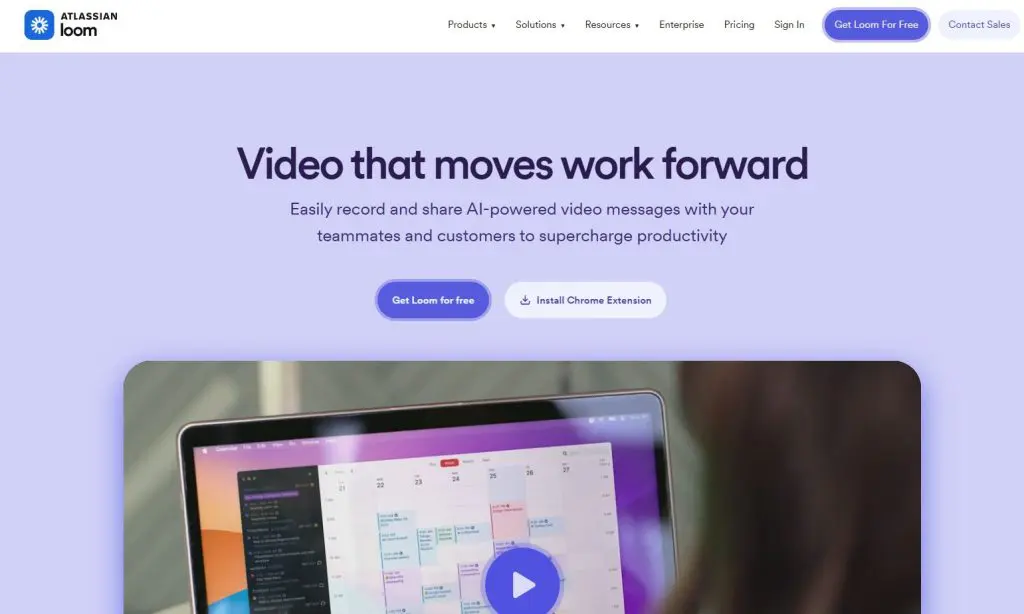
I’ve recommended Loom to a lot of first-time course creators, especially coaches, consultants, and experts who don’t want to fight with video editing but still want content that feels personal.
You click record, talk through your screen with or without your camera bubble, and Loom gives you a shareable link right away. For mini-courses, welcome lessons, quick updates, or coaching feedback, that speed really matters. It removes friction and helps you publish more often.
Loom’s built-in editor stays simple. You trim, stitch a couple of clips, add text, boxes, or arrows, pick a background, and you’re done. You can also add comments, emojis, and simple calls to action so your students or team can respond directly on the video.
The Loom AI features make it even more useful. Loom can clean up your recording, remove filler words and silences, create titles, summaries, and chapters, and generate written notes or recaps from your videos. If you record a lot of meetings, walkthroughs, or lesson drafts, the auto meeting notes and recaps save a lot of time. These features sit on the Business + AI plan.
Keep the free plan’s limits in mind. Screen recordings stop at 5 minutes and you can store 25 videos, so most course creators will need the Business plan.
For more complex editing, you can still download your Loom and finish it in a tool like Camtasia or ScreenFlow. For many course creators who need short, human, to-the-point videos, Loom on its own is enough. For live sessions with an audience, use one of the best webinar platforms and keep Loom for the recorded follow-ups.
Key Loom Features
- One-click recording of screen, webcam, or both
- Works on Mac, Windows, Chrome, iOS, and Android
- Simple trim and stitch editing with overlays, text, arrows, and backgrounds
- HD video (up to 4K on paid plans) with camera frames and virtual backgrounds
- Transcriptions and closed captions in 50+ languages
- Loom AI for auto titles, summaries, chapters, and filler word and silence removal
- Auto meeting notes and recap emails on the Business + AI plan
- Viewer insights and engagement analytics
- Emoji reactions, comments, and tasks right on the video
- Easy sharing and embedding in tools like Slack, Gmail, Notion, Jira, and more
Loom Pricing Plans
- Starter: $0. Up to 25 videos, 5-minute screen recordings, unlimited meeting length, transcriptions, comments, and reactions
- Business: $15/month per user on annual billing or $18/month paid monthly. Unlimited videos, unlimited recording time, basic editing, no Loom branding, and video uploads and downloads
- Business + AI: $20/month per user on annual billing or $24/month paid monthly. Everything in Business plus auto video enhancement, advanced editing, video-to-text automation, and auto meeting notes and recaps
- Enterprise: Custom. Adds SSO, SCIM, a Salesforce integration, and an uptime SLA
Loom Features By Plan
| Feature | Starter | Business | Business + AI | Enterprise |
|---|---|---|---|---|
| Videos | 25 | Unlimited | Unlimited | Unlimited |
| Screen recording length | 5 minutes | Unlimited | Unlimited | Unlimited |
| Transcriptions in 50+ languages | ✓ | ✓ | ✓ | ✓ |
| Remove Loom branding | ✗ | ✓ | ✓ | ✓ |
| Upload and download videos | ✗ | ✓ | ✓ | ✓ |
| Loom AI (auto enhancement, filler word removal) | ✗ | ✗ | ✓ | ✓ |
| Auto meeting notes and recaps | ✗ | ✗ | ✓ | ✓ |
| SSO and SCIM | ✗ | ✗ | ✗ | ✓ |
If you want quick, personal videos that feel like face-to-face explanations without setting up a full production workflow, Loom is still one of the easiest tools I recommend.
3. Camtasia
- Best for: Full-featured screen recording and editing in one place
- Starting price: $179.88/year for the Essentials plan. A $39/year Starter plan exists, but it watermarks Camtasia Editor exports
- Free plan or trial: No free plan. Every plan has a 14-day money-back guarantee
- Works on: Windows and Mac
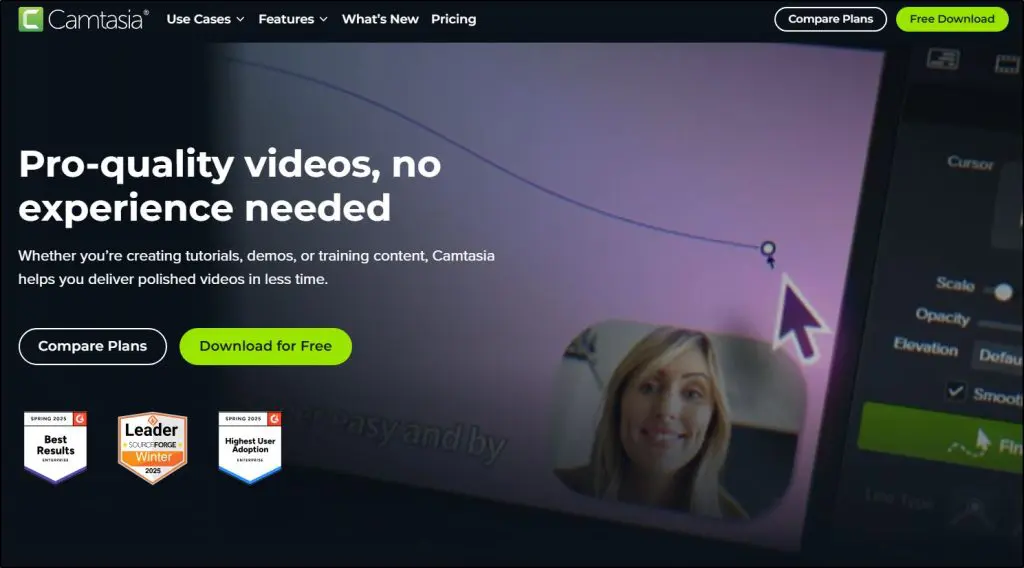
Camtasia has been a core part of my course-creation workflow for years, and the current version pushes it even further. It’s still the easiest all-in-one tool when you want to record your screen, camera, mic, and system audio together. It now adds powerful AI tools that speed up editing and help you polish your videos faster.
You can record every source on separate tracks, edit everything in a clean timeline, and use text-based editing through Audiate to cut mistakes by deleting words. That alone saves hours when you’re recording long tutorials or slide-based lessons.

Camtasia works really well for software demos, walkthroughs, design tutorials, and any lesson where students need to see your screen clearly. If you create courses for businesses or corporate clients, you also get SCORM export, which most screen recorders don’t offer.
The AI features make a big difference too. You can generate scripts, remove filler words, create captions or translations, clean up background noise, and produce AI voiceovers and avatars if you don’t want to get on camera. Scripts and voiceovers come with the Create plan. Avatars, translation, and dubbing need the Pro plan.
TechSmith now sells Camtasia as a suite. Every plan includes Snagit for screenshots, and Essentials and above include Audiate. The new Starter plan is mostly a Snagit plan, because its Camtasia Editor exports carry a watermark. Course creators should start at Essentials.
Camtasia still has a learning curve, but once you get used to it, it becomes your main video creation hub. If you’re on a Mac and torn between the two, read my ScreenFlow vs Camtasia comparison.
If you want one tool to record, edit, caption, translate, and publish your course content, Camtasia remains the best long-term choice.
Key Camtasia Features
- Multitrack recording for screen, webcam, mic, and system audio
- Full timeline editor with transitions, callouts, cursor effects, and animations
- Text-based editing through Audiate (delete words to cut video)
- AI voiceovers, script generation, and background noise removal
- AI avatars, audio dubbing, and script translation (Pro plan)
- Add quizzes and export SCORM packages for LMS delivery
- Snagit included for screenshots and step capture
- Works on Mac and Windows
Camtasia Pricing Plans
- Starter: $39/year, billed yearly. Snagit plus a watermarked Camtasia Editor
- Essentials: $179.88/year, billed yearly. Watermark-free editor, Audiate text-based editing, captions, quizzes, and SCORM export
- Create: $249/year, billed yearly. Adds AI script generation and AI voiceovers
- Pro: $599/year, billed yearly. Adds AI avatars, translation, dubbing, 100 million+ stock assets, and unlimited Screencast sharing
Camtasia Features By Plan
| Feature | Starter | Essentials | Create | Pro |
|---|---|---|---|---|
| Camtasia Editor | Watermarked | ✓ | ✓ | ✓ |
| Snagit screen capture | ✓ | ✓ | ✓ | ✓ |
| Audiate text-based editing | ✗ | ✓ | ✓ | ✓ |
| Captions and filler word removal | ✗ | ✓ | ✓ | ✓ |
| Quizzes and SCORM export | Watermarked | ✓ | ✓ | ✓ |
| AI scripts and voiceovers | ✗ | ✗ | ✓ | ✓ |
| AI avatars, translation, and dubbing | ✗ | ✗ | ✗ | ✓ |
| Stock assets | Starter library | Starter library | Starter library | 100 million+ |
| Screencast sharing | 25 videos | 25 videos | 25 videos | Unlimited |

4. Adobe Captivate

- Best for: Instructional designers and corporate training teams with advanced needs
- Starting price: $39.99/month for an individual subscription
- Free plan or trial: Free trial available
- Works on: Windows and Mac
Adobe Captivate still sits in a different category from tools like Loom or ScreenPal. It’s a full e-learning authoring tool for teams that need structured training, compliance modules, and rich interactivity. Screen recording is one small part of it.
The new Captivate focuses heavily on speed and AI. You can import a PowerPoint deck, and Captivate converts each slide into editable objects. You then tweak text, swap images, add animations, drop in quizzes, and turn a static slide deck into a real course.
Generative AI gives you a big boost if you build courses all day. You can generate images, rewrite or clean up text, add AI avatars, create AI voiceovers, and auto-generate transcripts. That saves a lot of production time on large training projects.
Captivate also helps you build interactive learning with branching scenarios, simulations, widgets, and quizzes. Courses are responsive by default, so you design once and deliver on desktop, tablet, and mobile without rebuilding layouts from scratch.
It’s still overkill for a solo creator building a simple Kajabi or Thinkific course. If you work in L&D, HR, or corporate training and need full control over instructional design, team review, and LMS delivery, Captivate fits that world very well.
Key Adobe Captivate Features
- Import PowerPoint decks and convert slides into fully editable objects
- Use generative AI to create images, rewrite text, and speed up content creation
- Add AI-generated avatars and voiceovers
- Build interactive courses with widgets, branching, quizzes, and simulations
- Responsive by default, so you design once for all screen sizes
- Share for review and collect comments from stakeholders
- Output in LMS-friendly formats for corporate delivery
Adobe Captivate Pricing Plans
- Individual: $39.99/month. One user with the new Adobe Captivate
- Teams and Enterprise: Custom. Volume licensing for teams, enterprises, and education through Adobe sales
Adobe Captivate Features By Plan
| Feature | Individual | Teams and Enterprise |
|---|---|---|
| New Adobe Captivate | ✓ | ✓ |
| Generative AI for images, text, avatars, and voices | ✓ | ✓ |
| PowerPoint import | ✓ | ✓ |
| Responsive output for all screen sizes | ✓ | ✓ |
| Volume licensing through sales | ✗ | ✓ |
If you’re a solo edupreneur, Captivate is usually more than you need. If you’re an instructional designer building formal training for an LMS, it’s one of the most capable tools you can use.
5. Descript
- Best for: Editing your course videos like you’re editing a doc
- Starting price: $16/month on annual billing ($24 monthly) for the Hobbyist plan
- Free plan or trial: Free plan
- Works on: Windows and Mac
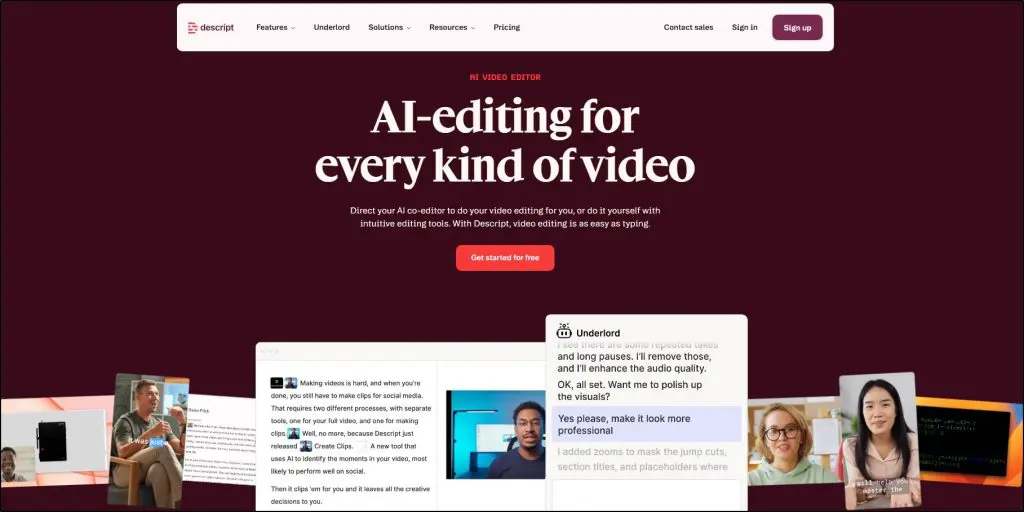
Descript is still one of the most unique tools I recommend for course creators who talk a lot on camera or over slides. It treats your audio and video like a document. You record or import a file, Descript transcribes it, and you edit your video by editing the text.
With Underlord, Descript’s AI co-editor, it goes even further. You can ask it to write or improve your script, cut filler, clean up the audio, add B-roll, fix your eye contact, and design layouts for you. You tell it what you want, and it does most of the editing in the background.
This works really well if your course relies on lessons, walkthroughs, or screen-based teaching. You can record your screen inside Descript, get an instant transcript, and then delete sentences, reorder sections, or clean up mistakes without thinking about a traditional timeline editor.
On top of that, you get Studio Sound to clean your audio, Eye Contact to fix your gaze, Green Screen to replace your background, automatic captions, and AI speech with custom voice clones. Translation and dubbing in 30+ languages and custom avatars come with the Business plan.
Descript also offers a video editing MCP, which lets an AI assistant work on your Descript projects. It’s one of several AI video generators and editors worth a look. If you want AI voices for narration, see my Wondercraft review.
Plans meter your usage in media hours and AI credits each month, so check those two numbers against how much you record.
Descript doesn’t give you Camtasia-style cursor effects or SCORM export, so I don’t treat it as a full authoring tool. If you want to produce a lot of lessons, refine them quickly, and turn them into clips for YouTube or social, Descript can cut your editing time sharply. Clean transcripts and chapters also help with YouTube SEO.
Key Descript Features
- Screen and webcam recording built into the desktop app
- Instant AI transcription and true text-based editing
- Underlord AI co-editor for scripting, edits, clips, and layouts
- Studio Sound, Eye Contact, Green Screen, and automatic filler word removal
- AI captions, plus translation and dubbing on the Business plan
- AI speech with custom voice clones and video regenerate
- AI video generation and a royalty-free stock media library on the Creator plan
- Great for podcasts, talking-head lessons, and repurposing long recordings into short clips
- Works on Mac and Windows
Descript Pricing Plans
- Free: $0. Text-based editing and a trial run of the AI tools
- Hobbyist: $16/month per user on annual billing or $24/month paid monthly. 10 media hours, 400 AI credits, 1080p watermark-free exports, Underlord, and core AI tools
- Creator: $24/month per user on annual billing or $35/month paid monthly. 30 media hours, 800 AI credits, 4K exports, full Underlord access, AI video generation, and unlimited stock media
- Business: $50/month per user on annual billing or $65/month paid monthly. 40 media hours, 1,500 AI credits, Brand Studio, translation and dubbing, and custom avatars
- Enterprise: Custom. Custom credits, security controls, and dedicated support
Descript Features By Plan
| Feature | Free | Hobbyist | Creator | Business | Enterprise |
|---|---|---|---|---|---|
| Media hours a month | 1 | 10 | 30 | 40 | Custom |
| AI credits a month | 100 (one-time) | 400 | 800 | 1,500 | Custom |
| Export quality | 720p, watermarked | 1080p, no watermark | 4K, no watermark | 4K, no watermark | 4K, no watermark |
| Underlord AI co-editor | Limited | ✓ | Full access | Full access | Full access |
| AI Speech with custom voice clones | ✗ | ✓ | ✓ | ✓ | ✓ |
| Generate video with the latest AI models | ✗ | ✗ | ✓ | ✓ | ✓ |
| Custom avatars | ✗ | ✗ | ✗ | ✓ | ✓ |
| Royalty-free stock media library | ✗ | ✗ | Unlimited | Unlimited | Unlimited |
| Translate and dub in 30+ languages | ✗ | ✗ | ✗ | ✓ | ✓ |
| Brand Studio | ✗ | ✗ | ✗ | ✓ | ✓ |
| SSO, SCIM, and audit logs | ✗ | ✗ | ✗ | ✗ | ✓ |
For course creators who want to move fast and hate traditional editing, Descript is one of the best speed tools you can add to your stack.

6. ScreenFlow
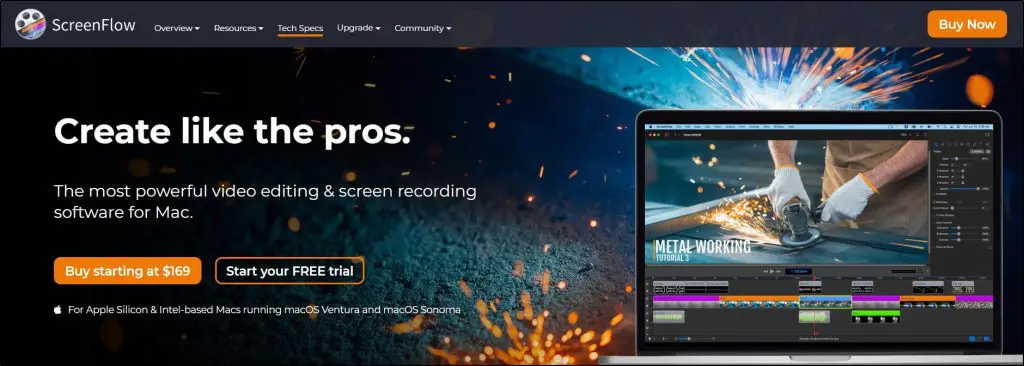
- Best for: Mac-based course creators who want Camtasia-level features without switching platforms
- Starting price: $199 one-time purchase
- Free plan or trial: None listed on the store page
- Works on: Mac only (Apple Silicon and Intel-based Macs)
ScreenFlow has been my go-to screen recording and editing tool on macOS for years. If you work on Apple devices and want Camtasia-level control without leaving the Mac world, ScreenFlow still feels like the most natural fit.
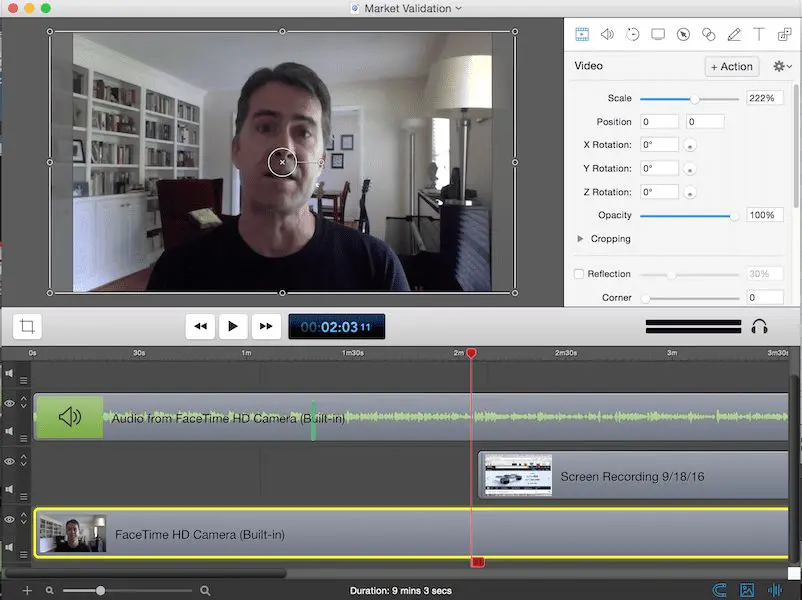
You can record your screen, camera, and microphone at the same time, all perfectly in sync.
It handles app switching really well, so if you jump between slides, browser tabs, and software during a lesson, ScreenFlow keeps everything clean on the timeline.
Editing stays straightforward but powerful. You get transitions, text and video animations, freehand annotations, multi-channel audio, filters, and a customizable title library.
That mix makes it ideal for software tutorials, slide-based lessons, marketing videos, or full course modules where you want a more cinematic look.
I also like the extras for educators and trainers. You can record iOS screens for mobile app demos, create templates and styles for recurring series, and export in multiple formats, including animated GIFs or PNGs for quick loops and visual explainers.
Two things to weigh. The license price has gone up, and ScreenFlow hasn’t added the AI editing tools you now get in Camtasia, Descript, or Tella. You pay once, though, so it can cost less than a subscription over two or three years.
If you want a Mac-only tool that feels fast, gives you real editing control, and can handle full courses from start to finish, ScreenFlow remains a very strong option.
Key ScreenFlow Features
- Simultaneous recording of screen, camera, and microphone
- Easy-to-learn editor with transitions, text and video animations, and annotations
- Multi-track editing with markers, nested clips, and color labels
- iOS screen recording for iPhone and iPad demos
- Customizable title library and cinematic video filters
- Built-in stock media library with 500,000+ images, audio, and video clips as an add-on
- Closed caption editor for ADA-compliant subtitles
- Export to MP4, ProRes, GIF, and animated PNG
- Direct publishing to popular platforms and hosting services
- Mac only (Apple Silicon and Intel-based Macs)
ScreenFlow Pricing Plans
- ScreenFlow: $199 one-time purchase. The standard license with free self-help support
- ScreenFlow Super Pak: $275 one-time purchase. ScreenFlow plus the first year of the Stock Media Library
- ScreenFlow Super Pak +: $325 one-time purchase. Adds Premium Support with priority email responses and 25% off future upgrades
ScreenFlow Features By Plan
| Feature | ScreenFlow | ScreenFlow Super Pak | ScreenFlow Super Pak + |
|---|---|---|---|
| ScreenFlow license | ✓ | ✓ | ✓ |
| Stock Media Library | ✗ | First year included | First year included |
| Premium Support | ✗ | ✗ | ✓ |
| Self-help support | ✓ | ✓ | ✓ |
The Stock Media Library renews as a yearly subscription after the first year. If you already work on a Mac and want a serious editor that also handles screen recording beautifully, ScreenFlow deserves a spot near the top of your shortlist.

7. VEED
- Best for: Polishing and repurposing course videos with captions, branding, and edits, all in your browser
- Starting price: $10/month per user on annual billing for the Creator plan
- Free plan or trial: Free plan with watermarked exports
- Works on: Any operating system, in the browser
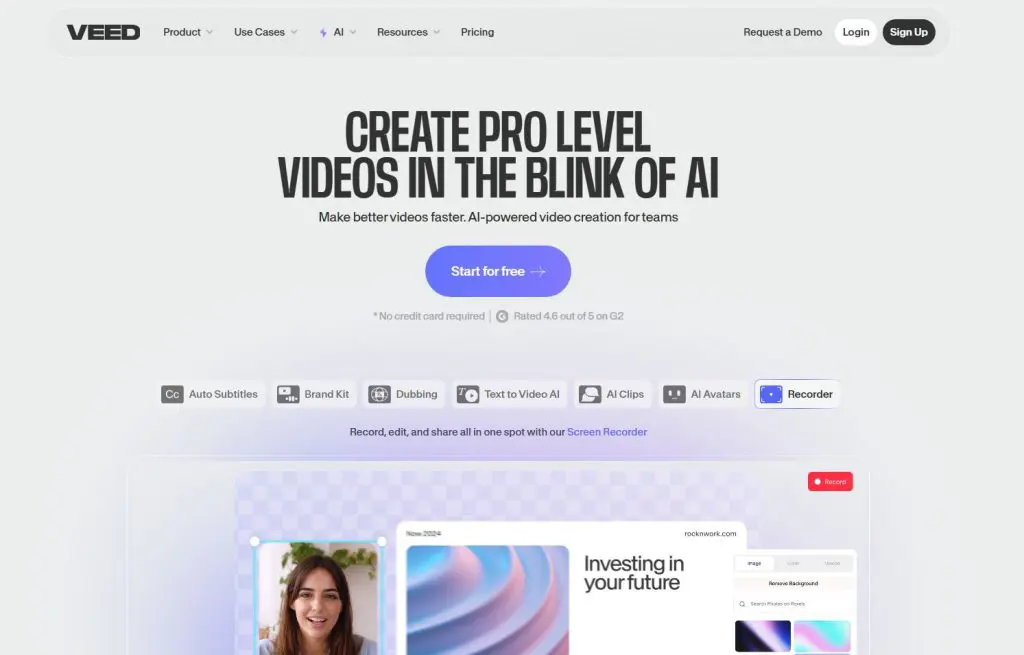
VEED still isn’t the first tool I’d pick to record an entire course from scratch, but it has become one of the best browser-based “finishers” for course creators.
You can record your screen and webcam directly in the browser, but the real value kicks in after you hit stop. VEED gives you a full online editor plus a stack of AI tools that help you clean, brand, and repurpose your lessons without touching desktop software.
Here’s what you can do with it.
- Auto-generate subtitles in a couple of clicks
- Translate them into 50+ languages on the Pro plan
- Use AI dubbing and text-to-speech to “speak” another language
- Fix eye contact, remove background noise, and cut filler words automatically
That mix makes VEED especially useful when you want to turn raw course recordings into three kinds of content.
- Branded lesson videos for your LMS
- Short promo clips for social media
- Captioned versions for accessibility and global students
The stock library also helps you add B-roll, background music, and overlays if you don’t have your own media. If you work with a team, the brand kits and review mode make it much easier to keep everything on-brand.
VEED has rebuilt its plans around AI credits. The paid plans are now Creator, Pro, and Studio, and each one includes a pool of credits for its Gen-AI Studio, which generates video from text, images, and avatars.
It’s not meant for deep timeline editing like Camtasia or ScreenFlow, and you’ll want to watch your credits if you go heavy on AI video generation. As an online recording and editing hub that makes your course content look more professional and more accessible, VEED is very hard to ignore. Those short clips are useful if you want to make money on YouTube alongside your course.
Key VEED Features
- Browser-based screen and webcam recorder (no software download needed)
- Timeline editor for cutting, trimming, and adding text, overlays, and music
- Auto subtitles and caption generator with translation to 50+ languages
- AI tools for eye contact correction, background removal, clean audio, and filler word removal
- AI avatars, AI voice, and dubbing for talking head videos
- Gen-AI Studio for AI-generated video
- Brand kits and custom templates for on-brand content
- Full audio and video stock catalog on paid plans
- Review mode and privacy controls on the Enterprise plan
VEED Pricing Plans
- Free: $0. Basic editor and recorder with a watermark
- Creator: $10/month per user on annual billing. 6,000 credits, no watermark, unlimited auto subtitles, and the full stock catalog
- Pro: $21/month per user on annual billing. 30,000 credits, multiple brand kits, translation to 50+ languages, and AI voice
- Studio: $35/month per user on annual billing. 180,000 credits, custom templates, and far more AI voice hours
- Enterprise: Custom. Custom credits, central team management, review mode, and privacy controls
VEED Features By Plan
| Feature | Free | Creator | Pro | Studio | Enterprise |
|---|---|---|---|---|---|
| AI credits | Not listed | 6,000 | 30,000 | 180,000 | Custom |
| Watermark-free exports | ✗ | ✓ | ✓ | ✓ | ✓ |
| Auto subtitles | Limited | Unlimited | Unlimited | Unlimited | Unlimited |
| Translation to 50+ languages | ✗ | ✗ | ✓ | ✓ | ✓ |
| AI voice | ✗ | Not listed | Up to 144 hours a year | Up to 960 hours a year | Custom |
| Brand kits | ✗ | Not listed | Multiple | Multiple | Multiple |
| Custom templates | ✗ | ✗ | ✗ | ✓ | ✓ |
| Review mode and privacy controls | ✗ | ✗ | ✗ | ✗ | ✓ |
If you already have a main recorder but want a fast, AI-assisted way to caption, translate, and repurpose your course videos, VEED is a great companion tool to add to your stack.
8. Tella

- Best for: Branded micro-lessons, welcome videos, and polished webcam presentations
- Starting price: $13/month per user on annual billing for the Pro plan
- Free plan or trial: 7-day free trial
- Works on: Browser, Mac app, Windows app, and Chrome extension
Tella feels like what Loom would look like if it was built for creators and course sellers first.
Tella lets you record in clips, so you never have to nail one long, stressful take. You record short segments, fix mistakes as you go, reshuffle clips, and end up with a clean lesson or demo without redoing the whole thing.
For recording course content, that one change alone reduces a lot of mental friction.
You can record in the browser or with the desktop app, read your script from the built-in teleprompter, and switch layouts and backgrounds so your videos look branded.
Tella now leans heavily on AI to clean things up for you.
- Remove silences in one click
- Cut all your “ums” and “uhs”
- Edit through the transcript so you don’t have to hunt in the timeline
- Find mistakes automatically with the AI mistakes finder
- Add zoom effects automatically with Auto Zoom
It also writes titles, descriptions, and chapters for you, and it can turn a video into a written document. Tella has added an MCP connection as well, so an AI assistant can work with your videos.
For course creators, this is perfect when you want videos that feel closer to proper production but you don’t want to jump into something heavier like Camtasia or ScreenFlow. I’d use Tella for three things.
- Course lessons where you talk to camera and show your screen
- Product or platform walkthroughs for your students
- Quick bonus lessons, updates, and feedback videos
You also get 4K export, instant sharing links, and simple hosting with embeds, so you can drop videos into your course platform, sales pages, or help docs without extra tools. On the Pro plan, 60 FPS export is limited to 5 minutes.
It’s not a full-blown editor for complex multi-track projects, but for everyday course and client-facing videos, it hits a very comfortable sweet spot. Tella hosts your videos too, but if you want to sell a full video library, look at a dedicated platform such as Uscreen or one of these YouTube alternatives.
Key Tella Features
- Record in clips with no need for one long take
- Screen and camera recording in the browser or desktop app
- Teleprompter for scripts and talking points
- AI editing that removes silences and filler words and lets you edit with text
- Auto Layouts, Auto Zoom, and AI audio enhancement
- Transcription in 106 languages
- 4K export, with 60 FPS on the Premium plan
- Instant sharing links and video hosting
- Embeds for sites, apps, and course platforms
- Team collaboration with shared playlists
Tella Pricing Plans
- Pro: $13/month per user on annual billing. Unlimited videos, AI editing, 4K export, team collaboration, and analytics
- Premium: $19/month per user on annual billing. Everything in Pro plus a custom domain, domain restriction, no Tella branding, 60 FPS export, and advanced analytics
- Enterprise: Custom. Adds SSO and SCIM, personalized onboarding, and volume discounts
Tella Features By Plan
| Feature | Pro | Premium | Enterprise |
|---|---|---|---|
| Unlimited videos | ✓ | ✓ | ✓ |
| 4K export | ✓ | ✓ | ✓ |
| 60 FPS export | Up to 5 minutes | ✓ | ✓ |
| AI editing and transcription in 106 languages | ✓ | ✓ | ✓ |
| Custom domain | ✗ | ✓ | ✓ |
| Remove Tella branding | ✗ | ✓ | ✓ |
| Analytics | Standard | Advanced | Advanced |
| SSO and SCIM | Add-on | Add-on | ✓ |
Start with the free trial, which is usually enough to see if Tella fits your course workflow.
What’s The Best Screen Recording Tool For Course Creators?
The best screen recording tool for you depends on what kind of content you’re creating, how much editing control you want, and how quickly you need to get lessons out into the world.
Some tools are built for polish. Others are built for speed. The right fit is the one that helps you teach more effectively.
Here’s a quick recap of my top 5 picks.
- Camtasia is best for full-featured recording and editing in one place
- ScreenFlow is best for Mac-based creators who want power and polish
- ScreenPal is best for simple, budget-friendly screen recording
- Loom is best for cloud-based recording and instant sharing
- Descript is best for AI-powered editing and script-driven content
If you’re not sure which one to choose, try their free plans and trials.
Most of these tools offer a free plan or a trial period, and using them yourself is the best way to find your fit.
Once you’ve recorded your lessons, you need somewhere to host and sell them. Start with my guide to the best online course platforms. If you plan to charge a recurring fee for a growing video library, compare the best membership site platforms as well. My reviews of Thinkific, Kajabi, and Teachable cover three popular options. If you also teach live, see my list of the best live streaming software.
Planning a course and not sure how much video to record? Our free creator tools include a course content mix calculator that helps you balance video, text, and activities.
Frequently Asked Questions
What is the best screen recording software for course creators?
Camtasia is the best all-in-one choice because it records, edits, captions, and exports SCORM packages in one tool. ScreenPal is the best budget pick, with paid plans from $4 a month on annual billing. ScreenFlow is the strongest option for Mac users who prefer a one-time purchase.
What is the best free screen recorder?
ScreenPal and Loom both have useful free plans. ScreenPal’s free plan records up to 15 minutes per video and hosts 10 videos. Loom’s free Starter plan allows 25 videos with 5-minute screen recordings. Descript and VEED also have free plans for testing their editors.
How much does screen recording software cost?
Subscription tools on this list start between $4 and $39.99 a month. ScreenPal starts at $4, VEED at $10, Tella at $13, Loom at $15, and Descript at $16 on annual billing. Camtasia Essentials costs $179.88 a year, and ScreenFlow is a $199 one-time purchase.
Which screen recorders have AI features?
All eight tools now include AI. Descript and Tella edit video through the transcript and remove filler words. Loom AI writes titles, summaries, and meeting notes. Camtasia and Adobe Captivate generate voiceovers and avatars. ScreenPal and VEED add AI captions, translation, and text-to-speech.
Can I export SCORM packages from a screen recorder?
Camtasia exports SCORM packages with quizzes on its Essentials plan and above. Adobe Captivate is a full authoring tool that publishes LMS-ready courses. The other tools on this list export standard video files, which you upload to a course platform such as Thinkific, Kajabi, or Teachable.
What is the best screen recorder for Mac?
ScreenFlow is built only for Mac and gives you recording, multi-track editing, and iOS screen capture for a $199 one-time price. Camtasia, Descript, Loom, and Tella also run well on Mac if you prefer a subscription with built-in AI tools.
Do I need a separate video editor?
Most course creators don’t. Camtasia, ScreenFlow, and Descript include full editors, and ScreenPal, Loom, and Tella cover trimming, captions, and simple overlays. You only need a separate editor such as Final Cut Pro, Adobe Premiere, or DaVinci Resolve for advanced effects.
How We Evaluate and Test Online Course Platforms & Related Software
Reviews of platforms and software on the Learning Revolution site are overseen by the site’s founder, Jeff Cobb, an e-learning industry expert with more than 20 years of experience working with online course platforms. All evaluations are conducted by a team of analysts who have extensive experience using, testing, and writing about these types of platforms. We dedicate numerous hours to researching each platform, ensuring each aligns with the needs of online course sellers, and vetting specific areas like core features, usability, pricing, and customer satisfaction. Our reviews are unbiased, and while we will participate in affiliate programs, if available, we do not accept payment for placement in our articles or links to external websites.

ABOUT YOUR HOST
Learning Revolution founder Jeff Cobb is an expert in online education and the business of adult lifelong learning. Over the past 20+ years he has built a thriving career based on that expertise – as an entrepreneur, a consultant, an author, and a speaker. Learning Revolution is a place where Jeff curates tips, insights, and resources to help you build a thriving expertise-based business.

This is a really helpful roundup for anyone creating online courses! I appreciate the clear breakdown of features and pricing for each software. It makes it much easier to compare options and choose the right tool for specific needs. Thanks for putting this together!