
TL;DR — What’s The Best Free & Paid Podcast Recording & Editing Software
Podcast recording & editing software helps you capture clean audio and then transform it into a polished, publish-ready episode: trimming mistakes, balancing voices, removing noise, adding music and effects, and outputting the final file in the right format.
After hosting 450+ episodes of the Leading Learning Podcast, these are the top podcast recording & editing tools I recommend.
Best Free Tools For Recording & Editing Podcasts
1. Audacity – Best free multi-track editor for beginners.
2. GarageBand – Best free Mac-only podcast editor & recorder.
3. Veed.io – Best browser-based free editor for quick podcast/video clean-ups.
Best Paid Podcast Editing & Recording Software
4. Adobe Audition – Best overall for professional podcast editing, mixing and cleanup.
5. Descript – Best for text-based editing & AI workflow for audio/video podcasts.
6. Podcastle – Best for cloud recording, editing, AI-cleanup & repurposing for podcast+video.
7. Riverside – Best for remote podcast recording
8. Pro Tools – Best for studio-level multi-track podcast workflows with advanced hardware.
9. Logic Pro – Best DAW for Mac users who want long-term, high-end podcast production.
10. Auphonic – Best AI-powered cloud tool for quick audio enhancements.
11. Hindenburg PRO – Best for interview- and narrative-style podcasts with transcription editing.
I’ll let you in on a little secret.
The words you say in a podcast, the script you follow, the guests you invite, and the stories you tell don’t make a great podcast on their own.
To transform your raw podcast recording into unforgettable content that sticks in your listeners’ minds for years, you must polish it using the best podcast editing software.
All professional podcasters do that.
But with so many options, which editing software should you choose?
In this article, I’ll tell you about some of the best free and paid podcast recording and editing software. This is largely based on my experience of running both the Learning Revolution Podcast and the Leading Learning Podcast.
This software list ranges from simple tools for quick fixes to complete audio studios that can transform your messy first drafts into masterpieces using AI features.
Excited? Let’s jump in.
Read: The Best Podcast Hosting Platforms I’ve Used
My Top Picks For The Best Free And Paid Podcast Recording Software
I’ve got some pretty impressive podcast recording and editing tools listed in this article. But if you’re looking for quick recommendations, here’s my verdict.
- Adobe Audition — Best Overall for Professional Podcast Editing
- Descript — Best for Fast Text-Based Editing, Repurposing & AI Workflows
- Riverside — Best for Remote Interviews & Video Podcasts
- Podcastle — Best Cloud-Based All-In-One Studio for Beginners & Solo Creators
- Audacity — Best Free Podcast Recorder & Editor
These are my top picks.
But I recommend you read about the other tools on the list because they all offer unique features and solutions you might be looking for.
Here’s a quick comparison table of all the podcast recording and editing software I’ve covered in this article to give you a bird’s eye view of what they offer.
| Platform | Best For | Starting Price + Free Plan |
|---|---|---|
| Audacity | Best free podcast recorder & editor | Free forever |
| GarageBand | Best free editing for Mac users | Free for macOS & iOS |
| Veed.io | Best free browser-based audio editor | Free plan available |
| Adobe Audition | Best for pro-quality podcast editing | Starts at $22.99/mo, free trial available |
| Descript | Best for AI editing & repurposing | Free plan; paid plans from $16/mo |
| Riverside | Best for remote video & audio podcast recording | Free plan; paid plans from $24/mo |
| Pro Tools | Best for studio-level multi-track podcast production | Free Intro version; paid plans from $99/yr |
| Logic Pro | Best for advanced podcast editing on Mac | $199.99 one-time purchase |
| Auphonic | Best for AI-powered audio cleanup & leveling | Free 2 hours/month; paid from $11/mo |
| Hindenburg PRO | Best for narrative and journalism-style podcasts | Paid plans from ~$12/mo |
| Podcastle | Best cloud recording + AI video tools for beginners | Free plan; paid plans from $11.99/mo |
Read: 21+ Proven Podcast Recording Tips For Excellent Audio Quality
Digital Audio Workstation (DAW) vs. Audio Editors | Understand The Differences
Before discussing specific tools, we must first understand the two main types of podcast recording and editing software – Digital Audio Workstations and Audio Editors.
Without knowing these types, you won’t be able to choose the best fit for your business needs.
Digital Audio Workstations (DAW)
Digital Audio Workstations (DAW) are software for handling the complete podcast recording and editing cycle, giving you advanced tools to enhance your content.
DAWs are designed for musicians, so you technically don’t need them for podcasts. However, modern podcasts are incomplete without effects and require various editing features like mixing and mastering to produce engaging content.
DAWs use track-based workflows meaning each speaker’s audio is stored in different tracks. This makes it easier to independently edit or enhance the audio for each track.
This is why most professional podcasters prefer DAWs over regular audio editors.
However, DAWs have a steeper learning curve and are more expensive than plain audio editors.
Audio Editors
Plain audio editors give you basic editing options like cropping, trimming, and copy/pasting. They’re easier to learn and are often available for free.
However, simple audio editors use a session-based workflow, meaning all the sounds are recorded in the same file. This limits your ability to edit and enhance your content and doesn’t give you the same freedom as a DAW.
But that doesn’t mean audio editors aren’t useful. In fact, for most day-to-day podcast editing tasks, audio editors are the more convenient option and are ideal for beginners.
So, if you want to record high-quality audio podcasts with multiple guests, sound effects, background music, or multiple tracks, and have the budget and expertise for it, go for a DAW.
But if you’re a beginner or only want to trim and crop your audio files, regular audio editors are enough for your needs.
Read: 7 Top Ways To Make Money From Podcasts
The Best Free Podcast Recording And Editing Software
Most podcast recording and editing software now comes with AI features. In fact a recent study shows that 63% of podcasters already use AI tools in their podcast production process in some way.
So, as we explore the tools in this article, keep a close eye on their AI capabilities and how they can help you refine your content quality.
If you’re looking for beginner-friendly free podcast editing software, here are some great options.
1. Audacity
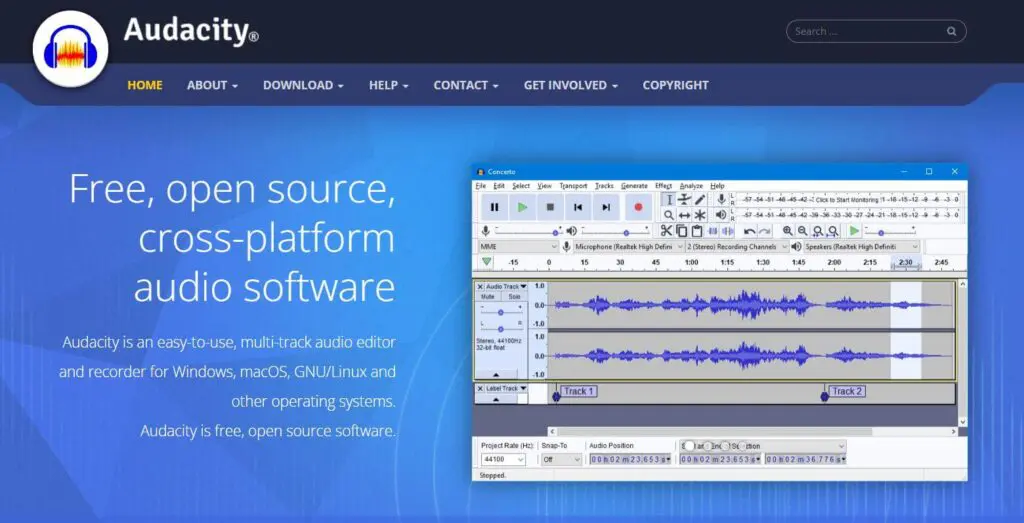
Ask any podcaster about their first editing software and most will mention Audacity. It is the most popular free podcast editing software in the world and gives you everything you need to record and edit a podcast without paying for anything.
Audacity stays simple on the surface, but the newer versions feel much more powerful. It supports multi-track podcast editing, real-time effects, and cloud saving through Audio.com. You can record from any microphone or mixer, clean up your voice with noise reduction, cut and trim mistakes, and export your episode in every major audio format.
Audacity also supports a wide range of plugins through Muse Hub, including optional AI features powered by OpenVINO for noise suppression and voice separation. This keeps the editor lightweight while still giving you access to modern audio tools when you need them.
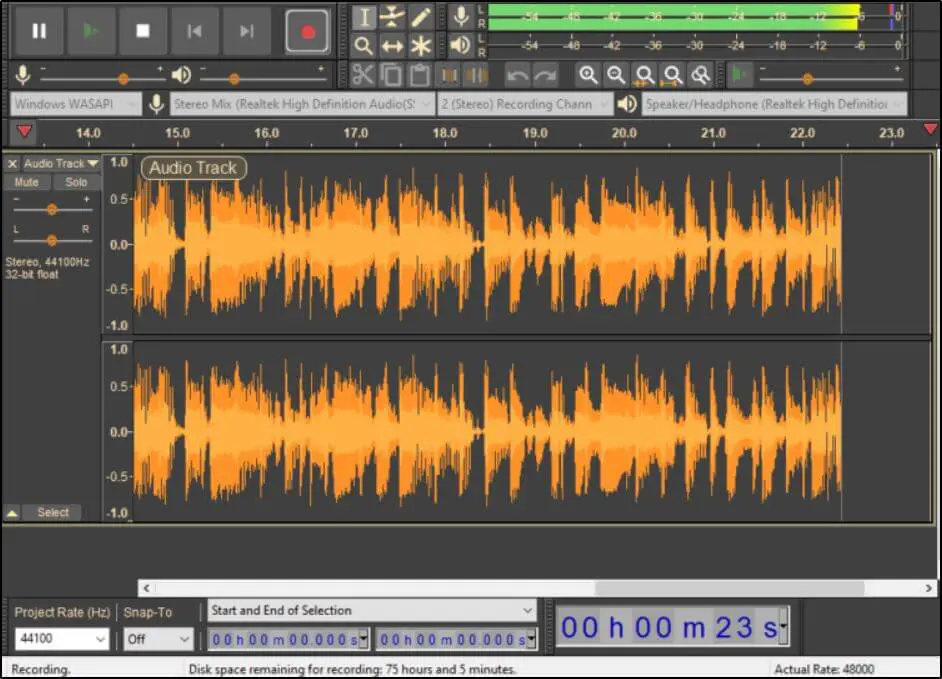
Overall, Audacity is one of the best free podcast editing tools for beginners. It works well for simple recording, basic mixing, and quick cleanups. If you want a free editor that grows with you as your podcast improves, Audacity is the strongest starting point.
Audacity’s Best Podcast Recording And Editing Features
- Multi-track recording in 16-bit, 24-bit, and 32-bit
- Noise and hiss reduction
- Optional AI-powered plugins for cleanup and separation
- Support for VST3, Nyquist, LADSPA, LV2 plugins
- Import and export for all major file formats
Audacity Pros / Cons
| Pros | Cons |
|---|---|
| Free and easy for beginners | Interface feels basic compared to premium DAWs |
| Works on Windows, Mac, and Linux | Requires plugins for some advanced features |
| Huge community and plugin support | No mobile version |
| Cloud saving through Audio.com | Audacity 4 is still early in development |

Read: How To Start A Successful Podcast
2. Garage Band
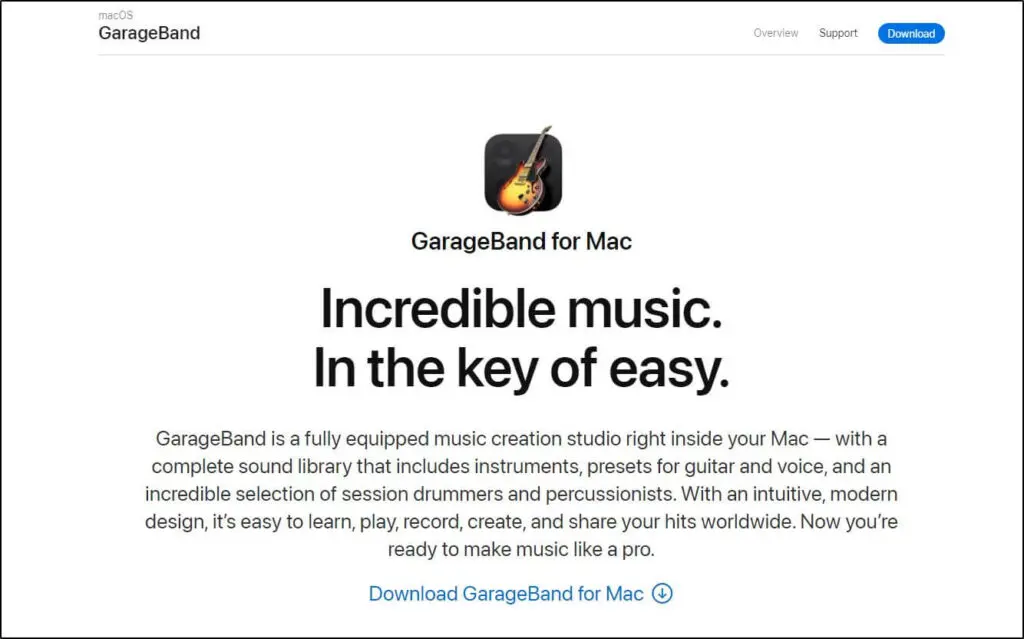
GarageBand started as a music creation app for Mac users, but it has become one of the strongest free podcast editing tools for beginners. It gives you a full audio studio on your Mac with multi-track recording, clean editing controls, built-in effects, and a big library of loops and background music you can use in your episodes.
You can record with any mic, edit multiple speakers on separate tracks, cut mistakes, adjust volume levels, and add music or sound effects. GarageBand’s Smart Controls make it easy to shape your sound quickly, and many of its effects react automatically to your audio, which helps beginners get polished results without fine-tuning every detail.

It also includes features like Flex Time and Groove Track that analyze your audio and tighten timing issues automatically. The Drummer feature uses intelligent session players that follow your instructions and build natural-sounding beats, which is helpful if your podcast needs music beds or transitions.
GarageBand also includes tools like compression, EQ, reverb, noise reduction, and a simple mastering section to help you finalize your episodes.
For anyone using a Mac and looking for a free podcast recorder and editor that feels modern and powerful, GarageBand is an easy pick.
GarageBand’s Best Podcast Recording And Editing Features
- Multi-track recording for interviews and co-hosts
- Smart Controls for quick audio shaping
- Flex Time and Groove Track for timing fixes
- Compression, EQ, reverb, delay, and other built-in effects
- Noise and hiss reduction for cleaner spoken audio
- Drummer for AI-style automatic music creation
- Mastering tools for final polish
- Large library of loops and background music
GarageBand Pros & Cons
| Pros | Cons |
|---|---|
| Free for all macOS and iOS users | Not available for Windows or Linux |
| Strong tools for podcast recording and editing | Multitrack projects create large file sizes |
| AI-assisted timing fixes and intelligent Drummer feature | Some options can feel confusing for new users |
| Huge community and tons of tutorials | Best performance on newer macOS versions |

Read: The Best Online Course Platforms for Podcasters
3. Veed.io
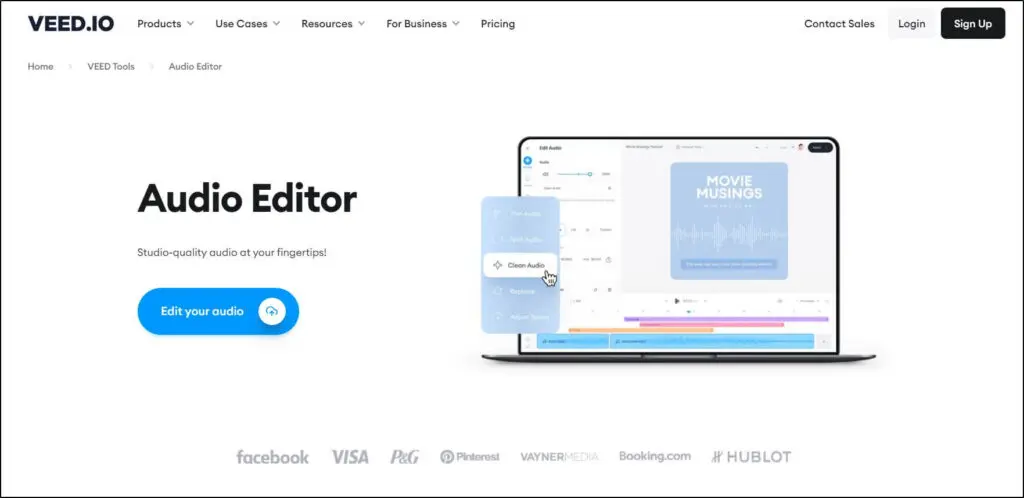
Veed is a simple browser-based editor that’s great for quick podcast cleanups, especially if you don’t want to install software. It started as a lightweight online video editor, but its free plan gives you enough audio tools to trim episodes, cut mistakes, and export clean MP3 files.
For podcasters who create video episodes, Veed is even more useful because you can edit both audio and video in the same timeline. You can trim sections, remove awkward pauses, add simple effects, and export your final file in minutes.

The free plan also includes basic AI features like auto subtitles, background noise removal, and a one-click clean-audio filter. These tools make it easier to improve clarity without learning advanced editing techniques. You can also use Veed’s highlight clipping tool to pull short social clips from longer podcast episodes, which helps a lot when you repurpose your content for TikTok, Instagram, or YouTube Shorts.
Veed works best as a fast, browser-based editor for simple podcast edits. It isn’t built for full multi-track podcast production, but if you want an easy free podcast editing tool for quick fixes, cleanups, and repurposing, Veed fits that role well.
Veed’s Best Free Podcast Editing Features
- Browser-based timeline editor for trimming and cutting
- Export audio episodes in MP3
- AI auto subtitles and transcription
- Background noise removal and clean-audio enhancement
- Simple highlight clipping for repurposing content
| Pros | Cons |
|---|---|
| Works entirely in the browser | Free plan has watermarks for video exports |
| Very easy to use for new podcasters | Limited tools for detailed multi-track editing |
| AI cleanup and subtitles in the free plan | Some key features require upgrading |
| Great for repurposing podcast clips | Not suitable for complex audio workflows |

The Best Paid Podcast Recording And Editing Software
Free tools are great for quick fixes but don’t offer the versatility and advanced features of premium audio recording and editing tools.
So, if you want to transform your podcasts with professional audio editing, here are the tools you should try.
1. Adobe Audition

Adobe Audition is one of the most powerful podcast editing tools you can use. Most audio engineers, video producers, and long-time podcasters keep it in their top three choices because it gives you full control over recording, mixing, cleanup, and mastering.
Audition gives you multitrack editing, waveform editing, spectral editing, and a massive library of effects. You can fix noise, remove hiss, repair damaged audio, reshape voices with EQ and compression, adjust pitch, and clean rough recordings with tools that work at a professional level.
For podcasters, Adobe built a dedicated Podcast workspace that brings all the important controls into one place. You can follow its guided tutorial to record, edit, and export your first episode.
If you want to add intro music or sound effects, Audition includes a library of royalty-free clips you can drop straight into your project.
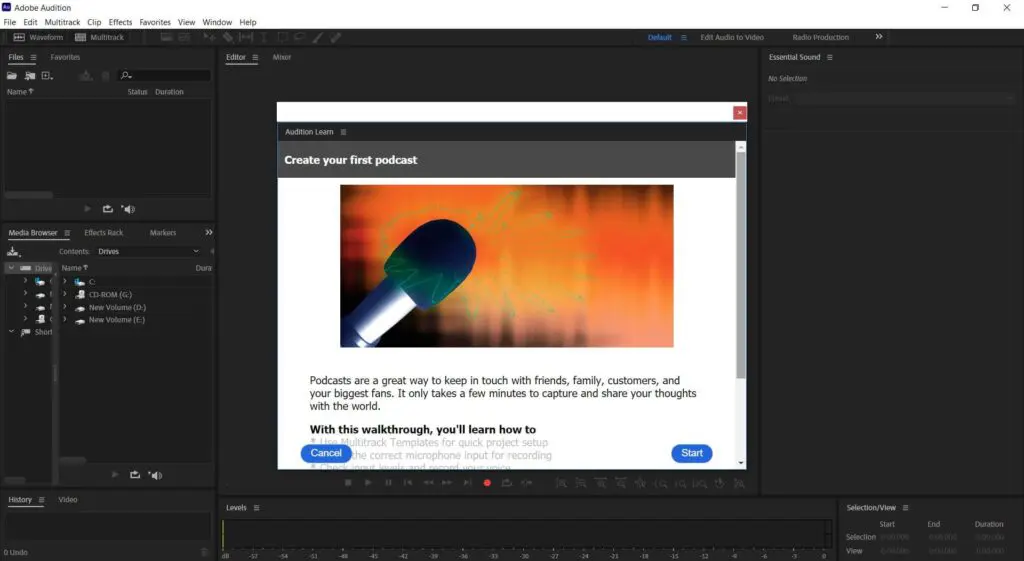
Audition also connects smoothly with Adobe Premiere. If you record video podcasts, you can send audio from Premiere to Audition for cleanup and send it back when you are done. You can also pull audio directly from any video file without converting anything first.
Audition has started adding AI-powered tools as well. Its Repair features, Auto-Cleanup options, and Remix tool use Adobe’s AI engine to fix audio issues faster, remove background noise, level voices, and automatically rearrange music to fit your episode length.
These AI helpers speed up editing without taking control away from you.

Adobe Audition is not the cheapest option and it takes time to learn, but if you want studio-level podcast sound, this is one of the best tools available.
Audition’s Best Podcast Recording And Editing Features
- Multitrack and waveform editing
- Spectral display for deep cleanup
- AI-powered noise reduction and auto cleanup
- AI Remix tool to reshape music to a custom duration
- Direct audio extraction from video files
- Large library of effects including reverb, EQ, delay, and compression
- Presets for podcast recording
- Works with pro microphones, mixers, and interfaces
- Exports in 20+ formats
Adobe Audition Pricing
You can test Audition with a free trial before committing to a paid plan.
- Single-App Plan — US $22.99 /month (annual commitment, billed monthly) — Full audio workstation for editing, mixing, recording and restoring podcast-level audio.
- Creative Cloud All Apps Plan — US $69.99 /month (annual commitment) — Includes Audition plus 20+ Adobe apps for creatives (good if you’re also doing video, graphics or motion).
- Students & Teachers Discount — US $19.99 /month (annual commitment) — Reduced price for eligible users who want the same full features at a lower rate.
Adobe Audition Pros & Cons
| Pros | Cons |
|---|---|
| One of the best tools for pro-quality podcast editing | Higher price than most DAWs |
| AI cleanup makes editing much faster | Not ideal for beginners |
| Seamless integration with Adobe Premiere and After Effects | Requires learning time |
| Great tutorials and a huge user community | Needs a powerful computer for large projects |

2. Descript
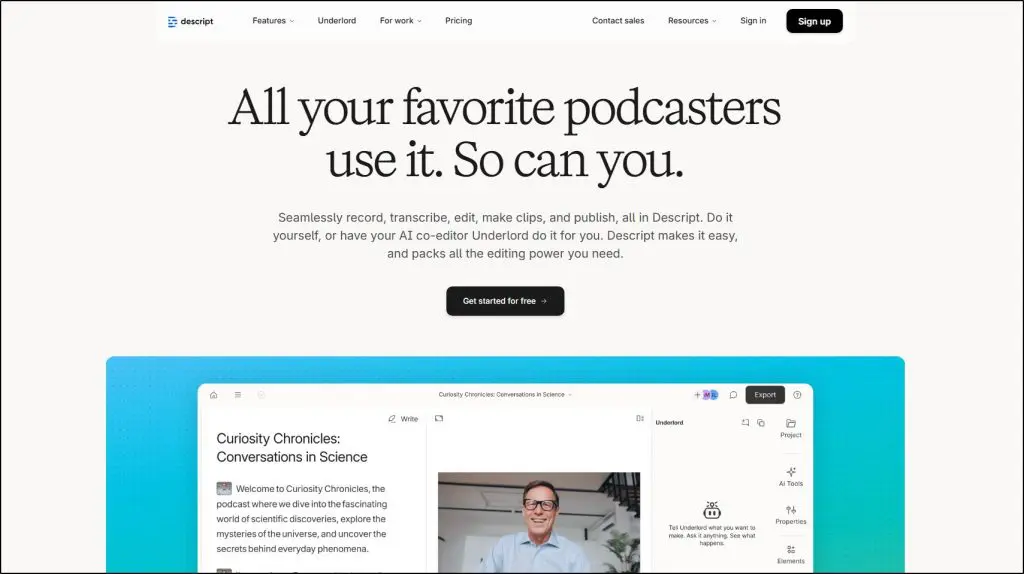
Descript is the tool I reach for when I want to turn a long podcast recording into a clean episode and a batch of clips without getting stuck in a traditional timeline editor. If you like the idea of “edit audio like a doc,” Descript is built for you.
You can record your podcast right inside Descript or pull in Zoom, Riverside, or any other file. It creates an instant transcript, and you edit by changing the text. Delete a sentence and that part of the audio and video disappears. Copy and paste to rearrange your story. For podcasters who also publish on YouTube or social, this feels much faster than cutting waveforms.
Descript’s AI co-editor, Underlord, is where things really speed up. You can ask it to cut filler words and long pauses, remove bad takes, clean up your audio with Studio Sound, create show notes, write episode titles, and even suggest social clips. If you mispronounce a name, you fix it by typing and Regenerate updates your voice and the lip sync.
If you record remote interviews, Descript Rooms gives you local, high-quality audio and 4K video with separate tracks for each guest. You can start editing as soon as you stop recording, and then use layouts, captions, and templates to publish clips for Reels, Shorts, and LinkedIn.
If you want one editor that handles podcast recording, podcast editing, and social clips in the same workflow, Descript is one of the best options you can use.
Descript’s Best Podcast Recording and Editing Features
- Text-based editing for audio and video podcasts
- Studio Sound to remove noise and make voices clearer
- Remove Filler Words and shorten word gaps in one click
- Regenerate to fix mistakes by typing instead of re-recording
- Descript Rooms for remote interviews with local high-quality recording
- Automatic transcription and captions in multiple languages
- AI-powered Underlord for titles, show notes, clips, and summaries
- Templates and layouts for social media clips and video podcasts
- Screen recording for tutorial or education-style podcasts
- Team collaboration with comments, shared projects, and brand layouts
Descript Pros and Cons
| Pros | Cons |
|---|---|
| Text-based editing makes podcast editing much faster | Learning curve if you only know classic timeline editors |
| Studio Sound and AI cleanup are very strong for noisy guests | Heavy AI features need a reasonably powerful computer and internet |
| Great for both audio podcasts and video podcasts | Pricing can add up if you have several team members |
| Underlord helps with show notes, clips, and content repurposing | Media hour limits mean you must watch usage on lower plans |
Descript Pricing
- Free – $0: 1 media hour per month, basic AI credits, 720p exports, limited Underlord and AI Speech.
- Hobbyist – from $16 per user per month: 10 media hours, more AI credits, 1080p exports, access to Underlord and core AI tools like Studio Sound and Remove Filler Words.
- Creator – from $24 per user per month: 30 media hours, higher AI limits, 4K exports, full Underlord access, video generation, and unlimited stock media.
- Business – from $50 per user per month: 40 media hours per user, team features, Brand Studio, advanced translation and dubbing, and priority support.

3. Pro Tools

If you’re running a large podcast operation or building a full studio setup, Pro Tools is the DAW built for that level of production. It’s the industry standard for audio post-production and is used in major music studios, film houses, and broadcast environments.
For solo podcasters and beginners, Pro Tools can feel heavy because it’s designed for big sessions and advanced workflows. But if you run a multi-speaker show, handle complex mixes, or have a post-production team, it gives you the tools to create top-tier audio.
The latest Pro Tools versions include AI-assisted features like improved speech-to-text, smarter dialogue editing, and workflow automation through SoundFlow macros. These tools help you clean up conversations faster, edit speech with more accuracy, and speed through repetitive editing tasks.
Pro Tools’ Best Podcast Recording and Editing Features
- Full multitrack recording and deep waveform editing
- Smart speech-to-text analysis for faster dialogue editing
- ARA integration with plugins like Melodyne, RX Spectral Editor, and VocAlign
- Clean volume automation, EQ, compression, limiting, and advanced mixing tools
- Large stock library of effects and plugins
- Works with all professional microphones, interfaces, and control surfaces
- Import video and edit podcast audio directly from the timeline
- AI-assisted workflow automation using SoundFlow macros
Pro Tools Pros vs Cons
| Pros | Cons |
|---|---|
| One of the most powerful audio editing suites available | Higher subscription cost than most podcast DAWs |
| Ideal for multi-speaker studio-grade episodes | Not designed for beginners |
| Excellent noise cleanup, automation, and mastering tools | Steep learning curve |
| Seamless integration with professional hardware and plugins | Interface can feel complex and crowded |
Pro Tools Pricing
- Pro Tools Intro — Free
A forever-free version for casual creators who want to try the Pro Tools workflow. - Pro Tools Artist — $99/year
Best for basic recording, editing, and MIDI work. Includes essential tools and a large plugin set. - Pro Tools Studio — $299/year
Ideal for professional podcast production and multi-speaker editing. Supports more tracks and advanced mixing tools. - Pro Tools Ultimate — $599/year
Built for large studios and audio post teams. Includes the full feature set, immersive mixing tools, and advanced video workflows.

4. Riverside
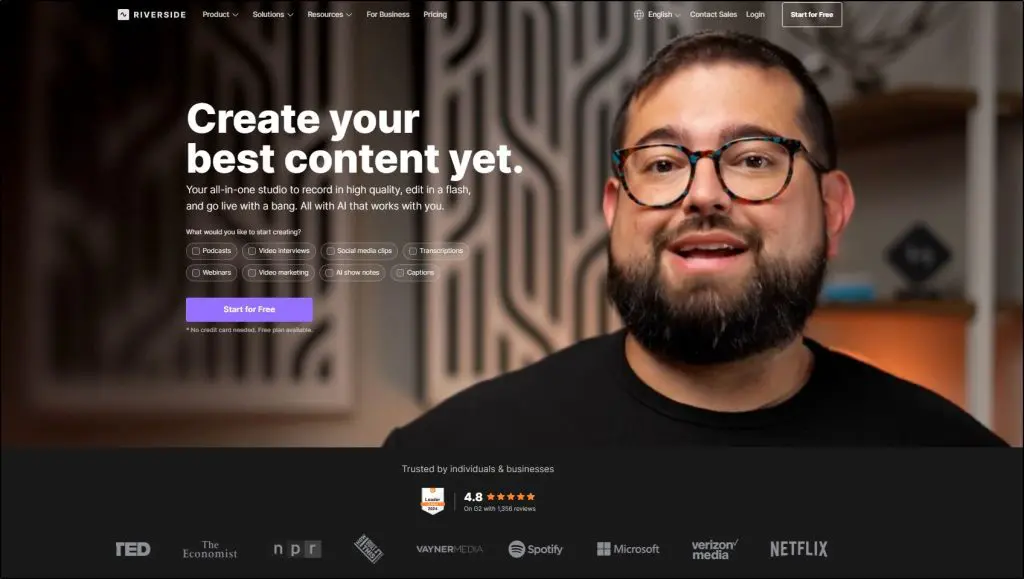
If you want a cloud podcast recorder and editor that works in your browser and on mobile, Riverside is one of the strongest options right now. It is built for video and audio podcasters and easily handles everything from simple interviews to full remote video shows. That is why big names like Tim Ferriss and Gary Vee have used it for their conversations.
Riverside records locally on each device and then uploads to the cloud. So even if your internet connection drops, you still get clean, high-quality 4K video and uncompressed 48 kHz WAV audio on separate tracks for every guest. This gives you plenty of room to fix mistakes and polish the sound later.
Where Riverside really stands out now is its AI editor. It auto-transcribes your recording, lets you edit your podcast like a document, and keeps the audio and video in sync as you delete lines, tighten sections, or move things around. Features like Magic Audio, smooth speech, silence removal, and filler-word removal clean up your track with a few clicks instead of manual cutting. Magic Clips and the AI Co-Creator then scan your episode for highlights and turn them into ready-to-share social clips. AI Show Notes writes titles, descriptions, chapters, takeaways, keywords, and even soundbites, while the caption tools add styled subtitles in one click.
On top of that, Riverside now includes hosting, so you can publish your podcast to YouTube, Apple Podcasts, and Spotify from the same dashboard and track basic analytics. For most podcasters, that means you can handle recording, editing, repurposing, and publishing in one place. If you need deep sound design or music production, a full DAW like Adobe Audition or Pro Tools still gives you more control. But for podcast-first workflows, Riverside feels fast and practical.
Riverside’s Best Podcast Recording And Editing Features
- Local 4K video and 48 kHz WAV audio recording for each participant
- Separate audio and video tracks for every guest
- Browser, iOS, iPad, and Mac apps for flexible recording setups
- AI transcription that powers text-based editing and search
- Edit your podcast by editing the transcript, with changes synced to audio and video
- Magic Audio, smooth speech, and silence removal for quick cleanup
- Automatic removal of “ums,” “ahs,” and other filler words
- Magic Clips and AI Co-Creator to auto-generate short social clips from full episodes
- AI Show Notes for titles, descriptions, chapters, takeaways, and keywords
- One-click captions with customizable styles and layouts
- Built-in hosting with one-click publishing to YouTube, Apple, and Spotify plus analytics
- Live streaming and webinars in full HD for video podcasts and virtual events
Riverside Pricing
Free Plan — $0/month: Start with 2 hours of multi-track recording, unlimited single-track recording, 720p video, and basic editing features.
Pro Plan — $24/month (annual billing): Record in up to 4K, get 15 hours of multi-track recording per month, 48 kHz audio, full text-based editing, all AI tools (Magic Audio, silence removal, captions, show notes, Magic Clips), and no watermark.
Live Plan — $34/month (annual billing): Everything in Pro plus full HD live streaming, multistreaming to multiple destinations, live call-ins, audience engagement tools, overlays, and advanced branding options.
Webinar Plan — $79/month (annual billing): Includes all Live features plus webinar hosting for up to 100 registrants, pre-record-and-stream, unlimited sessions, automated email reminders, lead capture forms, detailed webinar analytics, and CRM integrations.
Business Plan — Custom Pricing: Offers unlimited multi-track recording, advanced branding, async workflows, producer mode, team collaboration workspaces, SSO, API access, and dedicated customer success support.
Riverside Pros vs Cons
| Riverside Pros | Riverside Cons |
|---|---|
| Local recording gives high-quality audio and video even on weak internet | Not as deep as full DAWs for advanced mixing or sound design |
| All-in-one tool for recording, editing, hosting, and basic publishing | AI tools can feel heavy on very long multi-hour sessions |
| Strong AI tools for transcripts, cleanup, clips, captions, and show notes | Costs rise if you need lots of multi-track hours, live streaming, or webinars |
| Easy for non-technical hosts and guests to use | Best experience still assumes a solid mic and basic recording setup |
| Free plan so you can test the workflow before upgrading |

5. LogicPro

If you want podcast editing software for Mac that you won’t outgrow, Logic Pro is the tool I always point to. I’ve used it for years in my own recording workflow, and every time I come back to it, I’m reminded how powerful a DAW for podcasting can be when it’s built specifically for Mac users.
Logic Pro handles everything you throw at it including long podcast recording sessions, multi-track interviews, big mixes, and heavy processing, without slowing down.
Even an entry-level Mac handles Logic better than most tools in this guide, which is why many creators eventually move to it once they feel limited by beginner-friendly apps.
The recent AI updates make a big difference as well.
Stem Splitter is one of the features I find myself using the most. If you get a mixed audio file that’s noisy, cluttered, or recorded poorly on the guest’s side, you can pull the audio apart into vocals, drums, bass, piano, and other layers, then clean only what you need.
Mastering Assistant is another time-saver. It analyzes your full mix, balances levels, shapes the frequencies, and gets your episode sounding release-ready in minutes.
And Smart Tempo quietly fixes timing inconsistencies which is extremely helpful when a guest sends in a remote recording that doesn’t sync cleanly.
Beyond the AI features, you still get the classic tools that make Logic Pro one of the best DAWs for podcasting: noise and hiss reduction, dynamic EQ, multi-track editing, automation, deep mixing tools, built-in plug-ins, and smooth Apple ecosystem integration.
I also keep Logic Remote on my iPad because it’s a convenient way to adjust levels or control playback while I’m away from the desk.
If you want a long-term editing setup and you’re already in the Apple world, Logic Pro gives you professional-grade podcast mixing tools without the subscription you see in other editors.
Logic Pro’s Best Podcast Recording & Editing Features
- Multi-track podcast recording and editing
- Stem Splitter AI for isolating vocals and cleaning messy files
- Mastering Assistant for polished, ready-to-release mixes
- Smart Tempo for syncing inconsistent guest audio
- High-quality noise and hiss reduction
- Automation for volume, effects, and transitions
- Massive library of plug-ins, effects, and sound packs
- Seamless integration with GarageBand, Final Cut Pro, and Apple hardware
Logic Pro Pros and Cons
| Pros | Cons |
|---|---|
| One of the most powerful DAWs for podcasting on Mac | Can feel overwhelming for beginners |
| AI features that speed up cleanup, mixing, and mastering | Mac-only |
| Excellent performance even on entry-level Macs | More complex than browser-based tools |
| Huge effects library and professional mixing tools |
Logic Pro Pricing
- Logic Pro for Mac — $199.99 (one-time purchase): You get the full DAW, all AI features, Dolby Atmos tools, plug-ins, instruments, and sound libraries forever.
- Logic Pro for iPad (optional): Available as a monthly or annual subscription with full compatibility for moving projects between iPad and Mac.

6. Auphonic
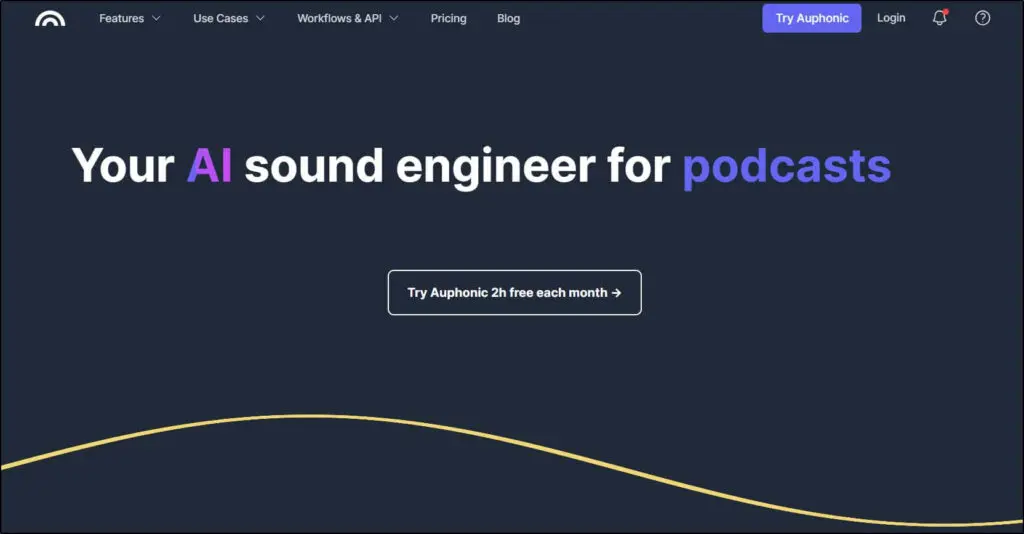
Auphonic is one of those AI podcast tools I keep coming back to, especially when I need fast cleanup without opening a full DAW. It’s not a replacement for Logic Pro or Adobe Audition, and it isn’t supposed to be.
Instead, it gives you an easy, cloud-based way to fix the most common audio problems with almost no learning curve.
If you’re a beginner and you want your episodes to sound cleaner without digging into compressors, EQ curves, or loudness specs, Auphonic gives you a big upgrade instantly.
When I’m reviewing podcast editing software for Learning Revolution, I usually think about who a tool is built for. Auphonic is built for people who want automatic audio improvement without the complexity of a full editing timeline.
You drop your podcast recording in, choose your settings, and Auphonic’s AI handles leveling, noise removal, loudness correction, reverb reduction, and multi-track processing. The latest updates make it even more powerful.
The AI now cuts filler words, trims silence, removes coughs, and fixes harsh frequencies. If you’ve ever recorded in a bad room or had a guest send low-quality audio, you’ll appreciate how much time this saves.
Auphonic also generates transcripts, chapters, and podcast show notes automatically which is a huge plus when you’re trying to speed up your publishing workflow.
You can send your finished files directly to YouTube, Libsyn, Podbean, or any major podcast host, so you don’t waste time re-uploading.
I still wouldn’t use it for detailed editing or shaping the tone of a multi-speaker interview. That’s where a DAW like Logic Pro or Audition gives you more control.
But if your goal is to improve your audio quickly and consistently, Auphonic is one of the best AI podcast tools you can add to your workflow.
Auphonic’s Best Podcast Recording & Editing Features
- Automatic AI leveler for consistent volume across speakers
- Noise and reverb removal for cleaner podcast audio
- AutoEQ and filtering to remove harsh frequencies, sibilance, pops, and plosives
- Automatic cutting of silences, filler words, and coughs
- Multi-track AI mixing with ducking and mic bleed removal
- Target loudness presets for podcast platforms
- AI speech-to-text, automatic shownotes, and auto-generated chapters
- Video support, metadata editing, and audiogram creation
- Direct publishing to YouTube, Libsyn, Podbean, and other podcast hosting platforms
- API, Zapier workflows, and watch folders for automation
Auphonic Pros and Cons
| Pros | Cons |
|---|---|
| Super easy for beginners who want quick audio improvements | Not a full podcast editor — no detailed timeline tools |
| AI tools that save hours of cleanup time | Advanced editors may find it limited |
| Excellent for batch processing and automated workflows | Multitrack editing is better in a DAW |
| Affordable compared to other cloud-based tools | Free plan adds an Auphonic jingle |
Auphonic Pricing & Free Plan
Auphonic Free — $0: 2 hours of audio processing per month using all AI algorithms. Free plan includes a short Auphonic jingle.
Recurring Credits (billed yearly, best value)
- S — 9 hours/month for $11/month
- M — 21 hours/month for $24/month
- L — 45 hours/month for $49/month
- XL — 100 hours/month for $99/month
Great for regular podcasters who want consistent, automated processing.
One-Time Credits (no expiration)
- 5 hours — $12
- 10 hours — $22
- 25 hours — $50
- 50 hours — $88
- 100 hours — $150
Perfect if you process episodes occasionally or have seasonal podcast production cycles.

7. Hindenburg Pro
Hindenburg PRO sits in a different bucket than most DAWs on this list. It is built for spoken word first and everything else second. If you run an interview show, a narrative podcast, or anything that feels like “audio storytelling,” this is one of the few podcast editing tools that feels like it understands you.
I like Hindenburg most when I am working on story-heavy content. You plug in your mic and headphones, and its plug and play setup handles levels and basic sound shaping for you. You do not dig through complex input menus. You just start recording and focus on the conversation.

The newer version, Hindenburg PRO 2, adds a lot of smart workflow upgrades. You get offline transcription that runs on your own machine, support for 99 languages, and a Manuscript view that lets you edit audio like a text document. You select words, delete or move them, and your audio follows. For long interviews and documentary style podcasts, that can cut your editing time sharply.
It also gives you tools that feel built for real production work. Magic Levels handles volume balancing and mic bleed in multi speaker recordings. Noise reduction works with a single dial. Clipboards let you store, tag, and reuse sound bites across projects. You can also import video, clean up the dialogue, and export with proper loudness for broadcast or podcast platforms.
Hindenburg is not the cheapest option and it sits above beginner level. But if you create narrative episodes, work with lots of interviews, or want a podcast editor that respects broadcast standards, this is one of the strongest options I can recommend.
Hindenburg’s Best Podcast Recording and Editing Features
- Plug and play mic setup with automatic level and sound adjustment
- Magic Levels to balance speakers and reduce mic bleed in group recordings
- Offline transcription in 99 languages with speaker detection and split by speaker
- Manuscript view for text based editing that syncs directly with your audio
- Powerful clipboard system to store, organize, and search sound bites
- Built in noise reduction, EQ, compression, and voice profile tools
- Video track for podcast video and simple audio post production
- Loudness normalization for podcast and radio standards
- One click publishing to popular podcast and radio destinations
- Non destructive editing with fast volume, fade, and time stretch controls
Hindenburg PRO Pros and Cons
| Pros | Cons |
|---|---|
| Designed specifically for podcasters, journalists, and storytellers | More expensive than many general purpose audio editors |
| Very strong for interviews, narrative shows, and long form audio | Overkill if you only need simple cutting and trimming |
| Offline transcription with text based editing | Interface still feels “pro” and can take time to learn |
| Built in loudness and export tools for radio and podcast standards | No true free plan for ongoing use |
Hindenburg PRO Pricing
Hindenburg PRO uses tiered pricing, with monthly, yearly, and perpetual license options.
- Standard: Around $12 per month on a monthly subscription, or about $8.25 per month when billed yearly. Designed for individual creators who need the core Hindenburg PRO feature set.
- Plus: Around $15 per month on a monthly subscription, or about $12.50 per month when billed yearly. Adds more transcription hours and extra features for heavier podcast workflows.
- Premium: Around $30 per month on a monthly subscription, or about $25 per month when billed yearly. Best suited for power users and teams who need higher transcription limits and the full toolset.
Hindenburg also offers perpetual licenses if you prefer a one time purchase instead of a subscription.

8. Podcastle
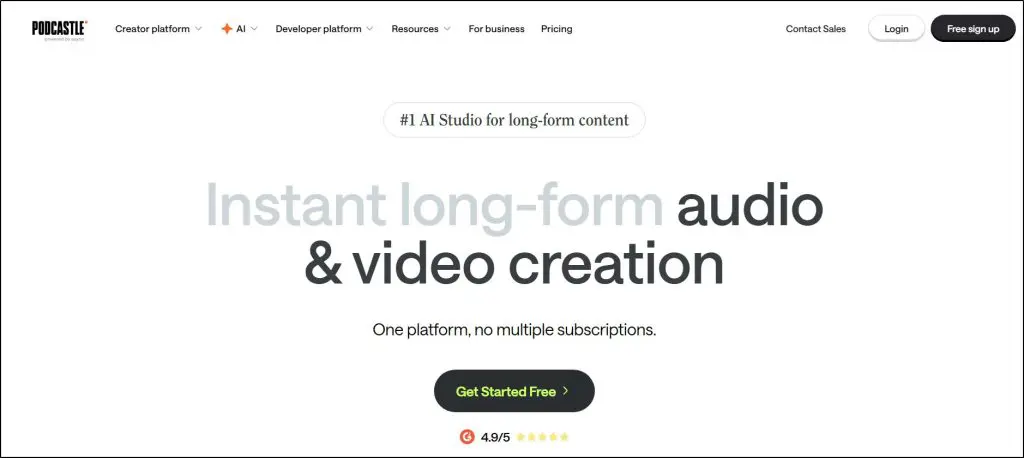
Podcastle has become one of the strongest browser-based podcast editing tools I’ve used in the last few years. If you want a platform that handles recording, editing, AI cleanup, and publishing without installing anything on your computer, Podcastle does that better than most cloud studios.
When I test podcast tools, ease of use matters a lot. You want to hit record and focus on your guest or your script. Podcastle makes that simple.
Your recordings are saved in the cloud, and the platform captures each participant on a separate track, which helps you edit interviews cleanly, especially when you’re dealing with remote guests.
The biggest difference now is how much AI Podcastle has added.
You get Magic Dust to enhance your audio with one click, noise removal, silence removal, automatic filler-word cutting, and clean text-based editing.
If you record video podcasts, the AI tools go even further: eye-contact correction, background blur, background remover, and AI subtitles. For podcasters creating YouTube videos or repurposing episodes for social, these features save a surprising amount of time.
I also like that Podcastle works for both beginners and pros.
If you’re new, the interface is easy to understand. If you’re experienced, you can move fast with multi-track editing, voice cloning, long-form transcription, and high-resolution audio exports.
Whether you’re creating a simple interview show or recording long-form video content, Podcastle gives you a full studio in your browser.
In short, if you want one tool that helps you record, edit, enhance, and publish your podcast (and you prefer something beginner-friendly without giving up AI power) Podcastle is a great fit.
Podcastle’s Best Podcast Recording And Editing Features
- Multi-track audio and video recording for interviews and remote guests
- AI Audio Enhance with noise reduction, silence removal, and Magic Dust
- Text-based editing to quickly locate sections and clean up your podcast
- AI video tools including Cinematic Blur, Eye Contact Fixer, and Background Remover
- Automatic transcription and subtitles for repurposing podcast content
- AI-powered text-to-speech and voice cloning
- Cloud recording with real-time sync and high-resolution downloads
- Built-in sound effects and royalty-free music
Podcastle Pros and Cons
| Pros | Cons |
|---|---|
| Beginner-friendly interface with fast learning curve | Not as deep as pro DAWs like Logic Pro |
| Strong AI editing tools for podcasts and video podcasts | Some AI video tools limited to higher plans |
| Cloud-based workflow ideal for remote interviews | Fewer advanced export formats compared to desktop DAWs |
| Affordable monthly plans with a generous free tier | Requires stable internet for large video projects |

Read: 100+ Practical Ways To Find Engaging Podcast Ideas
Ready To Create World Class Podcasts?
Whether you’re a beginner podcaster or an expert with years of experience, you need the right recording and editing tools to create professional podcasts.
The tools I’ve shared in this article are designed for different levels of podcast expertise. So, not all of them are the right fit for your business.
If you’re a beginner, go for the cloud audio editors we’ve mentioned because they’re easier to use. However, you’ll probably want a specialized DAW for your content if you’ve been podcasting for a while.
So, shortlist the ones you like and sign up for their free trials to see if they offer the features you want.
If you have any questions, shoot them in the comments section.

Jeff Cobb, Founder of Learning Revolution
Jeff Cobb is an expert in online education and the business of adult lifelong learning. Over the past 20+ years he has built a thriving career based on that expertise – as an entrepreneur, a consultant, an author, and a speaker. Learning Revolution is a place where Jeff curates tips, insights, and resources to help you build a thriving expertise-based business. Learn more about Jeff Cobb here.
Table of Contents
Related Posts
Skool vs. Teachable (2026): Comparing Their Pricing, Community & Course Features
Skool vs Kajabi (2026): I’ve Used Both, Here’s My Comparison & Verdict
Skool vs Circle (2026): I’ve Used Both, Here’s My Choice