
TL;DR: What Is Restream and Who Is It For (2026)
Restream is a browser-based multistreaming platform that lets you go live on multiple social channels at once, including YouTube, Facebook, LinkedIn, Twitch, TikTok, and more. It’s built for creators, coaches, and small businesses who want to grow their audience across platforms without juggling multiple tabs or uploads.
Restream Pricing & Free Plan:
Restream offers a free forever plan (stream to 2 channels with a watermark) and three paid plans:
1. Standard – $16/mo: 3 channels, no watermark, custom graphics.
2. Professional – $39/mo: 5 channels, 1080p, team access, split recordings.
3. Business – $199/mo: 8 channels, SRT ingest, web player, priority support.
Restream’s Core Features:
– Multistreaming: Supports 30+ platforms but allows simultaneous live on up to 8 platforms at once.
– Restream Studio: Browser-based studio for live or pre-recorded sessions.
– Restream Chat: Unified chat for all platforms, with on-screen comment display.
– AI Clips: Auto-create short Reels, Shorts, and TikToks from your live videos.
– Audio & Video to Text: Generate transcripts or captions using AI.
– Collaboration Tools: Add producers or moderators with role-based access.
– Analytics: Track engagement across all platforms from one dashboard.
– Free Creator Tools: Test mic, camera, convert files, and use AI script generators — no login needed.
Best For: Coaches, course creators, podcasters, and small teams who want to build visibility and authority by going live across multiple platforms at once.
Not For: Enterprises or pro broadcasters needing advanced production effects, 4K streaming in Studio, or built-in monetization features.
Best Alternative: StreamYard
Try Restream For Free
I strongly believe that live streaming is one of the best ways to build an AI-proof personal brand. When people see you live, answering their questions and speaking directly to them, they know you’re a real expert — not someone copy-pasting content from ChatGPT.
Thankfully, going live is easy these days. But managing multiple platforms, chats, and uploads isn’t.
You go live on YouTube and half your audience is still waiting on LinkedIn. Or your replay quality drops just when engagement peaks.
That’s where multistreaming platforms like Restream come in.
I’ve used it for years to simplify multistreaming, manage chats, and repurpose live sessions. It’s among my top choices for live streaming.
But it isn’t perfect for everyone.
In this article, we’ll see what the latest Restream version offers and whether it’s the right fit for your business.
Let’s dive in.
Read: The best live streaming software for course creators
Restream Product Snapshot (2026) | What Does This Multistreaming Platform Offer
Before we dive any deeper, let me give you a bird’s eye view of what Restream is all about.
| Feature Area | What It Does |
| Multistreaming | Supports 30+ platforms (YouTube, Facebook, LinkedIn, Twitch, TikTok, etc.). But simultaneous streams depend on your plan, max 8 platforms at a time. |
| Restream Studio | Go live directly from your browser with custom branding, overlays, tickers, and up to 10 guests. |
| Restream Chat | View and reply to comments from all platforms in one window and display them as chat overlays on your stream. |
| Upload & Stream | Schedule and stream pre-recorded videos as live sessions to stay consistent even when offline. |
| AI Clips | Automatically generate short viral clips from your live streams for TikTok, Reels, and Shorts. |
| Audio to Text (Transcription) | Convert audio or video files into text for captions, transcripts, or content repurposing. |
| Analytics Dashboard | Track views, engagement, chat activity, and growth across every connected platform. |
| Free Tools | Access camera tests, converters, transcription tools, and AI script generators—no account required. |
| Pricing | Offers a free forever plan and paid tiers from $16–$199/month for more features, quality, and team access. |

What Is Restream.io and What is It Used For?
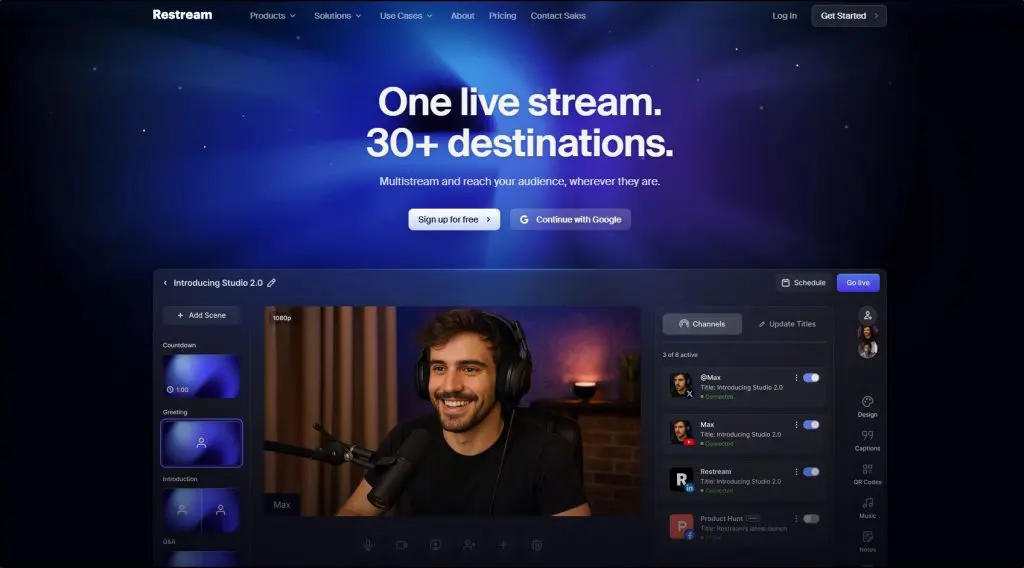
Restream.io is a multistreaming platform that lets you go live on multiple social channels at once, including YouTube, Facebook, LinkedIn, Twitch, TikTok, and more.
It supports over 30 platforms, but the number of simultaneous streams depends on your plan (up to 8 at a time).
Instead of juggling different tabs, links, and upload windows, you stream once and Restream sends your video everywhere in real time.
It was built for creators, coaches, and small businesses who want to expand their audience without doubling their effort. Whether you’re hosting a course Q&A, a weekly live show, or a client webinar, Restream makes sure your message reaches every platform your audience uses.
Restream works entirely in your browser, there’s no software to download. Once you log in, you can broadcast directly through Restream Studio, or connect professional tools like OBS, Zoom, vMix, Streamlabs, or Ecamm.
Here are the main tools inside Restream:
- Multistreaming: Supports 30+ platforms (simultaneous streams depend on your plan).
- Restream Studio: Create polished live streams with graphics, tickers, and up to 10 on-screen guests.
- Restream Chat: Manage and reply to comments from all platforms in one window.
- Upload & Stream: Schedule pre-recorded videos to go live automatically.
- AI Clips: Instantly repurpose your streams into short clips for TikTok, Reels, or YouTube Shorts.
- Audio & Video Transcription: Convert recordings into text for captions or blog content.
- Analytics Dashboard: Measure engagement and growth across all your channels.
In the broader marketing picture, Restream sits near the top of your value ladder — the authority and audience growth stage.
It’s not where you sell directly; it’s where you build visibility, credibility, and trust through real-time interaction.
When people see you live answering questions, teaching, and sharing insights, it positions you as a go-to expert and naturally pulls leads into your email list, course funnel, or coaching offers.
Is Restream really free?
Yes, Restream has a free forever plan, not just a trial. With it, you can go live on two platforms at once (for example, YouTube and Facebook) using Restream Studio right from your browser.
The free plan includes core features like 720p HD streaming, cross-platform chat, and stream analytics, so you can test the full experience before upgrading.
The only limitations are a Restream watermark on your video, a two-channel cap, and fewer customization options compared to paid plans.
Read: Restream vs. StreamYard: Which is the better live streaming software
How Restream Works
Restream runs in your browser, no need to download any software.
You can go live with Restream Studio, a web studio for camera/mic, screen share, branding, guests, and on-screen chat, without installing anything.
If you prefer pro production software, you can also send a feed from an external encoder (e.g., OBS, vMix, Ecamm, Streamlabs) into Restream via RTMP (and SRT on higher tiers), and Restream will distribute it to all your destinations.
How To Get Started With Restream | Step By Step
Here’s what it looks like when you use Restream for the first time:
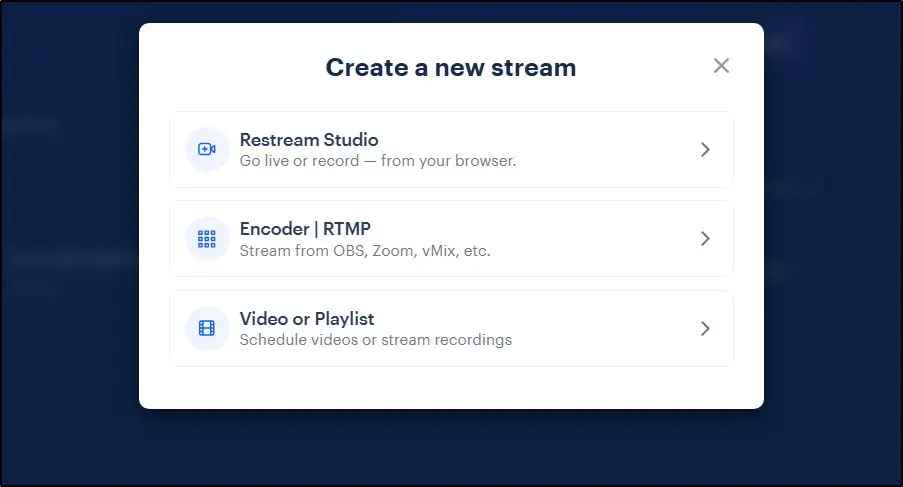
Step 1: Create an account and choose how you’ll stream.
Use Restream Studio if you want a quick setup with your camera and mic. Choose Encoder Mode if you use tools like OBS or vMix.
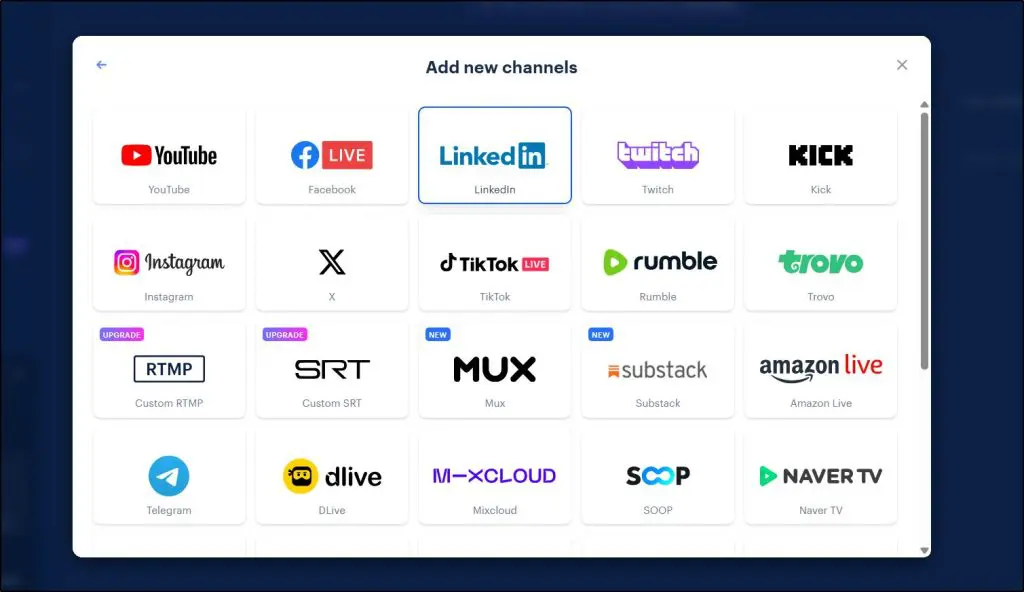
Step 2: Connect your social channels
Add YouTube, Facebook, LinkedIn, Twitch, TikTok, or any of the 30+ supported platforms you want to stream to. You only need to connect them once. After that, you can toggle them on or off for each event.
Restream supports 30+ platforms but your plan determines how many channels you can go live on at the same time (see the pricing section).
Step 3: Add your stream details.
Enter your title, description, and thumbnail for each platform. You can customize them if needed.
Step 4: Test your setup.
Check your camera and mic in Studio. If you’re using an encoder, copy Restream’s RTMP or SRT stream key into your software.
Step 5: Invite guests (optional).
Send them a quick invite link — they’ll appear backstage in your Studio until you add them to the live screen.
Step 6: Go live.
Hit “Go Live” in Studio or start streaming from your encoder. Restream instantly broadcasts your feed to every connected platform.
Step 7: Engage your audience.
Use Restream Chat to read and reply to comments from all your platforms in one place.
Step 8: End your stream and repurpose it.
After the session, access your cloud recording. Use AI Clips to turn highlights into Shorts or Reels, or use Audio-to-Text to create transcripts.
Step 9: Schedule pre-recorded streams (optional).
With Upload & Stream, you can schedule a recorded video to “go live” later — great for time zones or consistent posting.
Is Restream an encoder?
Not exactly. Think of Restream as a cloud relay + browser studio:
- Restream Studio encodes from your browser and sends to Restream’s cloud, which then publishes to YouTube, Facebook, Twitch etc.
- External encoder workflow: your encoder (OBS/vMix/etc.) does the local encoding → Restream receives it (RTMP; SRT on higher tiers) → Restream publishes to all destinations.
- With external encoders, Restream can pass through up to 4K (2160p) to supported destinations (plan/platform permitting). In Studio, expect 720p on Free/Standard and 1080p on Professional+.
When to use Studio vs. OBS/vMix
- Use Restream Studio when you want speed and simplicity: browser-based, guest links, overlays, tickers, QR codes, unified chat, and recording—no extra software.
- Use an external encoder (OBS/vMix/Ecamm/Streamlabs) when you need advanced scene switching, capture cards, complex audio routing, virtual sets, NDI/SDI workflows, or 4K production pipelines. You’ll still multistream through Restream, but the production happens in your encoder.
Restream Pricing and Free Plan (2026) | What Does It Cost?
Restream offers a free forever plan, not just a trial, so you can multistream without paying a cent. But to unlock advanced features like 1080p streaming, custom branding, and more destinations, you’ll need one of its three paid plans: Standard, Professional, and Business.
Here’s a quick overview:
- Free Plan: Stream to 2 channels with basic features and a Restream watermark.
- Standard Plan ($16/mo billed annually): Stream to 3 channels, remove watermark, and get custom graphics.
- Professional Plan ($39/mo billed annually): Stream to 5 channels, unlock 1080p quality, split recordings, and team access.
- Business Plan ($199/mo billed annually): Stream to 8 channels, access SRT ingest, priority support, and web player options for large teams.
Restream Pricing Comparison
| Plan | Price (Annual Billing) | Main Features | Best For |
| Free | $0 / forever | Stream to 2 channels, 720p HD, Restream watermark, cross-platform chat, stream analytics | Beginners testing multistreaming or solo creators |
| Standard | $16/mo (billed $190/year) | 3 channels, no watermark, custom graphics, 10 guests, unlimited recordings, 720p HD | Individual creators and small businesses |
| Professional | $39/mo (billed $470/year) | 5 channels, 1080p Full HD, team workspaces, split track recordings, RTMP pull links | Coaches, course creators, and agencies |
| Business | $199/mo (billed $2,390/year) | 8 channels, SRT ingest, 30-day recording storage, web player (1,000 viewers), priority support | Brands, production teams, and enterprises |
Restream’s pricing scales based on how many platforms you want to go live on, your quality needs, and team collaboration features.
If you’re just starting out, the free plan is enough to test and learn. But if you’re running a professional show or client-facing sessions, the Professional plan gives you the polish and flexibility you’ll need.
A Quick Clarification About “30+ Platforms”
Restream supports over 30 streaming destinations, including YouTube, Facebook, LinkedIn, Twitch, X (Twitter), TikTok, and many others.
However, your plan determines how many you can go live on at the same time, not the total number of platforms you can connect.
Here’s what that means:
- You can link all your social accounts inside Restream.
- But you can only stream simultaneously to the number of channels allowed by your plan.
- Free: 2 channels
- Standard: 3 channels
- Professional: 5 channels
- Business: 8 channels
- Free: 2 channels
So, when Restream says “go live everywhere,” it means you can choose any platform from the list of 30+, but your concurrent limit depends on your plan.
Read: 12 Ways To Monetize Your Live Streams
Restream Features | Multistreaming and Content Creation Tools
Restream shines when it comes to simplifying live streaming. It combines broadcasting, chat management, and content repurposing in one clean dashboard.
Whether you’re streaming live, scheduling pre-recorded sessions, or creating short clips, Restream gives you everything you need to look professional and stay consistent across every platform.
Let’s take a closer look at its core features
Feature #1: Multistreaming
Multistreaming is the core feature in Restream. It supports over 30 platforms you can connect to your account, but the number of platforms you can go live on at once depends on your plan (up to 8).
Here’s how it works.
Let’s say you want to stream to YouTube, Facebook, Twitch, and LinkedIn at once. You connect these platforms to your Restream account, set up your stream, and go live directly from Restream.
It acts as your single control center. Whatever happens inside Restream instantly appears on every connected platform. When you end the stream, it closes everywhere automatically.
So what makes it different from other multistreaming platforms?
In my experience, Restream delivers noticeably higher-quality streams with minimal lag or delay. Plus, it gives you more granular control over each platform’s content. For example, you can customize titles, descriptions, and thumbnails for each platform.
Everything feels smooth, stable, and far more reliable than most tools I’ve tested.
Feature #2: Restream Studio
Restream Studio is the heart of the platform where you actually create, manage, and broadcast your streams.
Once you log in, this is your control center for going live, recording sessions, or scheduling pre-recorded content to “go live” later.
You start by setting up your camera and mic, adding your brand visuals (like logos, overlays, or animated backgrounds), and preparing your layout.
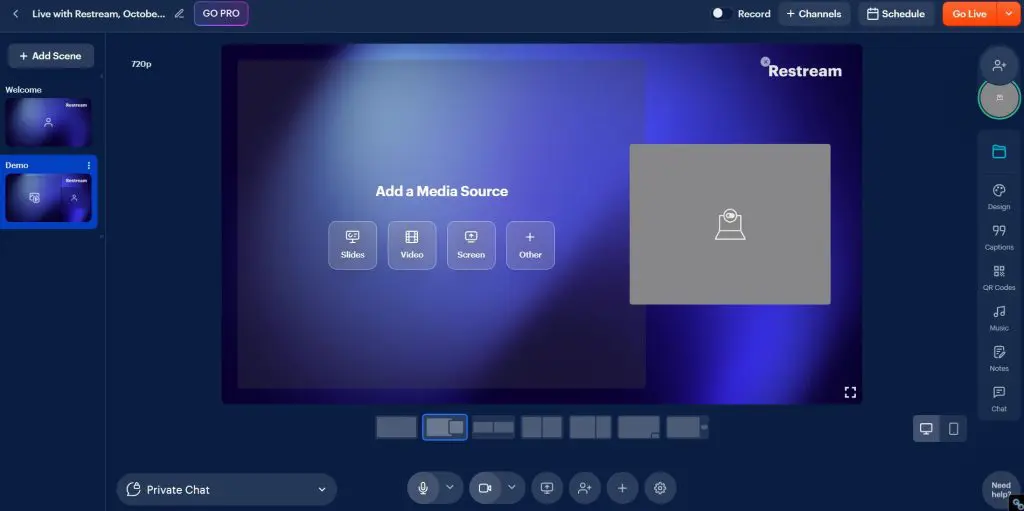
You can invite guests through a simple link, manage what’s visible on screen, or even play video clips during your session. Everything you need to run a show from branding to engagement — happens here.
And if you don’t want to go live in real time? That’s where the Upload & Stream option comes in.
It lets you schedule pre-recorded videos to broadcast as live events across all your connected platforms.
This is ideal for product demos, tutorials, or announcements that need to premiere at a specific time, without you being present. You can even queue up entire playlists or loop videos to create 24/7 streaming channels.
All your sessions, whether live or pre-recorded, are automatically recorded and stored in the cloud. You can download them later, repurpose them with AI Clips, or extract audio and transcripts using Restream’s built-in AI tools.
In short, Restream Studio gives you the flexibility to go live, plan ahead, or repurpose, all from one intuitive dashboard.
Feature #3: Restream Chat
Restream Chat is one of my favorite features. It doesn’t seem huge but quietly makes a massive difference once you start streaming to multiple platforms.
It brings together comments and messages from all your connected channels like YouTube, Facebook, LinkedIn, Twitch, and others into one clean interface right inside your Studio.
That means no more switching tabs or missing audience questions. You can reply directly from Restream, tag viewers by name, and even moderate comments in real time.
If you want to make your streams more interactive, you can also highlight messages on screen, making it perfect for Q&As, live polls, or interviews where you want to feature audience input.
Feature #4: AI Clips
AI Clips is Restream’s built-in tool for turning your long live streams or uploaded videos into viral short-form clips for platforms like TikTok, YouTube Shorts, and Instagram Reels.
Once your stream ends (or after you upload a video), Restream’s AI scans the footage to detect the most engaging moments like emotional reactions, key takeaways, or exciting highlights.
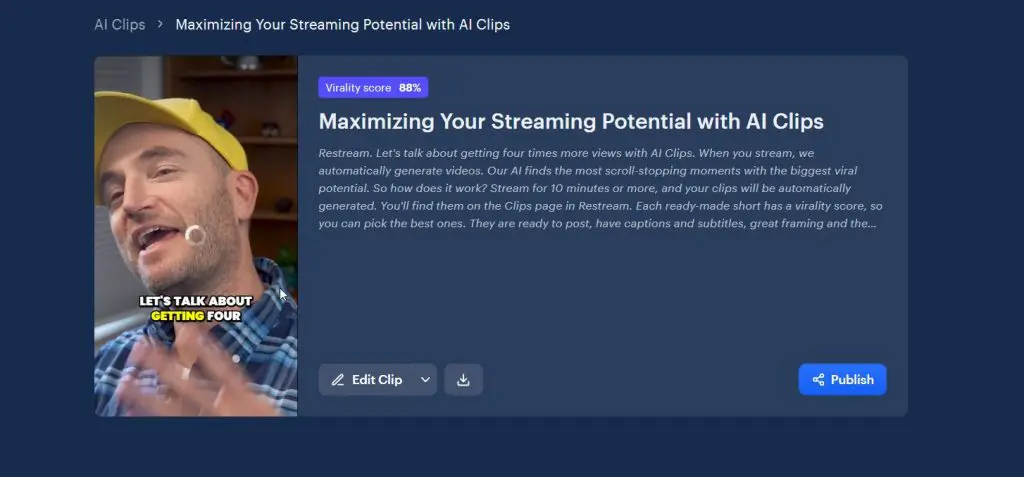
It then crops the video to a vertical format, removes silent pauses, adds captions, and trims it into bite-sized clips ready to post.
You can also make manual tweaks using the built-in video editor like adjusting text, changing the aspect ratio, or inserting stock B-roll to make your clips look more dynamic.
Then export the video in your preferred format and upload it to the platforms of your choice.
In my experience, AI Clips saves hours of manual editing and keeps your social feeds consistently active.
Feature #5: Restream Audio to Text / Video to Text (AI Transcription Tools)
Restream’s Audio to Text and Video to Text tools are built to help you repurpose your content faster. These are AI-powered transcription features that automatically convert your recorded videos or live session replays into text. You can use them to generate captions, blog posts, or even highlight summaries from your streams.
They’re accessible right inside your Restream dashboard under the Free Tools or AI Tools section. Once your live stream or uploaded video is saved, you can run it through the Video to Text converter to get a full transcript, or use the Audio to Text option if you’ve extracted the sound from your stream.
Both tools are fully automated.
You upload your file (or pick one from your recordings), and Restream’s AI handles the transcription in minutes. It supports multiple formats — MP4, MP3, and WAV — and works great for creating captions for YouTube, subtitles for your Reels, or show notes for podcasts.
Feature #6: Collaboration Tools
Restream’s Collaboration Tools make it easy to manage live events with a team. Instead of sharing passwords or juggling logins, you can securely invite co-producers, moderators, or team members and assign them specific roles inside your account.
For example, a co-producer can handle overlays, switch layouts, and manage guests in Restream Studio, while a moderator can focus on chat, comments, and community engagement. This makes it perfect for running professional live shows, webinars, or branded events where multiple people are involved.
Each workspace can have its own channels, stream keys, and permissions, keeping your projects and teams organized. Higher-tier plans even allow multiple workspaces — so your marketing team, support staff, and podcast crew can each manage their own streams without interfering with each other.
Feature #7: Audience Engagement Tools
One of Restream’s biggest strengths is how naturally it keeps your audience engaged across every platform.
Whether you’re running a live Q&A, podcast, or product launch, all engagement from chat to reactions happens in real time inside your Studio.
You can highlight viewer comments on-screen, display QR codes for links or offers, and keep conversations flowing through Restream Chat, which unifies messages from all your channels.
Combined with on-screen tickers, branded overlays, and instant guest invites, it creates a lively, two-way experience that feels more like a conversation than a broadcast.
Feature #8: Cross-Platform Analytics
Restream’s Cross-Platform Analytics dashboard brings all your live streaming data into one place. This saves you from checking YouTube Studio, Facebook Insights, or Twitch Analytics separately.
It shows real-time and historical metrics for every stream, including view count, average watch time, peak viewers, total chat messages, and engagement per platform.
You can compare how each destination performed. For example, whether your LinkedIn audience stayed longer while YouTube brought more new viewers.
Restream also tracks chat activity and audience spikes, helping you identify which moments kept people watching. For teams, this data becomes invaluable for improving future broadcasts or reporting results to clients.
All analytics are displayed in a single, easy-to-read dashboard accessible right from your Restream account. You can filter by date, platform, or specific stream, giving you a clear picture of what’s working and where to focus next.
Feature #9: Restream’s Free Creator Tools
Restream also offers a set of free browser-based tools that make content creation and testing easier without even needing an account. These tools are fast, ad-free, and built for streamers who need to prep content or troubleshoot before going live.
You’ll find handy utilities like:
- Camera Test – Check your webcam quality before a session.
- Mic Test – Test your audio input and fix setup issues.
- Video Converter & Audio Converter – Convert files to MP4, WEBM, MP3, or WAV.
- Audio Remover / Extractor – Quickly mute or separate sound from your videos.
- AI Tools – Generate TikTok, YouTube, or sales scripts with built-in AI script generators.
- AI Transcription Tools – Convert audio or video to text for captions or notes.
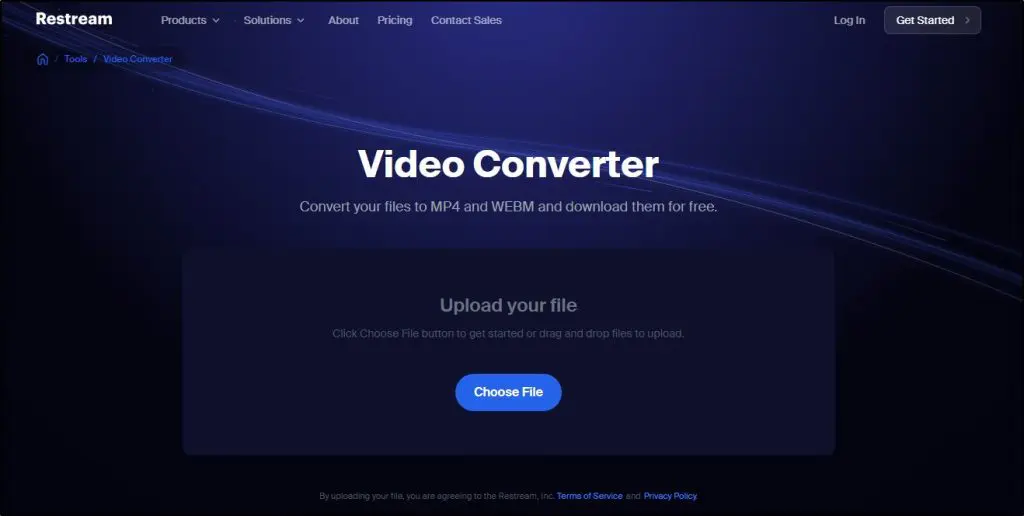
These are simple but genuinely helpful add-ons, especially for creators who handle multiple content types. Even if you’re not using Restream’s paid plans, these free tools are worth bookmarking for everyday production tasks.
Restream’s Weaknesses (Cons You Should Know Before Buying)
Restream is powerful, but it’s not perfect.
Here are a few things I’ve noticed after using it extensively. These are points that can genuinely affect your decision depending on your use case:
1. Audio and video customization is somewhat basic
Restream Studio’s layouts and effects are solid for beginners, but advanced users might find the design options limited. You can’t fine-tune every transition or use high-end visual effects like in vMix or Ecamm Live.
2. Limited video upload size on lower plans
The Upload & Stream feature is great, but the upload limits can be restrictive. Free users get 15-minute videos (250MB), while the standard plan only allows 30 minutes. If you plan to run long webinars or continuous loops, you’ll need a higher-tier plan.
3. AI Clips are good, but not perfect
The AI Clips feature saves time but still requires manual editing for professional results. The AI does a decent job finding highlights, but captions and framing sometimes need correction, especially for multi-speaker videos.
4. No built-in monetization tools
Unlike platforms like StreamYard or YouTube Live, Restream doesn’t have tipping, paid access, or direct donation tools. You’ll need third-party integrations for that.
5. Pricing climbs quickly for teams
The jump from individual plans to Business or Enterprise tiers can be steep, especially if you need multiple team members or workspaces. Smaller creators might find it expensive compared to similar multistreaming tools.
Is Restream better than OBS?
They serve different purposes. OBS (Open Broadcaster Software) is a free, open-source production tool that helps you create and mix your live stream — adding scenes, transitions, and custom layouts.
Restream, on the other hand, is built for distribution — it takes your live feed (from OBS or your camera) and broadcasts it to multiple platforms at once, like YouTube, Facebook, and LinkedIn.
In fact, many creators use both together: OBS for full creative control and professional effects, and Restream to send that same stream everywhere simultaneously.
If you want a simpler option without installing software, Restream Studio can replace OBS for most creators.
Read: The Best Live Streaming Equipment for Beginners and Professionals
Should You Use Restream for Multistreaming?
If you go live often and want to reach your audience everywhere without juggling multiple setups, Restream is one of the best tools you can get. It takes the technical hassle out of multistreaming and gives you a clean, browser-based setup that just works.
Its Restream Studio makes going live ridiculously simple (no encoders, no complicated software) while tools like Restream Chat, AI Clips, and Audio to Text help you engage and repurpose content effortlessly.
That said, it’s not a one-size-fits-all solution.
If you’re a large brand needing advanced production controls or 20+ concurrent channels, you might find the platform’s limits restrictive. But if your goal is to build authority, engage your audience, and create consistent live content without stress, Restream hits the sweet spot.
I’ve used it for years, and for most creators, coaches, and course sellers I work with, it’s been the perfect blend of simplicity, reliability, and professional results.
Frequently Asked Questions
1. Can I stream to TikTok using Restream?
Yes, Restream supports TikTok, but you need a TikTok Stream Key to connect it. If you don’t have access to TikTok Live Studio or an approved stream key yet, you’ll need to request one directly from TikTok.
2. Does Restream lower video quality when streaming to multiple platforms?
Not really — Restream sends your original stream to the cloud and redistributes it without reducing bitrate. However, if your internet upload speed is weak or one of the platforms limits resolution (like LinkedIn), the quality might vary per destination.
3. Can I use Restream with Zoom or Microsoft Teams?
Yes. You can connect Zoom, Teams, or any app that outputs an RTMP feed. Just copy your Restream RTMP URL and stream key into the app’s live settings. This way, your Zoom session can go live on multiple platforms at once.
4. Does Restream record my live streams automatically?
Yes, all live streams through Restream Studio or Upload & Stream are recorded and stored in the cloud. You can download or repurpose them using AI Clips or Audio to Text after your session.
5. Can I schedule live streams ahead of time?
Absolutely. Restream lets you schedule both real-time streams (like upcoming live events) and pre-recorded videos using the Upload & Stream feature. You can even post countdown timers to platforms like YouTube or Facebook before the stream starts.
6. Is there a limit on how long my live stream can be?
For live broadcasts, Restream doesn’t impose a strict time limit — it depends more on your connected platforms (for example, Facebook may cut streams after 8 hours). Upload & Stream videos, however, have length limits based on your plan.
7. Does Restream support streaming in 4K?
Yes, but only when using an external encoder like OBS, vMix, or Ecamm — not in Restream Studio. Studio currently supports up to 1080p on the Professional plan and higher.
8. Can I multistream in vertical format for TikTok and Reels?
Restream Studio currently focuses on horizontal (16:9) streams. However, you can upload vertical videos through AI Clips or Upload & Stream for TikTok and Instagram Reels.
9. Is there a mobile app for Restream?
Not yet — Restream doesn’t offer a full-featured mobile app. You can access your dashboard via mobile browser, but for full control, it’s best to use a desktop or laptop.
10. Can I monetize my streams directly through Restream?
No, Restream doesn’t have built-in monetization tools like tips or paid events. You can, however, promote external links, display QR codes, or use integrations (like StreamElements or Patreon) to collect payments.
11. How does Restream compare with StreamYard or Melon?
Restream offers more integrations and analytics than most competitors, but StreamYard may have slightly smoother branding controls. If multistreaming and AI tools are your focus, Restream wins; if simplicity is your only goal, StreamYard is worth testing.
12. Is Restream secure for business use?
Yes. Restream uses encrypted connections (HTTPS/RTMPs) and role-based access controls for team members. Enterprise accounts even include SSO and custom security setups for corporate use.
Table of Contents
Related Posts
Getting Started with Live Streaming and Multistreaming