
TL;DR: Multi-Platform Live Streaming Software (2026)
Multi-platform live streaming software sends one live video to several destinations at the same time, such as YouTube, Facebook, LinkedIn, and TikTok. The best tools handle distribution, stability, and audience management, so you run one session and one dashboard as you grow.
Here are the best multistreaming platforms in my experience.
Restream is the most balanced all-around multistreaming tool for serious creators. Paid plans from $16/mo on annual billing.
StreamYard gives you simple, polished live shows with guests and strong comment handling. Paid plans from $35.99/mo on annual billing.
Castr is infrastructure-focused streaming with embeds, security, and monetization. From $16.67/mo on annual billing.
Be.Live is an engagement-first browser studio with AI comment tools. Paid plans from $14.16/mo on annual billing.
OneStream Live is best for scheduled, pre-recorded, and 24/7 streams at scale. Paid plans from $15/mo.
Crowdcast suits interactive live events, workshops, and paid sessions. Paid plans from $49/mo.
Dacast offers white-label, secure streaming with full monetization control. From $39/mo on annual billing.
Wirecast is professional desktop production with optional cloud multistreaming. From $34/mo on annual billing.
Switchboard Live is enterprise-grade distribution for mission-critical broadcasts. Pricing is Custom, quoted on a sales call.
You can also use OBS for free multistreaming with plugins and manual setup, but it pushes the technical load onto your computer and internet connection. It works for occasional or experimental streams. Once streaming becomes business-critical, dedicated multistreaming platforms are far more reliable.
In my 20+ years as an e-learning consultant for professionals, edupreneurs, and enterprises, I’ve consistently seen live streaming help creators build authority and connection with their audiences.
Both are critical for attracting leads and customers.
A Forrester report found that live videos hold audience attention 10-20x longer than recorded and on-demand videos.
Many successful online course sellers hold live Q&A sessions and stream weekly engagement videos, which helps them build a human connection with their audience. Plenty of them also make money from live streaming directly.
So, if you plan to sell courses, consultancy services, or any kind of digital product, I urge you to go live regularly.
Before you go live, you need the right streaming software for your business and the right live streaming equipment to go with it.
In this article, I’ll share the best live streaming platforms with multistreaming features.
I’ve used all of them and know their pros and cons from experience.
The Best Live Streaming Software for Multiple Platforms (2026)
Before I go deeper, here’s a quick overview of the best live streaming platforms with multistreaming features in my experience.
| Platform | Destinations | Starting Price | Best For |
|---|---|---|---|
| Restream | 30+ supported channels, up to 8 at once on self-serve plans | $16/mo on annual billing | Creators and businesses that livestream regularly across many platforms |
| StreamYard | 3 to 8 destinations, based on plan | $35.99/mo on annual billing | Educators, podcasters, and interview-style live shows with guests |
| Castr | 6 to 30 destinations, based on plan | $16.67/mo on annual billing | Teams running serious live events with embeds, security, and monetization |
| Be.Live | 3 to 8 destinations, based on plan | $14.16/mo on annual billing | Creators who prioritize audience interaction and on-screen engagement |
| OneStream Live | 45+ supported platforms, up to 50 at once | $15/mo | Brands and teams focused on scheduled, pre-recorded, or 24/7 streaming |
| Crowdcast | 1 to 3 external destinations on Pro and Business | $49/mo | Workshops, AMAs, and paid live events with deep audience interaction |
| Dacast | Simulcast from your encoder | $39/mo on annual billing | Organizations that need white-label streaming, security, and monetization |
| Wirecast | Built-in destinations plus RTMP and SRT | $34/mo on annual billing | Production-heavy live shows with full control over cameras and scenes |
| Switchboard Live | Unlimited destinations | Custom | Public sector, media, and mission-critical broadcasts at scale |
Now I’ll cover each platform in more detail.
1. Restream – Best Streaming Software

- Streaming platforms: 30+ supported channels. You can stream to 2 at once on the free plan and up to 8 at once on the Business plan
- Starting price: $16/month on annual billing ($19 monthly) for the Standard plan
- Free plan or trial: Free plan (2 channels at once, 6 on-screen participants, Restream branding)
- Best for: Creators and businesses that livestream regularly across multiple platforms
- Not ideal if: You’re looking for a long-term free multistreaming platform
Restream is the best multi-platform live streaming software for content creators in my experience.
It lets you broadcast one live stream to YouTube, LinkedIn, Facebook, Twitch, and dozens of other destinations at the same time. If LinkedIn is a priority for you, see my guide to LinkedIn live streaming.
You can stream directly from your browser or connect Restream to OBS and other encoders if you run a more advanced setup.
I often recommend Restream to course creators and expertise-based businesses that want reach without repeating the same live session on different platforms.

One of its strongest practical advantages is how it handles audience engagement.
Restream pulls comments from all connected platforms into a single dashboard, so you don’t have to watch YouTube chat, LinkedIn comments, and Facebook reactions separately.
You can respond from one place and highlight selected comments on screen, which keeps live Q&A sessions focused and readable for every audience.
Restream also offers AI-generated clips that pull short highlights from long livestreams, which helps you reuse content faster on social channels. Clips are now a paid add-on on top of each paid plan, so budget for them separately.
A second add-on turns Restream into a webinar tool with registration for 100 or more attendees. It’s useful if you run paid workshops alongside public streams.
The plans mostly differ by how many channels you can stream to at once. Full HD 1080p streaming from the browser studio starts on the Professional plan.
If live streaming plays a serious role in your business, you will outgrow the free plan quickly and move to a paid tier.
Key Live Streaming Features in Restream
- Multistream to 30+ platforms and custom RTMP destinations from one dashboard
- Browser-based live studio for quick, no-install streaming with up to 10 participants
- OBS and encoder integrations for production-heavy workflows
- Cross-platform live chat to manage questions in one place
- AI-generated clips for repurposing long livestreams (paid add-on)
- Webinars with registration (paid add-on)
- Upload & Stream for scheduled and pre-recorded broadcasts
- Website player and team workspaces on the Business plan
| Pros | Cons |
|---|---|
| You can rely on it for long, recurring live sessions without stability issues | The free plan feels more like a trial than a usable multistreaming solution |
| You can manage audience comments from multiple platforms during live Q&A sessions | Costs rise quickly as you add channels, team seats, clips, or webinars |
| AI clips save time when you want highlights from 60 to 90 minute live streams | AI clips still need manual review before publishing |
| Fits naturally into OBS-based studio setups | The browser studio feels limiting for complex, production-heavy shows |
Restream Pricing Plans
- Free: $0
- Standard: $16/month on annual billing or $19/month paid monthly
- Professional: $39/month on annual billing or $49/month paid monthly
- Business: $199/month on annual billing or $239/month paid monthly
- Enterprise: Custom
Restream Features By Plan
| Feature | Free | Standard | Professional | Business | Enterprise |
|---|---|---|---|---|---|
| Channels at once | 2 | 3 | 5 | 8 | Custom |
| Restream branding removed | ✗ | ✓ | ✓ | ✓ | ✓ |
| On-screen participants | 6 | 10 | 10 | 10 | Custom |
| Studio stream quality | HD 720p | HD 720p | Full HD 1080p | Full HD 1080p | Full HD 1080p |
| Cloud recording per stream | ✗ | 6 hours | 10 hours | 10 hours | Custom |
| Recording storage | ✗ | 15 days | 15 days | 30 days | Custom |
| 4K recording, local recording, and split tracks | ✗ | ✗ | ✓ | ✓ | ✓ |
| Dual format streaming | ✗ | ✗ | ✓ | ✓ | ✓ |
| Custom RTMP channels | ✗ | ✓ | ✓ | ✓ | ✓ |
| Guest channels | ✗ | ✓ | ✓ | ✓ | ✓ |
| Custom graphics upload | ✗ | ✓ | ✓ | ✓ | ✓ |
| Analytics | Limited | ✓ | ✓ | ✓ | ✓ |
| RTMP pull links | ✗ | ✗ | 3 | 5 | Custom |
| Website player | ✗ | ✗ | ✗ | 1,000 viewers | Custom |
| Co-producer mode and team workspaces | ✗ | ✗ | ✗ | ✓ | ✓ |
| AI background music | 3 genres | 22 genres | 22 genres | 22 genres | 22 genres |
| AI Clips add-on | Not listed | From $19/mo | From $29/mo | From $59/mo | Custom |
| Webinars add-on | Not listed | From $99/mo | From $99/mo | From $299/mo | Custom |
| SRT ingest and stream backup | ✗ | ✗ | ✗ | ✗ | ✓ |
Read our complete Restream review.

2. StreamYard
- Streaming platforms: 3 destinations on the Core plan and 8 on the Advanced plan
- Starting price: $35.99/month on annual billing ($44.99 monthly) for the Core plan
- Free plan or trial: Free plan, plus a 7-day free trial on paid plans
- Best for: Creators, podcasters, and educators who want simple, professional live shows with guests
- Not ideal if: You want deep multistreaming control or advanced routing across many platforms
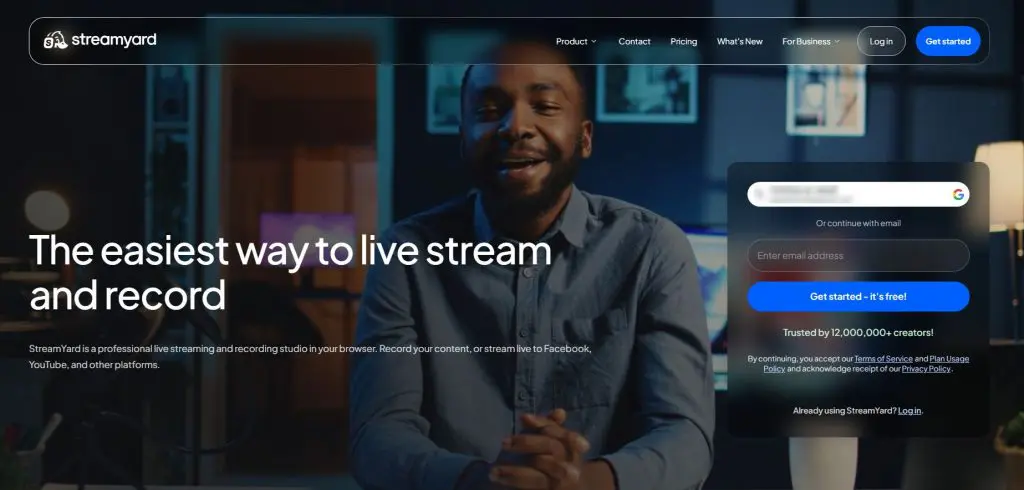
StreamYard is another top browser-based live streaming studio that lets you go live or record content without installing any software.
You can stream to YouTube, Facebook, LinkedIn, Instagram, X (Twitter), Twitch, and custom RTMP destinations from a single dashboard. I’ve written a separate walkthrough on how to live stream on YouTube using StreamYard.
I often recommend StreamYard to educators and course creators who value simplicity and reliability over technical complexity.
Audience engagement is one of StreamYard’s strongest areas. It pulls comments from all connected platforms into a central dashboard, where you can respond, moderate, and highlight selected comments on screen.
When you feature a comment, viewers on every platform see it instantly, which keeps live discussions focused and interactive.
StreamYard also supports multiple on-screen guests with a built-in greenroom, making it easy to run interviews, panels, and live podcasts. The free plan puts 6 people on screen and paid plans allow 10.
It includes AI clips and AI backgrounds on paid plans. Its real strength is how smoothly it handles live conversations.
The free plan keeps the StreamYard logo on your streams and doesn’t list multistreaming, so you need the Core plan to reach several platforms at once. If you’re deciding between StreamYard and a meeting tool, read my StreamYard vs Zoom comparison.
Key Live Streaming Features in StreamYard
- Multistream to up to 8 platforms from a single browser-based studio
- Centralized comment management with on-screen comment highlighting
- Easy guest access with no downloads required
- Local and cloud recordings, with 4K local recordings on the Advanced plan
- Built-in branding with logos, overlays, intros, and outros
- AI clips to repurpose livestreams into short-form content
- On-Air webinars for up to 100 viewers on the Advanced plan
- Custom RTMP destinations for flexible distribution
| Pros | Cons |
|---|---|
| Extremely easy to use, even for first-time live streamers | Multistreaming caps out quickly unless you upgrade |
| Excellent for interviews, panels, and live podcasts | Not designed for complex production workflows |
| Centralized comments make live Q&A sessions easy to manage | Limited analytics compared to enterprise platforms |
| Stable browser-based streaming with minimal setup | It has the highest entry price among the browser studios on this list |
StreamYard Pricing Plans
- Free: $0
- Core: $35.99/month on annual billing or $44.99/month paid monthly
- Advanced: $68.99/month on annual billing or $88.99/month paid monthly
StreamYard Features By Plan
| Feature | Free | Core | Advanced |
|---|---|---|---|
| Multistream destinations | 1 | 3 | 8 |
| StreamYard logo on streams | ✓ | ✗ | ✗ |
| Video quality | Not listed | Full HD 1080p | Full HD 1080p, 4K local recordings |
| On-screen participants | 6 | 10 | 10 |
| Backstage participants | Not listed | Not listed | 15 |
| Local recordings | 2 hours a month | Unlimited | Unlimited |
| Pre-recorded streams | ✗ | 2 hours | 4 hours |
| Custom RTMP destinations | ✗ | ✓ | ✓ |
| AI clips per month | 2 | 6 | 25 |
| AI backgrounds | ✗ | ✓ | ✓ |
| On-Air webinars | ✗ | ✗ | 100 viewers |
| Transcript downloads | ✗ | ✗ | ✓ |
| Storage | 5 hours | 50 hours | 50 hours |
Read our complete StreamYard review.

3. Castr
- Streaming platforms: 6 to 30 multistream destinations, based on plan
- Starting price: $16.67/month on annual billing ($19.99 monthly) for the Starter plan
- Free plan or trial: 7-day free trial, no credit card required
- Best for: Teams that run serious live events and want reliability, embed players, security, and monetization
- Not ideal if: You want an all-in-one browser studio with built-in guest hosting and social comment management
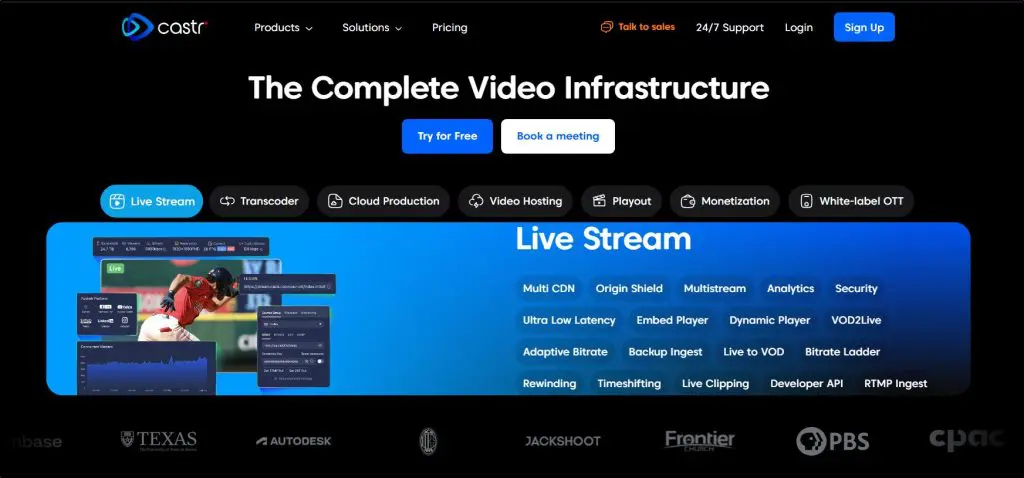
Castr is a streaming infrastructure platform that lets you push one live feed to multiple destinations, embed a high-quality player on your site, and run broadcasts with the kind of redundancy you usually see in media workflows.
You typically send your stream into Castr from an encoder like OBS, vMix, ATEM, or another hardware or software setup. Castr then handles multistreaming, player delivery, and analytics.
When it comes to audience engagement, Castr doesn’t try to act like a show host tool.
You won’t get StreamYard-style comment aggregation and on-screen highlighting from every social platform.
Castr focuses on the embedded player and the operational work that keeps a stream stable.
Every plan includes a paywall, cloud recording, live-to-VOD, and 24/7 support. In-stream advertising starts on the Standard plan. Domain and geographic controls, adaptive bitrate, and API access start on Premium.
Castr has also added an Events plan for launching a branded OTT service, with a web app, a content management system, and subscription or pay-per-view sales.
I don’t see meaningful AI creation features here, such as AI clip generation. So I treat Castr as a reliability and delivery choice, and I’d use another tool for content repurposing.
Key Live Streaming Features in Castr
- Multistream to 6 to 30 destinations, based on plan
- Multi-CDN delivery with a 99.9% uptime SLA
- Embed player options for website streaming and controlled viewing
- SRT ingest plus RTMP workflows for professional inputs
- Video analytics to spot stream issues early
- Paywall and monetization options for paid access and revenue
- Live-to-VOD workflows so you can turn streams into replays
- Adaptive bitrate streaming on higher tiers for smoother playback
| Pros | Cons |
|---|---|
| Works well when you already run OBS, vMix, or ATEM and want a dependable distribution layer | You’ll do more setup than with browser-first tools because Castr expects an encoder workflow |
| Fits serious event use cases where you need embed players, security, and monetization controls | You won’t get strong social engagement tooling like unified comments and on-screen highlights across platforms |
| Makes costs easier to predict, with bandwidth and storage spelled out by tier | If you mainly run casual creator streams, the infrastructure focus can feel like overkill |
| Scales cleanly when you need more concurrent streams and destinations | No obvious AI features for clipping or repurposing, so you’ll use other tools for that part |
Castr Pricing Plans
- Starter: $16.67/month on annual billing or $19.99/month paid monthly
- Standard: $41.67/month on annual billing or $49.99/month paid monthly
- Premium: $166.67/month on annual billing or $199.99/month paid monthly
- Ultra: $291.67/month on annual billing or $349.99/month paid monthly
- Events: $624.99/month on annual billing or $749.99/month paid monthly
Castr Features By Plan
| Feature | Starter | Standard | Premium | Ultra | Events |
|---|---|---|---|---|---|
| Concurrent streams | 3 | 3 | 10 | 15 | 15 |
| Multistream destinations | 6 | 10 | 20 | 30 | 30 |
| Player bandwidth (annual billing) | 2.4 TB | 6 TB | 36 TB | 60 TB | 150 TB |
| Video storage | 100 GB | 200 GB | 2 TB | 3 TB | 3 TB |
| Paywall | ✓ | ✓ | ✓ | ✓ | ✓ |
| In-stream advertising | ✗ | ✓ | ✓ | ✓ | ✓ |
| Adaptive bitrate and transcoding | ✗ | ✗ | ✓ | ✓ | ✓ |
| API access | ✗ | ✗ | ✓ | ✓ | ✓ |
| Failover ingest | ✗ | ✗ | ✗ | ✓ | ✓ |
| Branded OTT web app | ✗ | ✗ | ✗ | ✗ | ✓ |

4. Be.Live

- Streaming platforms: 3 to 8 destinations based on plan, including Facebook, YouTube, LinkedIn, Instagram, TikTok, and Amazon Live
- Starting price: $14.16/month on annual billing ($17 monthly) for the Starter plan
- Free plan or trial: Free plan (3 streams a month, 720p)
- Best for: Creators and small teams who prioritize audience interaction and on-screen engagement
- Not ideal if: You need advanced production control or enterprise-grade streaming infrastructure
Be.Live is a browser-based live streaming platform built for creators who want engaging, interactive shows without dealing with technical complexity.
You can multistream to several major platforms at once, run everything directly from your browser, and brand your stream with logos, lower thirds, overlays, and widgets.
Where Be.Live really stands out is audience engagement. It pulls comments from all connected platforms into a central dashboard, so you don’t manage chats separately.
You can highlight comments on screen, react to viewers in real time, and use its AI Comment Assistant to surface comments automatically during the stream. The assistant comes with the Pro and Growth plans.
This works well for live Q&A sessions, product demos, and community-driven shows where interaction matters more than production polish.

Be.Live also includes light repurposing tools, letting you trim streams, export audio for podcasts, and reuse content after the broadcast.
Watch the plan limits. The free plan allows 3 streams a month and the Starter plan allows 7, both at 720p. Unlimited streaming and 1080p start on the Pro plan.
I see it as a solid option when engagement drives results. Look elsewhere if you need broadcast-level control.
Key Live Streaming Features in Be.Live
- Multistream to Facebook, YouTube, LinkedIn, Instagram, TikTok, and Amazon Live
- Centralized comment management with on-screen comment highlighting
- AI Comment Assistant to surface audience comments automatically
- Built-in branding with logos, lower thirds, overlays, and widgets
- Interactive engagement widgets like lotteries and comment highlights
- Browser-based studio with no software installation required
- Basic video trimming and repurposing tools after the stream
- Team access for 2 to 6 members on paid plans
| Pros | Cons |
|---|---|
| Strong engagement tools make live shows feel interactive and fun | Scene switching and camera control feel limited for complex productions |
| Central dashboard keeps comments from all platforms in one place | Lower plans cap your streams per month and your destinations |
| Easy for beginners to start streaming without technical setup | Not designed for encoder-based or hardware-heavy workflows |
| AI comment features reduce the need for manual moderation | Lacks advanced analytics and delivery controls |
Be.Live Pricing Plans
- Free: $0
- Starter: $14.16/month on annual billing or $17/month paid monthly
- Pro: $24.16/month on annual billing or $29/month paid monthly
- Growth: $38.33/month on annual billing or $46/month paid monthly
Be.Live Features By Plan
| Feature | Free | Starter | Pro | Growth |
|---|---|---|---|---|
| Streams per month | 3 | 7 | Unlimited | Unlimited |
| Multistream destinations | Not listed | 3 | 5 | 8 |
| On-screen participants | 2 | 4 | 8 | 10 |
| Resolution | 720p | 720p | 1080p | 1080p |
| AI Comment Assistant | ✗ | ✗ | ✓ | ✓ |
| Recording storage | Not listed | 30 days | 60 days | 90 days |
| Team members | Not listed | 2 | 4 | 6 |
| Be.Live watermark | ✓ | ✗ | ✗ | ✗ |
Read our complete Be.Live review.

5. OneStream Live
- Streaming platforms: 45+ supported platforms. You can stream to 2 at once on the free plan and up to 50 on the Enterprise plan
- Starting price: $15/month for the Basic plan
- Free plan or trial: Free plan (2 destinations, 720p, 1 GB storage, 3 scheduled events)
- Best for: Creators, brands, and teams that rely on scheduled, pre-recorded, or 24/7 streaming
- Not ideal if: Live interaction, real-time audience control, and spontaneous broadcasts are core to your strategy
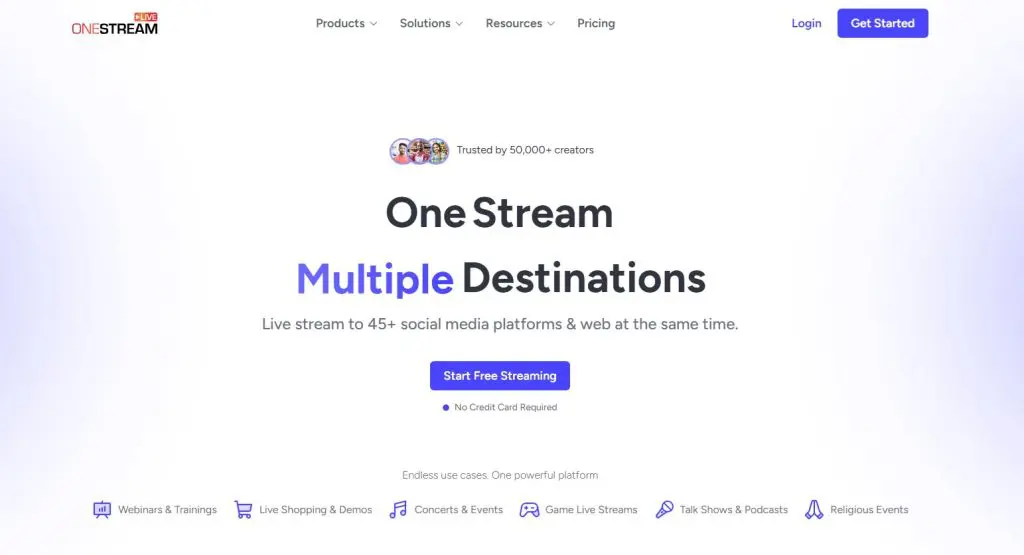
OneStream Live is a multi-platform live streaming tool built primarily for distribution and scheduling.
It lets you stream pre-recorded and real-time video to more than 45 social platforms and websites at once, including YouTube, Facebook, LinkedIn, Instagram, Twitch, and custom RTMP destinations.
I recommend OneStream Live when live streaming works more like a content engine than a live event.
You upload videos, schedule them in advance, run playlists, or keep channels live 24/7 without being present.
That makes it especially useful for brands, agencies, and educators who want consistent visibility without showing up every time.
OneStream Live offers unified chat, but live engagement feels secondary. You can respond to comments from one dashboard, yet you don’t get the same level of live control or on-screen interaction as live-first tools.
It has also added a custom website feature. You can launch a branded landing page for your streams on your own domain without separate hosting.
The tradeoff is scale and automation. If your goal is reach, scheduling, and content reuse, OneStream Live delivers that better than almost anything else.
One note on pricing. OneStream Live shows prices in local currency in some countries, so confirm the US dollar price at checkout.
Key Live Streaming Features in OneStream Live
- Multistream to 45+ social platforms and custom RTMP destinations
- Schedule pre-recorded videos as live streams
- 24/7 live streaming with playlists and looping videos
- Browser-based live studio with guest support and screen sharing
- Unified chat to view and reply to comments from multiple platforms
- Embed live streams on websites with a persistent player
- Custom branded website for your streams
- Encoder support for OBS, Zoom, Streamlabs, and more over RTMP, SRT, or WHIP
| Pros | Cons |
|---|---|
| Excellent for running scheduled or always-on streams without going live | Live interaction feels limited compared to live-first platforms |
| Supports more destinations than almost any multistreaming tool | Interface can feel complex for creators who only stream live |
| Strong playlist, looping, and 24/7 streaming capabilities | Real-time audience control isn’t its strength |
| Works well for agencies managing multiple brands or channels | Engagement tools exist, but they don’t drive live conversations |
| Great option when automation matters more than presence | Overkill if you only want to go live and talk to your audience |
OneStream Live Pricing Plans
- Free: $0
- Basic: $15/month
- Standard: $39/month
- Professional: $49/month
- Enterprise: $139/month
OneStream Live Features By Plan
| Feature | Free | Basic | Standard | Professional | Enterprise |
|---|---|---|---|---|---|
| Capacity | |||||
| Multistream destinations | 2 | 5 | 10 | 30 | 50 |
| Stream resolution | 720p | 720p | 1080p | 1080p | 1080p |
| Team seats | 1 | 1 | 4 | 6 | 10 |
| Cloud storage | 1 GB | 5 GB | 20 GB | 50 GB | 150 GB |
| Monthly player bandwidth | Not listed | 0.5 TB | 1.5 TB | 2.5 TB | 5 TB |
| Ways to stream | |||||
| Browser Live Studio | ✓ | ✓ | ✓ | ✓ | ✓ |
| Encoder streaming (RTMP, SRT, WHIP) | ✓ | ✓ | ✓ | ✓ | ✓ |
| Pre-recorded streaming | ✓ | ✓ | ✓ | ✓ | ✓ |
| Scheduled events | 3 | ✓ | ✓ | ✓ | ✓ |
| 24-hour streams | ✗ | ✓ | ✓ | ✓ | ✓ |
| Publishing | |||||
| Embeddable stream players | ✓ | ✓ | ✓ | ✓ | ✓ |
| Custom websites for streams | ✓ | ✓ | ✓ | ✓ | ✓ |
| Stream keys | ✓ | ✓ | ✓ | ✓ | ✓ |
Read our complete OneStream Live review.

6. Crowdcast

- Streaming platforms: 1 external destination on the Pro plan and 3 on the Business plan
- Starting price: $49/month for the Lite plan
- Free plan or trial: 14-day free trial
- Best for: Educators, creators, and businesses running interactive live events, workshops, AMAs, and paid sessions
- Not ideal if: Your main goal is broad social multistreaming across many platforms at once
Crowdcast is a browser-based live events platform built around interaction.
It’s a different kind of tool from the multistreaming platforms above, and I’ve included it because of its engagement features. It also appears in my list of the best webinar software platforms.
Crowdcast lets you host live shows, workshops, trainings, and community events where engagement matters more than pushing a stream everywhere at once.
Crowdcast focuses on keeping your audience in one place. Attendees register, join, watch, chat, ask questions, vote on Q&A, and access replays from the same link.
I’ve seen this work especially well for educators, membership communities, and creators who want conversations instead of passive viewers.
Crowdcast does support limited multistreaming to external platforms on the Pro and Business plans, but that’s a secondary feature. The real strength sits in audience control.
You manage chat, polls, questions, and on-screen guests from a single dashboard. You can highlight questions, timestamp answers for replays, remove trolls, and guide the flow like a live stage.
Plans are sized by live attendees and hosting hours. Lite covers 100 live attendees and 10 hours a month, and Crowdcast charges a small fee for each extra live attendee. It also takes a transaction fee on paid events, which drops on the Business plan.
If you care more about engagement quality than raw reach, Crowdcast plays a very different game than tools like Restream.
Key Live Streaming Features in Crowdcast
- Browser-based live events with no downloads for hosts or attendees
- Built-in registration pages and a single link for the live session and the replay
- Live chat, polls, and upvoted Q&A managed from one dashboard
- Bring attendees, guests, or co-hosts on screen during sessions
- Timestamped answers that improve replay value
- Paid events with Stripe integration
- RTMP mode to stream from OBS, Ecamm, or Wirecast if needed
- Live captions and limited multistreaming on the Pro and Business plans
| Pros | Cons |
|---|---|
| Feels like a live event, with more energy than a webinar or social stream | Not designed for wide multistreaming across many platforms |
| Excellent for workshops, AMAs, and community sessions | Higher starting price compared to social multistream tools |
| One link handles registration, live viewing, and replays | Limited control over external platform audiences |
| Strong moderation keeps events focused and troll-free | Fewer production controls than OBS-based setups |
| Built-in monetization works well for paid teaching and events | Best results require keeping viewers inside Crowdcast |
Crowdcast Pricing Plans
- Lite: $49/month
- Pro: $89/month
- Business: $195/month
Crowdcast Features By Plan
| Feature | Lite | Pro | Business |
|---|---|---|---|
| Usage limits | |||
| Live attendees included | 100 | 250 | 1,000 |
| Registrants | Unlimited | Unlimited | Unlimited |
| Extra live attendee | $0.15 each | $0.15 each | $0.15 each |
| Streaming hours per month | 10 | 20 | 40 |
| Max session length | 2 hours | 4 hours | 6 hours |
| Team seats | 1 | 2 | 4 |
| Studio storage | 1 GB | 5 GB | 10 GB |
| Replay storage | Unlimited | Unlimited | Unlimited |
| Live production | |||
| HD live video with recording | ✓ | ✓ | ✓ |
| Multi-session events | ✓ | ✓ | ✓ |
| RTMP mode (OBS, Ecamm, Wirecast) | ✓ | ✓ | ✓ |
| Multistream destinations | ✗ | 1 | 3 |
| English live captions | ✗ | ✓ | ✓ |
| Selling and data | |||
| Ticket transaction fee | 5% | 5% | 2% |
| Stripe paid events and donations | ✓ | ✓ | ✓ |
| Custom registration fields | ✗ | ✓ | ✓ |
| Event and session analytics | ✓ | ✓ | ✓ |
| Zapier integration | ✓ | ✓ | ✓ |
| Export emails, chat and data | ✓ | ✓ | ✓ |
| Support | Email and chat | Email and chat | Email and chat |
Read our complete Crowdcast review.

7. Dacast

- Streaming platforms: Limited native multistreaming (simulcast from an encoder, with your own site as the main destination)
- Starting price: $39/month on annual billing for the Starter plan
- Free plan or trial: 14-day free trial
- Best for: Organizations that need secure, white-label live streaming with monetization and full content control
- Not ideal if: You want easy, social-first multistreaming to many platforms at once
Dacast is a professional online video platform built for businesses, organizations, and broadcasters that care about control, security, and monetization more than social reach. It lets you host live streams and on-demand video on your own website using a fully white-label HTML5 player.
Dacast does support simulcasting, but it works differently from Restream or OneStream Live. You don’t pick dozens of social destinations from a dashboard. You stream from an encoder and use Dacast as the primary distribution and monetization layer. That makes it a better fit when your website or OTT app is the main destination.
Audience interaction also works differently. Dacast focuses less on live chat and more on controlled viewing experiences. You don’t manage social comments inside Dacast. Engagement happens through your embedded player, paywalls, analytics, and follow-up workflows.
Every plan includes unlimited concurrent viewers, 1080p broadcasting, and 24/7 support. The paywall and advertising tools start on the Event plan, so the Starter plan suits free or internal streams.
When I see teams choose Dacast, it’s usually because they want ownership, reliability, and revenue. If that’s your goal, compare it with the options in my guide to YouTube alternatives.
Key Live Streaming Features in Dacast
- White-label HTML5 live player with full branding control
- Secure live streaming with password protection, token security, and domain or country restrictions
- Built-in monetization with a paywall and pre, mid, and post-roll ads on the Event plan and above
- RTMP and HLS channels for professional encoders and hardware setups
- Unlimited concurrent viewers on every plan
- Live stream recording for replays and libraries
- Advanced analytics
- API access for custom workflows, OTT apps, and integrations
| Pros | Cons |
|---|---|
| Excellent choice when monetization and content ownership matter | Not a social-first multistreaming platform |
| White-label player keeps your brand front and center | No centralized social chat or comment management |
| Handles large audiences without viewer caps | Requires encoders and more technical setup |
| Strong security and privacy controls for paid or private events | Higher cost compared to creator-focused tools, with annual billing |
| Reliable for enterprise and organizational use cases | Less engaging for live Q&A-driven shows |
Dacast Pricing Plans
- Starter: $39/month on annual billing
- Event: $63/month on annual billing
- Scale: $165/month on annual billing
- Custom: Custom
Dacast Features By Plan
| Feature | Starter | Event | Scale | Custom |
|---|---|---|---|---|
| Bandwidth | 2.4 TB a year | 6 TB upfront | 24 TB a year | Custom |
| Storage | 500 GB | 250 GB | 2,000 GB | Custom |
| Unlimited concurrent viewers | ✓ | ✓ | ✓ | ✓ |
| Simulcast | ✓ | ✓ | ✓ | ✓ |
| Paywall | ✗ | ✓ | ✓ | ✓ |
| Pre, mid and post-roll ads | ✗ | ✓ | ✓ | ✓ |
| Unlimited channels | ✗ | ✗ | ✓ | ✓ |
| DRM for VOD | ✗ | ✗ | ✓ | ✓ |
| Team members | Not listed | Not listed | 3 | 5 |
| Phone support | ✗ | ✗ | ✓ | ✓ |

8. Wirecast
- Streaming platforms: Built-in destinations plus custom RTMP and SRT, with cloud multistreaming on Pro
- Starting price: $34/month on annual billing ($59 monthly) for Wirecast Studio. Wirecast Pro costs $42/month on annual billing
- Best for: Teams and creators who need full control over live production
- Not ideal if: You want a simple, browser-based multistreaming workflow
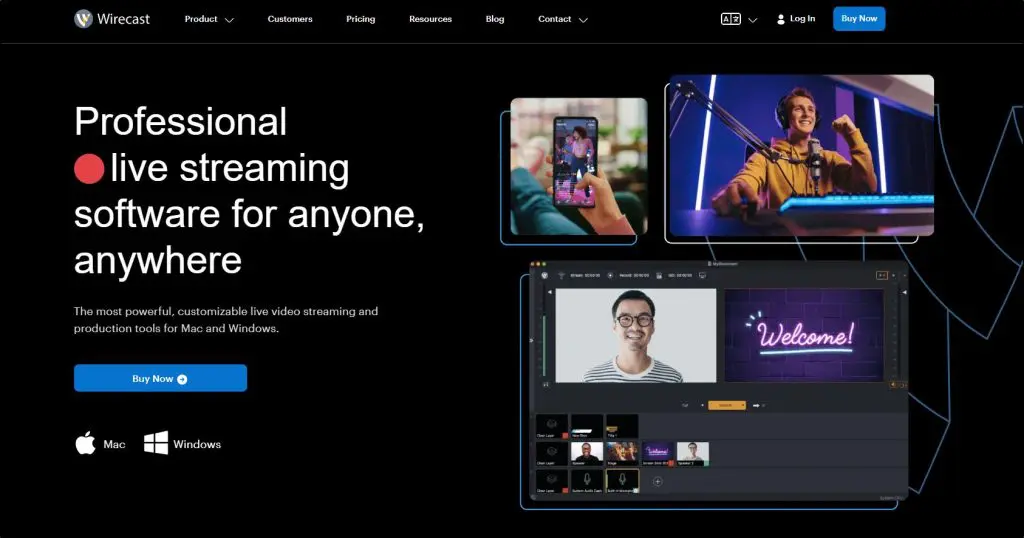
Wirecast is professional desktop live production software for Mac and Windows that lets you build a complete live show and then stream it to multiple platforms.
I see Wirecast as a production tool first and a multistreaming tool second. You control cameras, graphics, scenes, audio routing, and transitions locally, then send a clean program feed to YouTube, Facebook, Twitch, or any RTMP destination.
With Wirecast Pro, cloud multistreaming sends one high-quality stream to the cloud and distributes it to multiple platforms, which protects your upload bandwidth.
Wirecast has moved to subscription pricing, with a monthly option alongside annual billing. That lowers the cost of trying it for a single event or season.
You manage engagement on the destination platforms themselves, so it fits teams that already know how they want to run live shows.
If your livestream feels closer to a broadcast than a casual chat, Wirecast makes sense.
Key Live Streaming Features in Wirecast
- Desktop live production studio for Mac and Windows
- Built-in destinations plus RTMP and SRT outputs
- Cloud multistreaming (Pro) to avoid bandwidth strain
- Integrated stock media library, screen capture, and graphics
- Multi-camera and IP camera support (NDI, RTSP, HLS)
- 2 remote guests on Studio and 7 on Pro
- ISO recording, PTZ camera control, and multi-track audio (Pro)
- Virtual camera and microphone output
| Pros | Cons |
|---|---|
| Gives you full control over how your live show looks and runs | Requires local setup and production knowledge |
| Cloud multistreaming avoids sending multiple uploads from your network | No built-in unified chat or audience management |
| ISO recordings simplify editing and repurposing later | Higher cost than browser-based multistreaming tools |
| Works well for complex, multi-camera live shows | Not designed for scheduling or 24/7 distribution |
Wirecast Pricing Plans
- Wirecast Studio: $34/month on annual billing or $59/month paid monthly
- Wirecast Pro: $42/month on annual billing or $79/month paid monthly
Wirecast Features By Plan
| Feature | Wirecast Studio | Wirecast Pro |
|---|---|---|
| Remote guests | 2 | 7 |
| Cloud multistreaming | ✗ | ✓ |
| Built-in destinations plus RTMP and SRT output | ✓ | ✓ |
| NDI and IP camera inputs | ✓ | ✓ |
| ISO recording | ✗ | ✓ |
| PTZ camera control | ✗ | ✓ |
| Multi-track audio recording | ✗ | ✓ |
| Sports production tools | ✗ | ✓ |
| Virtual camera and microphone | ✓ | ✓ |

9. Switchboard Live
- Streaming platforms: Unlimited destinations
- Starting price: Custom pricing. All three plans are quoted on a sales call
- Best for: Public sector, media teams, universities, sports, and organizations running mission-critical live events
- Not ideal if: You want an all-in-one live streaming studio with chat, guests, and engagement tools
Switchboard Live is not a typical live streaming tool. You don’t use it to create a live show. It helps you distribute an existing live feed everywhere, reliably and at scale.
With tools like Restream or StreamYard, you connect a camera, go live, manage comments, and engage your audience from one dashboard. Switchboard works differently. You send it a single professional video feed from OBS, Wirecast, or a hardware encoder, and Switchboard pushes that feed to dozens of destinations automatically.
It has no live studio, no unified chat, and no on-screen interaction. That’s intentional. Switchboard assumes engagement happens natively on each platform, while it focuses on uptime, automation, and control. This matters when you stream city council meetings, sports events, emergency briefings, or large public broadcasts where failure isn’t an option.
Switchboard sells three seat-based plans called SMB, Public Sector, and Enterprise. All of them include unlimited destinations. They differ by inputs, team members, archive length, and support.
Key Live Streaming Features in Switchboard Live
- Unlimited simultaneous streaming destinations without per-platform limits
- Auto-start and auto-stop so destinations go live the moment your encoder starts
- Scheduled start and stop for pre-configured, hands-off broadcasts
- PartnerShare to stream directly to partners’ or sponsors’ channels without sharing passwords
- RTMP and SRT input for professional and low-latency workflows
- Centralized destination management for teams
- Archive destinations to store and download event recordings
- 24/7 streams on the Enterprise plan
| Pros | Cons |
|---|---|
| Extremely reliable for high-visibility, high-risk live events | No live chat, audience interaction, or engagement tools |
| Handles unlimited destinations without performance trade-offs | Requires external production software or hardware |
| Ideal for government, education, sports, and media operations | Overkill for creators, marketers, and course sellers |
| Removes the need to log into dozens of social platforms | No browser-based live studio |
| Designed for teams, workflows, and compliance needs | No published prices, and setup doesn’t suit casual or solo streamers |
Switchboard Live Pricing Plans
- SMB: Custom
- Public Sector: Custom
- Enterprise: Custom
Switchboard Live Features By Plan
| Feature | SMB | Public Sector | Enterprise |
|---|---|---|---|
| Multistream destinations | Unlimited | Unlimited | Unlimited |
| Inputs | 1 RTMP | 1 RTMP or SRT | 3 RTMP or SRT |
| Team members | 2 | 3 | 3+ |
| Support | Phone | Phone | |
| Archive | Not listed | 30 days | 30+ days |
| 24/7 streams | Not listed | Not listed | ✓ |
| Account hierarchy | Not listed | Not listed | ✓ |
Can You Use OBS for Multistreaming?
OBS Studio (Open Broadcaster Software) is a free, open-source live streaming and recording tool.
Creators, gamers, educators, and businesses use it widely to go live on platforms like YouTube, Facebook, Twitch, and LinkedIn.
OBS gives you full control over scenes, sources, audio, and video quality, but it assumes you’re comfortable with a more hands-on setup.
Using OBS as a Free Multistreaming Option
You can use OBS for multistreaming if you’re looking for a free solution and you have some technical know-how.
However, multistreaming isn’t built in by default. You either install a multiple RTMP output plugin or manually configure advanced outputs.
In both cases, OBS encodes and uploads a separate stream for each platform, all from your computer and internet connection.
This works, but it’s not perfect.
How Multistreaming With OBS Actually Works
When you multistream with OBS, three things happen.
- Your PC encodes multiple video streams simultaneously
- Your internet connection uploads multiple feeds at once
- OBS handles each platform independently. If one stream drops or lags, the others may continue or fail separately. You get no central dashboard for chat, comments, or monitoring.
When OBS Multistreaming Makes Sense
OBS is a reasonable choice in these situations.
- You multistream occasionally
- You’re comfortable tweaking bitrate, encoder, and output settings
- You’re okay with lower resolutions or shorter sessions
- You don’t need unified chat or audience management
- You want a completely free setup
This is common for early-stage creators, test streams, or internal broadcasts.
When OBS Multistreaming Doesn’t Make Sense
OBS becomes limiting in these situations.
- You stream to three or more platforms regularly
- You want stable 1080p or long live sessions
- Your upload bandwidth isn’t consistently strong
- Your computer struggles under load
- You need centralized chat, moderation, or comment highlighting
- The stream is business-critical or public-facing
In these cases, OBS stops being “free” in practice because reliability and focus start to suffer.
In Short
OBS is a powerful production tool and a workable free multistreaming option if you know what you’re doing. It wasn’t built to be a multistreaming platform. Once live streaming becomes a serious part of your workflow, dedicated multistreaming tools solve the exact problems OBS creates at scale. Many creators pair the two and send one OBS feed into Restream, Castr, or OneStream Live.
What to Look for in Multi-Platform Live Streaming Software
Viewership on live streaming sites has grown worldwide, and many streaming software solutions have appeared over the last few years.
Here are the key factors to check when you evaluate streaming software.
Live Stream Quality
- Check whether the service supports HD streaming even on light connections.
- Confirm which plan includes 1080p. Several tools on this list hold their entry plans at 720p.
- Look for adaptive bitrate, which adjusts data use to each viewer’s device and connection.
- Test stability on a long session before you commit to a paid event.
Viewer and Usage Limits
- Check for limits on the number of people who can watch your live stream.
- Check for caps on streams per month, hosting hours, or session length.
- Ask whether the service blocks viewers in any countries.
- For platforms that host your video, check the bandwidth and storage included with each plan.
Accessibility
- Find out how viewers reach your video.
- Avoid tools that force viewers to download a new app or register for an account, unless registration is the point of your event.
- A public link or an embedded player on your site is the easiest option for most audiences.
Viewer Engagement Features
- Look for live chat, polls, Q&A, and on-screen comments. These matter when you want to engage prospective learners and give them value.
- Make sure you can share CTAs or links with viewers, such as a link to a course landing page.
- Templates, overlays, and video frames for different occasions can make your life much easier.
AI Features
- AI clips turn a long stream into short videos for social channels. Restream and StreamYard both offer them.
- AI comment tools surface the best audience comments during a busy stream. Be.Live offers one.
- Check whether AI features are included in your plan or sold as an add-on.
Integration and API
- Confirm the tool streams to the platforms you care about, such as YouTube, Facebook, LinkedIn, and TikTok.
- Count how many destinations your plan allows at once. This number drives the price on most tools.
- An API lets you build custom integrations with other software.
Costs
- Cost will be a factor. The cost of live streaming an event has come down a lot in recent years, and you can start on a free plan with several tools. Compare annual and monthly billing, and add the price of any add-ons you need.
These checks will help you evaluate any streaming software objectively.
My Top Picks for the Best Live Streaming Software
I’ve hand-picked some of the best live streaming software platforms for you in this article. All of them are strong products with high-quality features and customizable video broadcasting options.
Since you still need to choose one, here are my top picks to make your decision easier.
Restream is the best streaming software for multiple platforms.
StreamYard is the easiest studio for live shows with guests, with strong recording capabilities.
OneStream Live is the best choice for scheduled, pre-recorded, and 24/7 streams.
Crowdcast is best for monetizing interactive live events.
Pick the one that fits your live streaming business model, and start on a free plan or trial before you commit.
If you want to estimate what your streams and content could earn, try our free creator tools.
Frequently Asked Questions
What is multistreaming?
Multistreaming means broadcasting one live video to several platforms at the same time, such as YouTube, Facebook, LinkedIn, and Twitch. A multistreaming tool receives your single stream in the cloud and distributes it to each destination, so your computer and internet connection only upload one feed.
What is the best live streaming software for multiple platforms?
Restream is the best overall choice. It supports 30+ channels, combines chat from every platform, and has a free plan. Paid plans start at $16 a month on annual billing. StreamYard is the better pick for interview shows, and OneStream Live is best for scheduled and pre-recorded streams.
Can I multistream for free?
Yes. Restream’s free plan streams to 2 channels at once with Restream branding. OneStream Live’s free plan covers 2 destinations at 720p. OBS can also multistream for free with a plugin, but your computer and internet connection carry the full load.
How much does multistreaming software cost?
Entry-level paid plans on this list run from about $14.16 to $49 a month. Be.Live starts at $14.16, OneStream Live at $15, Restream at $16, Castr at $16.67, and StreamYard at $35.99. Most of these prices apply to annual billing, and monthly billing costs more.
Does multistreaming need more upload bandwidth?
Not with a cloud multistreaming tool. You send one stream to the service, and it distributes that stream to every destination. Restream states you don’t need additional bandwidth even with 30 destinations. Multistreaming directly from OBS does need more bandwidth, because your computer uploads a separate feed for each platform.
Can I stream pre-recorded videos as a live stream?
Yes. OneStream Live is built for this and lets you schedule recorded videos, run playlists, and keep a channel live around the clock. Restream offers Upload and Stream, and StreamYard’s paid plans support pre-recorded streams of 2 to 4 hours.
Which live streaming tools have AI features?
Restream offers AI clips as a paid add-on, and StreamYard includes AI clips and AI backgrounds on paid plans. Be.Live has an AI Comment Assistant on its Pro and Growth plans. Castr, Dacast, Wirecast, and Switchboard Live focus on delivery and production and don’t advertise AI content tools.
Do I need OBS to use these platforms?
No. Restream, StreamYard, Be.Live, OneStream Live, and Crowdcast all have browser-based studios, so you can go live with a webcam and a microphone. Castr, Dacast, and Switchboard Live expect a feed from an encoder such as OBS or Wirecast.
How We Evaluate and Test Software & Platforms
Reviews of platforms on the Learning Revolution site are overseen by the site’s founder, Jeff Cobb, an e-learning industry expert with more than 20 years of experience working with online course and related platforms. All evaluations are conducted by a team of analysts who have extensive experience using, testing, and writing about these types of platforms. We dedicate numerous hours to researching each platform, ensuring each aligns with the needs of online course sellers, and vetting specific areas like core features, usability, pricing, and customer satisfaction. Our reviews are unbiased, and while we will participate in affiliate programs, if available, we do not accept payment for placement in our articles or links to external websites.

Jeff Cobb, Founder of Learning Revolution
Jeff Cobb is an expert in online education and the business of adult lifelong learning. Over the past 20+ years he has built a thriving career based on that expertise – as an entrepreneur, a consultant, an author, and a speaker. Learning Revolution is a place where Jeff curates tips, insights, and resources to help you build a thriving expertise-based business. Learn more about Jeff Cobb here.
- The Best Live Streaming Software for Multiple Platforms (2026)
- 1. Restream – Best Streaming Software
- 2. StreamYard
- 3. Castr
- 4. Be.Live
- 5. OneStream Live
- 6. Crowdcast
- 7. Dacast
- 8. Wirecast
- 9. Switchboard Live
- Can You Use OBS for Multistreaming?
- What to Look for in Multi-Platform Live Streaming Software
- My Top Picks for the Best Live Streaming Software
- Frequently Asked Questions


Easestream is much better platform to go live on multiple platform that is no where in your list.
Thanks. We’ll check it out.