

TL;DR: Pictory Review (2025) — What It Is, What It Does, and Who It’s For
Pictory is an AI video creation tool that turns your scripts, blog posts, or URLs into polished, short-form videos without needing a camera, editing skills, or a studio.
⚙️ Key Features
– Script-to-Video: Paste text, choose visuals and voice, and generate videos in minutes.
– Blog-to-Video: Repurpose blog posts into engaging video summaries for SEO and social platforms.
– AI Voiceovers: Choose from 29+ realistic voices or upload your own, synced automatically.
– Text-Based Editing: Edit videos by simply editing the text transcript—fast and intuitive.
– Video Highlights: Auto-generate short highlight clips from long videos.
– Captions & Transcripts: Auto-generate closed captions and full transcripts for accessibility and repurposing.
– PowerPoint to Video: Convert slides into narrated videos to use in courses or presentations.
– Multiformat Export: Publish in landscape, square, or portrait for YouTube, TikTok, or Instagram.
– Stock Library: Access up to 18 million visuals from Getty and Storyblocks.
💵 Pricing (Monthly Plans)
– Starter: $23/month – for basic creators (720p, 200 mins/month)
– Professional: $47/month – adds 1080p, ElevenLabs voices, and blog-to-video
– Team: $117/month – adds collaboration, branding, and more volume
– Enterprise: Custom – for API access, advanced features, and large teams
✔️ Includes 14-day free trial on all plans.
✅ Best For
Creators and marketers who want to make short, faceless videos from text, blogs, or scripts, fast and without editing skills.
🚫 Not Ideal
For Anyone creating interactive courses, on-camera content, or advanced video projects that need full editing control or AI presenters.
Try Pictory For Free Now
You already know that using more videos across your online business can be a game changer. But if you’re like a lot of online course creators and experts, consistently creating high-quality videos can be time-consuming and costly.
Not anymore.
Generative AI technology is quickly changing the video marketing landscape and making videos more accessible.
In this article, we’ll review Pictory AI, a fast-growing AI video marketing platform that helps you create and edit HD videos in minutes.
Whether you’re an online course seller already creating educational videos or a professional looking to build your first info product, you’ll love what Pictory offers.
We’ll dive deep into its features, discuss its use cases, and evaluate its pricing plans to help you decide if it’s the right AI video generator for your business. See our list of the best AI video generators and editors for creators.
Let’s get started.
Quick Verdict | Is Pictory AI The Right Video Generator And Editor For You?
Don’t have the time to read the full article? Read below for our quick verdict, or watch below to see what Learning Revolution founder, Jeff Cobb has to say about Pictory including key features, pros and cons, and more.
Pictory is an impressive product. If you want to create short videos quickly for different stages of your marketing funnel, it will make your job significantly easier. However, you can’t use it for creating entire online courses because it lacks personality.
So, for educational videos and marketing and lead generation, Pictory can be a great addition to your toolkit.

What Is Pictory, And What Does It Do?

Pictory is an AI-powered video creation platform that helps you turn written content into short, professional-looking videos—without ever getting in front of a camera.
You don’t need to show your face, buy expensive gear, or learn how to use complex video software. That’s one of the main reasons I recommend it to course creators, coaches, consultants, and solo business owners. Many of them want to use video but feel stuck because they’re not comfortable on camera or don’t have time to edit.
With Pictory, you can start with a full blog post, a script, or even a simple prompt. It uses that input to find stock footage, add music, and generate a complete video. You can choose from realistic AI voices in over 29 languages—or upload your own voiceover.
It also lets you create videos directly from blog post URLs. Paste the link, and Pictory pulls the key ideas and turns them into a video draft.
Editing is fast and simple. You can remove any part of the video just by deleting the matching text. It also cuts filler words and silences with a click.
Pictory goes beyond just making videos. You can pull highlights from long recordings, transcribe videos into blog posts, or even turn PowerPoint slides into engaging video content.
Here’s a quick overview of what you can do with Pictory:
- Turn scripts, prompts, blog posts, or URLs into videos
- Add captions and transcripts automatically
- Use AI voiceovers or your own audio
- Edit videos by editing text
- Remove filler words and silences
- Create short highlight clips from long recordings
- Turn PowerPoint slides into narrated videos
- Repurpose content across formats and platforms
- Use realistic ElevenLabs voices in 29 languages
- Export videos in landscape, portrait, or square format
- Download in up to 1080p HD
If you’re trying to stay consistent with content but don’t want to be on camera or deal with video editing tools, Pictory makes that possible. It’s not meant to replace a full studio setup, but for most online creators, it gets the job done faster and easier.
Want to create a faceless YouTube channel? here’s a step-by-step guide
Pictory AI App Features | What Can This AI Video Creator Do?
Pictory uses generative AI features to turn text into video, extract text from videos, and save editing time by finding relevant stock footage, images, and soundtracks for your content.
When you sign in to your Pictory account, it shows you its four main content creation tools on the dashboard.

Let’s discuss how you can use these tools to generate AI video content.
Feature #1: Text-To-Video Generation
As the name suggests, the Text-To-Video Generation feature allows you to create AI videos from text content.
You can copy/paste your text content from a script or an article or enter custom text, and Pictory automatically creates a high-quality video.
To be more specific, it uses your text input to do the following.
- Turn your text content into a visual story.
- Find relevant images, videos, and visuals that portray your content accurately.
- Give a list of background soundtracks matching your video’s mood.
- Generate AI voiceover for your content.
Here’s a video created using this Pictory feature.
Impressive, isn’t it?
All you have to do is provide Pictory your text, and it makes a video like this for you.
Here’s how.
When you sign in to your Pictory account, go to the Script to Video tool from the dashboard. Either write your video script or paste it from a text file into the editor.
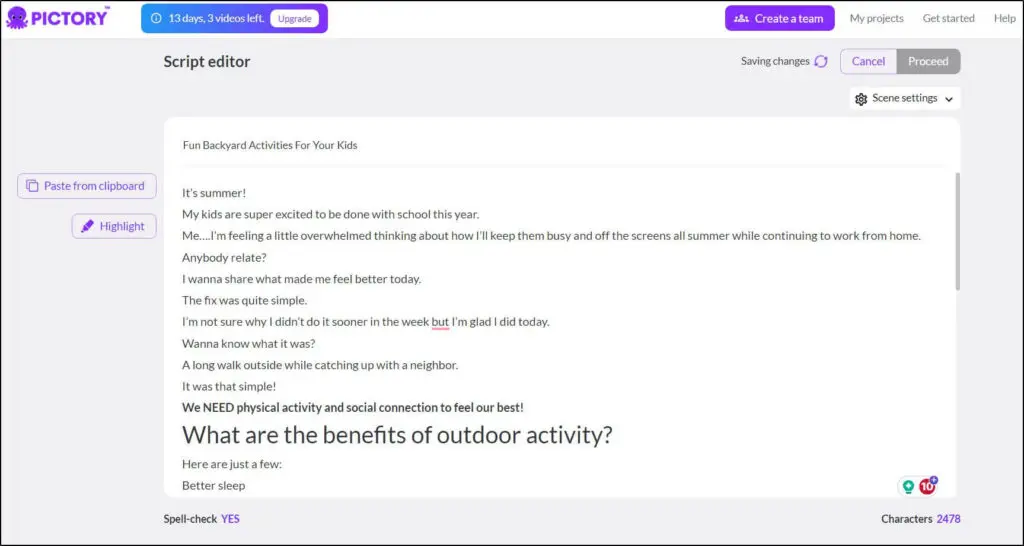
You can edit this text the same way you edit any other text document. When you think it’s ready, click Proceed, choose a video theme, a soundtrack, an AI voice (or your voice), and generate your video.
Pictory creates a video draft that you can edit, modify, improve, and change any way you want.
Once satisfied, publish the video in your preferred format and use it in your digital products or social media profiles.
Feature #2: AI-Generated Voices
We mentioned AI voices a few times in the last section.
Let’s discuss them in more detail here.
Pictory’s AI voices are a list of human-like voiceovers you can use in your videos. These AI voices narrate your text content in male or female voices and various accents.

You can choose multiple AI voices for different scenes in a video clip. Plus, you can change the voice tone, mood, and speed according to your text.
If you prefer your voice, just upload an audio recording from your computer to use in your videos.
How realistic are these AI voices?
An average user will find it hard to distinguish between Pictory’s AI voices and actual human speech. However, there’s room for improvement because these AI-generated audios sound somewhat bland and unengaging for longer videos.
On higher plans, Pictory now uses ElevenLabs voices, which sound much more natural and expressive. You can also upload your own voiceover, and Pictory will sync it automatically with your video scenes.
So, while the AI voices aren’t perfect, they’re as good as you can get from an AI generator.
Feature #3: Article Or Blog Post To Video Conversion
This is one of our favorite features in Pictory because it allows you to repurpose your blog content, increase its reach, and make it more engaging.
Here’s how it works.
Instead of entering your script in the text editor, just give Pictory the URL of your blog post. It pulls the content of your article from your website in its text editor and uses AI to highlight the sections it believes should feature as the scenes of your video.
Let’s do this for one of the recent articles here on Learning Revolution.

When you click Proceed, it takes a few minutes to download and process your article to find its core message for the AI video.

Once it completes the processing, Pictory shows your article in its text editor alongside the scenes it extracted for your video.

You can scroll through your article, add or remove scenes, and edit the content to include any additional information.
The rest of the process is the same as the last section, where we created a video from text. You just need to choose a video template, select a track from Pictory’s recommended background soundtracks, add your voiceover, or choose an AI voice, and review and finalize the visuals for each scene of your video.
And just like that, your AI video is ready for your audience.
This feature is handy when you want to include videos in your blog posts to make them more engaging or reach out to your audiences on more visual platforms.
Feature 4: Automatic Video Captions And Transcription
Want to transcribe your videos or add captions without spending hours? Pictory has just the right solution for you.
It generates automatic captions and creates the complete transcript when you upload a video. If your video has multiple people, Pictory’s AI transcript feature detects and identifies them in the text editor.
You can copy your video transcript from the text editor to Google Docs or any other word processor or use it directly to create a WordPress blog post.
In addition, Pictory creates the complete timeline of your video scenes with closed captions, allowing you to see exactly which part of your text comes where.
It also provides you with different tools to edit and format your video captions and apply various themes to modify the subtitles in your content.
Overall, this is a handy tool to speed up your content creation process and add significant value to your videos.
Feature #5: Text-Based Video Editing
Video editing usually requires mastering professional video editing software and experience in using different video optimization features.
But with Pictory’s text-based video editor, changing your video’s content is as easy as creating a text document.
It’s not a replacement for professional video editing tools, but it simplifies many everyday editing tasks that other software takes much longer to execute.
For example, once Pictory transcribes your video, you can edit its content using the text editor. It gives you intelligent filters such as “automatically remove filler words” and “remove silences” to drastically speed up video editing.

When you remove text from your transcript, it’s also automatically deleted from your video. You can use the search filter in the text editor to find specific words or sections to remove from your video instead of playing it repeatedly.
Overall, Pictory’s text editor is a handy tool that simplifies editing and speeds up content creation.
Feature #6: Create Highlights From Long Videos
Want to give your audience a quick overview of a lengthy video? Try Pictory’s AI-powered video highlights.
This tool automatically identifies the most critical parts of your video and creates a highlights package for your audience, saving their time and giving them a gist of your content.
You can use the Highlights feature in Pictory’s video editor by uploading your video and choosing the length of your highlights clip.
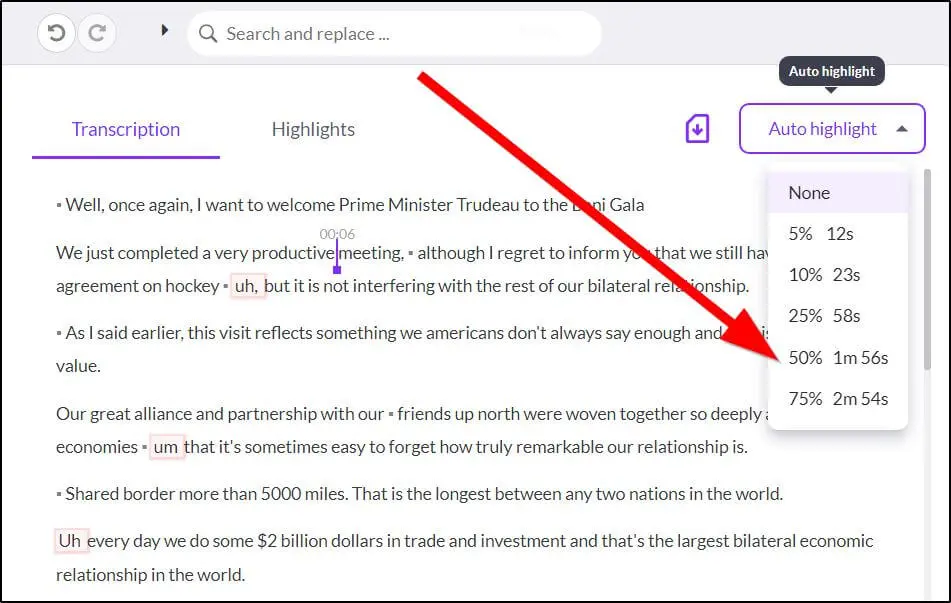
Pictory uses AI to find the most important sections of your transcript and lists them separately in the Highlights section.

Here, you can edit, add, or remove scenes from the highlight reel, edit the script, and add more content to any part of the video.
Your video output is automatically adjusted when you add or remove a scene from the highlights reel.
Once you’re satisfied, choose a captions template and publish the video.
Feature #7: Create Videos From Visuals
If you want to combine a bunch of images, presentation slides, or videos to create one video clip, Pictory will make your job much easier.
Instead of manually adding images and videos in different tracks, you can simply upload them to Pictory and adjust their appearance using drag & drop options.
Plus, you can copy/paste your script from a document or blog post and add an AI voice or your own audio recording in the background. You’ll also have all the standard Pictory video editing tools and features to help you polish your content.
Feature #8: Expanded Visual Library
Pictory’s visual library now offers access to over 10 million Getty Images, making it easier than ever to create videos that stand out and contain content tailored to your needs. Utilizing AI and the parameters you enter, Pictory will suggest a manageable number of relevant visuals to choose from.
But it’s important to note that the Getty Images visuals tool is currently only fully available as a premium feature. Free and standard plan users will typically get AI-suggested visuals from Storyblocks.
Either way, when it comes to stock content, Pictory has you covered.
Overall Impression Of Pictory’s AI Video Generation And Editing Features
Pictory speeds up video creation by giving you user-friendly tools and features. We were impressed with its text editor, script-to-video, and video transcription features and believe they open up many content creation possibilities. Its AI voice-over features are similar to what most other tools in this industry offer. But there’s room for improvement.
Overall, it’s an impressive tool for course creators and marketers looking to use video for business growth.
But that’s just one part of the equation.
The other key question is pricing and affordability.
Let’s discuss it in the next section.
Pictory AI Pricing (2025) | Does It Offer A Free Plan?
Pictory offers four paid plans with a 14-day free trial. You can choose between monthly or annual billing. Annual plans come with significant discounts and often include bonus perks like expert consultations.
Here’s a breakdown of the regular monthly rates:
Pictory Plans (Monthly Billing)
- Starter – $23/month
For creators starting with short-form video - Professional – $47/month
For solo creators, marketers, and coaches who need more polish and flexibility - Team – $117/month
For agencies and teams working on shared video content - Enterprise – Custom pricing
For large organizations that need API access, advanced features, and support
Pictory Plan Comparison (Core Features)
| Feature | Starter | Professional | Team | Enterprise |
|---|---|---|---|---|
| Monthly video minutes | 200 | 600 | 1800 | Custom |
| Max video length | 30 mins | 30 mins | 30 mins | Custom |
| Stock visuals | 2M (Storyblocks) | 18M (Getty + Storyblocks) | Same | Same |
| AI voices | Standard | +120 min ElevenLabs | +240 min ElevenLabs | Custom |
| Brand kits | 1 | 5 | 10 | Unlimited |
| Export resolution | 720p | 1080p | 1080p | 1080p+ |
| Formats | Landscape | + Portrait & Square | Same | Same |
| Voiceover auto-sync | ❌ | ✅ | ✅ | ✅ |
| Highlights & summarization | ✅ | ✅ | ✅ | ✅ |
| PowerPoint to video | 100 slides/month | 300 | 900 | Custom |
| Team collaboration | ❌ | ❌ | ✅ | ✅ |
| API access | ❌ | ❌ | ❌ | ✅ |
| Best for | Beginners | Coaches, solo creators | Course teams, agencies | Enterprises |
All plans include script-to-video, blog-to-video, text-based editing, captions, transcription, and repurposing tools. Upgrading unlocks better visuals, more AI voice time, and advanced editing features.
Pictory AI Use Cases | How To Use AI Video To Grow Your Business
You can use Pictory’s features in various ways to power your video marketing strategy. Here are a few examples and use cases to give you an idea of its capabilities.
Use Case #1: Explainer Videos
Explainer videos are a great way to show prospects your product’s capabilities and how it can make a difference to their businesses.
Using Pictory, you can quickly create engaging explainer videos by uploading your script, choosing relevant visuals, and adding AI voiceovers.
Use Case #2: Educational Videos
As an online course creator, you must regularly publish high-value content that educates your audience and positions you as an authority on your topic.
With Pictory, you can easily create AI videos for your website, YouTube channel, and other online platforms.
Just identify the most common questions of your audience and develop dedicated videos for each question using Pictory’s script-to-video feature.
Read our step-by-step guide to see how to create AI YouTube videos with Pictory.
Use Case #3: Video Press Releases
Vide press releases are a great way to stand out and get noticed in the crowded PR space. With Pictory, you can quickly convert your text press releases into AI videos and publish them separately for journalists and relevant influencers.
Use Case #4: Blog Post Summaries
Adding a video to your blog posts is an excellent way to make your content more engaging and improve its SEO value.
Using Pictory’s Highlights feature, you can create quick blog post summaries that give readers the gist of your argument.
When you embed these videos in your blog posts, your content will get indexed quicker and help you attract traffic from Google’s video searches.
Use Case #5: Videos For TikTok And YouTube Shorts
TikTok, YouTube Shorts, and Facebook Reels are the hottest platforms for video creators, generating billions of views every month.
You can tap into this exploding market by creating short AI videos and sharing quick tips that solve your audience’s problems.
Pictory’s enormous stock library lets you find relevant visuals for almost any topic. Just choose the right visuals, add your script, and create a 60-90 second short video for these platforms.
You can also create text script to video and blog post to video with Pictory. Apart from these video types, Pictory also generates auto-captions and video transcripts and allows you to use a wide range of editing options to polish your videos before publishing them.
Read our post to see how you can use Pictory to grow your YouTube channel with AI videos.
Use Case #6: Online Course Lessons
If you’ve recorded lessons for your online courses, Pictory can help you generate video transcripts. By transcribing your videos, you can add them to your lesson’s description and give your audience additional learning content.
Use Case #7: Repurposing Blog Content
Have a popular blog post on your website? Turn it into a video for your YouTube channel and Facebook Page using Pictory.
If you do this regularly, you can easily grow a dedicated YouTube channel for your blog, generate thousands of referral visitors, and add an income stream to your business.
Use Case #8: Creating Blog Posts From Videos
Are you an experienced video creator with hundreds of recordings on your YouTube channel? How about turning them into articles and blog posts?
By doing so, you can grow your brand’s blog, optimize your content for SEO, and generate thousands of monthly visitors from organic searches.
Pictory’s transcription feature can turn your videos into text within minutes. You only need to format the text as a blog post and publish it on your website.
Pictory AI Pros And Cons
Before reaching a verdict, let us share the main strengths and weaknesses of Pictory
| Pros | Cons |
|---|---|
| Very easy to use and made for non-technical users | Still no AI presenters for on-screen delivery |
| Quickly creates videos from blog posts, scripts, or prompts | Video highlights may need light manual editing |
| Text-based editing is fast and intuitive | Starter plan only exports in 720p |
| Offers realistic ElevenLabs voices in 29+ languages (Pro and up) | Some features (like auto-sync, Getty assets) are locked behind higher plans |
| Huge stock library (up to 18M visuals from Getty & Storyblocks) | No full video course creation tools (lacks interactive elements) |
| Converts PowerPoint slides into videos | |
| Auto-syncs voiceovers with video scenes | |
| Built-in transcription, captions, and summarization tools |
Are Pictory’s AI Video Marketing Features Right For Your Business?
Pictory is not perfect and is still evolving. However, it’s already an impressive product that can potentially save you dozens of hours every month in video creation. Overall, we were impressed with most of its features and hope it will improve its AI voice-over feature and add AI presenters to its core product offer.
You can’t use it for online course creation yet (it lacks personality). But you can certainly make it a pivotal part of your video marketing strategy by generating quick AI videos for your social media profiles, landing pages, and different stages of the marketing funnel.
So, overall, we believe it’s worth using and would be an excellent addition to any marketer’s toolkit.
Frequently Asked Questions (FAQs)
- Can I use Pictory AI to create videos in non-English languages?
Yes, Pictory supports AI voiceovers in over 29 languages, making it useful for multilingual video creation. - Is Pictory suitable for video ads or promotional campaigns?
Absolutely. Its fast turnaround and stock visuals make it ideal for quick video ads, product teasers, and social media campaigns. - Can I use my own branding elements in Pictory videos?
Yes, you can upload logos, brand colors, and fonts. Higher-tier plans allow multiple brand kits for different clients or products. - Does Pictory offer templates for different industries?
While not labeled by industry, Pictory offers various video themes that can be customized for use in education, coaching, SaaS, e-commerce, and more. - Can I collaborate with my team in Pictory?
Team collaboration is available on the Team and Enterprise plans. You can share access, projects, and branding assets. - Does Pictory support script importing from Google Docs or Notion?
Not natively, but you can copy-paste text from Google Docs, Notion, or any editor directly into the script editor. - Is there a mobile version or app for Pictory?
As of now, Pictory is optimized for desktop browsers. There’s no dedicated mobile app for editing or uploading. - How is Pictory different from tools like InVideo or Canva Video?
Pictory focuses more on automation and AI-driven workflows, like blog-to-video and highlight extraction, rather than manual video assembly. - Can Pictory handle product demo videos or screen recordings?
You can upload screen recordings and add narration or subtitles, but Pictory doesn’t record screens natively like Loom or Camtasia. - What happens if I exceed my monthly video minute limit?
You’ll either need to upgrade your plan or wait for your limit to reset next month. Extra minutes aren’t automatically billed.

Jeff Cobb, Founder of Learning Revolution
Jeff Cobb is an expert in online education and the business of adult lifelong learning. Over the past 20+ years he has built a thriving career based on that expertise – as an entrepreneur, a consultant, an author, and a speaker. Learning Revolution is a place where Jeff curates tips, insights, and resources to help you build a thriving expertise-based business. Learn more about Jeff Cobb here.
Table of Contents
Related Posts
How To Create A Faceless YouTube Channel With Pictory AI (Ideas & Examples)
Pictory vs Descript | Which Is The Best AI Video Generator & Editor?