
TL;DR: Best AI Video Generators & Editors (2026)
AI video generators use artificial intelligence to turn text, slides, or ideas into full videos — complete with visuals, motion, and narration. AI video editors help you refine those videos with captions, translations, effects, and professional branding.
If you’re a course creator, I’d recommend starting with Synthesia (for lesson delivery), Descript (for editing and visuals), and Veed.io (for quick branded exports and translations). Together, they cover nearly every video need you’ll have.
Here’s a quick rundown of the best AI video tools and what each excels at:
Google Veo – Best for cinematic realism and multi-scene storytelling.
OpenAI Sora – Best for emotional, story-driven visuals.
Kling AI – Best mix of quality, speed, and affordability.
Runway Gen-4 – Best all-in-one video creation and editing platform.
Luma Dream Machine – Best for artistic, painterly video visuals.
Hailuo AI – Best for fashion, mood, and visually expressive storytelling.
PixVerse – Best for short social videos with built-in sound.
Grok Imagine – Best for creative brainstorming, moodboards, and experiments.
Synthesia – Best for course lessons, training, and avatar-led videos.
Pictory – Best for repurposing blogs and transcripts into videos.
Descript – Best for editing via text and cleaning long recordings.
DeepBrain AI – Best for multilingual avatar and dubbing videos.
Filmora AI – Best beginner-friendly hybrid editor with full AI tools.
Veed.io – Best browser-based video generator and editor for teams.
You’re probably scrolling past dozens of AI-generated videos on YouTube, Instagram, and TikTok every day. But most of them look so natural you don’t even realize they’re AI-made.
We now have realistic AI presenters reading the news, virtual YouTubers hosting shows, and even full cinematic short films created entirely from text prompts.
That’s how far AI video has come (and it’s only getting better.)
If you’re a course creator, coach, or content marketer, this shift matters. AI video tools aren’t just for filmmakers anymore. They can help you turn your scripts, slides, or blog posts into professional videos, create cinematic B-roll, and even generate training avatars that talk in multiple languages.
In this guide, I’ll show you the best AI video generators and editors available today from high-end cinematic tools like Veo, Sora, and Kling to business-focused creators like Synthesia, Pictory, and Descript.
By the end, you’ll know exactly which tools to use for social videos, course lessons, marketing campaigns, or full cinematic projects. Plus, I’ll show you how to mix them in a smart workflow that fits your goals.
Let’s get started.
Looking for the best AI Image generators? Here’s our list of the top tools.
What Is An AI Video Generator?
AI video generators use generative AI technology to create high-quality, lifelike videos based on user prompts and scripts without needing cameras, mics, or human presenters.
They’re highly efficient tools that analyze vast data sets to generate videos within minutes at a fraction of a conventional video’s production cost.
Here’s an example of an AI-generated video.
AI video generators are handy for anyone who is camera shy, lacks video creation skills, or wants to scale video production for YouTube or online courses. They’re user-friendly tools designed for users without technical experience, making video production more accessible.
You can also use them as dedicated AI voice generation tools because every AI video generator has an extensive library of AI voices, and some even offer voice cloning features.
In short, video creation is no longer a challenge with these tools. Instead, it’s an unprecedented opportunity for content creators to grow their audience and drive more sales.
The 5 Main Types of AI Video Tools
AI video tools now fall into five main categories, each serving a unique purpose:
1. Text-to-Video Generators: Turn your written script or prompt into a full video with visuals, motion, and narration.
2. AI Avatar Generators: Use realistic digital presenters or avatars to deliver your content—perfect for tutorials, training, and multilingual courses.
3. Animated AI Video Generators: Create 2D or 3D animated videos from your prompts—great for explainers, storytelling, and social content.
4. Cinematic / Prompt-to-Video Generators: These next-generation models build entire cinematic scenes from a text description, complete with lighting, depth, and camera movement.
5. AI Video Editors (Hybrid Tools): Instead of generating new footage, these tools use AI to edit, enhance, and remix existing videos—cutting silence, syncing audio, or generating B-roll automatically.
Read: The best generative AI tools for course creators
How Online Course Sellers Can Use AI Video Generators
We all know video is the most engaging content format. But it’s also the most challenging to create.
A recent study shows the main reasons why marketers find it hard to make more videos.
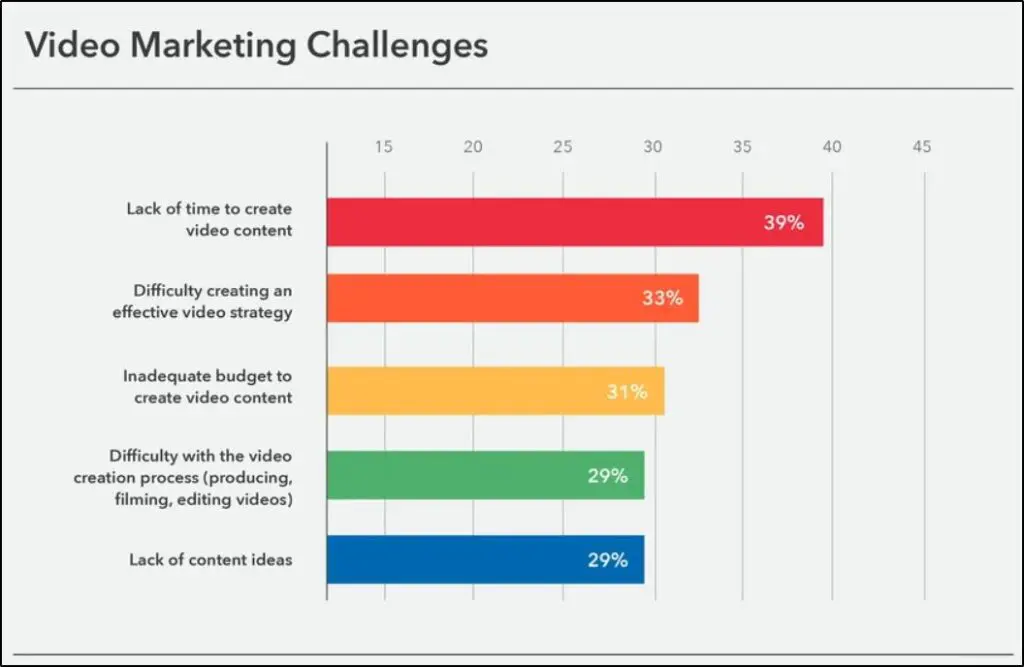
If you look closely, AI video solves all those challenges.
You no longer need to spend thousands of dollars or dozens of hours to create high-quality videos. It can all be done in a few minutes with AI.
And this opens up numerous growth opportunities for your e-learning business.
For example, instead of typing long messages, you can share more videos with your community members and share more actionable advice.
Similarly, you can repurpose your existing content into videos and share them on YouTube and other video platforms to grow your audience.
As a full-time video creator, you can drastically speed up your channel’s growth by publishing more short-form content.
And, of course, you can create more videos for your courses and digital products.
Read: The best online course selling platforms for modern creators
The Best AI Video Creation & Editing Tools for Content Creators
Now let’s look at some of the best AI video generators available today and how you can use them to create professional content for your courses, marketing, or social media.
Our list covers both AI video generators and AI-powered editors designed for different goals from turning text into videos to enhancing real footage, adding avatars, and automating entire video workflows.
We’ve tested these tools ourselves to see how they perform in real use. Each one has its strengths, ideal use cases, and limitations. This way, you can clearly understand which tool fits your content goals, budget, and workflow best.
Tool #1: Google Veo – Best for Cinematic Realism
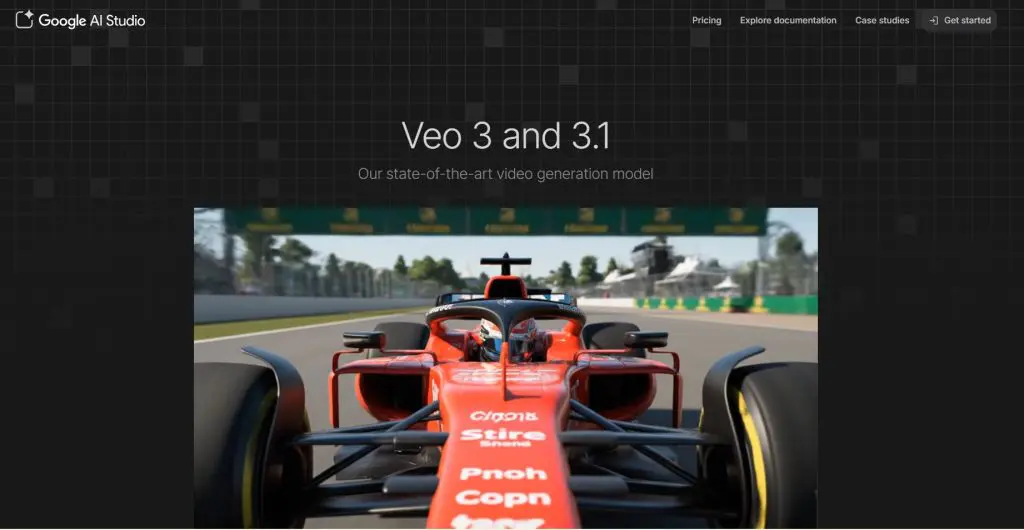
Google Veo is one of the most advanced AI video generation tools available today. It’s designed to create realistic, cinematic videos in 4K resolution.
What makes it stand out from most AI tools is its ability to maintain multi-scene continuity. This means it can smoothly connect several shots while keeping the lighting, objects, and movements consistent throughout the video.
For course creators and educators, Veo is ideal for story-driven lessons, cinematic course intros, or promotional videos that look professionally filmed.
Here’s a video that shows you what Veo is capable of doing.
If you teach filmmaking, marketing, design, or storytelling, you can use Veo to turn your written lessons into visually stunning clips.
It’s also a great choice if you want to grow your YouTube channel or social media presence. With Veo, you can create consistent, high-quality videos that attract viewers, build awareness, and bring more people into your marketing funnel, eventually converting them into email subscribers and customers.
Simple Veo Workflow for Beginners
Here’s a simple step by step workflow to use Google Veo effectively.
Step 1: Start with NanoBanana
You can give Veo a prompt directly, but for better results, it’s best to refine it first in NanoBanana.
NanoBanana is an AI visual ideation tool that helps you shape your concept before full video generation.
Start by describing your idea — for example, “a teacher explaining how the brain works using glowing animations inside a classroom.” NanoBanana will generate detailed reference images or short preview clips based on your description.
This helps you visualize your concept and improve your prompt for Veo.
Once you’re happy with the output, copy NanoBanana’s prompt text or download the still image and use it as your input in Google Veo.
Step 2: Create the video in Google Veo
Paste your prompt or upload the NanoBanana image to Veo. The tool uses your visual reference to generate a full cinematic video.
You can adjust lighting, camera angles, and tone using simple text instructions like “soft lighting,” “slow zoom,” or “top-down shot.”
Depending on your plan, Veo can generate videos ranging from 10 to 120 seconds.
Step 3: Add narration in ElevenLabs
Once your video is ready, use ElevenLabs to create a professional voiceover. You can record your own voice or pick from dozens of lifelike AI voices that sound natural and expressive. The generated voice track can easily sync with Veo’s visuals to add clarity and personality to your lesson or story.
Step 4: Combine everything
Finally, merge your Veo video and ElevenLabs audio using a beginner-friendly video editor such as Clipchamp or CapCut. This gives you a polished, narrated 4K video ready to upload to your online course, membership site, or YouTube channel.
Main Limitations Of Google Veo
- Veo is currently available through limited access or a waitlist.
- It requires detailed prompts to produce accurate and coherent results.
- It doesn’t yet support built-in voiceover or lip-sync features.
- Longer clips can take several minutes to render depending on server load.
Google Veo Pricing And Free Access
- Free Plan: Limited access through the waitlist. You can generate short sample clips (up to 15 seconds) and experiment with prompt-based video creation.
Paid Plan: Pricing starts at about $30 per minute (around $0.50 per second) for 4K output. Paid users can create longer clips (up to two minutes), unlock faster render times, and access premium features like multi-scene editing and advanced camera controls.
Read: How to create viral videos? The complete guide
Tool #2: OpenAI Sora – Best for Emotional Storytelling
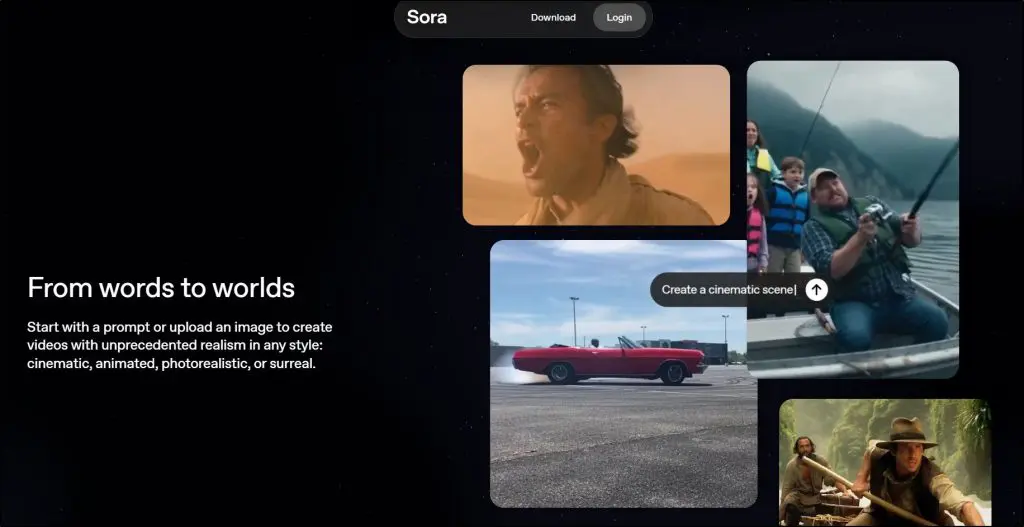
OpenAI Sora is one of the most anticipated AI video models, known for its ability to generate emotionally rich and cinematic visuals.
Unlike most text-to-video tools that only focus on motion, Sora understands dialogue, tone, and emotional context, allowing it to capture subtle expressions, camera pacing, and lighting that match the mood of your scene.
To give you an idea of Sora’s capabilities, here’s a video built using this video generator.
For educators and course creators, Sora is perfect for creating cinematic intros, emotional storytelling lessons, or inspirational videos that help connect with your audience on a deeper level.
You can use it to introduce your course theme, explain abstract ideas through visuals, or add emotion-driven transitions between modules.
Simple Sora Workflow for Beginners
Step 1: Write your concept
Start with a clear idea or script. For example, “a teacher walking through a virtual library while explaining the power of lifelong learning.” Keep it short and descriptive.
Step 2: Generate your video in Sora
Enter your text prompt into Sora’s interface. You can include emotional cues like “soft lighting,” “hopeful tone,” or “slow pan toward the teacher.” Sora will analyze the tone and dialogue to produce a short, cinematic clip (up to 20 seconds in the current beta).
Step 3: Add narration in ElevenLabs
Use ElevenLabs to generate a calm, expressive voiceover that matches your scene. This helps make your video feel human and engaging, especially for course intros or brand stories.
Main Limitations In Sora
- Currently in closed beta, accessible only to selected creators.
- Limited control over camera direction and editing.
- Can occasionally distort fine details in fast-motion scenes.
Sora Pricing And Free Plan
- Free Plan: Not yet available (invite-only).
- Paid Plan: Expected to be included with ChatGPT Plus ($20/month) and ChatGPT Pro ($200/month) once public video generation is rolled out.
Tool #3: Kling AI – Best Price-to-Quality Balance
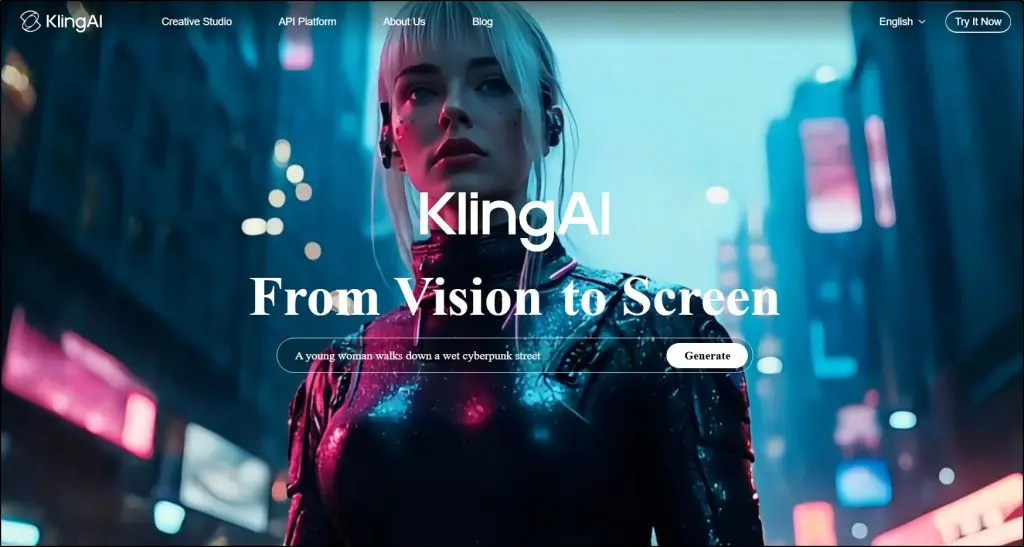
Kling AI offers one of the best combinations of cinematic quality, speed, and affordability in AI video generation. It produces realistic motion, natural lighting, and smooth camera dynamics, making it a great option for creators who want professional results without high costs.
Kling also stands out because it can automatically generate background soundtracks, which saves time and helps you focus on storytelling instead of post-production.
For course creators and educators, Kling is excellent for short explainer videos, cinematic lessons, or promotional content for your online school or YouTube channel.
You can use it to turn lesson summaries or blog content into realistic 10–30 second video clips that look professional enough to use in course intros or ads.
Have a look at how you can combine Kling AI with Google’s Nano Banana to create super realistic videos.
The Main Limitations In Kling
- Doesn’t handle emotional acting or long dialogue scenes well.
- Some waiting time on the free plan during high demand.
- Limited frame-by-frame editing features.
Kling AI Pricing And Free Plan
- Free Plan: Offers limited-generation credits and access to standard resolution videos.
- Paid Plan: Starts around $9/month, with the Pro Plan ($32/month) unlocking 4K output, faster rendering, and soundtrack integration.
Tool #4: Runway Gen – Best Full Editing Workflow

Runway Gen is one of the most impressive AI video tools I found while researching for this article. It is a robust video generator built for creators who want both video creation and editing in one platform.
Runway has a clean interface and offers fast rendering speed and built-in templates designed for ads, branded videos, and marketing content.
What sets Runway apart is how polished it feels.
You can refine, extend, and even voice video clips within the same workspace. It’s ideal for creators who need professional-looking content fast, without jumping between multiple tools.
Here’s a glimpse of what Runway is capable of.
For course creators, Runway is perfect for turning static visuals or slide decks into short educational videos. You can animate your diagrams, product demos, or course intros with cinematic motion and add your narration directly inside the platform.
I particularly liked its “Scene Expansion” feature, which lets you extend a generated clip seamlessly. While testing it with different prompts, I noticed higher consistency in lighting and motion than most image-to-video tools — even in fast-moving frames.
Simple Runway Workflow for Beginners
Step 1: Prepare your visuals or script
Upload your existing course visuals, product images, or slides. If you don’t have any, you can quickly generate base visuals using tools like NanoBanana or Midjourney.
Step 2: Animate with Runway Gen-4
Runway Gen-4 starts from an image or video reference and turns it into smooth, cinematic motion. If you prefer using text prompts, you can switch to Gen-3 Alpha, which still supports full text-to-video generation.
Step 3: Edit and finalize your video
Once your video is ready, use Runway’s built-in editor to trim clips, add sound, insert brand elements, or apply lip-sync. This all-in-one setup makes it easy to create high-quality explainer videos or course promos without needing separate editing software.
The Main Limitations In Runway
- Gen-4 doesn’t support text-to-video (only Gen-3 Alpha does).
- Realistic physics can still feel slightly artificial in fast-action scenes.
- Consumes credits quickly when exporting in 4K.
Runway Pricing And Free Plan
- Free Plan: Includes limited credits and access to basic features.
- Paid Plans: Start at $15/month, offering faster rendering, 4K export, collaboration tools, and access to both Gen-3 and Gen-4 models.
Tool #5: Luma Dream Machine – Best for Artistic Visuals
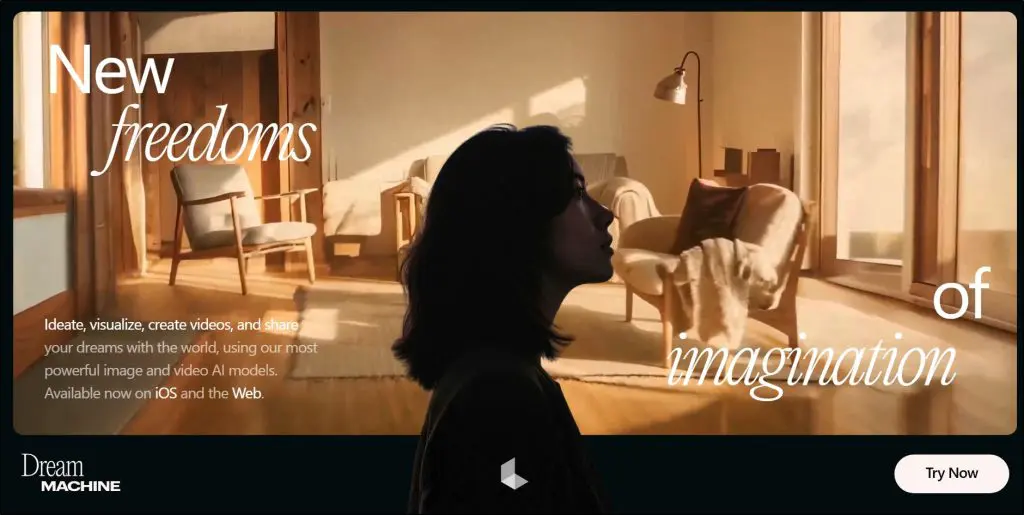
Luma Dream Machine is one of the most visually elegant AI video tools I’ve used. It’s built for creators who want artistic and cinematic visuals instead of hyper-realistic motion. The interface is minimal and beautifully designed, which immediately makes it feel inviting and easy to explore.
It’s perfect for fantasy-style storytelling, slow sequences, and artistic B-roll that enhance your lessons or promotional videos. If you teach creative fields like design or storytelling, you can use Luma to produce aesthetic intros, background visuals, or transitions that make your courses stand out.
Here’s a short video created with Dream Machine.
I gave it a few prompts like “a calm classroom scene with floating notebooks and soft morning light” and “a fantasy forest with glowing fireflies.” The results were consistently beautiful, with rich lighting and smooth movement that felt natural even without realistic physics.
It reminded me more of watching a painting in motion than a typical AI video.
Luna Pricing & Free Plan:
The free plan includes 720p output.
Paid plans start at $9.99/month, offering 4K exports, scene editing, and faster rendering.
Tool #6: Hailuo AI – Best for Fashion or Mood-Driven Visuals

What makes Hailuo AI stand out is its sense of mood and elegance. The videos it creates look like they belong in a luxury ad campaign with rich lighting, balanced color, and carefully composed frames.
It’s not the fastest tool, but it’s easily among the most stylish.
Hailuo works beautifully for fashion, lifestyle, and emotionally expressive storytelling. If your course or brand focuses on creativity, design, or presentation, you can use Hailuo to create cinematic intros, atmospheric B-roll, or visual mood pieces that instantly raise the production quality of your content.
Here’s a great example
During testing, I tried prompts like “a fashion designer preparing a runway look under warm spotlights” and “a dancer performing in soft golden light.” The results had a remarkable sense of depth and visual texture and each frame looked like a still from a film.
However, render times were noticeably slower, but the image quality and lighting realism easily made up for it.
The workflow is simple: write your concept, set the lighting style or color tone, and let Hailuo render the clip. You can later enhance it with voiceovers or background sound in CapCut or Runway.
Hailuo Pricing And Free Plan:
Free tier available with limited credits.
Paid plans start at $15/month for HD exports and faster processing.
Tool #7: PixVerse – Best for Social Videos with Built-In Sound

PixVerse feels like it was made for creators who live on Reels, TikTok, and YouTube Shorts.
It’s fast, simple, and surprisingly smart when it comes to syncing visuals with audio. Unlike most AI video tools, PixVerse includes built-in sound and voice generation, so you can make short, ready-to-post videos without using multiple apps.
Two of its standout features are Fusion and Swap.
Fusion lets you combine clips or images into smooth transitions which is great for before-and-after demos or quick storytelling. Swap allows you to replace characters or backgrounds with AI versions that look surprisingly natural.
When I tested it for a few TikTok-style prompts like “a skincare influencer showing results before and after,” PixVerse did a great job blending movement with the soundtrack. The results felt energetic and polished, perfect for short-form content.
You can use PixVerse to make UGC-style videos, quick course previews, or social ads that don’t need extra editing. Just enter a short script or idea, pick your sound, and export it directly.
Here’s PixVerse in action.
Pricing:
Free plan available with limited clips per month.
Paid plans start around $10/month for HD exports, extra effects, and commercial use rights.
Tool #8: Grok Imagine – Best for Quick Moodboards and Visual Experiments

Grok Imagine is xAI’s creative playground built into the Grok chatbot ecosystem. It’s designed for fast, expressive visual generation rather than ultra-polished production work.
You can type an idea, upload an image, or mix both to instantly get high-quality stills or 10- to 15-second animated clips. The workflow feels more like sketching on a digital canvas than using a traditional editor, which makes it ideal for storyboards, moodboards, or quick concept visualization.
The latest updates introduced image-to-video animation which allows you to turn images into short animated scenes with motion prompts such as “make the character blink” or “add drifting smoke.”
It also supports HD upscaling, clip extensions, and Remix mode to reuse previous prompts for new variations.
During testing, I found it surprisingly fun for brainstorming creative concepts or visual themes before moving into tools like Veo or Runway. The visuals aren’t always perfect, but they’re expressive and fast to generate.
Here’s an excellent example of Grok’s performance.
Main Limitations Of Grok Imagine
- Occasional outages and slower renders during peak hours
- Short clips only (up to ~15 seconds)
- Quality varies for complex scenes
- Some ethical risk due to loose content filters
Grok Imagine Pricing And Free Plan
- Free Tier: Basic access with daily generation limits
- SuperGrok / Premium+: Unlimited generations, HD upscaling, API access, and early feature rollouts (approx. $8–$16/month depending on plan)
If you want a fast, flexible AI sketchpad for visual brainstorming or artistic experimentation, Grok Imagine is a great low-cost option to explore.
Best AI Video Editors & Business Tools (For Creators & Course Builders)
So far, the AI video tools we’ve covered are great for creating videos from scratch and turning your ideas, scripts, and prompts into cinematic or social-ready clips.
But once you have those videos, you still need to edit, polish, and brand them before publishing or adding them to your online course. That’s where this next group of tools comes in.
In this section, we’ll look at AI video editors and business-focused tools built for course creators, educators, and digital entrepreneurs.
These platforms help you do everything from adding captions, transitions, and animations to organizing full video libraries for your courses or marketing campaigns.
Tool #9: Synthesia – Best for Training and Course Videos
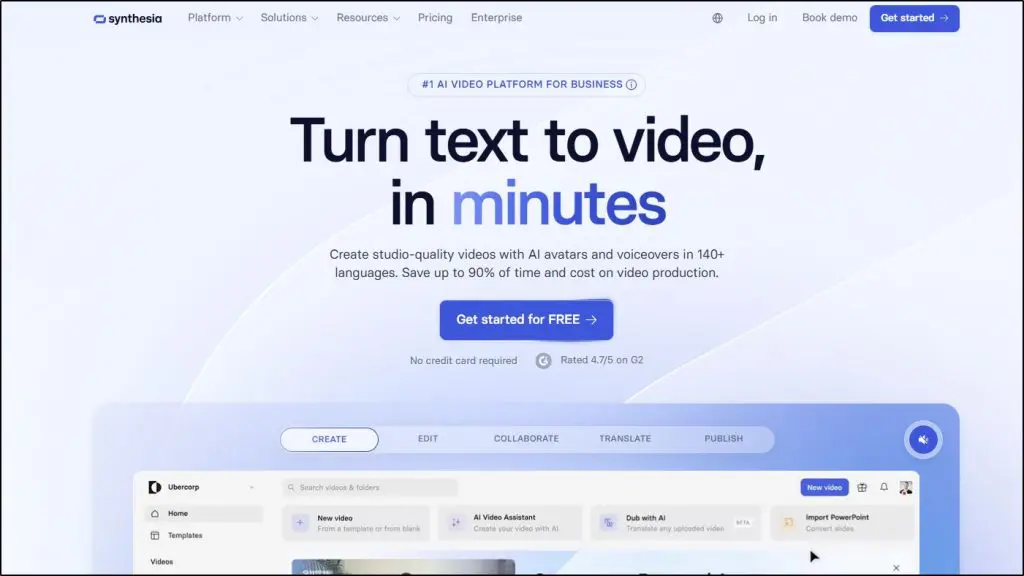
Synthesia is one of the most trusted names in AI video creation, especially for education, training, and corporate learning. It lets you turn any script or slide deck into a presenter-led video, complete with realistic human avatars and natural AI voices in more than 140 languages.
What makes it powerful for course creators is how seamlessly it converts written content into engaging video lessons.
You can use it to explain concepts, walk through slides, or record onboarding sessions without stepping in front of a camera. It even lets you create a custom avatar from your own photos or short recordings, so your personal brand stays front and center in every video.
I consider Synthesia especially effective for L&D teams and online educators who need to produce large volumes of content quickly. The avatars maintain consistent eye contact and natural gestures, like nods or hand movements, which make the videos feel more human.
Take a look at this video showing Synthesia’s features.
You can also import clips from tools like Google Veo or OpenAI Sora to use as B-roll, blending cinematic scenes with AI presenters for richer storytelling. Synthesia videos export easily to most LMS platforms, making it a practical choice for structured learning environments.
Synthesia Pricing And Free Plan:
- Free Plan: You get up to 3 minutes of video created per month, access to a limited number of stock avatars (around 9), and 140+ languages. Exports are watermarked.
- Starter Plan: Approximately $29/month (or around $18/month when billed annually). Includes up to 10 minutes of video per month, access to more avatars, removal of watermark, and download rights.
Tool #10: Pictory – Best for Repurposing Blogs or Webinars

Pictory is one of the easiest AI video generators for turning long-form text or recordings into short, branded videos.
You can paste a blog post, upload a PowerPoint file, or import a webinar recording, and Pictory automatically identifies key moments, adds captions, selects visuals from its Storyblocks and Getty stock libraries, and generates a natural AI voiceover using ElevenLabs voices.
It also lets you edit video by editing the transcript, create automatic highlights from Zoom or podcast recordings, and add captions for social media.
Here’s an example of Pictory’s video generation features.
For educators and creators, it’s a fast way to repurpose lesson transcripts or blog posts into YouTube explainers, course previews, or promotional reels, without needing to record anything.
The platform includes brand kits, templates, and exports in up to 1080p, making it ideal for consistent course or marketing visuals.
Pictory Pricing and Free Plan
14-day free trial available. Paid plans start around $14/month (Starter) and $24/month (Professional, billed annually), unlocking 200–600 monthly video minutes, multiple brand kits, ElevenLabs voice minutes, and full commercial rights with no watermark.
Tool #11: Descript – Best for Editing via Text
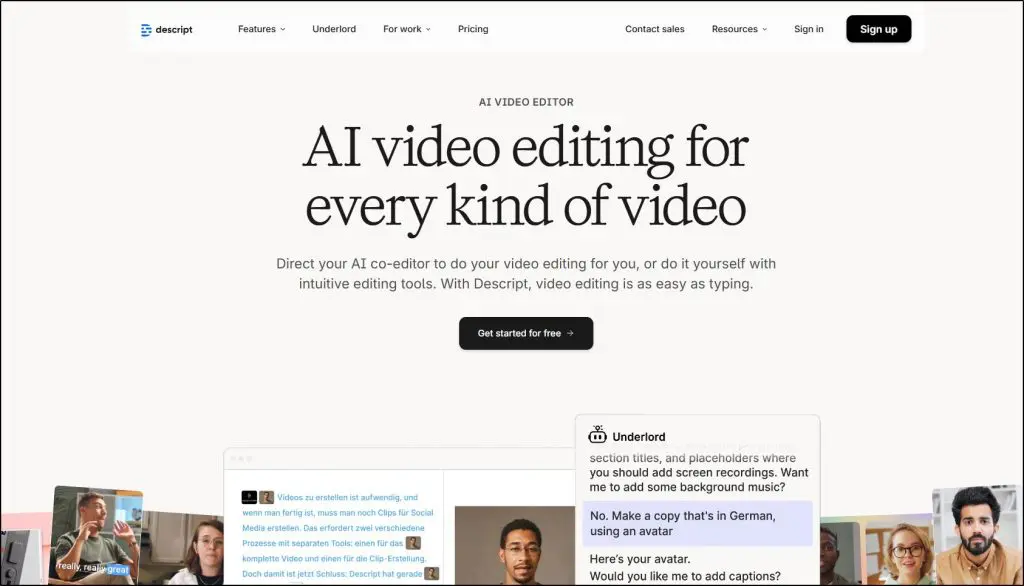
Descript is one of the smartest AI video and audio editors out there that lets you edit your video like a document. Delete a word in the transcript, and that line vanishes from the video. For course creators, podcasters, and educators, it’s the fastest way to turn raw recordings into polished content without touching a traditional timeline editor.
Its built-in AI co-editor, Underlord, takes things even further. You can ask it to write or improve your script, generate visuals, change your layout or color scheme, and even create B-roll — all from a simple prompt.
Descript also includes powerful AI tools like Studio Sound (for noise-free audio), Eye Contact (to fix your gaze), and Green Screen (to instantly replace your background).
One of my favorite updates is Regenerate, which lets you fix words or phrases in your voiceover — and Descript automatically clones your voice and syncs the lips to match.
You can even create AI avatars or translate your videos into 24+ languages, perfect for building faceless course content or multilingual lessons.
I’ve personally saved hours editing long Zoom sessions with its transcript-based workflow. The filler-word removal tool alone cuts my editing time by half.
This video comprehensively covers the different ways Descript helps you create and edit videos with AI.
Descript Pricing and Free Plan
Free plan: 1 media hour/month, 720p export, limited AI tools.
Paid plans start at $16/month (Hobbyist) for 1080p export, $24/month (Creator) for 4K export, full AI access, 800 AI credits, and unlimited stock media.
Tool #12: DeepBrain AI – Best Multilingual Avatar Creator

DeepBrain AI (AI Studios) is a browser-based AI video platform that focuses on realistic avatars, voice cloning, and multilingual dubbing. You can turn a script, URL, PowerPoint, or PDF into a presenter-led video in minutes, without cameras or editing skills.
It is especially useful if you want to:
- Record training videos or SOP walkthroughs without being on camera every time.
- Turn your course intros and lesson summaries into avatar-led clips in many languages.
- Publish news-style updates for your community or membership site.
You get access to 2,000+ AI avatars, 150+ languages, and 1,000+ voices. You can also create your own custom avatar from a short video of yourself, then use AI dubbing to clone your voice into other languages with lip sync, which is great for localizing existing courses.
Here’s how DeepBrain AI works.
A simple course workflow looks like this:
- Write or paste your lesson script.
- Choose an avatar and language, or upload your own short video to create a custom avatar.
- Generate the video, then tweak slides, timing, or subtitles inside the editor.
- Export and upload to your LMS, course platform, or YouTube channel.
DeepBrain AI Limitations
- Videos on the free plan include a watermark.
- Generative credits limit how many AI-heavy actions you can run each month.
- Like most avatar tools, experienced viewers may still notice that presenters are AI.
DeepBrain AI Studio Pricing And Free Plan
- Free: 3 exports, videos up to 3 minutes, 1 custom avatar, 16 credits, 720p, watermark.
- Personal (from $24): Unlimited exports up to 30 minutes, 3 custom avatars, 60 credits, 1080p, 150+ languages, templates, Shutterstock media, no watermark.
- Team (from $55 per seat): Everything in Personal, 5 custom avatars, 4K export, more credits, brand kit, multi-avatar scenes, collaboration workspace.
- Enterprise (custom): Unlimited duration, unlimited custom avatars, 4K, SCORM export, bulk video generation, advanced security, and dedicated support.
Tool #13: Filmora AI – Best Beginner-Friendly Hybrid Editor
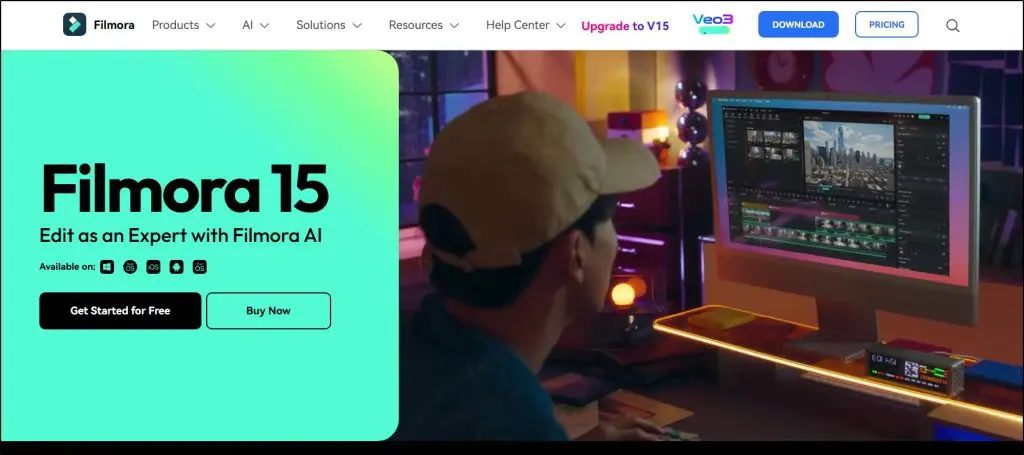
Filmora started as a simple drag-and-drop timeline editor, but its newer versions now blend traditional editing with full AI video generation. You can still edit manually like any pro by trimming clips, adding transitions, and syncing sound. You can also generate complete videos from text, audio, or images using its built-in AI suite.
If you want to stay hands-on while speeding up repetitive work, Filmora is a great choice. Type a topic, and its AI Text-to-Video or Idea-to-Video tools will write a short script, match it with stock visuals and music, add captions, and deliver a ready-to-edit draft.
From there, you can polish it using timeline editing, keyframes, or color grading just like you would in Premiere or CapCut.
Here’s an example of how Filmora works.
I tested it with short lesson recaps from a course recording. The AI Scene Cut instantly removed pauses, while the AI Enhancer cleaned up slightly blurry frames. It felt like having an assistant edit beside me.
Filmora also includes over 20 AI tools such as voice cloning, background noise removal, translation with lip-sync, and even Veo integration for cinematic B-roll. It’s ideal for course builders, YouTubers, or marketers who want fast turnaround without giving up creative control.
Its key features include
- AI Text-to-Video, Image-to-Video, and Audio-to-Video generation
- Smart Scene Cut, Silence Detection, and Auto Captions
- AI Translation with voice cloning and lip sync
- Dual timelines, keyframes, and 4K exports
Filmora AI Pricing And Free Plan
- Free Plan: Basic editing with watermarked exports
- Paid Plans: Starting from $9.99/month for full AI and 4K export
If you want a platform that lets you both create and refine your videos without needing multiple apps, Filmora AI is the most approachable tool to start with.
Tool #14: VEED.IO – Best AI Video Generator and Editor for Creators and Teams

VEED.IO is one of the most complete browser-based tools for creating, editing, and managing videos. It combines AI video generation, editing, dubbing, translation, and team collaboration in one platform.
It’s designed for creators, educators, and small businesses who want to record, edit, and publish videos without switching between multiple apps.
What makes VEED unique is that it works as both a generator and an editor. You can start with a text prompt using Text to Video or Slides to Video, or upload your existing clips and let the AI do the heavy lifting.
The tool can remove filler words, clean background noise, fix eye contact, and add accurate subtitles. You can even dub your content into more than 50 languages with natural lip sync or clone your own voice for consistency across videos.
During testing, I found the AI Fabric 1.0 engine particularly impressive. It produced realistic talking-head avatars and handled scene transitions smoothly.
VEED also connects with advanced models like Google Veo 3.1, OpenAI Sora 2, and Kling AI, so you can create cinematic B-roll or animated visuals without leaving the editor.
For course creators, VEED is a great fit. You can take a lesson recording, clean the audio, add subtitles and translations, and export a branded training video in minutes. It also offers a built-in Brand Kit and team collaboration features.
VEED.IO Pricing And Free Plan:
Free plan: Basic editor, 720p export, watermark.
Lite: $9/month for 1080p exports and 5 AI videos per day.
Common AI Video Workflows For Content Creators
At this point, you’ve seen what each tool can do on its own. But the real magic happens when you combine them. Using multiple AI tools together helps you go from concept to publish-ready video without needing a full production team.
Below are practical workflows designed around specific goals, from cinematic storytelling to course creation and social ads.
Each one shows how to connect the right tools in sequence for smooth, efficient results.
Goal: Cinematic Short Film
Workflow: NanoBanana → Google Veo 3.1 → ElevenLabs → Filmora
Start by visualizing your idea in NanoBanana with reference frames and tone. Import those prompts into Google Veo to generate your cinematic shots with consistent lighting and motion. Add expressive narration using ElevenLabs, then polish transitions, sound, and pacing in Filmora before exporting your final 4K film.
Goal: Course Explainer Video
Workflow: Slide Deck → Synthesia → Runway (B-roll) → Filmora
Turn your PowerPoint slides or lesson scripts into presenter-led videos using Synthesia. Add cinematic background visuals or animations with Runway to break monotony and add visual context. Finish by syncing your clips, captions, and background music in Filmora for a professional look ready to upload to your LMS.
Goal: Social Promo Ad
Workflow: Seedream → PixVerse → ElevenLabs → CapCut
Create concept visuals or brand-style frames in Seedream, then convert them into fast-paced social clips in PixVerse with built-in soundtracks and transitions. Use ElevenLabs to generate short, catchy voiceovers, and finalize in CapCut with captions, logos, and call-to-action overlays for Instagram or TikTok.
Goal: Budget Creative Clip
Workflow: Seedream → WAN → Veed.io
Use Seedream to generate base visuals or short storyboards. Animate or enhance them using WAN (a free experimental AI animator), and edit everything inside Veed.io, which lets you add subtitles, stock music, and templates, all from your browser without installing heavy software.
Goal: Artistic Moodboard or Concept Reel
Workflow: Midjourney → Luma Dream Machine → Descript
Generate your moodboard visuals in Midjourney with your desired art style or theme. Animate those stills using Luma Dream Machine to add subtle motion and lighting. Finally, arrange clips and add music or spoken notes inside Descript, turning your concept board into a moving visual reference for storytelling or course design.
Each of these workflows helps you save time, cut manual editing, and maintain visual consistency, whether you’re designing cinematic storytelling, educational content, or quick marketing videos. You can also mix and match tools as you grow — the key is to use AI to handle the technical work so you can focus on your creative ideas.
How We Tested The AI Video Tools For this Article
We tested every AI video generator and editor in this guide using real creator workflows, not demo clips or stock prompts.
Each platform was used to produce short explainers, cinematic shorts, course intros, and social videos, covering text-to-video, image-to-video, and video-to-video generation.
Our testing focused on real-world creator goals like turning scripts into full videos, expanding scenes, localizing content, and preparing exports ready for LMS or SCORM-compatible course platforms.
We compared performance using consistent benchmarks for resolution (720p–4K), scene duration (5–120 seconds), prompt fidelity, and render speed.
Every tool was rated across six core dimensions that matter most to educators, marketers, and digital entrepreneurs:
- Prompt Fidelity – How accurately the output matched the original script, storyboard, or reference frame. We assessed each model’s ability to follow complex instructions, maintain camera controls (pan, tilt, zoom), and preserve consistency across multi-scene storytelling.
- Realism & Motion Quality – Lighting, physics, texture detail, and character consistency. Tools like Veo, Luma Ray3, and Hailuo delivered high HDR realism and fluid motion tracking.
- Editing Control & Customization – Flexibility to refine scenes post-generation using brand kits, templates, subtitles, silence detection, background removal, and motion-brush tools.
- Speed & Reliability – Render times, queue stability, scene-expansion accuracy, and performance under heavy workloads.
- Audio / Voice Capabilities – Text-to-speech, dubbing, voice cloning, lip-sync precision, and multilingual localization.
- Pricing vs Value – Credit efficiency, free-tier limits, commercial usage rights, collaboration tools, and API access for automation.
We also verified data licensing and commercial safety, ensuring each model used compliant training sets suitable for business and education use.
This hands-on testing allowed us to compare every platform’s fidelity, realism, customization, reliability, and long-term value, giving you a clear, experience-based guide to the best AI video tools for 2025.
Which AI Video Tools Are Best For You?
The line between cinematic realism and real-world video production speed is disappearing faster than ever. What once took an entire film crew can now be done from your laptop using the right combination of AI video tools.
As a course creator or digital entrepreneur, the goal isn’t to master every new tool that shows up. Instead, pick the ones that fit your needs.
Maybe that’s using Synthesia for lesson delivery, Runway or Veed.io for editing, and Google Veo or Luma for cinematic storytelling. Each has its strengths, and the smartest creators use them in combination rather than in competition.
AI video generation isn’t replacing human creativity, it’s multiplying it.
These tools help you bring ideas to life faster, visualize concepts better, and connect with your audience more powerfully. What matters most is not how advanced the AI is, but how you use it to make your content more engaging, authentic, and memorable.
Frequently Asked Questions (FAQs)
1. Can AI video generators replace human editors completely?
No. AI tools can handle repetitive or technical parts of editing — like cutting silence, syncing sound, or generating visuals — but storytelling, pacing, and emotional tone still depend on human judgment. Think of them as creative assistants, not replacements.
2. What’s the difference between AI video generation and AI video editing?
AI video generation creates entirely new visuals or scenes from text or image prompts. AI video editing, on the other hand, enhances or restructures existing footage — cleaning audio, adding captions, or generating B-roll automatically.
3. Are AI-generated videos allowed on YouTube or Instagram?
Yes, as long as the content doesn’t violate platform policies (like impersonation or misinformation). Many creators already use AI-generated B-roll, avatars, and voiceovers in monetized videos.
4. How much does it cost to make a full AI video?
It depends on length and quality. A 1-minute AI-generated cinematic clip might cost $10–$50 using tools like Veo or Luma, while avatar-based course videos in Synthesia or DeepBrain can cost under $30 per month.
5. Do AI video tools support multiple languages?
Yes. Tools like Synthesia, DeepBrain, and Veed.io support over 100 languages with accurate lip-sync and AI dubbing — making them ideal for multilingual courses or international marketing.
6. Can I upload my own footage and enhance it with AI?
Absolutely. Editors like Runway, Filmora, and Veed.io let you import your clips, improve lighting, remove background noise, add AI-generated B-roll, and even translate or dub them automatically.
7. Which AI video tool is best for faceless YouTube channels?
Synthesia, Pictory, and Descript are great options. They can convert text or voice recordings into presenter-led or faceless videos that look professional and consistent across uploads.
8. Are AI-generated videos copyright-free?
Most AI tools grant full commercial rights to the videos you create, but stock footage, music, or external assets may have separate licenses. Always check your platform’s terms before publishing.
9. What kind of hardware do I need to use AI video generators?
Most modern tools are cloud-based, meaning you don’t need a powerful computer. However, for high-resolution rendering (4K or HDR), stable internet and adequate storage are helpful.
10. How can I make AI-generated videos look more natural?
Use realistic prompts, slower camera motions, and well-matched AI voiceovers. Combining cinematic generators (like Veo or Luma) with editors (like Filmora or Runway) adds realism through pacing, lighting, and sound balance.

Jeff Cobb, Founder of Learning Revolution
Jeff Cobb is an expert in online education and the business of adult lifelong learning. Over the past 20+ years he has built a thriving career based on that expertise – as an entrepreneur, a consultant, an author, and a speaker. Learning Revolution is a place where Jeff curates tips, insights, and resources to help you build a thriving expertise-based business. Learn more about Jeff Cobb here.
Table of Contents
Related Posts
7 Best Skool Alternatives in 2026 (For Community-Led Learning Businesses)
Skool vs Thinkific (2026): My Comparison & Verdict After Using Both
How Much Money Does YouTube Pay For 1 Million Views (2026)