
TL;DR: Multi-Platform Live Streaming Software (2026)
A multi-platform live streaming platform lets you broadcast a single live video to multiple destinations at the same time (like YouTube, Facebook, LinkedIn, TikTok, and more). The best tools handle distribution, stability, and audience management so creators don’t have to repeat live sessions, juggle multiple dashboards, or risk stream failures as they grow.
Here are the best multi-streaming platforms in my experience:
Restream – The most balanced all-around multistreaming tool for serious creators · Paid from $16/mo
StreamYard – Simple, polished live shows with guests and strong comment handling · Paid from $35.99/mo
Castr – Infrastructure-focused streaming with embeds, security, and monetization · From $12.50/mo
Be.Live – Engagement-first browser studio with AI comment tools · Paid from $14.16/mo
OneStream – Best for scheduled, pre-recorded, and 24/7 streams at scale · Paid from ~$13/mo
Crowdcast – Interactive live events, workshops, and paid sessions · Paid from $49/mo
Dacast – White-label, secure streaming with full monetization control · Paid from $39/mo
Wirecast – Professional desktop production with optional cloud multistreaming · From $399/year
Switchboard Live – Enterprise-grade distribution for mission-critical broadcasts · Custom pricing
OBS can also be used for free multistreaming with plugins and manual setup, but it pushes the technical load onto your computer and internet. It works for occasional or experimental streams. But once streaming becomes business-critical, dedicated multistreaming platforms are far more reliable.
In my 20+ years as an e-learning consultant for professionals, edupreneurs, and enterprises, I’ve consistently seen live streaming play a pivotal role in helping creators build auhtority and connection with their audiences.
Both these things are critical to attract leads and customers.
Research shows that live videos hold audience attention 10-20x longer than recorded and on-demand videos.
Many successful online course sellers hold live Q&A sessions and stream weekly engagement videos which helps them build that human connection with their audience.
So, if you plan to sell courses, consultancy services, or any kind of digital product, I urge you to go live regularly.
But before you go live, you need to find the best streaming software solutions for your business.
In this article, I’ll share the best live streaming platforms with multistreaming features.
I’ve used all of them and know their pros and cons from experience.
The Best Live Streaming Software for Multiple Platforms (2026)
Before we dive deeper, let me give you a bird’s eye view of the best live streaming platforms with multistreaming features in my experience.
| Platform | Supported Platforms | Free Trial & Starting Price | Best For |
|---|---|---|---|
| Restream | 30+ social platforms + custom RTMP | Free · Paid from $16/mo (annual) | Creators and businesses that livestream regularly across many platforms |
| StreamYard | Up to 8 destinations (plan-based) | Free · Paid from $35.99/mo (annual) | Educators, podcasters, and interview-style live shows with guests |
| Castr | 6–30 destinations (plan-based) | From $12.50/mo (annual) | Teams running serious live events with embeds, security, and monetization |
| Be.Live | Up to 8 destinations | Free · Paid from $14.16/mo (annual) | Creators who prioritize audience interaction and on-screen engagement |
| OneStream | 45+ destinations | Free · Paid from ~$13/mo (annual) | Brands and teams focused on scheduled, pre-recorded, or 24/7 streaming |
| Crowdcast | Up to 3 external platforms (paid plans) | Free trial · Paid from $49/mo | Workshops, AMAs, and paid live events with deep audience interaction |
| Dacast | RTMP-based simulcasting | 14-day trial · Paid from $39/mo (annual) | Organizations that need white-label streaming, security, and monetization |
| Wirecast | Built-in destinations + RTMP/SRT | $399/year (Studio) | Production-heavy live shows with full control over cameras and scenes |
| Switchboard Live | Unlimited destinations | Custom pricing | Public sector, media, and mission-critical broadcasts at scale |
Let’s now discuss these platforms in more detail.
1. Restream – Best Streaming Software
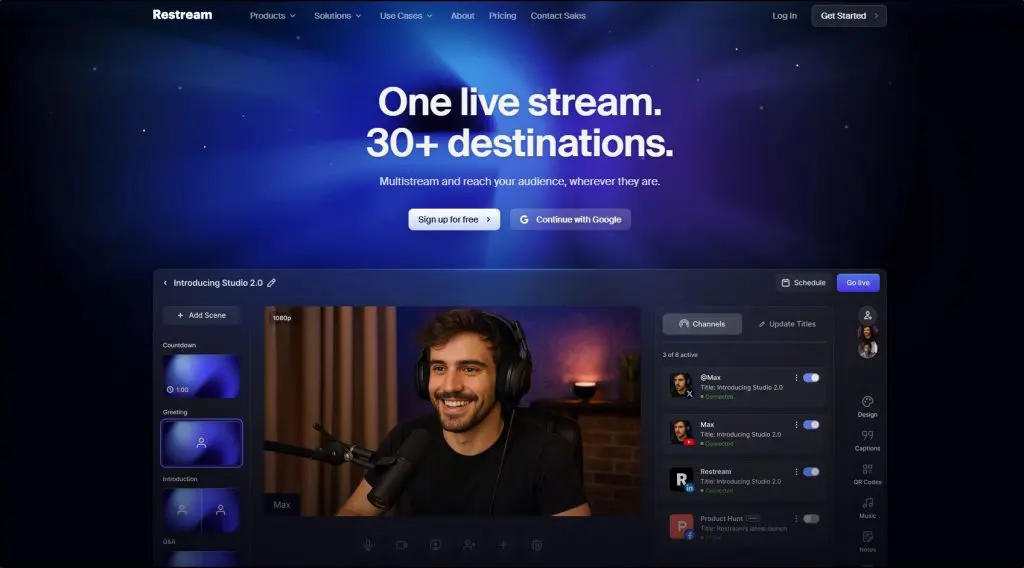
- Streaming platforms: 30+ destinations
- Starting price: Free plan available · Paid plans start at $16/month (billed annually)
- Best for: Creators and businesses that livestream regularly across multiple platforms
- Not ideal if: You’re looking for a long-term free multi-streaming platform.
Restream is the best multi-platform live streaming software for content creators in my experience.
It’s a robust live streaming tool that lets you broadcast one live stream to YouTube, LinkedIn, Facebook, Twitch, and dozens of other destinations at the same time.
You can stream directly from your browser or connect Restream to OBS and other encoders if you run a more advanced setup.
I often recommend Restream to course creators and expertise-based businesses that want reach without repeating the same live session on different platforms.

One of its strongest practical advantages is how it handles audience engagement.
Restream pulls comments from all connected platforms into a single dashboard, so you don’t have to watch YouTube chat, LinkedIn comments, and Facebook reactions separately.
You can respond from one place and highlight selected comments on screen, which keeps live Q&A sessions focused and readable for every audience.
Restream also includes AI-generated clips that pull short highlights from long livestreams, which helps you reuse content faster for social channels.
If live streaming plays a serious role in your business, you will outgrow the free plan quickly and move to a paid tier.

Key live streaming features in Restream
- Multistream to 30+ platforms and custom RTMP destinations from one dashboard
- Browser-based live studio for quick, no-install streaming
- OBS and encoder integrations for production-heavy workflows
- Cross-platform live chat to manage questions in one place
- AI-generated clips for repurposing long livestreams
- Cloud and local recording options based on plan
- Stream health monitoring to catch issues early
- Scheduled and pre-recorded live streaming support
| Pros | Cons |
|---|---|
| You can rely on it for long, recurring live sessions without stability issues | The free plan feels more like a trial than a usable multistreaming solution |
| You can manage audience comments from multiple platforms during live Q&A sessions | Costs rise quickly as you add destinations, team members, or AI clip volume |
| AI clips save time when you want highlights from 60–90 minute live streams | AI clips still need manual review before publishing |
| Fits naturally into OBS-based studio setups | The browser studio feels limiting for complex, production-heavy shows |
Read our complete Restream review.
2. StreamYard
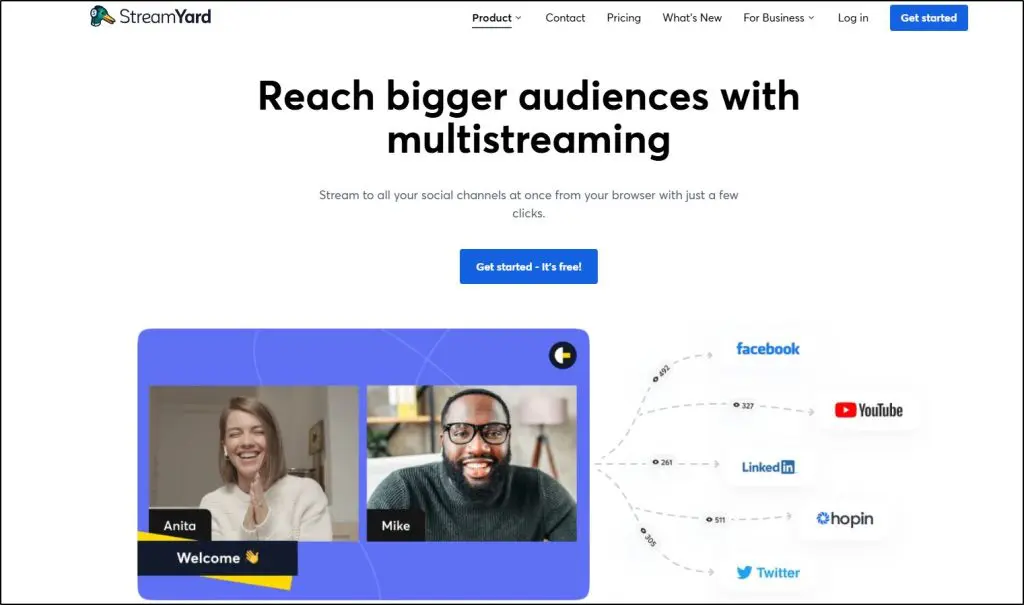
- Streaming platforms: Up to 8 destinations (depending on plan)
- Starting price: Free plan available · Paid plans start at $35.99/month (billed annually)
- Best for: Creators, podcasters, and educators who want simple, professional live shows with guests
- Not ideal if: You want deep multistreaming control or advanced routing across many platforms
StreamYard is another top browser-based live streaming studio that lets you go live or record content without installing any software.
You can stream to YouTube, Facebook, LinkedIn, Instagram, X (Twitter), Twitch, and custom RTMP destinations from a single dashboard.
I often recommend StreamYard to educators and course creators who value simplicity and reliability over technical complexity.
Audience engagement is one of StreamYard’s strongest areas. It pulls comments from all connected platforms into a central dashboard, where you can respond, moderate, and highlight selected comments on screen.
When you feature a comment, viewers on every platform see it instantly, which keeps live discussions focused and interactive.
StreamYard also supports multiple on-screen guests with a built-in greenroom, making it easy to run interviews, panels, and live podcasts.
It includes AI-generated clips and AI backgrounds, but the real strength lies in how smoothly it handles live conversations rather than post-production workflows.
Key live streaming features in StreamYard
- Multistream to up to 8 platforms from a single browser-based studio
- Centralized comment management with on-screen comment highlighting
- Easy guest access with no downloads required
- Local and cloud recordings for higher-quality playback
- Built-in branding with logos, overlays, intros, and outros
- AI clips to repurpose livestreams into short-form content
- On-Air webinars with embeddable, white-label viewing pages
- Custom RTMP destinations for flexible distribution
| Pros | Cons |
|---|---|
| Extremely easy to use, even for first-time live streamers | Multistreaming caps out quickly unless you upgrade |
| Excellent for interviews, panels, and live podcasts | Not designed for complex production workflows |
| Centralized comments make live Q&A sessions easy to manage | Limited analytics compared to enterprise platforms |
| Stable browser-based streaming with minimal setup | Costs climb fast if you need higher limits or 4K recording |
Read our complete StreamYard review.

3. Castr
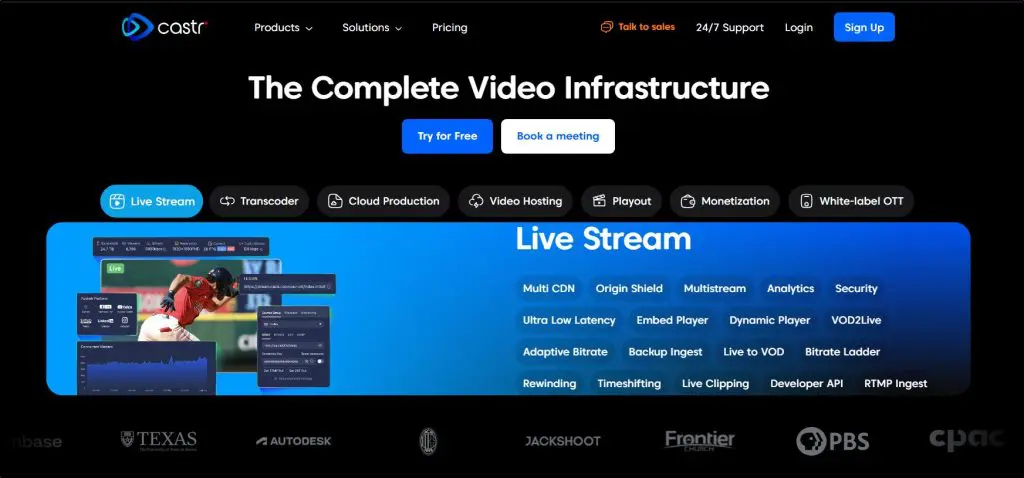
- Streaming platforms: Up to 30 multistream destinations (plan-based)
- Starting price: $12.50/month (billed annually) · 7-day free trial available
- Best for: Teams that run serious live events and want reliability, embed players, security, and monetization
- Not ideal if: You want an all-in-one browser studio with built-in guest hosting and social comment management
Castr is a streaming infrastructure platform that lets you push one live feed to multiple destinations, embed a high-quality player on your site, and run broadcasts with the kind of redundancy you usually see in media workflows.
You typically send your stream into Castr from an encoder like OBS, vMix, ATEM, or another hardware/software setup, then Castr handles multistreaming, player delivery, and analytics.
When it comes to audience engagement, Castr doesn’t try to act like a “show host” tool.
You won’t get StreamYard-style comment aggregation and on-screen highlighting from every social platform.
Instead, Castr focuses on player-side engagement (like chat overlays / chatbox on your embedded player) and the operational stuff that keeps a stream stable.
Castr also gives you monetization controls (paywall, ads) and security options (like password protection and geo controls, depending on plan).
I don’t see meaningful AI creation features here (like AI clip generation), so I treat Castr as a reliability-and-delivery choice, not a content repurposing tool.
Key live streaming features in Castr
- Multistream to 6–30 destinations (based on plan)
- Multi-CDN delivery with routing and failover focus
- Embed player options for website streaming and controlled viewing
- SRT ingest plus RTMP workflows for professional inputs
- Live analytics and monitoring to spot stream issues early
- Paywall + monetization options for paid access and revenue
- Live-to-VOD workflows so you can turn streams into replays
- Adaptive bitrate streaming on higher tiers for smoother playback
| Pros | Cons |
|---|---|
| Works well when you already run OBS/vMix/ATEM and want a dependable distribution layer | You’ll do more setup than browser-first tools because Castr expects an encoder workflow |
| Fits “serious event” use cases where you need embed players, security, and monetization controls | You won’t get strong social engagement tooling like unified comments and on-screen highlights across platforms |
| Makes it easier to plan predictable costs with bandwidth and storage spelled out by tier | If you mainly run casual creator streams, the infrastructure focus can feel like overkill |
| Scales cleanly when you need more concurrent streams and destinations | No obvious AI features for clipping or repurposing, so you’ll use other tools for that part |

4. Be.Live

- Number of streaming platforms supported: Up to 8 destinations (plan-based), including Facebook, YouTube, LinkedIn, Instagram, TikTok, and Amazon Live
- Starting price: Free plan available · Paid plans start at $14.16/month (billed annually)
- Best for: Creators and small teams who prioritize audience interaction and on-screen engagement
- Not ideal if: You need advanced production control or enterprise-grade streaming infrastructure
Be.Live is a browser-based live streaming platform built for creators who want engaging, interactive shows without dealing with technical complexity.
You can multistream to several major platforms at once, run everything directly from your browser, and brand your stream with logos, lower thirds, overlays, and widgets.
Where Be.Live really stands out is audience engagement. It pulls comments from all connected platforms into a central dashboard, so you don’t manage chats separately.
You can highlight comments on screen, react to viewers in real time, and even use its AI Comment Assistant to automatically surface comments during the stream.
This works well for live Q&A sessions, product demos, and community-driven shows where interaction matters more than production polish.

Be.Live also includes light repurposing tools, letting you trim streams, export audio for podcasts, and reuse content after the broadcast.
I see it as a solid option when engagement drives results, not when you need broadcast-level control.
Key live streaming features in Be.Live
- Multistream to Facebook, YouTube, LinkedIn, Instagram, TikTok, and Amazon Live
- Centralized comment management with on-screen comment highlighting
- AI Comment Assistant to surface audience comments automatically
- Built-in branding with logos, lower thirds, overlays, and widgets
- Interactive engagement widgets like lotteries and comment highlights
- Browser-based studio with no software installation required
- Basic video trimming and repurposing tools after the stream
- Team access with multiple on-screen participants
| Pros | Cons |
|---|---|
| Strong engagement tools make live shows feel interactive and fun | Scene switching and camera control feel limited for complex productions |
| Central dashboard keeps comments from all platforms in one place | Multistream destination limits increase quickly as you scale |
| Easy for beginners to start streaming without technical setup | Not designed for encoder-based or hardware-heavy workflows |
| AI comment features reduce the need for manual moderation | Lacks advanced analytics and delivery controls |
Read our complete Be.Live review.

5. OneStream

- Number of streaming platforms supported: 45+ destinations
- Starting price: Free plan available · Paid plans start at ~$13/month (billed annually)
- Best for: Creators, brands, and teams that rely on scheduled, pre-recorded, or 24/7 streaming
- Not ideal if: Live interaction, real-time audience control, and spontaneous broadcasts are core to your strategy
OneStream is a multi-platform live streaming tool built primarily for distribution and scheduling, not live-first interaction.
It lets you stream pre-recorded and real-time video to more than 45 social platforms and websites at once, including YouTube, Facebook, LinkedIn, Instagram, Twitch, and custom RTMP destinations.
I recommend OneStream when live streaming works more like a content engine than a live event.
You upload videos, schedule them weeks in advance, run playlists, or even keep channels live 24/7 without being present.
That makes it especially useful for brands, agencies, and educators who want consistent visibility without showing up every time.
OneStream offers unified chat, but live engagement feels secondary. You can respond to comments from one dashboard, yet you don’t get the same level of live control or on-screen interaction as live-first tools.
The tradeoff is scale and automation. If your goal is reach, scheduling, and content reuse, OneStream delivers that better than almost anything else.
Key live streaming features in OneStream
- Multistream to 45+ social platforms and custom RTMP destinations
- Schedule pre-recorded streams up to 60 days in advance
- 24/7 live streaming with playlists and looping videos
- Browser-based live studio with guest support and screen sharing
- Unified chat to view and reply to comments from multiple platforms
- Embed live streams on websites with a persistent player
- Cloud recording and downloadable stream archives
- RTMP encoder support for OBS, vMix, Streamlabs, and more
| Pros | Cons |
|---|---|
| Excellent for running scheduled or always-on streams without going live | Live interaction feels limited compared to live-first platforms |
| Supports more destinations than almost any multistreaming tool | Interface can feel complex for creators who only stream live |
| Strong playlist, looping, and 24/7 streaming capabilities | Real-time audience control isn’t its strength |
| Works well for agencies managing multiple brands or channels | Engagement tools exist, but don’t drive live conversations |
| Great option when automation matters more than presence | Overkill if you just want to go live and talk to your audience |

Read our complete OneStream review.
6. Crowdcast

- Streaming platforms: Up to 3 external destinations (YouTube, Facebook, Twitch) on higher plans
- Starting price: Free trial available · Paid plans start at $49/month
- Best for: Educators, creators, and businesses running interactive live events, workshops, AMAs, and paid sessions
- Not ideal if: Your main goal is broad social multistreaming across many platforms at once
Crowdcast is a browser-based live events platform built around interaction, not distribution.
It’s not your typical multi-streaming platform but I’ve included it because of its engagement features.
Crowdcast lets you host live shows, workshops, trainings, and community events where engagement matters more than pushing a stream everywhere at once.
Instead of acting like a traditional multistreaming hub, Crowdcast focuses on keeping your audience in one place. Attendees register, join, watch, chat, ask questions, vote on Q&A, and access replays from the same link.
I’ve seen this work especially well for educators, membership communities, and creators who want conversations instead of passive viewers.
Crowdcast does support limited multistreaming to external platforms on paid plans, but that’s a secondary feature. The real strength sits in audience control.
You manage chat, polls, questions, and on-screen guests from a single dashboard. You can highlight questions, timestamp answers for replays, remove trolls, and guide the flow like a live stage—not a social feed.
If you care more about engagement quality than raw reach, Crowdcast plays a very different game than tools like Restream.
Key live streaming features in Crowdcast
- Browser-based live events with no downloads for hosts or attendees
- Built-in registration pages and a single link for live + replay
- Live chat, polls, and upvoted Q&A managed from one dashboard
- Bring attendees, guests, or co-hosts on screen during sessions
- Timestamped answers that improve replay value
- Native paid events with Stripe and Patreon integrations
- RTMP mode to stream from OBS, Ecamm, or Wirecast if needed
- Limited multistreaming to external platforms on higher plans
| Pros | Cons |
|---|---|
| Feels like a live event, not a webinar or social stream | Not designed for wide multistreaming across many platforms |
| Excellent for workshops, AMAs, and community sessions | Higher starting price compared to social multistream tools |
| One link handles registration, live viewing, and replays | Limited control over external platform audiences |
| Strong moderation keeps events focused and troll-free | Fewer production controls than OBS-based setups |
| Built-in monetization works well for paid teaching and events | Best results require keeping viewers inside Crowdcast |
Read our complete Crowdcast review.

7. Dacast

- Streaming platforms: Limited native multistreaming (RTMP-based simulcast, not social-first)
- Starting price: 14-day free trial · Paid plans start at $39/month (billed annually)
- Best for: Organizations that need secure, white-label live streaming with monetization and full content control
- Not ideal if: You want easy, social-first multistreaming to many platforms at once
Dacast is a professional online video platform built for businesses, organizations, and broadcasters that care about control, security, and monetization more than social reach. It lets you host live streams and on-demand video on your own website using a fully white-label HTML5 player, backed by top-tier CDNs like Akamai.
Dacast does support simulcasting, but it doesn’t work like Restream or OneStream. You don’t pick dozens of social destinations from a dashboard. Instead, you stream via RTMP from an encoder and use Dacast as the primary distribution and monetization layer. That makes it a better fit when your website or OTT app is the main destination, not YouTube or Facebook.
Audience interaction also works differently. Dacast focuses less on live chat and more on controlled viewing experiences. You don’t manage social comments inside Dacast. Engagement happens through your embedded player, paywalls, analytics, and follow-up workflows rather than live social conversation.
When I see teams choose Dacast, it’s usually because they want ownership, reliability, and revenue—not broad multistreaming reach.
Key live streaming features in Dacast
- White-label HTML5 live player with full branding control
- Secure live streaming with password protection, token security, and geo-blocking
- Built-in monetization with pay-per-view, subscriptions, and ads
- RTMP and HLS ingest for professional encoders and hardware setups
- Scalable delivery via top-tier CDNs with unlimited concurrent viewers
- Live-to-VOD recording for instant replays and libraries
- Advanced real-time and post-event analytics
- API access for custom workflows, OTT apps, and integrations
| Pros | Cons |
|---|---|
| Excellent choice when monetization and content ownership matter | Not a social-first multistreaming platform |
| White-label player keeps your brand front and center | No centralized social chat or comment management |
| Handles large audiences without worrying about viewer caps | Requires encoders and more technical setup |
| Strong security and privacy controls for paid or private events | Higher cost compared to creator-focused tools |
| Reliable for enterprise and organizational use cases | Less engaging for live Q&A–driven shows |

8. Wirecast
- Streaming platforms: Via built-in destinations + custom RTMP/SRT (cloud multistreaming on Pro)
- Starting price: $399/year (Studio) · $499/year (Pro)
- Best for: Teams and creators who need full control over live production
- Not ideal if: You want a simple, browser-based multistreaming workflow
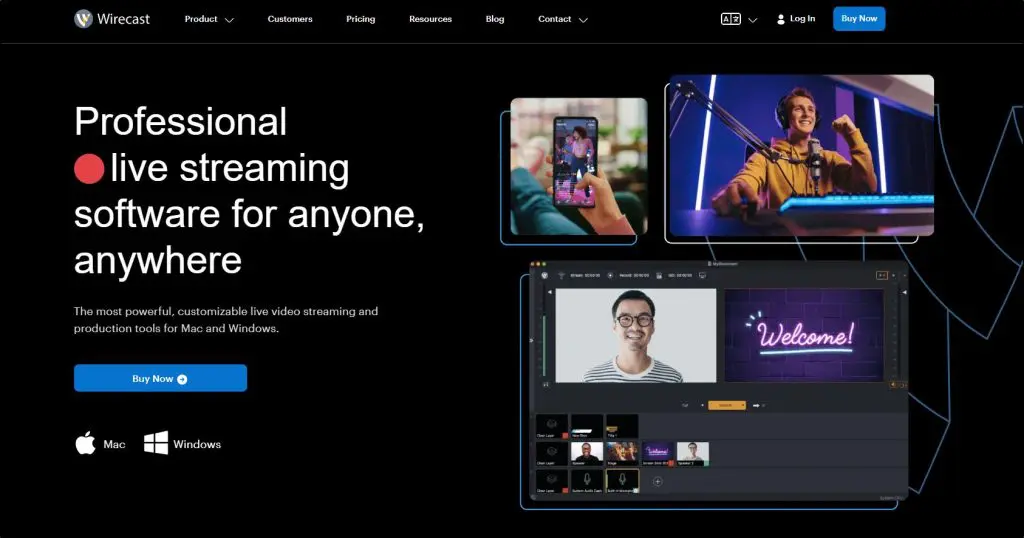
Wirecast is professional desktop live production software for Mac and Windows that lets you build a complete live show and then stream it to multiple platforms.
I see Wirecast as a production tool first and a multistreaming tool second. You control cameras, graphics, scenes, audio routing, and transitions locally, then send a clean program feed to YouTube, Facebook, Twitch, or any RTMP destination.
With Wirecast Pro, cloud multistreaming sends one high-quality stream to the cloud and distributes it to multiple platforms, which protects your upload bandwidth.
You manage engagement on the destination platforms themselves, not inside Wirecast, so it fits teams that already know how they want to run live shows.
If your livestream feels closer to a broadcast than a casual chat, Wirecast makes sense.
Key live streaming features in Wirecast
- Desktop live production studio for Mac and Windows
- Built-in destinations plus RTMP and SRT outputs
- Cloud multistreaming (Pro) to avoid bandwidth strain
- Layer-based scenes, graphics, and chroma key
- Multi-camera and IP camera support (NDI, RTSP, HLS)
- Remote guests built into the production workflow
- ISO recording and multi-track audio (Pro)
- Virtual camera and microphone output
| Pros | Cons |
|---|---|
| Gives you full control over how your live show looks and runs | Requires local setup and production knowledge |
| Cloud multistreaming avoids sending multiple uploads from your network | No built-in unified chat or audience management |
| ISO recordings simplify editing and repurposing later | Higher cost than browser-based multistreaming tools |
| Works well for complex, multi-camera live shows | Not designed for scheduling or 24/7 distribution |

9. Switchboard Live
- Streaming platforms: Unlimited destinations
- Starting price: Custom pricing (no self-serve low-cost plans)
- Best for: Public sector, media teams, universities, sports, and organizations running mission-critical live events
- Not ideal if: You want an all-in-one live streaming studio with chat, guests, and engagement tools
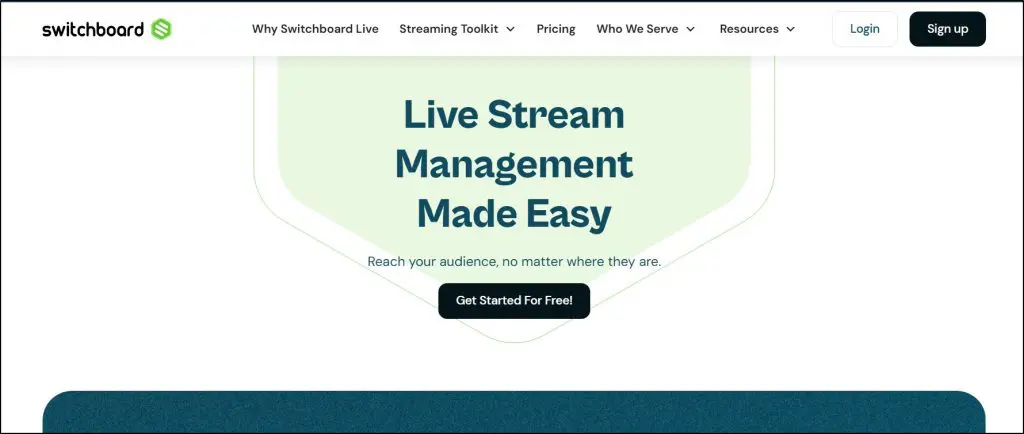
Switchboard Live is not a typical live streaming tool. It doesn’t help you create a live show. It helps you distribute an existing live feed everywhere, reliably and at scale.
With tools like Restream or StreamYard, you connect a camera, go live, manage comments, and engage your audience from one dashboard. Switchboard works differently. You send it a single professional video feed from OBS, Wirecast, or a hardware encoder, and Switchboard pushes that feed to dozens of destinations automatically.
There’s no live studio, no unified chat, and no on-screen interaction. That’s intentional. Switchboard assumes engagement happens natively on each platform, while it focuses on uptime, automation, and control. This matters when you stream city council meetings, sports events, emergency briefings, or large public broadcasts where failure isn’t an option.
Key live streaming features in Switchboard Live
- Unlimited simultaneous streaming destinations without per-platform limits
- Auto-start and auto-stop so destinations go live the moment your encoder starts
- Scheduled events for pre-configured, hands-off broadcasts
- PartnerShare to stream directly to partners’ or sponsors’ channels without sharing passwords
- RTMP and SRT ingest for professional and low-latency workflows
- Centralized destination management for large teams
- Archive routing to store and retrieve event recordings
- Built for 24/7 and long-running live streams
| Pros | Cons |
|---|---|
| Extremely reliable for high-visibility, high-risk live events | No live chat, audience interaction, or engagement tools |
| Handles unlimited destinations without performance trade-offs | Requires external production software or hardware |
| Ideal for government, education, sports, and media operations | Overkill for creators, marketers, and course sellers |
| Removes the need to log into dozens of social platforms | No browser-based live studio |
| Designed for teams, workflows, and compliance needs | Pricing and setup don’t suit casual or solo streamers |
Can You Use OBS for Multistreaming?
OBS Studio (Open Broadcaster Software) is a free, open-source live streaming and recording tool.
It’s widely used by creators, gamers, educators, and businesses to go live on platforms like YouTube, Facebook, Twitch, and LinkedIn.
OBS gives you full control over scenes, sources, audio, and video quality, but it assumes you’re comfortable with a more hands-on setup.
Using OBS as a free multistreaming option
OBS can be used for multistreaming if you’re looking for a free solution and you have some technical know-how.
However, multistreaming isn’t built in by default. You either install a multiple RTMP output plugin or manually configure advanced outputs.
In both cases, OBS encodes and uploads a separate stream for each platform, all from your computer and internet connection.
This works, but it’s not perfect.
How multistreaming with OBS actually works
When you multistream with OBS:
- Your PC encodes multiple video streams simultaneously
- Your internet uploads multiple feeds at once
- Each platform is handled independently
If one stream drops or lags, the others may continue — or fail separately. There’s no central dashboard for chat, comments, or monitoring.
When OBS multistreaming makes sense
OBS is a reasonable choice if:
- You multi-stream occasionally
- You’re comfortable tweaking bitrate, encoder, and output settings
- You’re okay with lower resolutions or shorter sessions
- You don’t need unified chat or audience management
- You want a completely free setup
This is common for early-stage creators, test streams, or internal broadcasts.
When OBS multistreaming doesn’t make sense
OBS becomes limiting when:
- You stream to three or more platforms regularly
- You want stable 1080p or long live sessions
- Your upload bandwidth isn’t consistently strong
- Your computer struggles under load
- You need centralized chat, moderation, or comment highlighting
- The stream is business-critical or public-facing
In these cases, OBS stops being “free” in practice because reliability and focus start to suffer.
In short…
OBS is a powerful production tool and a workable free multistreaming option if you know what you’re doing. But it wasn’t built to be a multistreaming platform. Once live streaming becomes a serious part of your workflow, dedicated multistreaming tools exist to solve the exact problems OBS creates at scale.
What To Look for In The Best Multi-Platform Live Streaming Software?
With viewership on live streaming websites skyrocketing worldwide, numerous streaming software solutions have popped up over the last few years.
But what should you look when evaluating different streaming software options?
Here are the key factors to keep in mind with most live streaming software options.
Live Stream Quality
- Does the live stream service have the necessary technology to support HD streaming even on light connections?
- Will your viewers be able to see the actual quality of your stream?
- Does your video frequently break on a live stream service?
- Does the service automatically adjust data consumption based on the user’s device and connection?
Viewer Limits
- Are there are any limits on the number of people who can view your live stream?
- Does the streaming service have a banned or unsupported country list where viewers cannot see your stream?
- Is there are a duration limit on streaming or watching your video?
Accessibility
- How can viewers watch your video?
- Do they need to download a new app or register for an account?
- Or can they access your video from a public link?
Viewer Engagement Features
- Does the service offer features like live chat, emojis, file sharing, etc. – definitely important when you want to engage your prospective learners and provide them with value?
- Can you share CTAs or links with viewers – for example, to send them to a course landing page?
- Are there any templates or video frames for different occasions? (This can make your life much easier.)
Integration and API
- Can you share your stream on platforms like YouTube, Facebook, TikTok, etc.?
- How to stream to multiple sites at once – i.e., can you do multi platform streaming?
- Does the software have an API to enable custom integration with other software?
Costs
- Naturally, cost will be a factor. Fortunately, the cost of live streaming an event has come down quite a lot in recent years – and there are even free live streaming options. So, if you are wondering how much does live streaming cost, we’ll definitely cover that for each event streaming tool discussed in this article.
All of these questions will help you objectively evaluate a streaming software.
What’s Your Pick for The Best Live Streaming Software?
We’ve hand-picked some of the best live streaming software platforms for you in this article. All of them are great products with high-quality features and customizable video broadcasting options.
So, you won’t regret choosing any of them.
However, since you still need to purchase one of these platforms, here are my top picks to make your decision easier.
Restream– The best streaming software for multiple platforms.
StreamYard – Easy, feature-rich platform with some of the strongest recording capabilities
Onestream – The best end-to-end streaming software with strong analytics for pros
Crowdcast – Best for monetizing your livestream and multistream events
Which one is suitable for your live streaming business model? That’s up to you to decide.
How We Evaluate and Test Software & Platforms
Reviews of platforms on the Learning Revolution site are overseen by the site’s founder, Jeff Cobb, an e-learning industry expert with more than 20 years of experience working with online course and related platforms. All evaluations are conducted by a team of analysts who have extensive experience using, testing, and writing about these types of platforms. We dedicate numerous hours to researching each platform, ensuring each aligns with the needs of online course sellers, and vetting specific areas like core features, usability, pricing, and customer satisfaction. Our reviews are unbiased, and while we will participate in affiliate programs, if available, we do not accept payment for placement in our articles or links to external websites.

Jeff Cobb, Founder of Learning Revolution
Jeff Cobb is an expert in online education and the business of adult lifelong learning. Over the past 20+ years he has built a thriving career based on that expertise – as an entrepreneur, a consultant, an author, and a speaker. Learning Revolution is a place where Jeff curates tips, insights, and resources to help you build a thriving expertise-based business. Learn more about Jeff Cobb here.
- The Best Live Streaming Software for Multiple Platforms (2026)
- 1. Restream – Best Streaming Software
- 2. StreamYard
- 3. Castr
- 4. Be.Live
- 5. OneStream
- 6. Crowdcast
- 7. Dacast
- 8. Wirecast
- 9. Switchboard Live
- Can You Use OBS for Multistreaming?
- What To Look for In The Best Multi-Platform Live Streaming Software?
- What’s Your Pick for The Best Live Streaming Software?


Easestream is much better platform to go live on multiple platform that is no where in your list.
Thanks. We’ll check it out.