
TL;DR — StreamYard Review 2026: Our Verdict After Using It for Over a Year
StreamYard is a live streaming tool that lets you broadcast on multiple platforms right from your browser. We have used StreamYard regularly for live interviews, webinars, course launches, and multi platform streaming, and it remains one of the easiest and most reliable live video tools we have worked with here at Learning Revolution.
Why We Recommend StreamYard
– Runs in your browser, no software or setup headaches
– Go live on YouTube, Facebook, LinkedIn, Instagram, and more at once
– Invite guests with a simple link, no downloads needed
– Record in Full HD or 4K, and schedule pre-recorded streams
– Turn one live session into Shorts, Reels, and long form clips automatically with AI
– Polls, QR codes, and pop out chat make it easier to keep an audience engaged while hosting solo
StreamYard Pricing Plans
Free Plan: good for testing, limited to one destination and comes with StreamYard branding
Core, $44.99 a month: best for solo creators who want Full HD streaming, no branding, and three streaming destinations
Advanced, $88.99 a month: best for pro streamers hosting webinars, pre-recorded events, or multicam shows across up to eight destinations
Business Plan: built for teams and companies, starts at two seats and scales per seat, priced after you talk to sales
Who It’s Not For
If you need deep video editing, custom transitions, or want to stream to 30 or more platforms out of the box, StreamYard will feel limiting. Restream and OBS both offer more range and control.
Our Take
StreamYard is built for solo creators, coaches, educators, and marketers who want to go live fast without wrestling with tech. If you value simplicity and reliability over deep customization, it is still one of the best streaming tools in 2026.
Try StreamYard For Free Now
I like StreamYard and have been using it for a while.
But I also believe it’s not the right option for everyone. This is why I’ve written this review to help you decide if it’s for you or not.
This detailed StreamYard breakdown is based on our months-long, hands-on experience through which my team and I repeatedly tested out the software to assess its live streaming and multistreaming capabilities and accompanying features for video hosting, analytics, video editing, and audience engagement.
What’s more, you get to discover how it all compares with other reputable live video streaming platforms.
Remember, StreamYard made some drastic changes to its pricing and features towards the end of 2024. So, this review considers all those changes and how the updated StreamYard platform compares with some of its main competitors.
Here’s a quick video where I’ve shared my experience with StreamYard.
You can also check out our post, 10 Best Live Streaming Software For Multi-Platform Streaming.
What is StreamYard And How Does It Work?
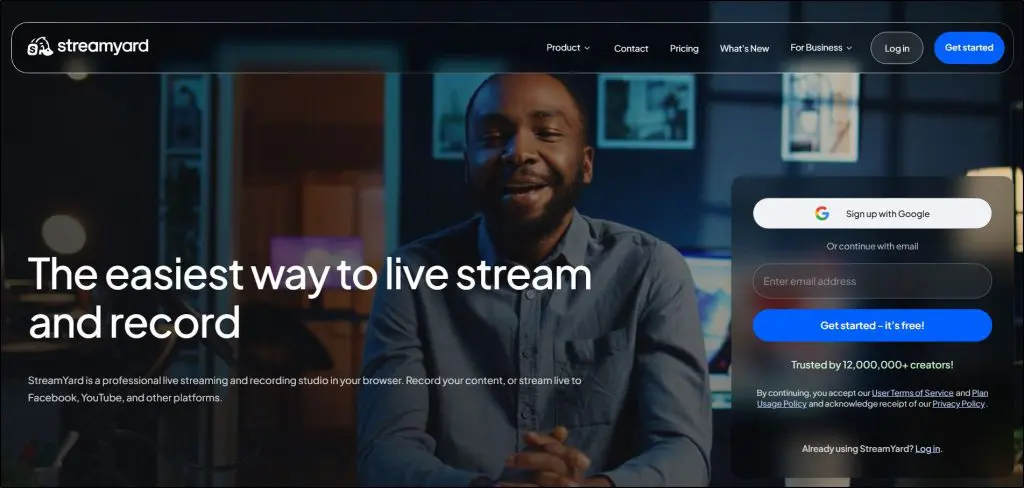
StreamYard is a live streaming tool that lets you broadcast and share content right from your browser without any complicated setup or software downloads. Just log in and start streaming.
It offers multistreaming, which means you can connect and stream to as many as eight destinations at once, including Facebook, YouTube, LinkedIn, X, Twitch, Instagram Live, Kick, Vimeo, Brightcove, and Hopin, plus any platform that accepts a custom RTMP feed.
This makes it a strong fit for coaches, consultants, and course creators who want to show up in front of their audience wherever that audience already spends time, without juggling separate logins and setups for every platform.
Here’s what you can do with StreamYard:
- Live stream to multiple platforms at once.
- Record and edit content for future use and repurposing.
- Host On-Air webinars to reach a larger audience with interactive features.
- Stream interviews and panel discussions with up to 10 on-screen participants.
- Run live Q&A sessions to interact with your community in real time.
- Pre-record content and schedule it for future streaming.
- Host virtual meetings and events without a complex setup.
- Collaborate with guests easily through simple invite links.
- Customize your streams with overlays, logos, and backgrounds.
- Stream in 4K resolution for high quality video production.
- Apply camera shape customizations to personalize your visual layout.
I like StreamYard’s simplicity. It gives you the essential tools without overwhelming you, which makes it a good fit for anyone who wants to stream without a steep learning curve.
StreamYard also simplifies collaboration. You can invite guests to join your stream through a simple link without needing to install any software. Depending on your plan, you can have up to 10 on-screen participants, which works well for interviews, panel discussions, and team presentations.
StreamYard is not cheap but it does have a free version that lets you test the platform and decide if it fits before you pay anything.
Overall, I have always found StreamYard among the most user friendly multistreaming platforms, especially for non-technical users.

StreamYard Pricing & Free Plan (2026)
StreamYard runs on a free plan plus two paid individual plans, Core and Advanced, with a separate Business plan for teams and companies. Pricing for Core and Advanced is public on StreamYard’s pricing page. Business pricing still requires talking to their sales team, since it is based on seats and use case.
Is StreamYard Free to Use?
Yes, and the free plan is a real way to test the platform, though it is more limited than it used to be.
It includes:
- One streaming destination, no multistreaming
- Six on-screen participants
- Two hours of local recording per month, with five hours of storage
- StreamYard branding on every video
- A small allowance of AI generated clips to try the feature out
It is enough to get a feel for the studio and decide whether the workflow fits you. If you plan to actually run your business through StreamYard, you will hit these limits fast.
Paid StreamYard Plans (2026)
- Core, $44.99 a month or $35.99 a month billed annually: Best for solo creators who want Full HD streaming, no branding, and room to stream to three destinations at once.
- Advanced, $88.99 a month or $68.99 a month billed annually: Best for anyone hosting webinars, pre-recorded events, or multicam shows across up to eight destinations.
- Business: Built for companies and teams, starting at two seats with additional seats priced individually, and required if you sign up with a work email address.
The Business plan gives you two seats by default, a shared greenroom, more multistream destinations, and priority support. Extra seats run $59 a month each, or $588 a year.
If your team is bigger than ten people, StreamYard points you to an Enterprise plan instead, with unlimited seats and single sign on. This mostly affects anyone signing up with a company email address. If you are a solo creator or a small coaching business using a personal email, you likely will not touch this tier at all.
Key Differences Between StreamYard Plans
| Feature | Free | Core | Advanced |
|---|---|---|---|
| Streaming Destinations | 1, no multistreaming | 3 | 8 |
| Max Quality | Standard definition | 1080p Full HD | 4K local recording |
| Participants On Screen | 6 | 10 | 10, plus 15 backstage |
| Local Recordings | 2 hrs per month | Unlimited | Unlimited |
| Pre-recorded Streams | Not available | Up to 2 hrs | Up to 4 hrs |
| StreamYard Branding | Yes | No | No |
The Core Features Included In All Plans
No matter which plan you are on, you get access to:
- Reusable studios and scene layouts
- StreamYard Studio, browser based, no download needed
- Live stream recording
- Guest invitations
- On-screen comments and chat overlay
Branding tools like custom overlays, logos, and backgrounds only unlock once you upgrade to Core or above. Same goes for custom RTMP destinations.
How To Use StreamYard | Getting Started With Live Streaming
One of the first things I noticed when using StreamYard was how easy it is to get started.
StreamYard System Requirements
Since everything runs in the cloud, there is no software to install and no system requirements to worry about. Unlike OBS and Zoom, StreamYard works right in your web browser, whether that is Chrome, Safari, or Firefox.
As long as you have a stable internet connection, you are good to go.
This cloud-based setup makes StreamYard accessible and budget friendly. I did not need expensive hardware or high end equipment. A simple webcam and microphone were more than enough to start creating professional looking live streams.
Getting Started With StreamYard For Free
Signing up is quick and hassle free. I entered my email, received a login code, and was inside the dashboard within minutes, no passwords to remember and no complicated verification steps.
Once I got to the dashboard, I immediately saw why StreamYard calls itself the easiest live streaming platform available.
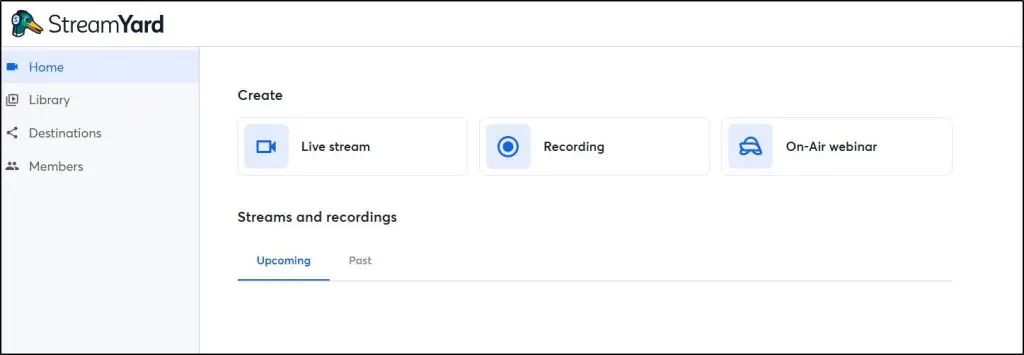
The interface offers just what you need, nothing more, nothing less. Everything is laid out cleanly, so it is easy to find key features without getting lost in menus you will never use.
The whole studio has a modern, clean look to it now, and the camera settings include color filters and a skin smoothing tool that softens how you look on screen before you ever hit go live.
That alone used to require a separate piece of editing software.
Overall, I would say StreamYard is much simpler and more intuitive than the likes of Zoom and Microsoft Teams.
Adding streaming destinations is the first step.
StreamYard supports major platforms like Facebook, YouTube, Twitch, LinkedIn, and X. If you need more control, you can set up a custom integration through the Custom RTMP option, which works well for niche platforms and private streams.
Starting a live stream or recording is as simple as clicking the Broadcast button.
Once you are in the StreamYard studio, that is where everything comes together. You can edit clips, invite guests with a quick link, adjust layouts in a few clicks, control audio, and keep your audience engaged with comments and overlays.
Features like reusable studios and 4K recording on the Advanced plan make it easy to create consistent, high quality content without extra effort.
StreamYard Feature #1: Live Video Streaming
StreamYard strikes a solid balance between simplicity and production value. It hands you the tools to run a polished live session without burying you in technical settings you will never touch.

Once you step into the studio, camera and audio settings sit right where you would expect them. You get virtual backgrounds, color filters, and a skin smoothing tool that blurs and softens your appearance on camera, all adjustable before you go live.
None of this replaces a real video editor, but it means you can look camera ready without opening a second piece of software first.
Learn how to live stream on YouTube using StreamYard.
Virtual Backgrounds and Branding Options
StreamYard’s virtual background feature lets you add a professional touch to your streams. Set up a green screen and you can swap your background for any image or video you choose, which makes a session look more intentional and more branded.
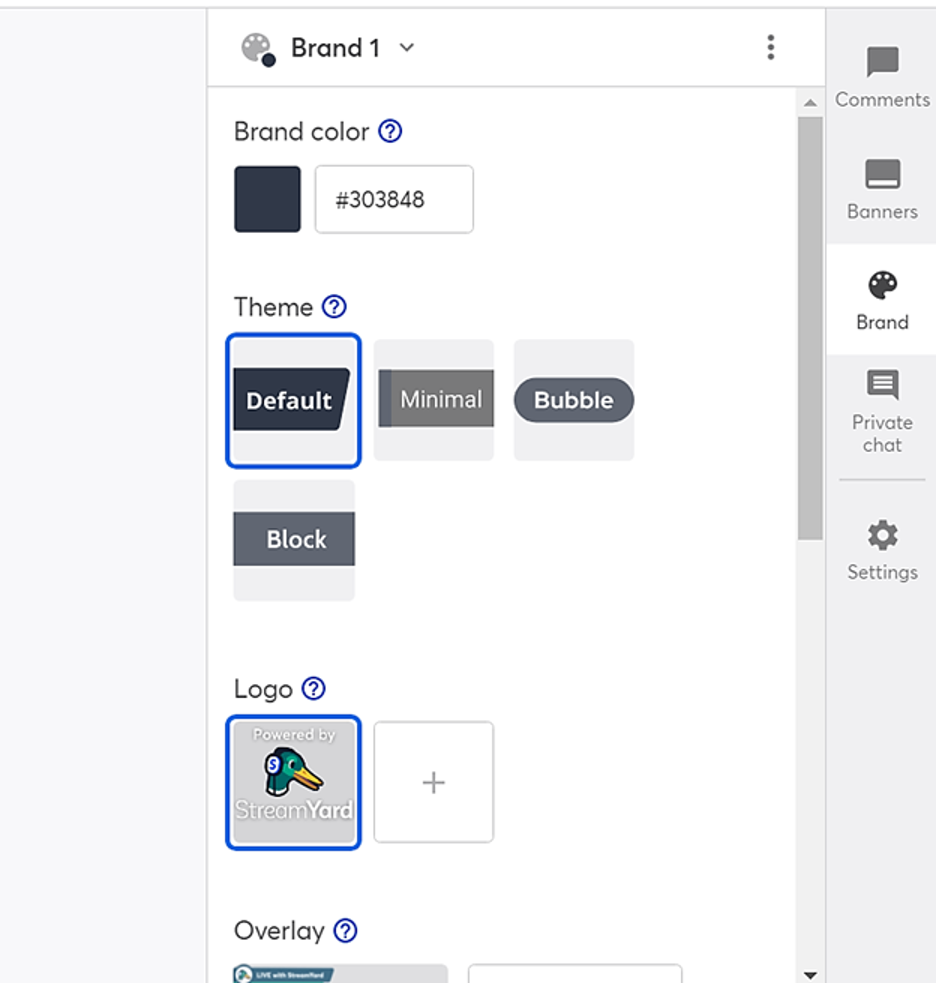
Branding your live videos is straightforward too. You can upload logos, overlays, GIFs, and short video clips to personalize your stream, and now you can resize and reposition those overlays directly inside your layout without leaving the studio. Treat an overlay like a sticker. Drop it where it makes sense next to your face or your logo, and adjust it live if something is not sitting right.
If you run more than one brand, program, or client account, you can copy your logos and overlays across brands instead of re-uploading the same files every time you switch. It is a small detail, but it saves real time if you are managing multiple coaching programs or client channels from one account.
Streaming Destinations
StreamYard lets you broadcast to up to eight platforms at once on the Advanced plan, including Facebook, YouTube, LinkedIn, X, Twitch, Instagram Live, Kick, Vimeo, Brightcove, and Hopin. For anything else, the Custom RTMP option lets you stream to any platform that accepts an RTMP feed, including your own website.
Video Quality Options
Full HD streaming on StreamYards’s Core plan delivers clean 1080p video, assuming your internet connection holds up. Advanced plan users can record locally in 4K, which is worth having if you plan to reuse footage for anything beyond the live stream itself.
If your YouTube channel is monetized, StreamYard also lets you set ad load directly from the studio, choosing between conservative, balanced, and aggressive insertion, instead of managing that separately inside YouTube.
On-Screen Participation and Guest Features
Guests join with a simple link, no sign-up or download required. Core supports up to 10 on-screen participants, and Advanced adds 15 backstage participants on top of that, which matters if you run panels, interviews, or group coaching calls with more people than can fit on screen at once.
Every guest gets a branded welcome page before they join the studio, built automatically from your logo and brand colors. It is a small thing, but it makes a first time guest, especially a client or a potential partner, feel like they walked into something real rather than a random video call link.
You control what shows up on the broadcast. Rearrange guest windows, switch layouts, reorder who is in the backstage lineup, and add or remove participants without breaking the flow of the session.
Where this falls short: there is still no built-in green room moderation queue on lower tiers, and if you are running a large, multi-guest production, you will want to rehearse your layout switches before you go live. Nothing here replaces a dedicated production team, but for a solo host or a small team, it gets you most of the way there.
StreamYard Feature #2: Multistreaming
Multistreaming is one of StreamYard’s core features, letting you broadcast to multiple platforms at once. StreamYard currently supports these destinations natively:
Supported Multistreaming Destinations
- YouTube
- Facebook (Profile, Page, Group)
- LinkedIn (Profile, Page, Event)
- X
- Twitch
- Instagram Live
- Kick
- Vimeo
- Brightcove
- Hopin
If you stream to Facebook, StreamYard lets you broadcast to your profile, groups, or business pages from one dashboard. Same with LinkedIn, where you can hit your profile, company page, or a scheduled event.
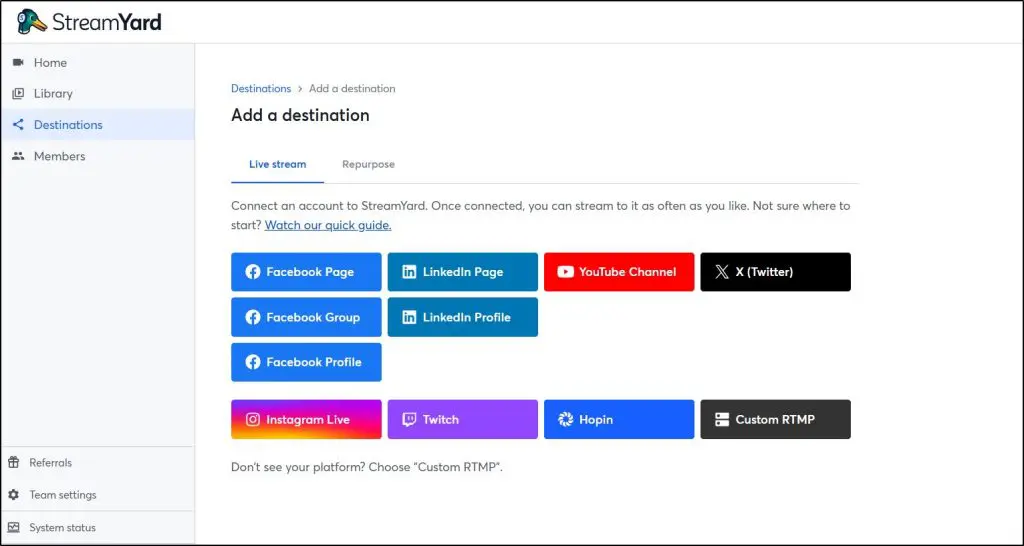
That is a solid list, and it covers the platforms most coaches, consultants, and course creators actually care about. Compared to Restream or Castr, which both support 30 or more destinations by default, StreamYard’s native list still looks shorter on paper. In practice, most broadcasters do not need 30 platforms.
A gamer needs Twitch, YouTube, and maybe Facebook. A business coach needs LinkedIn, YouTube, and Facebook. StreamYard covers the ones that matter for most people building an audience around their expertise.
For anything outside that list, StreamYard’s Custom RTMP option covers you.
Custom RTMP for More Flexibility
Custom RTMP lets you stream to platforms StreamYard does not integrate with directly, which is useful if you want to stream straight to your own website or a private membership platform.
Setting it up means entering a server URL and stream key, which is more technical than the one-click integrations for the platforms above, but it is a one-time setup, not something you redo every stream.
Multistreaming Limits Based on Plan
- Free plan: no multistreaming, one destination at a time.
- Core plan ($44.99/month): multistream to 3 destinations.
- Advanced plan ($88.99/month): multistream to up to 8 destinations at once.
StreamYard also supports pre-recorded streaming, letting you upload and schedule previously recorded content to go out as if it were live, which is worth knowing about if you want to build a launch calendar without being on camera every single time.
Streaming Time Limits
Each streaming destination has its own time limitations that you should be aware of:
- Facebook: 8 hours per session.
- YouTube: 12 hours per session.
- LinkedIn: 4 hours per session.
- Twitch: 48 hours per session.
Captions and Accessibility
One limitation to note is that StreamYard does not generate live captions by default. Platforms like Facebook, LinkedIn, and YouTube provide their own automatic captions on their end, which helps you reach a wider audience without extra setup on your side.
StreamYard also has a dark mode built in, which matters more than it sounds like if you are running long sessions and staring at the studio for hours at a time.
StreamYard Feature #3: Streaming Pre-recorded Videos
StreamYard makes it easy to broadcast pre-recorded content as live streams. You can record videos using the Record Only mode in the studio, upload pre-made clips, and schedule them to go live at a specific time.
Recording and Uploading Content
You can create pre-recorded content directly within StreamYard by selecting the Record Only option, which lets you shoot clips without broadcasting them live. This feature works well for recording webinars, tutorials, and presentations.
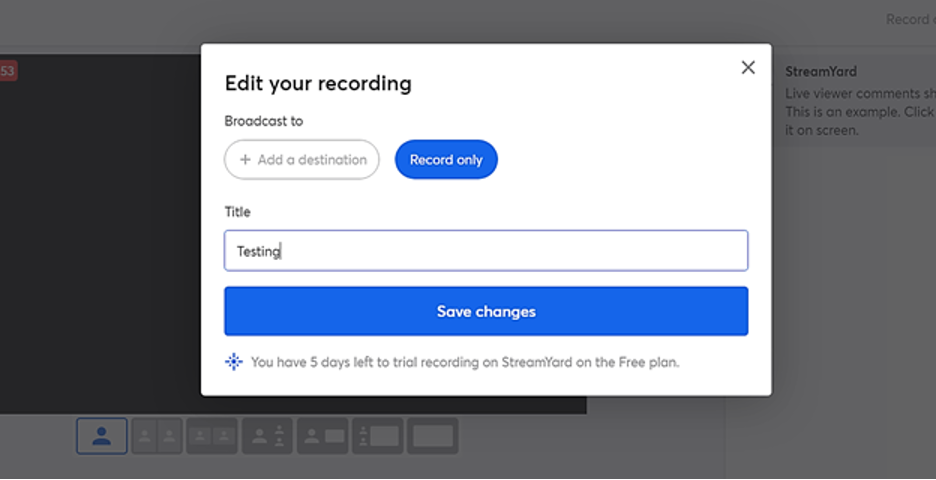
In addition to recording, StreamYard lets you upload videos from your local storage in MP4 or MOV formats. Once uploaded, you can schedule these videos to broadcast across multiple destinations simultaneously.
Scheduling and Streaming Pre-recorded Content
You can schedule pre-recorded content to stream automatically without going live manually. This is particularly useful for repurposing content and reaching audiences across different time zones.
Downloading and Repurposing Recorded Streams
StreamYard lets you download your live stream recordings in both video and audio formats. This is great for repurposing content, like turning a past webinar into a podcast episode or uploading the recorded session to your online course platform.
Paid users benefit from extended storage, with Core plan users getting 50 hours of permanent storage, while Advanced plan users enjoy unlimited storage.
Once you have a library full of recordings, finding the one you want fast becomes its own problem. StreamYard added a real search bar to the library, so you can type a title and jump straight to the video instead of scrolling through months of past sessions. It is a small thing, but it saves real time once you have been streaming for a while.
StreamYard Feautre #4: Repurpose Content
StreamYard’s Repurpose feature lets you trim, clip, and publish your existing recordings straight to your other channels, so one live session does not have to die the moment you end the stream.
From your library, you can push content out to YouTube, Facebook Page, LinkedIn Profile, Instagram, TikTok, and Vimeo, whether that is a short clip pulled from a longer session or the full recording itself. The same destination picker handles both, so you are not hunting through separate menus depending on length.
This matters more than it sounds like if you are a coach or consultant running weekly calls or webinars. A single hour long session can turn into a week’s worth of social posts without you touching a video editor, which is exactly where AI Clips comes in.
StreamYard Feature #5: Audience Engagement Tools
Going live is only half the job. Keeping people watching, commenting, and actually doing something once they are there is the harder half, and this is where StreamYard has quietly gotten a lot better.
Polls
You can build a poll right inside the studio and push it onto the screen mid-stream. Viewers vote by commenting the option number or the word itself in the chat, no case sensitivity, no separate app. It works across every platform that supports live chat, including YouTube, Facebook, Instagram, X, and Twitch, though it will not work over a custom RTMP destination.
For a course creator or consultant, this is a fast way to turn a quiet audience into an active one. Open a webinar with a poll asking where people are joining from, or use one mid-session to decide what to cover next. Either way, you get a read on who is actually paying attention, and your audience gets a reason to stay engaged instead of just watching.
QR Codes
The QR code widget got a real redesign. You can now set a title, a destination link, a custom color, and even drop an image or your logo into the center of the code. Show it on screen with a clear call to action, like a link to book a call, join a waitlist, or grab a lead magnet, and viewers can act on it without you pasting a link into chat that half the platform will not even see.
Pop-Out Chat
This is the one worth paying attention to if you host alone. Pop out your chat into a separate window, or scan a QR code to pull it up on your phone, and you can read comments, show them on stream, and hide them again without ever leaving your camera view or breaking your flow.
If you have ever tried to run a live session solo while also keeping an eye on a chat window buried behind your layout, you know how much that used to break the pacing of a stream.
The limitation here is the same one that runs through most of StreamYard’s engagement tools. None of it works over custom RTMP, so if you are streaming to a private platform or your own website through RTMP, you lose polls and native chat interaction entirely.
For anyone streaming to the platforms StreamYard integrates with directly, though, these tools genuinely make it easier to run a session by yourself and still feel like there are more people behind the camera than just you.
StreamYard Feature #6: AI Clips
Every live session you run is also raw material for weeks of shorter content, if you have time to sit down and cut it up. Most people do not, and that is the problem AI Clips solves.
Point it at a past recording and it finds the moments worth pulling out, generates a captioned, vertical clip ready for Reels, Shorts, or TikTok, and lets you control which moments actually get turned into clips instead of leaving it fully automatic.
You can style the captions and drop your own logo into the corner, so a clip pulled from a coaching call still looks like it came from your brand instead of a generic auto-generated video.
What used to take close to half an hour per batch now finishes in under ten minutes, and it runs in the background, so you can start a new recording or move on to something else while it processes and get an email when it is done.
StreamYard Review – Pros and Cons
Every tool has its strengths and limitations, and StreamYard is no exception. Let’s break down what works well and where it falls short.
Pros of StreamYard
- Free to Start: StreamYard offers a permanently free plan with essential streaming features, making it accessible to everyone.
- User-Friendly Interface: The platform is easy to navigate with an uncluttered layout, perfect for beginners.
- Guest Participation: You can invite up to 10 on-screen participants in your live streams, enhancing engagement.
- Custom RTMP Support: Allows streaming to platforms beyond the built-in options.
- Cloud-Based Convenience: No software installation required; runs entirely through a web browser.
- Audience Interaction: Features like on-screen comments help keep viewers engaged.
- Professional Branding: Easily customize your streams with logos, overlays, and video backgrounds.
- Full HD Streaming: Broadcast in crisp 1080p resolution.
- Multistreaming Capability: Stream to up to 8 destinations simultaneously.
- Content Repurposing: Download recorded streams and repurpose them for different platforms.
- New Features: Pre-recorded streaming, reusable studios, dark mode, and 4K local recordings (Advanced plan).
Cons of StreamYard
- Limited Free Plan: The free plan includes StreamYard branding and restricts streaming destinations.
- Advanced Features Behind Paywall: Features like 4K recording and webinars are only available on higher-tier plans.
- Technical Setup for RTMP: Custom RTMP integration requires some technical knowledge.
- Limited Video Editing Tools: StreamYard lacks advanced in-studio editing features.
- No Built-in Analytics: Detailed analytics are not available within the platform; users must rely on external platform insights.
- Storage Limits: Free and Core plan users have limited storage compared to the Advanced plan.
StreamYard Alternatives | Are There Better Live Streaming Platforms?
By now it’s pretty clear that StreamYard is a mixture of oranges and lemons. While it has some extremely solid benefits, they happen to be accompanied by their fair share of drawbacks.
Wondering where that places StreamYard in relation to its closest competitors?
Well, here’s how it compares with three of its most popular alternatives:
- Restream.
- OBS.
- Livestream.
1. StreamYard vs Restream.io
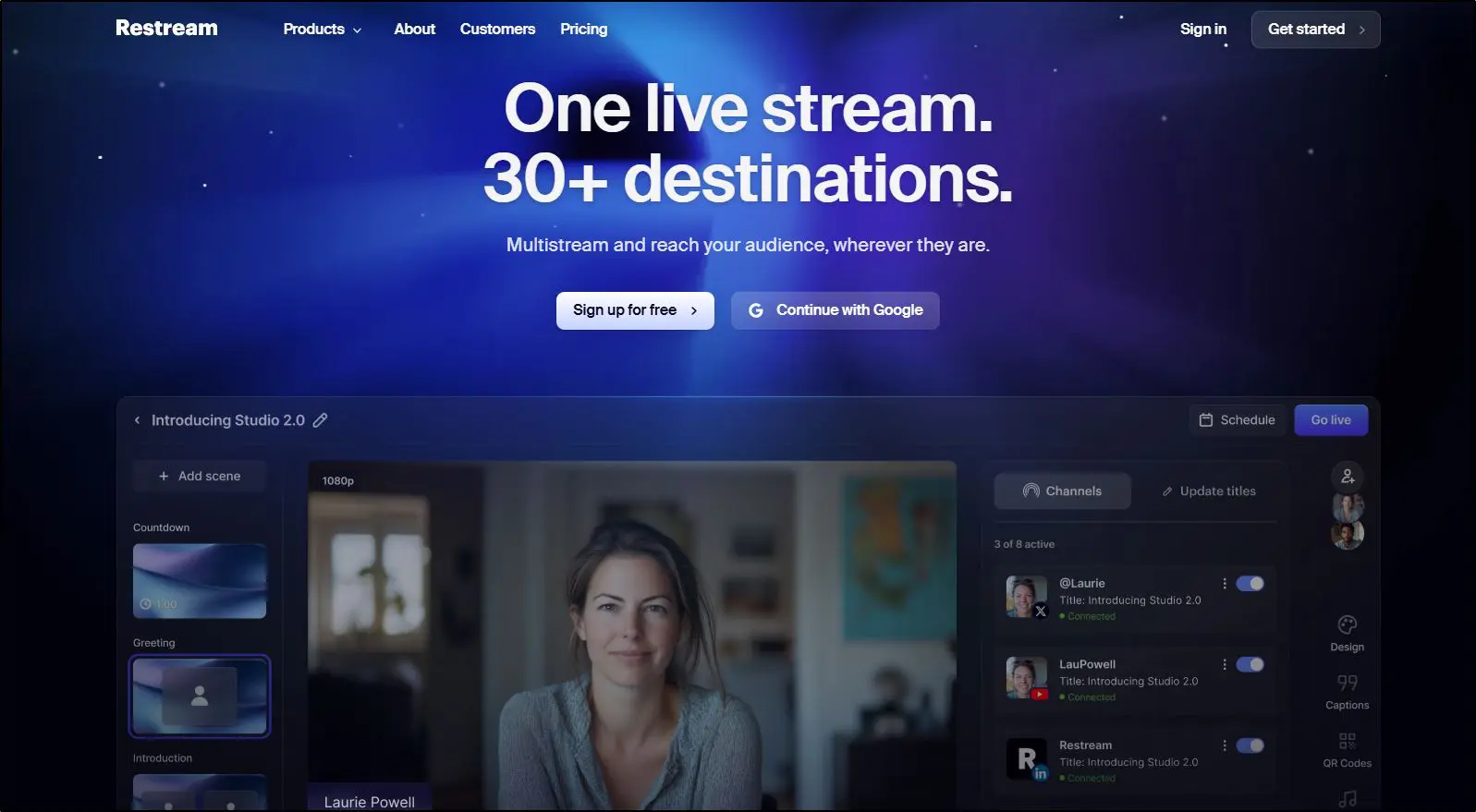
Restream and StreamYard happen to share quite a number of similarities. They are both multistreaming platforms that are capable of broadcasting live content to a wide range of social channels.
Key Differences
- Ease of Use: StreamYard is known for its intuitive, beginner-friendly interface, while Restream offers more advanced features that may require a learning curve.
- Multistreaming Destinations: Restream supports over 30 platforms, whereas StreamYard allows streaming to up to 8 destinations.
- Pricing: Restream’s paid plans start at $16 per month, while StreamYard’s Core plan begins at $44.99 per month.
- Video Quality: StreamYard provides Full HD (1080p) streaming on its Core plan, while Restream offers 4K streaming capabilities on its higher-tier plans.
- Pre-Recorded Streaming: Both platforms allow pre-recorded video streaming, but Restream provides more flexibility with scheduling and automation.
- Customization: Restream offers advanced graphics, overlays, and scene transitions, whereas StreamYard keeps things simple with easy-to-use branding options.
Which One Should You Choose?
If you’re looking for an easy, no-fuss live streaming solution with all the essential features, StreamYard is a great choice. However, if you need deeper customization, 4K streaming, and integration with more platforms, Restream might be the better option for your needs.

#2. StreamYard vs OBS
If StreamYard’s ease of use doesn’t quite meet your needs, you might consider OBS (Open Broadcaster Software), a free and open-source live streaming solution with extensive customization options.
Key Differences
- Ease of Use: StreamYard is beginner-friendly with a cloud-based setup, whereas OBS requires installation and a learning curve to master its advanced features.
- Customization: OBS offers deep customization, including advanced scene transitions, audio mixing, and filters. StreamYard, on the other hand, focuses on simplicity with easy branding and multistreaming options.
- System Requirements: StreamYard runs entirely in a web browser, while OBS requires a powerful PC to handle live streaming and video processing efficiently.
- Streaming Destinations: StreamYard allows multistreaming to up to 8 destinations simultaneously, whereas OBS requires third-party integrations for multistreaming.
- Support and Updates: StreamYard provides dedicated support and regular feature updates, while OBS relies on community support and self-help resources.
Which One Should You Choose?
If you’re looking for a simple, cloud-based solution with built-in features and minimal setup, StreamYard is a great choice. However, if you need extensive customization and have the technical know-how to configure your streams, OBS might be the better option.

#3. StreamYard vs Vimeo
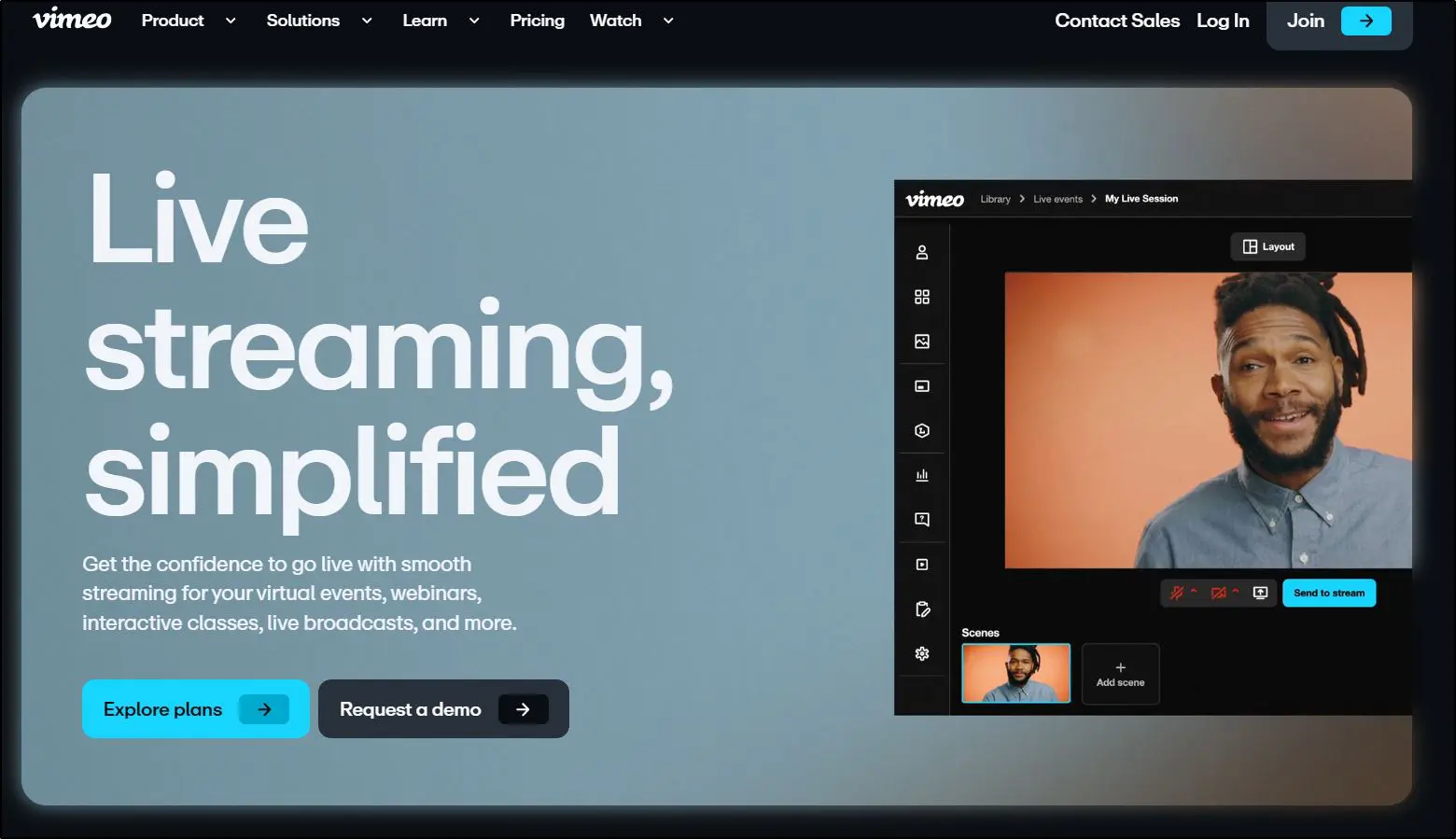
Vimeo and StreamYard cater to different audiences with distinct feature sets. Vimeo is designed for businesses and enterprises that need high-quality video production and detailed audience engagement tools, whereas StreamYard is built for creators looking for simplicity in live streaming.
Key Differences
- Purpose: Vimeo is an enterprise-grade solution with extensive branding, engagement, and marketing features, while StreamYard is aimed at content creators seeking an easy-to-use multistreaming platform.
- Features: Vimeo offers AI-powered tools like automated chapters, text summaries, and teleprompters. StreamYard focuses on straightforward live streaming and guest participation.
- Multistreaming: Vimeo allows streaming to multiple destinations but focuses heavily on event hosting. StreamYard offers dedicated multistreaming to up to 8 platforms simultaneously.
- Pricing: Vimeo’s plans start at $65/month, making it more expensive than StreamYard’s $44.99 Core plan.
- User-Friendliness: StreamYard is easier to set up and use compared to Vimeo’s more complex feature set.
If you need professional-grade production and advanced engagement features, Vimeo might be worth the investment. However, if simplicity and affordability are your priorities, StreamYard is a better fit.

StreamYard Verdict | Is It Worth Using For Multistreaming?
At this point in the review, it is clear why StreamYard has held onto its popularity.
That popularity comes down to ease of use more than anything else. StreamYard is an accessible multistreaming platform with a free entry point and a genuinely simple interface.
It does have real limitations. Compared to Restream, it offers fewer native streaming destinations, though the Custom RTMP option covers most of that gap for anyone willing to do a one-time setup.
StreamYard still lacks built-in performance analytics, so if tracking detailed viewer metrics inside the platform itself is a must-have, that stays a real drawback. Pre-recorded streaming and audience engagement, on the other hand, have both gotten noticeably stronger, so the gap that used to exist there has mostly closed.
All things considered, StreamYard remains a solid choice for coaches, consultants, course creators, and small businesses who want a hassle-free way to go live and keep an audience engaged while doing it.
Frequently Asked Questions (FAQs)
Can I use StreamYard on my phone or tablet?
Yes, StreamYard works in mobile browsers like Chrome and Safari. However, the experience is more limited than on desktop and not ideal for hosting.
Does StreamYard support screen sharing on all devices?
Screen sharing works best on desktop browsers. On mobile, it’s restricted or not available depending on the browser and OS.
Can I schedule a live stream in advance with StreamYard?
Yes. You can schedule broadcasts ahead of time and notify your audience with a thumbnail, title, and description.
Does StreamYard have built-in music or sound effects?
No, StreamYard doesn’t include music or sound libraries. You’ll need to upload your own or use external tools.
Is it possible to use StreamYard with OBS or other broadcasting software?
Yes, you can route StreamYard through OBS or similar tools using virtual cameras or RTMP settings for more customization.
Can I monetize my streams directly from StreamYard?
StreamYard doesn’t offer monetization tools, but you can monetize via YouTube Super Chat, Facebook Stars, or affiliate links shared during the stream.
Does StreamYard offer team collaboration features?
Yes, the Teams and Business plans offer multiple user seats and roles for collaborative access and production.
Can I host paid webinars using StreamYard?
You can’t charge attendees directly through StreamYard, but you can use third-party platforms like Zoom, Eventbrite, or Kajabi for registration and payment, then stream with StreamYard.
Does StreamYard provide real-time stream analytics?
No, it doesn’t have built-in analytics. You’ll need to check performance stats directly on YouTube, Facebook, or other streaming platforms.
How secure is StreamYard for private streams?
For private streams, you’ll need to use platform-level privacy settings (like unlisted YouTube links or Facebook private groups). StreamYard does not have built-in access controls or password-protected rooms.
Table of Contents
Related Posts
Restream vs StreamYard | Pricing & Features Compared (2026)