
TL;DR — StreamYard Review 2026: Our Verdict After Using It for Over a Year
StreamYard is a live streaming tool that lets you go live on multiple platforms from your browser. No downloads, no complicated setups, just log in and start streaming. We’ve used StreamYard regularly for live interviews, webinars, course launches, and multi-platform streaming, and it continues to be one of the easiest and most reliable live video tools we’ve worked with here at the Learning Revolution.
✅ Why We Recommend It
– Runs in your browser — no software, no setup headaches
– Go live on YouTube, Facebook, LinkedIn, and more — all at once
– Invite guests with a simple link (no downloads needed)
– Record in Full HD or 4K, schedule pre-recorded videos
– Repurpose streams into Shorts, Reels, and long-form content
– Clean interface with reusable studios, overlays, and branding tools
✅StreamYard Pricing Plans
– Free Plan – Good for testing, but comes with StreamYard branding
– Core – $44.99/month: Best for solo creators who want Full HD streaming and no branding
– Advanced – $88.99/month: Best for pro streamers hosting webinars, pre-recorded events, or multicam shows
– Teams – $298.99/month: Best for content teams running larger-scale productions or managing multiple users
– Business – Custom pricing: Best for enterprise use with advanced support, storage, and customization
🚫 Who It’s Not For
If you need deep video editing, custom transitions, or want to stream to 30+ platforms out of the box, you’ll find StreamYard limiting. Tools like Restream or OBS offer more customization and control.
🎯 Our Take
StreamYard is perfect for solo creators, coaches, educators, and marketers who want to go live fast without the tech overwhelm. If you value simplicity and reliability over advanced controls, it’s still one of the best streaming tools in 2026.
Try StreamYard For Free Now
I like StreamYard and have been using it for a while.
But I also believe it’s not the right option for everyone. This is why I’ve written this review to help you decide if it’s for you or not.
This detailed StreamYard breakdown is based on our months-long, hands-on experience through which my team and I repeatedly tested out the software to assess its live streaming and multistreaming capabilities and accompanying features for video hosting, analytics, video editing, and audience engagement.
What’s more, you get to discover how it all compares with other reputable live video streaming platforms.
Remember, StreamYard made some drastic changes to its pricing and features towards the end of 2024. So, this review considers all those changes and how the updated StreamYard platform compares with some of its main competitors.
Here’s a quick video where I’ve shared my experience with StreamYard.
You can also check out our post, 10 Best Live Streaming Software For Multi-Platform Streaming.
What is StreamYard And How Does It Work?
StreamYard is a live streaming tool that lets you go live and share content effortlessly—right from your browser. No downloads, no complicated setups—just log in and start streaming.
It offers multistreaming capabilities which means you can connect and stream on up to 8 destinations at once including platforms like Facebook, YouTube, Twitch, LinkedIn, and X (formerly Twitter).
This makes it perfect for content creators, coaches, and solopreneurs looking to engage with their audience in real-time.
Here’s what you can do with StreamYard:
- Live stream to multiple platforms at once.
- Record and edit content for future use and repurposing.
- Host On-Air webinars to reach a larger audience with interactive features.
- Stream interviews and panel discussions with up to 10 on-screen participants.
- Run live Q&A sessions to interact with your community in real-time.
- Pre-record content and schedule it for future streaming.
- Host virtual meetings and events without the need for complex setups.
- Collaborate with guests easily via simple invite links.
- Customize your streams with overlays, logos, and backgrounds.
- Stream in 4K resolution for high-quality video production.
- Apply camera shape customizations to personalize your visual layout.
I like StreamYard’s simplicity.
It provides the essential tools without overwhelming you, making it perfect for anyone looking to stream without a steep learning curve.
Every month, thousands of creators and businesses use StreamYard to go live, share recorded content, and keep their audience engaged with comments and calls to action (CTAs). Businesses and individuals rely on it for virtual meetings, online classes, and social media broadcasts.
StreamYard also makes collaboration easy. You can invite guests to join your stream through a simple link—no installation required. Depending on your plan, you can have up to 10 on-screen participants, making it perfect for interviews, panel discussions, and team presentations.
With plans starting at $44.99 per month, StreamYard isn’t cheap. However, it also has a free version that lets you test its features and see if it’s the right fit.
Overall, I’ve always found StreamYard the most user-friendly multistreaming software platform, especially for non-technical users. So, do give it a try.

StreamYard Pricing & Free Plan (2026)
StreamYard offers a free plan along with four paid options tailored to different levels of streaming needs. The pricing plans are not publicly listed on StreamYard’s website. You’ll only see them after logging into your account, in the Upgrade section.
Is StreamYard Free to Use?
Yes, StreamYard has a free plan that includes:
- Stream to up to 2 destinations
- 6 on-screen participants
- 2 hours of local recording per month
- StreamYard branding on your videos
Perfect if you’re just starting out and want to test the platform before upgrading.
Paid StreamYard Plans (2026)
- Core – $44.99/month: Best for solo creators who want Full HD streaming and no branding
- Advanced – $88.99/month: Best for pro streamers hosting webinars, pre-recorded events, or multicam shows
- Teams – $298.99/month: Best for content teams running larger-scale productions or managing multiple users
- Business – Custom pricing: Best for enterprise use with advanced support, storage, and customization
Save 22% with annual billing on any plan.
Key Differences Between StreamYard Plans
| Feature | Free | Core | Advanced | Teams |
|---|---|---|---|---|
| Streaming Destinations | 2 | 3 | 8 | 8+ |
| Max Quality | 720p | 1080p | 4K (local only) | 4K |
| Participants On Screen | 6 | 10 | 10 | 10 |
| Local Recordings | 2 hrs/month | Unlimited | Unlimited | Unlimited |
| Pre-recorded Streams | ❌ | Up to 2 hrs | Up to 4 hrs | Up to 8 hrs |
| StreamYard Branding | ✅ | ❌ | ❌ | ❌ |
The Core Features Included In All Plans
No matter which plan you’re on, you’ll get access to:
- Reusable studios and scene layouts
- StreamYard Studio (browser-based, no download needed)
- Live stream recording
- Guest invitations
- On-screen comments and chat overlay
- Branding tools: overlays, logos, backgrounds
How To Use StreamYard | Getting Started With Live Streaming
One of the first things I noticed when using StreamYard was how easy it is to get started.
StreamYard System Requirements
Since everything runs in the cloud, there’s no need to install any software or worry about system requirements. Unlike OBS and Zoom, StreamYard works right in your web browser—whether it’s Google Chrome, Safari, or Firefox. As long as you have a stable internet connection, you’re good to go.
This cloud-based setup makes StreamYard incredibly accessible and budget-friendly. I didn’t need expensive hardware or high-end equipment. A simple webcam and microphone were more than enough to start creating professional-looking live streams.
Getting Started With StreamYard For Free
Signing up is quick and hassle-free. I entered my email, received a login code, and was inside the dashboard within minutes—no need to remember passwords or go through complicated verification steps.
Once I got to the dashboard, I immediately saw why StreamYard calls itself the “easiest live streaming” platform.
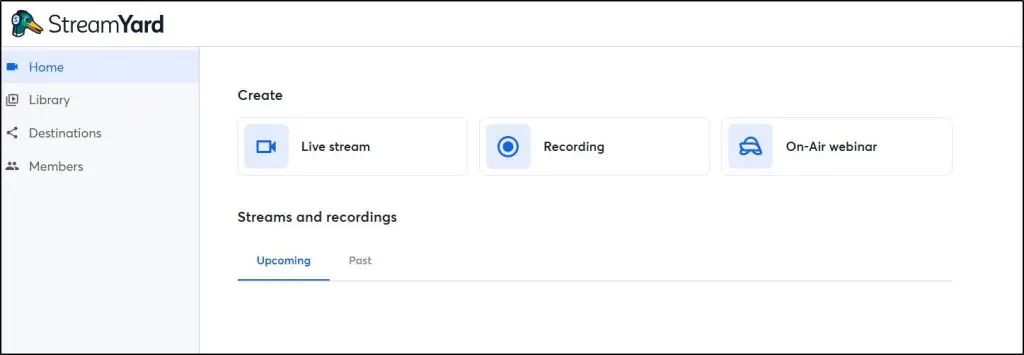
The interface offers just what you need—nothing more, nothing less. Everything is neatly laid out, making it easy to find key features without getting lost in unnecessary options.
Overall, I’d say StreamYard is much simpler and more intuitive than the likes of Zoom and Microsoft Teams.
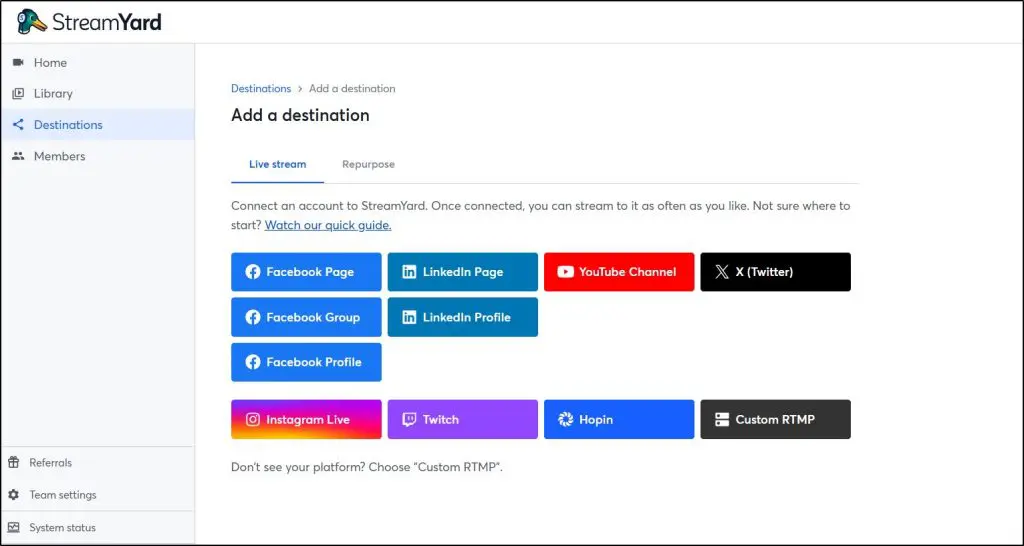
Adding streaming destinations is the first step.
StreamYard supports major platforms like Facebook, YouTube, Twitch, LinkedIn, and X (formerly Twitter). If you need more control, you can set up a custom integration using the “Custom RTMP” option, which works well for niche platforms and private streams.
Starting a live stream or recording is as simple as clicking the “Broadcast” button.
Once you’re in the StreamYard studio, that’s where everything comes together. You can edit clips, invite guests with a quick link, adjust layouts with a few clicks, control audio, and keep your audience engaged with comments and overlays.
Features like reusable studios and 4K recording (on advanced plans) make it easy to create consistent, high-quality content without extra effort.
StreamYard Feature #1: Live Video Streaming
StreamYard strikes a solid balance between simplicity and functionality when it comes to live video streaming. It offers all the essential tools to manage your live sessions without getting bogged down in complex technical details.

Once you step into StreamYard’s studio, you’ll notice that the platform focuses more on ease of use rather than advanced editing. You won’t find features like cut-aways, frame cropping, or special visual effects. Instead, you get straightforward options to enhance your stream, such as adjusting the video background.
Learn how to live stream on YouTube using StreamYard.
Virtual Backgrounds and Branding Options
StreamYard’s virtual background feature lets you add a professional touch to your streams. Just set up a green screen, and you can replace your background with any image or video of your choice, making your live session more engaging and visually appealing.
Branding your live videos is simple too. You can upload logos, overlays, GIFs, and even short videos to personalize your stream. This allows you to maintain a professional look while promoting your brand.
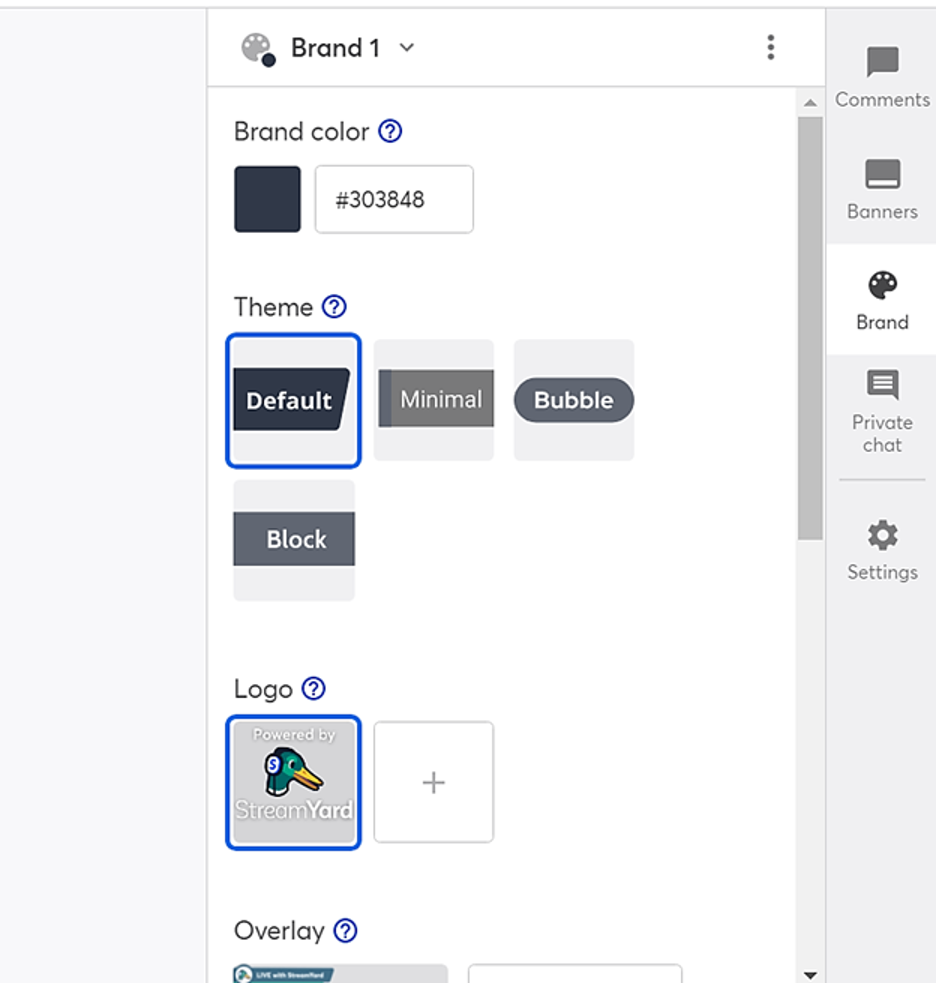
However, these branding options are not available on the free plan. Free users can stream up to 20 hours per month with StreamYard’s watermark on their videos. Paid plans, starting from the Core plan, unlock advanced features like streaming in Full HD (1080p) and multistreaming to multiple destinations.
Streaming Destinations
Speaking of streaming destinations, you can broadcast your content to up to 8 platforms at once, including Facebook, YouTube, LinkedIn, Twitch, and X (formerly Twitter). For those who want more control, the Custom RTMP option lets you stream to any other platform that supports it.
Video Quality Options
StreamYard’s Full HD streaming delivers crisp, clear video at 1080p resolution, provided you have a stable internet connection. If you’re on the Advanced plan, you can even record in 4K resolution, ensuring top-notch video quality for later use.
On-Screen Participation and Guest Features
One of the standout features is on-screen participation, which lets you invite guests to join your stream with a simple link—no sign-up or downloads required. The Core plan supports up to 10 on-screen participants, while the Advanced plan allows for 15 backstage participants, making it ideal for panel discussions, interviews, and collaborative sessions.
Guests can share their screens, and as the host, you have complete control over what appears on the broadcast. You can rearrange guest windows, switch layouts, and remove or add participants with ease.
Collectively, these capabilities make StreamYard an excellent live streaming platform for creators.
StreamYard Feature #2: Multistreaming
Multistreaming is one of StreamYard’s core features, allowing you to broadcast your content to multiple platforms at once. The platform currently supports up to eight unique streaming destinations, covering some of the most popular social media sites:
Supported Multistreaming Destinations
- YouTube
- Facebook (Profile, Page, Group)
- LinkedIn (Profile, Page, Event)
- X (formerly Twitter)
- Twitch
- Hopin
If you’re planning to stream on Facebook, StreamYard gives you the flexibility to broadcast to your profile, groups, or business pages—all from a single dashboard. The same applies to LinkedIn, where you can stream to your profile, company page, or scheduled events.
Now that’s all pretty commendable, I must admit.
But then again, let’s face it – with only 8-10 streaming destinations, StreamYard might feel limited when you compare it to giants like Restream and Castr. Each of these two alternative multistreaming platforms supports more than 30 video broadcasting sites by default.
On the other hand, not many broadcasters go beyond the popular social sites on StreamYard’s list. Gamers, for instance, would be okay with just Twitch, Facebook, and YouTube. Businesses, on the other hand, would perhaps want to broadcast their live streams to their followers on LinkedIn, YouTube, and probably Facebook.
Nonetheless, it turns out StreamYard also offers a Custom RTMP option.
Custom RTMP for More Flexibility
StreamYard also offers a Custom RTMP option, which allows you to stream to platforms not natively supported by the default integrations.
This is a great option for businesses that want to stream directly to their websites, membership platforms or private spaces.
However, setting up RTMP requires entering your server URL and stream key, which can be a bit technical compared to the one-click integrations StreamYard offers for mainstream platforms.
Multistreaming Limits Based on Plan
While StreamYard provides powerful multistreaming capabilities, the number of destinations you can stream to at once depends on your plan:
- Free plan: Limited to 2 destinations.
- Core plan ($44.99/month): Multistream to 3 destinations.
- Advanced plan ($88.99/month): Multistream to up to 8 destinations simultaneously.
Additionally, StreamYard now offers pre-recorded streaming, which lets you upload and schedule previously recorded content to stream as if it were live, adding flexibility to your content strategy.
Streaming Time Limits
Each streaming destination has its own time limitations that you should be aware of:
- Facebook: 8 hours per session.
- YouTube: 12 hours per session.
- LinkedIn: 4 hours per session.
- Twitch: 48 hours per session.
Audience Engagement Features
StreamYard enhances audience interaction by pulling in real-time comments from all your streaming destinations into a single dashboard.
You can read and respond to comments on platforms like X, Facebook, LinkedIn, and YouTube without switching tabs, making it easy to engage with viewers across different channels.
The introduction of reusable studios allows users to set up and save stream layouts, branding elements, and configurations, making it easier to maintain consistency across multiple broadcasts.
Captions and Accessibility
One limitation to note is that StreamYard does not generate live captions by default. However, platforms like Facebook, LinkedIn, and YouTube provide automatic captions on their end, helping you reach a wider audience.
StreamYard has also introduced dark mode, enhancing user comfort during extended streaming sessions.
StreamYard Feature #3: Streaming Pre-recorded Videos
StreamYard now makes it easier to broadcast pre-recorded content as live streams. You can record videos using the “Record Only” mode in the studio, upload pre-made clips, and schedule them to go live at a specific time.
Recording and Uploading Content
You can create pre-recorded content directly within StreamYard by selecting the “Record Only” option, which allows you to shoot clips without broadcasting them live. This feature is perfect for recording webinars, tutorials, and presentations.
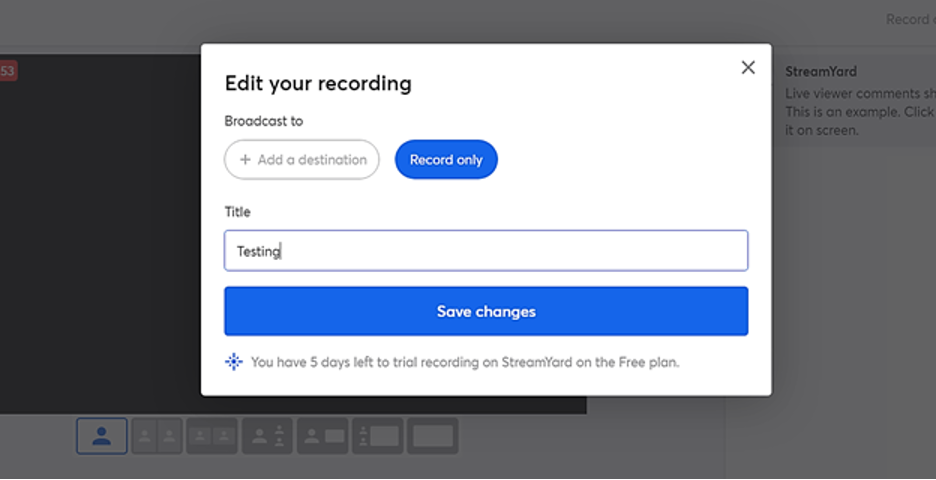
In addition to recording, StreamYard lets you upload videos from your local storage in MP4 or MOV formats. Once uploaded, you can schedule these videos to broadcast across multiple destinations simultaneously.
Scheduling and Streaming Pre-recorded Content
Unlike before, you can now schedule pre-recorded content to stream automatically without having to go live manually. This feature is particularly useful for repurposing content and reaching audiences in different time zones.
Downloading and Repurposing Recorded Streams
StreamYard allows you to download your live stream recordings in both video and audio formats. This is great for repurposing your content, such as turning a past webinar into a podcast episode or uploading the recorded session to your online course platform.
Paid users benefit from extended storage, with Core plan users getting 50 hours of permanent storage, while Advanced plan users enjoy unlimited storage.
StreamYard Feautre #4: Repurpose Content
StreamYard’s Repurpose feature lets you trim, split, and publish your existing content across multiple platforms. Whether you’re targeting short-form content like reels or full-length videos, you can repurpose your streams efficiently.
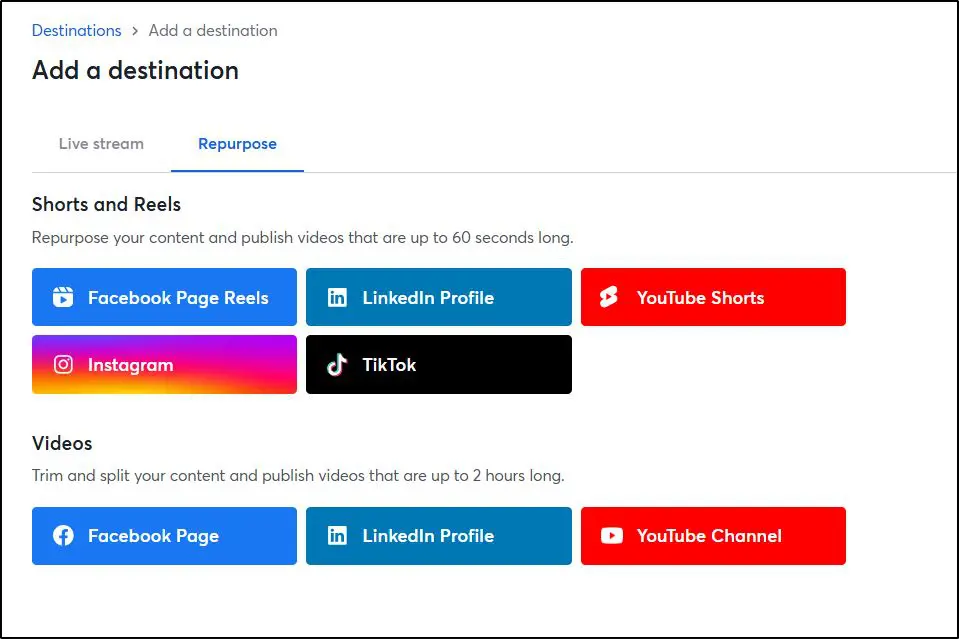
Shorts and Reels
You can repurpose content and publish videos up to 60 seconds long on:
- Facebook Page Reels
- LinkedIn Profile
- YouTube Shorts
- TikTok
Full-Length Videos
For longer content, you can trim and publish videos up to 2 hours long on:
- Facebook Page
- LinkedIn Profile
- YouTube Channel
This feature helps you maximize content reach by adapting live streams to suit different platforms and audience preferences.
StreamYard Review – Pros and Cons
Every tool has its strengths and limitations, and StreamYard is no exception. Let’s break down what works well and where it falls short.
Pros of StreamYard
- Free to Start: StreamYard offers a permanently free plan with essential streaming features, making it accessible to everyone.
- User-Friendly Interface: The platform is easy to navigate with an uncluttered layout, perfect for beginners.
- Guest Participation: You can invite up to 10 on-screen participants in your live streams, enhancing engagement.
- Custom RTMP Support: Allows streaming to platforms beyond the built-in options.
- Cloud-Based Convenience: No software installation required; runs entirely through a web browser.
- Audience Interaction: Features like on-screen comments help keep viewers engaged.
- Professional Branding: Easily customize your streams with logos, overlays, and video backgrounds.
- Full HD Streaming: Broadcast in crisp 1080p resolution.
- Multistreaming Capability: Stream to up to 8 destinations simultaneously.
- Content Repurposing: Download recorded streams and repurpose them for different platforms.
- New Features: Pre-recorded streaming, reusable studios, dark mode, and 4K local recordings (Advanced plan).
Cons of StreamYard
- Limited Free Plan: The free plan includes StreamYard branding and restricts streaming destinations.
- Advanced Features Behind Paywall: Features like 4K recording and webinars are only available on higher-tier plans.
- Technical Setup for RTMP: Custom RTMP integration requires some technical knowledge.
- Limited Video Editing Tools: StreamYard lacks advanced in-studio editing features.
- No Built-in Analytics: Detailed analytics are not available within the platform; users must rely on external platform insights.
- Storage Limits: Free and Core plan users have limited storage compared to the Advanced plan.
StreamYard Alternatives | Are There Better Live Streaming Platforms?
By now it’s pretty clear that StreamYard is a mixture of oranges and lemons. While it has some extremely solid benefits, they happen to be accompanied by their fair share of drawbacks.
Wondering where that places StreamYard in relation to its closest competitors?
Well, here’s how it compares with three of its most popular alternatives:
- Restream.
- OBS.
- Livestream.
1. StreamYard vs Restream.io
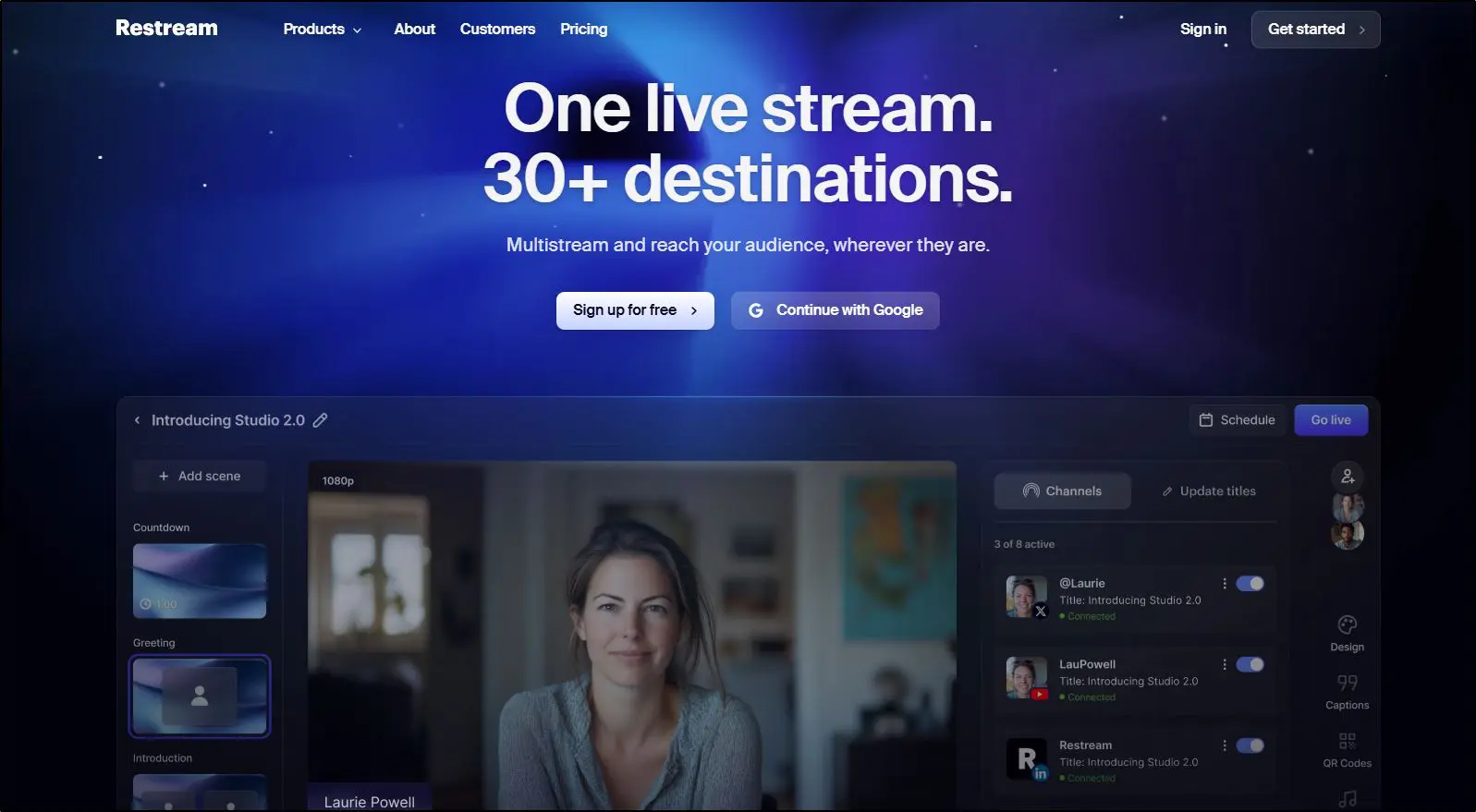
Restream and StreamYard happen to share quite a number of similarities. They are both multistreaming platforms that are capable of broadcasting live content to a wide range of social channels.
Key Differences
- Ease of Use: StreamYard is known for its intuitive, beginner-friendly interface, while Restream offers more advanced features that may require a learning curve.
- Multistreaming Destinations: Restream supports over 30 platforms, whereas StreamYard allows streaming to up to 8 destinations.
- Pricing: Restream’s paid plans start at $16 per month, while StreamYard’s Core plan begins at $44.99 per month.
- Video Quality: StreamYard provides Full HD (1080p) streaming on its Core plan, while Restream offers 4K streaming capabilities on its higher-tier plans.
- Pre-Recorded Streaming: Both platforms allow pre-recorded video streaming, but Restream provides more flexibility with scheduling and automation.
- Customization: Restream offers advanced graphics, overlays, and scene transitions, whereas StreamYard keeps things simple with easy-to-use branding options.
Which One Should You Choose?
If you’re looking for an easy, no-fuss live streaming solution with all the essential features, StreamYard is a great choice. However, if you need deeper customization, 4K streaming, and integration with more platforms, Restream might be the better option for your needs.

#2. StreamYard vs OBS
If StreamYard’s ease of use doesn’t quite meet your needs, you might consider OBS (Open Broadcaster Software), a free and open-source live streaming solution with extensive customization options.
Key Differences
- Ease of Use: StreamYard is beginner-friendly with a cloud-based setup, whereas OBS requires installation and a learning curve to master its advanced features.
- Customization: OBS offers deep customization, including advanced scene transitions, audio mixing, and filters. StreamYard, on the other hand, focuses on simplicity with easy branding and multistreaming options.
- System Requirements: StreamYard runs entirely in a web browser, while OBS requires a powerful PC to handle live streaming and video processing efficiently.
- Streaming Destinations: StreamYard allows multistreaming to up to 8 destinations simultaneously, whereas OBS requires third-party integrations for multistreaming.
- Support and Updates: StreamYard provides dedicated support and regular feature updates, while OBS relies on community support and self-help resources.
Which One Should You Choose?
If you’re looking for a simple, cloud-based solution with built-in features and minimal setup, StreamYard is a great choice. However, if you need extensive customization and have the technical know-how to configure your streams, OBS might be the better option.

#3. StreamYard vs Vimeo
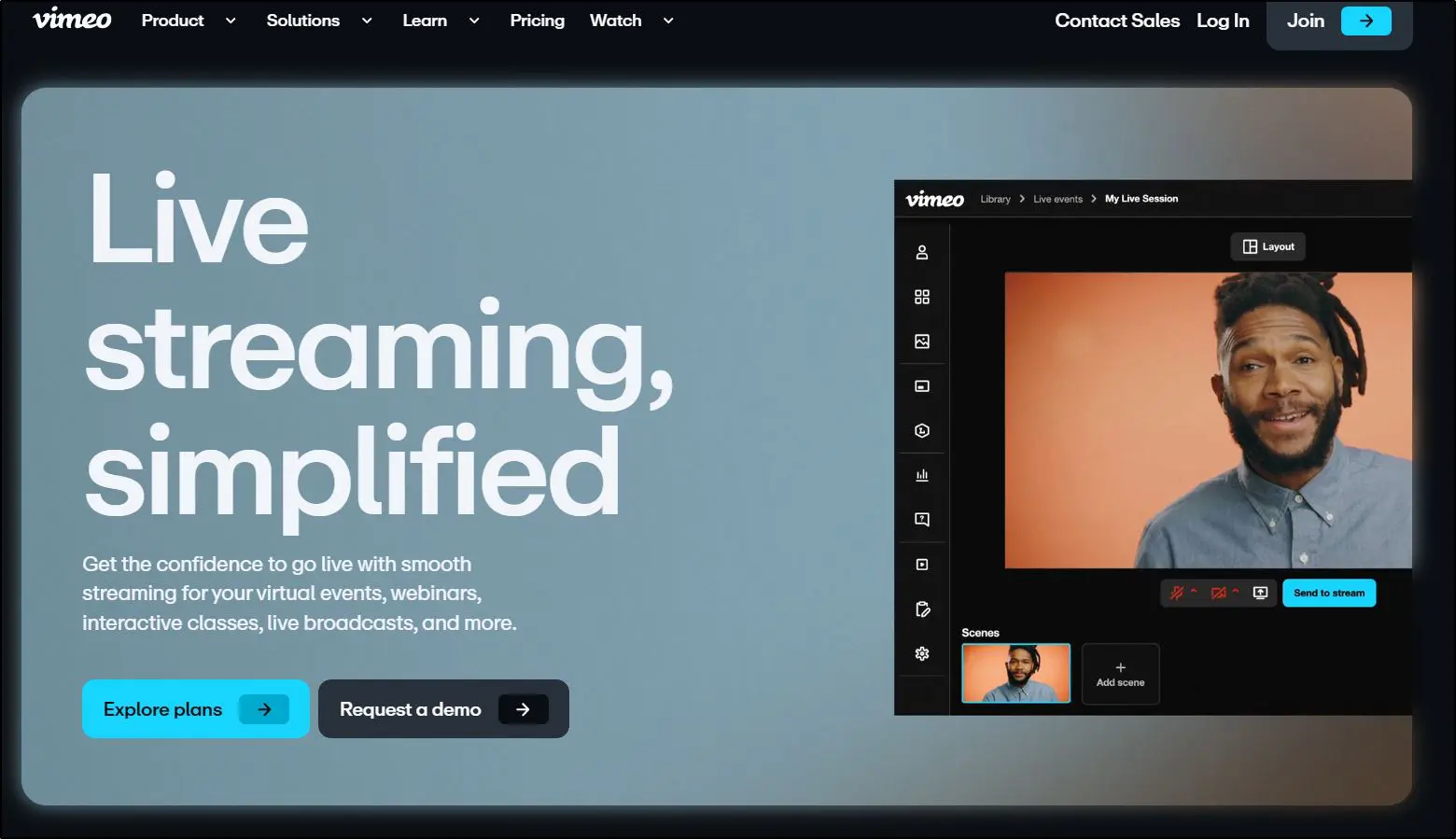
Vimeo and StreamYard cater to different audiences with distinct feature sets. Vimeo is designed for businesses and enterprises that need high-quality video production and detailed audience engagement tools, whereas StreamYard is built for creators looking for simplicity in live streaming.
Key Differences
- Purpose: Vimeo is an enterprise-grade solution with extensive branding, engagement, and marketing features, while StreamYard is aimed at content creators seeking an easy-to-use multistreaming platform.
- Features: Vimeo offers AI-powered tools like automated chapters, text summaries, and teleprompters. StreamYard focuses on straightforward live streaming and guest participation.
- Multistreaming: Vimeo allows streaming to multiple destinations but focuses heavily on event hosting. StreamYard offers dedicated multistreaming to up to 8 platforms simultaneously.
- Pricing: Vimeo’s plans start at $65/month, making it more expensive than StreamYard’s $44.99 Core plan.
- User-Friendliness: StreamYard is easier to set up and use compared to Vimeo’s more complex feature set.
If you need professional-grade production and advanced engagement features, Vimeo might be worth the investment. However, if simplicity and affordability are your priorities, StreamYard is a better fit.

StreamYard Verdict | Is It Worth Using For Multistreaming?
At this point in our StreamYard review, it’s clear why the platform has gained so much traction in such a short time.
Its growing popularity boils down to one thing—ease of use. StreamYard is an accessible multistreaming solution that offers a free entry point and a simple, no-fuss interface.
However, StreamYard does have its limitations. Compared to competitors like Restream, it offers fewer built-in streaming destinations.
But StreamYard covers the essentials most creators need. Plus, with the Custom RTMP feature, you can stream to any platform of your choice, including your own website.
That said, the lack of advanced analytics and more robust pre-recorded streaming options is still something to consider. If tracking performance metrics and scheduling pre-recorded content are must-haves for you, this could be a drawback.
All things considered, StreamYard remains a solid choice for small businesses, entrepreneurs, public speakers, influencers, and content creators who want a hassle-free way to go live and engage their audience.
Frequently Asked Questions (FAQs)
Can I use StreamYard on my phone or tablet?
Yes, StreamYard works in mobile browsers like Chrome and Safari. However, the experience is more limited than on desktop and not ideal for hosting.
Does StreamYard support screen sharing on all devices?
Screen sharing works best on desktop browsers. On mobile, it’s restricted or not available depending on the browser and OS.
Can I schedule a live stream in advance with StreamYard?
Yes. You can schedule broadcasts ahead of time and notify your audience with a thumbnail, title, and description.
Does StreamYard have built-in music or sound effects?
No, StreamYard doesn’t include music or sound libraries. You’ll need to upload your own or use external tools.
Is it possible to use StreamYard with OBS or other broadcasting software?
Yes, you can route StreamYard through OBS or similar tools using virtual cameras or RTMP settings for more customization.
Can I monetize my streams directly from StreamYard?
StreamYard doesn’t offer monetization tools, but you can monetize via YouTube Super Chat, Facebook Stars, or affiliate links shared during the stream.
Does StreamYard offer team collaboration features?
Yes, the Teams and Business plans offer multiple user seats and roles for collaborative access and production.
Can I host paid webinars using StreamYard?
You can’t charge attendees directly through StreamYard, but you can use third-party platforms like Zoom, Eventbrite, or Kajabi for registration and payment, then stream with StreamYard.
Does StreamYard provide real-time stream analytics?
No, it doesn’t have built-in analytics. You’ll need to check performance stats directly on YouTube, Facebook, or other streaming platforms.
How secure is StreamYard for private streams?
For private streams, you’ll need to use platform-level privacy settings (like unlisted YouTube links or Facebook private groups). StreamYard does not have built-in access controls or password-protected rooms.
Table of Contents
Related Posts
Restream vs StreamYard | Pricing & Features Compared (2026)