

TL;DR — What Are The Best Replacements For Camtasia (2026)?
I have used Camtasia for years to build course videos, and it’s still a great option. A few tools now beat it on price, AI features, or collaboration, depending on what you actually need.
Top Picks for the Best Camtasia Alternative Based on Hands-On Testing
– ActivePresenter: best overall alternative, with SCORM export, branching, and a genuinely free personal-use tier.
– ScreenPal: best free, browser-based option for solo creators who want to start at zero cost.
– ScreenFlow: best for Mac users who want a polished one-time purchase.
– Movavi: most affordable option for quick, clean editing without course-specific features.
– Wondershare DemoCreator: budget-friendly with a genuinely deep AI toolkit.
– Loom: best for quick lessons, async teaching, and student feedback.
– WeVideo: best for teams that need real-time, browser-based collaboration.
When Camtasia Still Wins
If you want one polished desktop tool for recording, editing, quizzes, SCORM export, and AI voiceover, Camtasia still holds up, especially for solo professionals who do not need real-time team collaboration.
Who Should Look for an Alternative
If you need full LMS branching logic, a genuinely free unlimited tier, or browser-based real-time editing with a team, one of the seven tools below fits better than Camtasia does.
Our Verdict:
ActivePresenter is the strongest overall pick for course creators specifically, since it matches Camtasia’s editing depth and adds SCORM and branching for a one-time price. WeVideo is the better pick if real-time team collaboration matters more to you than LMS depth. Test the two that fit your workflow before you commit to either.
I’ve been a loyal Camtasia user for years now.
As such, you can bet that I know pretty much everything about it from its intuitive, easy-to-use interface to the flexible video recording capabilities, robust built-in effects library, and simple video editing tools.
However, despite the popularity and praise that Camtasia has enjoyed over the years, it still has its fair share of notable weaknesses.
It’s because of these drawbacks that I was compelled to search for the best Camtasia alternatives. And, I must admit, the whole journey hasn’t been easy at all.
I’ve had to search far and wide, plus conduct multiple tests on a huge variety of screen recorders and video editors.
In this article, I’ll share my top Camtasia alternatives and when you should use them
The Best Alternatives To Camtasia – Quick Verdict
I don’t want to dump a dozen Catasia alternatives on you. That’ll only make your decision harder. Instead, here’s my list for the top five alternatives most suitable for course creators.
- Best Overall Camtasia Alternative: ActivePresenter
- Best Free Alternative To Camtasia: ActivePresenter
- Best Cloud Alternative For Collaboration: WeVideo
- The Most Affordable Alternative: Movavi
- Best Camtasia Alternative For Mac: ScreenFlow
How did I reach this conclusion? I’ve shared my reasons in detail in the rest of this article.
However, before we jump into all that, first things first.
How exactly does Camtasia help course tutors create instructional videos? And, for the sake of clarity, why would anyone consider replacing it with something else?
Read our list of the best screen recording software for e-learning professionals
What Is Camtasia? An Overview
Read our full Camtaisa Review for a detailed breakdown of its features
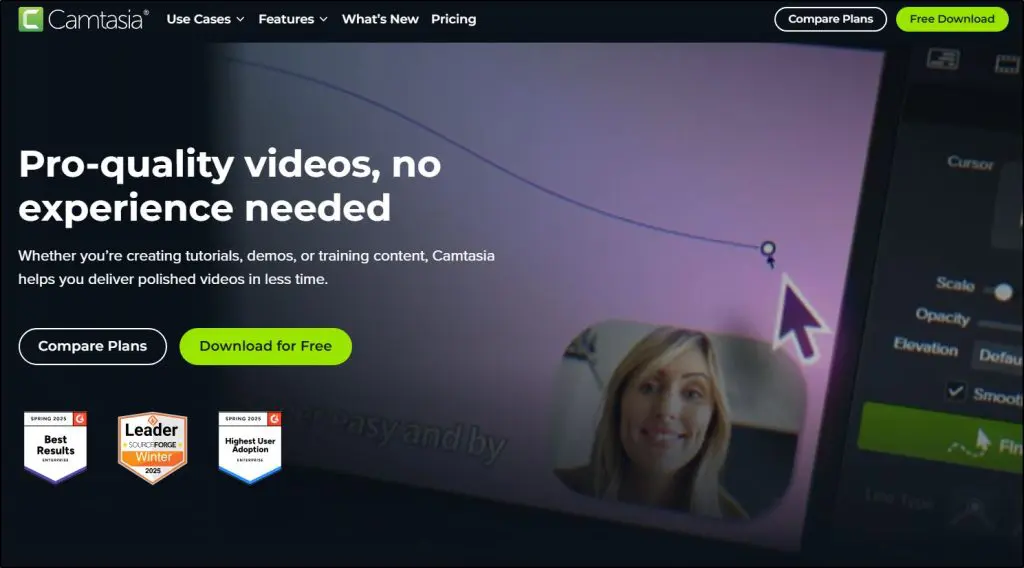
Camtasia is an all-in-one screen recording and video editing tool. You do not need to juggle separate apps to make one tutorial. You record your screen, webcam, and audio, then edit everything in one place.
My own use of it comes down to a handful of things.
- Record slides and screencasts
- Add animations, callouts, and annotations
- Import PowerPoint presentations and turn them into videos
- Build quizzes directly into lessons
- Export straight to YouTube or a course platform, with SCORM packaging for LMS platforms
It runs on Windows and Mac, and one individual license covers two devices as long as you are not using both at the same time. That is more generous than most subscription tools allow.
The interface is one of Camtasia’s real strengths. It is clean and does not require video editing experience. You get cursor effects, royalty-free music, lower thirds, and drag-and-drop editing, the core toolkit for a polished course video.
Camtasia has added a real AI layer too, including automatic captions, text-to-speech narration, script generation, and AI avatars on its higher plans. But compared to AI-first tools like Descript or VEED, Camtasia still treats AI as an add-on rather than the center of the editing experience.
Camtasia is still a strong choice but several tools here go further on AI, price, or collaboration, depending on what your workflow needs most.
Using Camtasia to Create Online Courses
When it comes to creating online courses and training videos, Camtasia has been a solid go-to for me over the years.
If you’re just getting started as a course creator, one of the best things about Camtasia is how easy it is to pick up.
There’s no steep learning curve. You can open it up, hit record, and start building your course right away, whether it’s a screencast, a lecture, or a how-to walkthrough.
I’ve used it to:
- Demonstrate step-by-step tutorials with clear cursor highlights and zooms
- Record lessons with my webcam and slides side-by-side
- Add annotations, shapes, arrows, and sketch motion to guide attention
- Build interactive tables of contents so students can jump between lessons
- Embed quizzes to keep learners engaged and track their progress
What I also appreciate is how Camtasia integrates well with PowerPoint, so if you already have slide decks, you can quickly turn them into video lessons without reinventing the wheel.
The ability to bring in assets whether it’s from my hard drive, mobile device, or Camtasia’s own library, makes the whole process smooth. And once I’m done editing, I can publish the video directly to my course platform, YouTube, or Vimeo with just a few clicks.
That said, as I’ve created more courses over time and tried newer tools, I’ve also started to feel the limits of Camtasia, especially around customizations and collaboration. But for solo creators who want a reliable, all-in-one editor, it still holds up.
Camtasia Pros and Cons for Course Creators
| Pros | Cons |
|---|---|
| Four pricing tiers, starting at $39/year, so you are not forced into the priciest plan just to get started. | More expensive than most alternatives here, even at the entry-level Essentials tier most course creators actually need ($179.88/year). |
| Quizzes and SCORM export are included from Essentials up, not locked behind the top plan. | The best AI tools, avatars, script translation, and audio dubbing, sit behind the $599/year Pro plan. |
| AI avatars and multi-language voiceover support camera-free or multilingual course content. | Billing is annual only. There is no monthly payment option. |
| Combines screen recording, editing, and interactivity in one tool, so you are not stitching together separate apps. | Full editing is still desktop-only. Camtasia Online covers basic browser recording, but not real editing. |
| Built specifically for educators and instructional content, not repurposed from general video editing. | The free trial has no day limit, but every export carries a watermark until you buy a plan. |
Camtasia Alternatives Comparison for Online Course Creators
Here is how the seven alternatives compare on the features that matter most for course creation, pricing, interactivity, and AI.
| Feature | ScreenPal | ActivePresenter | ScreenFlow | Movavi | DemoCreator | Loom | WeVideo |
|---|---|---|---|---|---|---|---|
| Best For | Browser-based, budget courses | LMS-ready interactive courses | Mac users | Budget editing | Demo and gameplay videos | Quick async lessons | Team collaboration |
| Starting Price | $4/month ($48/year) | $199 one-time (Standard) | $169 one-time | $44.95/year (or ~$60 lifetime bundle) | Varies by region, roughly $30 to $50/year, confirm on Wondershare’s site | $18/user/month ($15 billed annually) | $95.88/year (Unlimited plan) |
| Free Plan or Trial | Free forever (15-min recording cap, watermarked) | Free version, unlimited, no watermark, personal use only | 30-day trial, no permanent free plan | 7-day trial, watermarked | Free plan, 5-min clips, 1080p, watermarked | Free forever, 25 videos, 5-min cap | Free plan, 5 min/month publish, 480p, watermarked |
| Screen + Webcam Recording | Yes | Yes | Yes | Yes | Yes | Yes | Yes |
| Video Editing Depth | Basic | Advanced | Advanced | Full | Multi-track | Basic | Basic to advanced by plan |
| Interactive Quizzes | Yes, on the Max plan | Yes, 13 question types plus branching | No | No | No | No | Yes, via PlayPosit (premium) |
| SCORM or LMS Export | No | Yes | No | No | No | No | No |
| Real AI Editing Tools | AI text-to-speech, auto-captions, quiz generation | Cloud text-to-speech (Google, Amazon, Microsoft voices) | None | AI noise removal, AI background removal, motion tracking | AI teleprompter, AI voice changer, AI denoise, avatar recorder, 10+ AI tools total | AI auto-edit, filler word removal, summaries (Business + AI tier only) | Smart templates and PlayPosit interactivity, no generative editing AI |
| Cloud or Browser Access | Yes | No, desktop only | No, Mac desktop only | No, desktop only | No, desktop only | Yes | Yes, fully browser-based |
Camtasia sits closest to ActivePresenter on features (quizzes, SCORM, AI editing) and closest to Movavi and DemoCreator on price for the entry tiers, but nothing here matches its exact mix of desktop editing depth plus AI avatars and translation at the top end.
Top 7 Camtasia Alternatives for Online Course Creators
Let’s now discuss the best Camtasia alternatives in more detail.
Camtasia Alternative #1: ScreenPal (formerly Screencast-O-Matic)

Best Easy-to-Use Camtasia Alternative
ScreenPal is a solid Camtasia alternative for creators who want a simpler, cloud-accessible, and budget-friendly way to record and edit course videos.
It runs on Windows, Mac, Linux, and directly in a browser, and it is easier to pick up than Camtasia. Standout tools include scripted video creation, storyboard-based editing, and AI text-to-speech, captions, and quiz generation on the Max plan.
Pricing starts at $4/month for Solo Deluxe, with a genuinely usable free plan (15-minute recordings, watermarked) and a Max tier at $10/month that adds AI tools and unlimited quizzes.
Where it falls short is advanced editing, interactivity depth, and fine timeline control, areas where Camtasia still leads for detailed course production. For solo educators or teams who prioritize ease, browser access, and speed over deep editing, ScreenPal delivers strong value.

ScreenPal Key Features
| Feature | Description |
|---|---|
| Screen + Webcam Recording | Capture your screen, webcam, or both at once for tutorials and lessons. |
| Scripted Video Creation | Write or import a script and record narration in sync with visuals using a storyboard. |
| AI Text-to-Speech Narration | Generate voiceovers automatically using built-in AI voices. |
| Auto Captions and Transcription | Generate captions instantly for accessibility and engagement. |
| Video Quizzes and Polls | Add interactive questions, polls, and ratings directly into videos (Max plan). |
| Stock Media Library | Access millions of stock photos, videos, and music tracks. |
| Full Video Editor | Trim, crop, cut, add text, shapes, and transitions. |
| Cloud Hosting and Sharing | Host videos and generate shareable links without a separate host. |
Camtasia vs. ScreenPal: Comparison for Course Creators
| Feature | Camtasia (Create plan) | ScreenPal (Max plan) |
|---|---|---|
| Platform Support | Windows and macOS | Windows, macOS, Linux, Web |
| Price | $249/year | $10/month ($120/year) |
| Free Plan | Camtasia Online: free, 5-min clips, 1080p, no watermark. Desktop trial: unlimited length, watermarked until purchase. | Free forever, 15-min recording cap, watermarked |
| AI Voiceover and Text-to-Speech | Yes, 200+ voice styles | Yes, basic AI narration |
| Scripted Lesson Support | No | Yes, script plus storyboard tool |
| Quizzes and SCORM Export | Yes, quizzes and SCORM export both included from Essentials up | Quizzes yes (Max plan), no SCORM export |
| Advanced Timeline Editing | Yes | No, basic cut and trim |
| Cloud Access or Web App | Camtasia Online covers basic recording; full editor is desktop-only | Fully cloud-enabled |
| Best For | Polished, LMS-ready course videos with deep editing | Fast, browser-based lessons on a tight budget |
Read our complete ScreenPal review here.
Camtasia Alternative #2: ActivePresenter

Best for course creators building LMS-ready tutorials with quizzes and interactivity
If you’re a course creator looking to produce training videos, quizzes, and full course modules to host on Thinkific, Kajabi, or any LMS, ActivePresenter Pro offers a lot more than Camtasia, for a one-time price.
At $399, it gives you full HD screen and webcam recording, a robust video editor, plus advanced eLearning features like interactive quizzes, branching scenarios, slide-based lessons, and SCORM/xAPI export, something Camtasia still doesn’t support.
You also get features like responsive design, a PowerPoint importer, built-in text-to-speech narration using Google or Amazon voices, and customizable HTML5 players. It’s designed from the ground up for instructional designers, teachers, and corporate trainers.
Where it falls short is in visual polish and team collaboration. You won’t find AI avatars or cloud-based editing here, and the interface can feel technical at times.
But if your end goal is to host lessons inside an LMS with interactivity and tracking, ActivePresenter delivers more course-building firepower than Camtasia — and it’s yours forever.
For video-only creators, Camtasia might still feel smoother. But for serious course builders, ActivePresenter is a smarter long-term investment.
ActivePresenter Key Features for Course Creators
| Feature | Why It Matters for Course Creators |
|---|---|
| Screen + Webcam Recording | Record tutorials, walkthroughs, and face-cam intros for your lessons. |
| Timeline-Based Video Editing | Cut, trim, blur, zoom, add effects and annotations with full timeline control. |
| Text-to-Speech Narration | Convert lesson text into voiceover using Google, Amazon, or Microsoft voices. |
| PowerPoint Import | Instantly turn your existing slide decks into course videos. |
| Interactive Quizzes | Add multiple choice, drag & drop, hotspots, dropdowns, and scoring-based assessments. |
| SCORM/xAPI Export | Publish courses directly to LMS platforms with progress tracking. |
| HTML5 Export | Embed interactive content into your course platform or website. |
| Slide-Based Authoring | Combine video, slides, buttons, and objects for structured module creation. |
| Branching Scenarios | Let learners navigate content based on choices or conditions. |
| Responsive Design | Build mobile-friendly content that adapts across devices. |
| Cursor Path & Spotlight Effects | Emphasize clicks and movement during software tutorials. |
| Zoom & Pan Effects | Guide viewer focus just like in Camtasia. |
| Closed Captions (Multi-Language) | Add accessibility and support multiple audiences. |
| Green Screen Effect | Add professional presence to talking-head or explainer videos. |
| Feedback Master | Design consistent visual feedback for quiz answers and interactions. |
| Object Templates & Reusables | Save time by reusing styled objects across multiple lessons. |
| Free Version Available | Start testing your course workflow with no watermark for non-commercial use. |
| One-Time License (Pro) | Buy once and use forever — no subscriptions required. |
Camtasia vs. ActivePresenter: The Main Differences
Here’s a quick look at the main differences between Camtasia and ActivePresenter for course creators.
| Feature | Camtasia (2026) | ActivePresenter Pro (2026) |
|---|---|---|
| Platform | Windows & macOS | Windows & macOS |
| Screen + Webcam Recording | ✅ Yes | ✅ Yes |
| Timeline-Based Video Editing | ✅ Full control with effects, transitions, annotations | ✅ Full control with effects, transitions, annotations |
| Text-to-Speech Narration | ✅ (AI voices in Create & Pro plans) | ✅ (Cloud TTS: Google, Amazon, Microsoft APIs) |
| Interactive Quizzes | ✅ Multiple choice, fill-in-the-blank | ✅ 13 question types + feedback layers, branching options |
| SCORM/xAPI Export | ❌ Not supported | ✅ Full LMS export support (SCORM 1.2, 2004, xAPI) |
| Slide-Based Authoring | ❌ Timeline-only | ✅ Combine slides, videos, and interactive objects |
| Branching Scenarios | ❌ Basic jump-to markers only | ✅ Full conditional navigation with variables and triggers |
| PowerPoint Import | ✅ Yes (basic slide import) | ✅ Enhanced import: charts, 3D models, animations |
| Responsive Design | ❌ No mobile layout control | ✅ Projects adapt to all screen sizes |
| Green Screen (Chroma Key) | ✅ Yes | ✅ Yes |
| Closed Captions | ✅ With AI auto-captioning | ✅ Manual and multi-language support |
| Audio Cleanup / Noise Removal | ✅ AI-powered (Pro plans) | ✅ Manual or semi-automated noise reduction |
| Cloud Access / Collaboration | ❌ Desktop only | ❌ Desktop only |
| Free Plan | ❌ Free trial (3–7 days, watermarked exports) | ✅ Free version (no watermark for personal use) |
| Pricing | From $179.88/year (Essentials) | $399 one-time (Pro license, lifetime access) |
| Best For | Creators needing fast, polished videos + AI tools | Creators building LMS-ready content + interactive lessons |
| Not Ideal For | Interactive courses, LMS exports, branching | Quick cloud edits, team collaboration, visual polish |
Camtasia Alternative #3: ScreenFlow
Best Camtasia Alternative for macOS
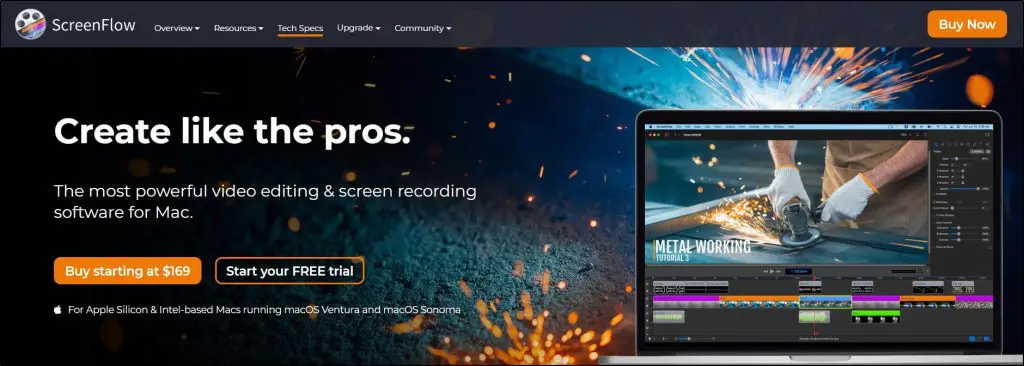
If you’re a course creator working on a Mac, ScreenFlow is one of the best Camtasia alternatives you’ll find. It’s built exclusively for macOS and optimized for both Intel and Apple Silicon machines.
You can record your screen, webcam, microphone, and even your iPhone or iPad — all in sharp resolution with smooth frame rates.
What makes ScreenFlow really shine is its balance of powerful editing features and ease of use. You get multi-track editing, video and text animations, closed caption support, batch export, color-coded markers, and nested clips, the kind of tools you’d expect in more advanced video editors.
It also includes a built-in stock media library (available as a $79/year add-on) with over 500,000 images, audio clips, and videos.
While it doesn’t offer Camtasia’s interactive quizzes or cross-platform support, the $169 one-time price (plus optional add-ons) makes it a strong long-term investment.
It’s especially ideal for educators, coaches, and creators who want professional-looking video lessons without the complexity of Final Cut or the price of subscription tools.
If you’re fully in the Apple ecosystem and care about high-quality, fast-turnaround content, ScreenFlow is easily one of the top picks.

ScreenFlow Key Features for Course Creators
| Feature | Description |
|---|---|
| High-Resolution Screen Recording | Capture crisp, smooth screen recordings, even across multiple monitors or Retina displays. |
| iOS Device Recording | Record your iPhone or iPad screen directly for app demos or mobile-based tutorials. |
| Multi-Track Timeline Editing | Layer and sync video, audio, images, and annotations with drag-and-drop simplicity. |
| Webcam + Mic Recording | Record your face and voice while presenting your screen to boost engagement. |
| Closed Caption Editor | Add, edit, or burn-in subtitles to make your courses more accessible. |
| Text and Video Animations | Bring motion to your lessons with animated titles, callouts, and screen elements. |
| Batch Export | Export multiple lessons or modules at once to save production time. |
| Stock Media Library (Optional) | Access 500,000+ royalty-free assets to enhance your course visuals and audio. |
| Markers & Color Labels | Organize longer course videos with visual indicators on the timeline. |
| Templates & Styles | Reuse consistent layouts and settings across multiple lessons for faster editing. |
| GIF and APNG Export | Create lightweight animated previews or tutorials from any part of your recording. |
| Direct Publishing Options | Export directly to YouTube, Vimeo, Wistia, or your LMS for faster delivery. |
Camtasia vs. ScreenFlow: Key Features Compared
| Feature | Camtasia | ScreenFlow |
|---|---|---|
| Platform | Windows & macOS | macOS only |
| Ease of Use | Beginner-friendly, drag-and-drop | Intuitive and polished UI |
| Recording Capabilities | Screen, webcam, system audio, iOS (via app) | Screen, webcam, iOS (native), mic, multi-app |
| Video Editing | Non-linear editing, transitions, filters | Timeline editing, transitions, annotations |
| Audio Tools | Built-in editor, noise removal, Audiate integration | Background noise removal, multi-channel audio |
| AI Features | AI script, audio cleanup, video summaries, avatars | No AI features |
| Stock Library | 100M+ assets (Pro plan) | 500K+ assets ($79/yr add-on) |
| Templates & Branding | Templates, custom themes, brand kits | Templates, styles, color labels |
| Publishing Options | Local export, Screencast, direct sharing | Export to YouTube, Vimeo, Wistia, Imgur, more |
| Captioning & Accessibility | ADA-compliant captions, AI subtitles | Manual caption editor, soft subtitles |
| Price | Starting from $179.8/year | $169 one-time (add-ons extra) |
| Best For | PC users, AI-enhanced workflows, larger teams | Mac users, solo creators, educators with audio needs |
Camtasia Alternative #4: Movavi Video Editor + Screen Recorder
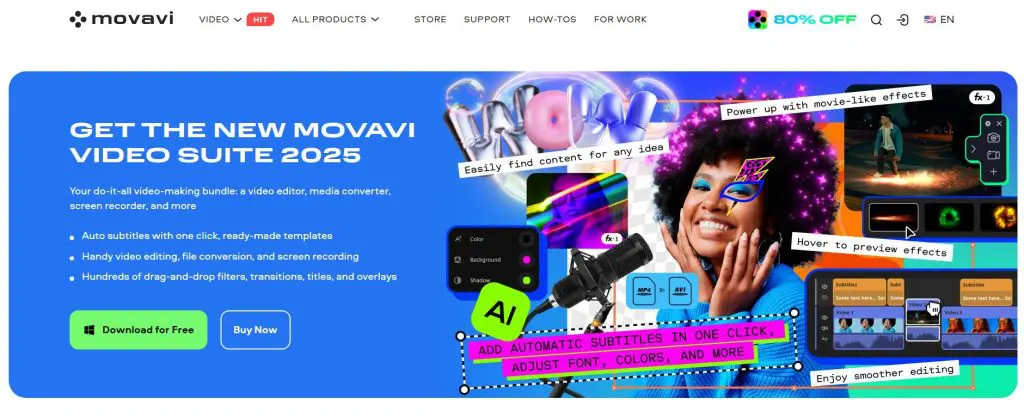
I’ve tested quite a few screen recording tools over the years, and Movavi stands out for creators who want something clean, fast, and easy to use—without overthinking it.
If Camtasia feels too bulky or expensive, Movavi Video Suite or Movavi Screen Recorder is worth a serious look. You get screen and webcam recording, timeline editing, AI noise and background removal (no green screen needed), and a growing library of transitions, titles, and effects. It even handles chroma key and basic motion tracking better than you’d expect from a tool at this price.
It’s not designed specifically for online learning, so you won’t find built-in quizzes, hotspots, or LMS export options like SCORM or xAPI.
But if your workflow is “record > edit > upload to Thinkific or Kajabi,” Movavi can do the job well, especially for video tutorials, explainer walkthroughs, and marketing content.
The best part? You can get started for under $100 (one-time payment), which is hard to beat if you’re on a budget.
Movavi isn’t for those who want deep interactivity or corporate training features. But for solo course creators who want quick turnaround and sharp-looking videos, it gets the job done without the Camtasia learning curve.
Movavi Feature List for Course Creators
| Feature | Description |
|---|---|
| Screen & Webcam Recording | Record your screen and webcam simultaneously or separately for tutorials and explainer videos. |
| Timeline-Based Video Editing | Drag-and-drop timeline editor with multiple tracks for precise control. |
| AI Noise Removal | Remove background noise from voiceovers or screen recordings automatically. |
| AI Background Removal | Automatically remove your video background without a green screen. |
| Motion Tracking | Attach text or graphics to moving objects in your video. |
| Zoom & Pan | Direct viewers’ attention by zooming into parts of the screen. |
| Chroma Key (Green Screen) | Replace solid color backgrounds with any image or video. |
| Voiceover Recording & Sync | Record narration and align it with video clips easily. |
| Titles & Transitions | Add animated text, intros, and smooth transitions between scenes. |
| Stickers & Overlays | Use built-in assets to add visual elements like callouts or highlights. |
| Audio Editing | Fade audio in/out, normalize volume, and remove noise. |
| Video Trimming & Splitting | Cut, split, or merge clips without losing quality. |
| Blur Tool | Blur faces or sensitive information in your footage. |
| Subtitles & Captions | Add manual subtitles or closed captions to improve accessibility. |
| Speed Adjustment & Freeze Frame | Create slow-motion effects or freeze a frame for emphasis. |
| Export Options | Save in formats like MP4, MOV, AVI, WMV with quality settings. |
| Direct YouTube Upload | Upload finished videos directly to your YouTube channel. |
| Multi-track Timeline | Work with several layers of video, audio, and effects. |
| SCORM/xAPI Support | ❌ Not available — not designed for interactive eLearning. |
| One-Time Payment Option | Pay once and use forever — no subscription required. |
Camtasia vs. Movavi: The Main Differences
Here’s a quick comparison of Camtasia and Movavi to help you understand their main differences.
| Feature | Camtasia (2026) | Movavi (Screen Recorder + Editor) |
|---|---|---|
| Platform | Windows & macOS | Windows & macOS |
| Screen + Webcam Recording | Yes | Yes |
| Timeline-Based Editing | Advanced multi-track editor | Full timeline editor, more beginner-friendly |
| AI Noise Removal | Included in Pro/Creator plans | Included in Video Suite & Editor Plus |
| AI Background Removal | Yes, AI-powered (no green screen needed) | Yes, AI-powered |
| Motion Tracking | Not available | AI-powered motion tracking |
| Zoom & Pan Effects | Professional camera-style zoom and focus | Basic but useful |
| Voiceover Recording & Sync | Yes | Yes |
| Green Screen (Chroma Key) | Yes | Yes |
| Annotations / Callouts | Shapes, arrows, sketch motion, etc. | Titles, stickers, transitions, overlays |
| Interactive Quizzes / Hotspots | Yes (Pro and above) | Not supported |
| SCORM/xAPI Export | Not supported | Not supported |
| PowerPoint Import | Yes | Not supported |
| Closed Captions / Subtitles | AI-generated + manual | Manual + AI-assisted subtitle options |
| Cloud Access / Collaboration | Desktop-only | Desktop-only |
| Free Trial | 3–7 days (exports watermarked) | 7 days (watermarked exports) |
| Pricing | From $179.88/year (Essentials); $299.99 one-time (Pro) | $59.95 – $99.95 one-time (depending on suite or tool) |
| Best For | Pro course creators who want quizzes, interactivity, polish | Beginner-to-intermediate creators on a budget |
| Not Ideal For | Budget users or creators who just need basic editing | Instructors needing built-in quizzes or LMS integration |
Camtasia Alternative #5: Wondershare DemoCreator

Best for: Demo-style tutorials, gameplay videos, and AI-powered editing on a budget
If you’re creating product demos, gameplay walkthroughs, or narrated tutorials, Wondershare DemoCreator is a strong Camtasia alternative, especially if you want something more affordable and AI-enhanced.
DemoCreator records up to 4K UHD at 120 FPS and lets you capture your screen, webcam, and mic separately, perfect for creators who want smooth recordings with live facial reactions.
Unlike Camtasia, it’s especially well-optimized for gaming and high-motion video. You can script your demos in advance, add annotations and cursor effects, and fine-tune everything in a multi-track editor.
Where DemoCreator really steps up in 2026 is its AI toolkit. You get tools like AI teleprompter, auto-subtitles, AI voice changer, AI denoise, and even virtual avatars for webcam-free videos. All AI features run on credits, which makes sense for creators who use them selectively.
Pricing is another win: plans start at $29.99/year, or $49.99 one-time for lifetime access to v8.x. That’s a fraction of what Camtasia costs.
That said, Camtasia still leads in advanced AI workflows and collaborative tools for large teams. But if you’re a solo course creator or demo producer, DemoCreator packs serious value.

Wondershare DemoCreator Standout Features
| Feature | Description |
|---|---|
| 4K UHD Recording at 120 FPS | Record ultra-smooth high-definition screen content, ideal for demos and gameplay. |
| Screen, Webcam & Mic Capture | Capture all three sources simultaneously or separately for flexible editing. |
| AI Teleprompter | Display script on screen while recording so you stay on track without memorizing. |
| AI Subtitles & Transcription | Auto-generate accurate subtitles and transcripts for accessibility and clarity. |
| AI Voice Changer | Change your voice tone or style using built-in AI presets for varied narration. |
| AI Denoise & Vocal Enhancer | Clean up background noise and improve audio clarity with a single click. |
| Virtual Avatar Recorder | Create camera-free lessons using AI avatars that lip-sync to your voice. |
| Multi-Track Video Editor | Edit screen, camera, and audio tracks separately with transitions, effects, etc. |
| Green Screen Support | Replace your background with custom visuals for more engaging presentations. |
| Annotations & Cursor Effects | Highlight, annotate, and guide learners visually with built-in tools. |
| Batch Export & Brand Kits | Speed up publishing and maintain consistent branding across your videos. |
| Templates & Creative Assets | Access 50,000+ stickers, transitions, subtitles, and effects for faster creation. |
Camtasia vs. Wondershare DemoCreator: The Main Differences
Here’s a comparison of Camtasia and DemoCreator to help you understand the main differences between them.
| Feature | Camtasia | Wondershare DemoCreator |
|---|---|---|
| Free Plan | No | Yes (Limited to 5 min, 1080p, 30fps, watermark) |
| Free Trial | Yes | Yes |
| Paid Plans (Starting from) | Essentials: $179.88/yr | Monthly: $9.99 |
| Screen & Camera Recording | Yes | Yes |
| Max Resolution & FPS | 4K, 120 FPS | 4K, 120 FPS |
| Separate Track Editing (Mic, Cam, Screen) | Yes | Yes |
| Text-Based Editing | Create & Pro plans only | Yes (AI credits required) |
| Speech-to-Text Transcription | All plans | Paid via credits |
| AI Tools | Yes (Script gen, background removal, avatars, etc.) | Yes (10+ AI tools like TTS, voice changer, subtitles) |
| Templates & Visual Assets | 100M+ in Pro plan | 50K+ (with creative assets plan) |
| Cursor Effects & Annotations | Yes | Yes |
| Green Screen Support | Yes | Yes |
| Webcam Overlay | Yes | Yes |
| Webinar & Presentation Tools | Yes | Yes |
| Interactive Elements | Yes | Limited (Annotations, effects) |
| Audio Editing & Noise Removal | Yes | Yes (AI Denoise) |
| Ease of Use | Very intuitive for professionals | Beginner-friendly |
| Best For | Professional course creators, marketers, educators | Demo creators, tutorial makers, educators on a budget |
Camtasia Alternative #6: Loom
Best Camtasia Alternative for Creating Shareable Videos
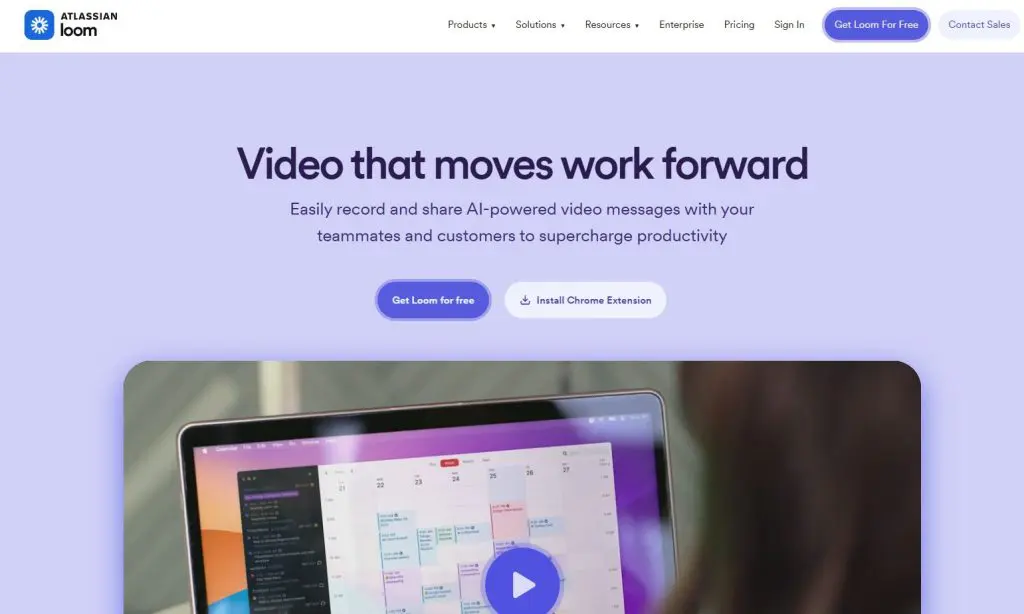
When I want to create a quick tutorial, record feedback, or explain a process without spending hours editing, I reach for Loom.
I started using Loom as a way to give customers personalized feedback. What surprised me was how much faster it made my workflow.
I could hit record, talk through a concept, and have a shareable link ready in seconds. No rendering. No uploads. Just a clean, watchable video ready to go.
Now I use Loom for everything from course announcements to lesson overviews. The AI features like auto-editing, filler word removal, captions, and even video summaries are genuinely helpful. That’s saved me hours when producing quick content.
Atlassian acquired Loom for $900 million+ in 2023. That’s given it tighter integration with tools like Trello, Jira, and Confluence. So if you’re building in public, collaborating with contractors, or managing a team alongside your course, Loom just fits into the stack.
No, it won’t replace Camtasia for deep editing or polished promo videos. But if you’re a course creator focused on speed, communication, and building a connection with your audience, Loom is a no-brainer.
I still use Camtasia when I need to, but Loom is what I use daily.
If you’re teaching online, give it a try. You might not go back.

Loom’s Key Features For Course Creators & Online Educators
| Feature | Description |
|---|---|
| Screen & Camera Recording | Easily record your screen and webcam together using the Loom desktop, Chrome, or mobile apps. |
| Unlimited Recording Time | Paid plans allow unlimited video length, great for full lessons or walkthroughs. |
| AI Video Editing | Loom AI can auto-enhance videos, generate summaries, remove filler words, and create meeting notes. |
| Edit by Transcript | Allows quick edits by simply editing the transcript instead of the timeline. |
| Trim & Stitch Videos | Cleanly cut and merge clips for a polished final product. |
| Interactive Elements | Add comments, emoji reactions, and CTAs for viewer engagement. |
| Transcriptions & Captions | Auto-generated captions in 50+ languages, useful for accessibility. |
| Viewer Analytics | Track who watched your video and how they engaged. |
| Embed Anywhere | Seamlessly embed videos into LMS platforms, emails, or websites. |
| Privacy Controls | Protect videos with passwords and customize viewer access. |
| Branded Video Pages | Remove Loom branding and add your logo or brand colors. |
| Team Libraries | Organize your course videos in shared folders for team access. |
Camtasia vs. Loom: The Main Differences
Here’s a summarize comparison of Loom and Camtasia to help you choose the right option for your business.
| Feature | Camtasia | Loom |
|---|---|---|
| Best For | Deep video editing and polished course content | Quick tutorials, feedback, and async communication |
| Editing Tools | Full timeline editor, multi-track, transitions, effects, animations | Basic trim, stitch, auto-captions, AI enhancements |
| AI Features | Available in higher plans (text-based editing, voice cleanup, AI avatars, auto chapters) | Built-in AI auto-edits, summaries, filler word removal, meeting recaps |
| Course Creation Use Case | Ideal for full-length lessons, YouTube series, interactive video content | Perfect for async student support, onboarding, and content updates |
| Sharing & Embedding | Exports to file; manual upload to LMS or YouTube | Instant shareable links, embeddable in LMS, email, or anywhere |
| Integrations | Limited integrations | Strong integrations with Atlassian tools (Jira, Trello), Slack, Google Workspace |
| Learning Curve | Steeper (more control) | Very beginner-friendly |
| Free Plan | 3–7 day trial with watermark | Free forever plan (25 videos, 5-min limit) |
| Paid Plan | Starts at $178.20/year | $15–$20/month with AI tools |
| Platform | Windows and Mac | Windows, Mac, iOS, Android, Chrome extension |
Camtasia Alternative #7: WeVideo
Best Free Camtasia Alternative
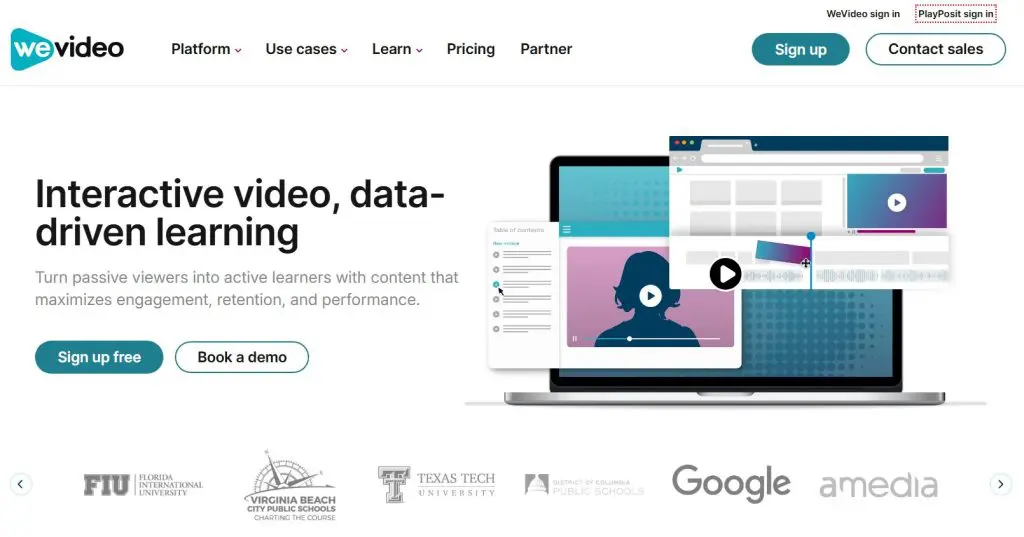
WeVideo is a cloud-based video editor perfect for quick collaborative content creation. No installs, no updates, just log in and start editing.
Unlike Camtasia, everything runs in your browser, and the interface is simple enough that even first-timers can get a project done fast.
It offers a limited free plan with 480p videos and 5 minutes of publish time per month. When you upgrade, you unlock 4K exports, unlimited publishing, and a surprisingly deep feature set with screen recording, green screen, motion titles, animated text, podcast-style audio exports, and built-in stock media.
One of the standout features is real-time collaboration where multiple people can edit the same project, share templates, and manage branded content.
That’s a huge plus if you’re working with a team.
WeVideo also includes growing AI-powered features, including interactive video tools through its PlayPosit platform, and smart templates that speed up the editing process.
Where it falls short: It’s not as powerful as Camtasia when it comes to timeline precision or detailed audio control.
But for browser-based editing, especially in team environments or quick course builds, WeVideo offers a lot more than you’d expect, especially for the price.

Top WeVideo Features For Course Creators
| Feature | Why It Matters for Course Creators |
|---|---|
| Cloud-Based Editing | No installation needed. Access and edit projects from any device, anywhere. |
| Screen + Webcam Recording | Record yourself and your screen at the same time—ideal for walkthroughs and tutorials. |
| Real-Time Collaboration | Invite team members or co-instructors to edit and review content together. |
| Green Screen (Chroma Key) | Easily swap backgrounds to create more polished, professional-looking videos. |
| Interactive Video (PlayPosit) | Add quizzes, polls, and prompts directly into your video lessons to increase engagement. |
| Stock Media Library | Use millions of royalty-free images, video clips, and music to enhance your course content. |
| Voiceovers + Audio Export | Record narration or turn your videos into podcasts with audio-only exports. |
| Video Templates | Prebuilt layouts make it faster to create consistent, branded lessons. |
| Cross-Platform Access | Works on Windows, Mac, Chromebook, iOS, and Android—great for mobile creators or school teams. |
| AI Features | Smart templates and interactive tools help automate content layout and learner engagement. |
WeVideo vs. Camtasia: The Main Differences
Here’s a quick comparison table that will help you understand the differences between WeVideo and Camtasia.
| Feature | Camtasia | WeVideo |
|---|---|---|
| Platform Type | Desktop app (Windows & Mac) | Cloud-based (Web, Windows, Mac, Chromebook, iOS, Android) |
| Pricing (Annual) | Starts at $178.20/year | Starts at $95.88/year (Unlimited Plan) |
| Free Trial / Plan | 3–7 day free trial (watermarked exports) | Free plan with 5 min/month publish time, 480p export, 1GB storage |
| Screen & Webcam Recording | Yes (with cursor effects, annotations) | Yes (record screen, webcam, or both) |
| Editing Tools | Full timeline editing, drag-and-drop, annotations, transitions | Basic to advanced tools, depending on plan; includes motion titles, green screen |
| Quizzes & Interactivity | Built-in quizzes, interactive table of contents | Interactive video via PlayPosit (premium) |
| Stock Media Library | Built-in asset library with premium assets (in Pro plan) | 1M+ stock assets depending on plan |
| Voiceover & Audio Tools | Audio cleanup, pitch/gain adjust, noise removal | Voiceover recording, export audio only, audio boost |
| Collaboration | Limited to Pro plan reviewers (not real-time) | Real-time team collaboration (Business plan) |
| AI Features | Script writing, AI voices, translations, avatars (Pro) | Smart templates, interactive overlays (PlayPosit) |
| Ideal For | Full-fledged course creation, desktop users, pro editors | Web-based workflow, educators, teams, and budget-conscious creators |
Camtasia Alternatives – The Bottom Line
And now for the big question. Which of these Camtasia alternatives deserves to be crowned as the overall best for online course creators?
If you’re looking for the most robust and nearly identical alternative, ActivePresenter is hard to beat. Both its free and paid plans offer excellent features tailormade for online course creators.
But if you’re looking for a more collaborative cloud solution, WeVideo is the way to go.
I don’t know about you, but I’d nominate WeVideo.
And why is that?
Its whole system comes perfectly optimized for businesses plus educators. It also offers a free package, alongside several fairly-priced premium plans (although it can get a bit pricey for educators).
Please note, however, that you don’t have to agree with me. Any of these tools can be great choices for differnet use cases.
Your final selection here depends on your course and tutorial creation needs, as well as your overall experience on the five platforms.
So, you might want to try all of them out before making your decision. And while you’re at it, don’t be quick to completely write off Camtasia. It’s still one of the best screen recorders and video editors for creating online courses.
See also:
- Camtasia Review – The Go-To Software to Create Video Tutorials and Courses
- Best Screen Recording Software (2024)

Jeff Cobb, Founder of Learning Revolution
Jeff Cobb is an expert in online education and the business of adult lifelong learning. Over the past 20+ years he has built a thriving career based on that expertise – as an entrepreneur, a consultant, an author, and a speaker. Learning Revolution is a place where Jeff curates tips, insights, and resources to help you build a thriving expertise-based business. Learn more about Jeff Cobb here.
Table of Contents
Related Posts
How to Record a PowerPoint Presentation With Audio & Video
Camtasia Review (2026) – Is It The Best Screen Recording & Editing Tool | Pricing, Pros & Cons
How To Make Money on YouTube: 10 Proven Strategies (2026)