

TL;DR: iSpring Suite Review: Is It Worth Using For E-Learning
iSpring Suite is a PowerPoint-based authoring tool that turns your slides into interactive, SCORM-compliant courses with quizzes, role-plays, and video lessons. It’s built for corporate training & development teams, edupreneurs, and professionals who already use PowerPoint and want to quickly create eLearning without learning a new platform. Unlike iSpring Learn (an LMS for hosting and tracking courses), iSpring Suite focuses only on course creation.
iSpring Suite Pricing
Free Trial: 14 days, full access, no credit card.
iSpring Suite – $970/year per author: Core authoring features.
iSpring Suite Max – $1,290/year per author: Adds AI assistant, collaboration, and a large content library.
iSpring Cloud – $720/year per author: Browser-based microcourse builder with AI and team collaboration.
The Main Features in the iSpring Suite:
PowerPoint Integration: Build courses inside PowerPoint without losing animations.
PPT to E-Learning Conversion: Convert slides into interactive online courses that support SCORM 1.2, SCORM 2004, xAPI, cmi5, and AICC standards.
Quizzes & Assessments: 14+ question types with branching, feedback, and tracking.
Role-Play Simulations: Interactive dialogues that help learners practice real conversations.
Video & Screencast Recording: Record your screen or webcam with narration and annotations.
AI Assistant (Suite Max): Generate text, quizzes, and summaries to speed up course creation.
Try iSpring Suite For Free
If you’re like me, chances are you’ve already built dozens of slide decks packed with valuable content.
All that knowledge can generate a stable and consistent income if you turn it into structured online courses.
That’s where iSpring Suite comes in.
I’ve been using this PowerPoint-based e-learning authoring tool for years and have seen it evolve into a complete solution for building interactive, SCORM-ready, AI-powered online courses.
In this review, I’ll cover what iSpring Suite is, who it’s for, its features, pros and cons, pricing, and whether it’s worth your investment.
If you’re looking to sell courses, here are the best online course platforms
What Is iSpring Suite?
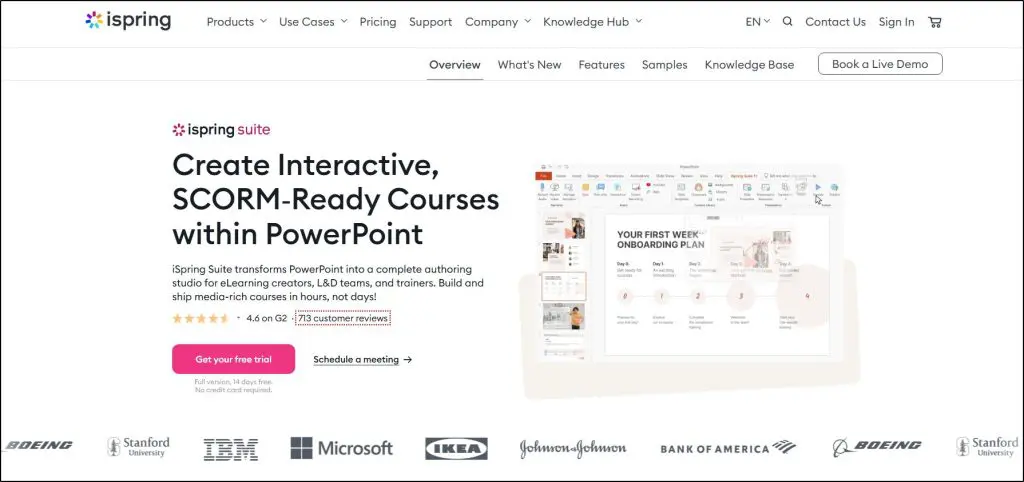
iSpring Suite is a PowerPoint-based eLearning authoring tool that lets you transform simple slide decks into interactive, SCORM-ready online courses. Instead of starting from scratch with a complex authoring platform, you can build directly inside PowerPoint and publish your content to work with any LMS.
At its core, iSpring Suite takes your PowerPoint content and extends it. You can add quizzes, video lessons, interactive role-plays, and branching scenarios without leaving your slides.
It’s used primarily by corporate L&D teams, training departments, and eLearning professionals who need to create standards-compliant training fast.
For coaches, consultants, and trainers who already have tons of presentations can also use iSpring Suite to package their content into courses that feel professional and track learner progress.
But it’s important to set expectations.
iSpring Suite is not a full-fledged multimedia studio like Adobe Captivate or Camtasia. It won’t replace video editing software or give you advanced animations beyond what PowerPoint already offers.
Its strength is speed and familiarity: if your training content lives in PowerPoint, iSpring helps you take it further, into formats that learners can access on any device, complete with assessments and progress tracking.

Core iSpring Suite Features
Here are the main things you can do with iSpring Suite today:
- PowerPoint to SCORM/xAPI/HTML5 Conversion – Publish your presentations as eLearning courses that work in any LMS.
- Quizzes & assessments – Build 14 types of quizzes, from multiple choice to drag-and-drop, with instant feedback.
- Role-play simulations – Create branching conversation scenarios to train communication and sales skills.
- Video lessons & screencasts – Record your screen, add narration, and edit video tutorials right in iSpring.
- Interactive elements – Use templates for timelines, catalogs, FAQs, and more to keep learners engaged.
- Content Library – Access 134,000+ templates, characters, icons, and locations to speed up design.
- AI Assistant – Generate text, quiz questions, or course ideas faster, or refine your wording for clarity.
- Character Builder – Create unique, on-brand avatars with customizable looks, emotions, and outfits.
- Flipbooks – Convert PDFs, Word docs, or PowerPoints into digital books with page-flip animations.
- Multi-language & accessibility – Translate content, use text-to-speech, and meet WCAG/Section 508 standards.
iSpring Suite vs iSpring Learn: What’s the Difference?
It’s easy to mix up iSpring Suite and iSpring Learn, since they come from the same company, iSpring Solutions. But they do very different jobs:
- iSpring Suite → a PowerPoint-based course authoring tool. It lets you turn slides into SCORM-ready courses with quizzes, role-plays, videos, and interactions.
- iSpring Learn → a cloud-based LMS (learning management system). It’s where you host, deliver, and track those courses.
Should You Use the iSpring Suite With iSpring Learn?
You don’t have to because you can publish iSpring Suite courses into any LMS that supports SCORM, xAPI, or cmi5.
But if you use Suite + Learn together, you get a smoother workflow:
You can publish directly from PowerPoint into iSpring Learn in one click (no zipping, no manual uploads).
You’ll also get tighter reporting and analytics, since iSpring Learn is optimized for Suite’s interactive features.
And most importantly, you’ll reduce tech headaches, because compatibility is guaranteed when both tools come from the same vendor.
However, if you already have a SCORM compliant LMS, you can still use iSpring Suite without any trouble.
Looking for a corporate LMS? Here are the platforms for small businesses.
iSpring Suite: Product Snapshot
| Category | Details |
| What It Is | A PowerPoint-based eLearning authoring tool for creating SCORM/xAPI courses. |
| Best For | Coaches, consultants, trainers, and L&D teams with content in PowerPoint. |
| Where It Resides | Added as a tab inside PowerPoint after installation. Publishes courses to web, LMS, or iSpring Cloud. |
| Operating System | Designed for Windows only. Does not run natively on Mac. |
| Core Capabilities | – Convert PowerPoint to SCORM/xAPI/HTML5- Create quizzes & assessments- Build role-play simulations- Record video lessons & screencasts- Add interactive timelines, catalogs, and FAQs- Access Content Library (134,000+ assets)- AI Assistant for text, quizzes, and course ideas- Character Builder for on-brand avatars- Flipbooks from PDFs/Docs/PPTs- Multi-language support & accessibility compliance |
| Free Plan / Trial | No free plan, but a full 14-day free trial is available. |
| Pricing | Starts at $970/year per author (iSpring Suite). Most popular: iSpring Suite Max at $1,290/year per author. |

iSpring Suite Pricing and Free Trial: How Much Does It Cost?
iSpring Suite doesn’t have a free plan, but it does offer a 14-day free trial so you can test all the features before committing.
When it comes to paid plans, there are three main options:
- iSpring Suite – $970/year per author: Core authoring tool for turning PowerPoint slides into SCORM/xAPI courses, with quizzes, interactions, role-plays, and video lessons.
- iSpring Suite Max – $1,290/year per author: The most popular plan. Includes everything in Suite plus AI Assistant, real-time collaboration, and an expanded Content Library.
- iSpring Cloud – $720/year per author: A lighter, browser-based builder for scrollable courses, collaboration, and publishing to SCORM/xAPI, but without full PowerPoint integration.
iSpring Suite Pricing Plans Compared
| Plan | Price (per author/year) | Key Features | Best For |
| iSpring Suite | $970 | PowerPoint-based authoring, SCORM/xAPI/HTML5, quizzes, role-plays, video lessons, interactions, flipbooks, 24/7 support. | Trainers or small teams who mainly want to convert PowerPoint into eLearning. |
| iSpring Suite Max | $1,290 | Everything in Suite + AI Assistant, Content Library (134k+ assets), Character Builder, collaboration via iSpring Cloud. | Most users — especially L&D teams and consultants who want templates, AI help, and faster course creation. |
| iSpring Cloud | $720 | Online micro-course builder, quizzes, interactions, SCORM/xAPI publishing, collaboration, 10GB storage. | Teams needing a cloud-based builder for quick microlearning without PowerPoint dependency. |

iSpring Suite: Strengths and Weaknesses
| Strengths | Weaknesses |
| Seamless PowerPoint integration – works directly inside PowerPoint’s ribbon, no new UI to learn. | Windows-only – no native Mac version (requires workaround via Cloud or virtualization). |
| Exports to all major eLearning standards: SCORM 1.2, SCORM 2004, xAPI, cmi5, AICC, HTML5. | Lacks standalone interface – can’t be used without PowerPoint installed. |
| Large Content Library (134,000+ assets, templates, characters, locations). | Video editing tools are basic compared to dedicated editors like Camtasia. |
| Built-in QuizMaker with 14+ question types, branching, drag-and-drop, and feedback options. | No advanced game-based learning or 3D/VR content creation. |
| Role-play simulations with branching dialogues, scoring, and character voices. | Limited collaboration features unless you pay for Suite Max or Cloud. |
| New AI Assistant for writing, editing, summarizing, and generating quiz questions. | AI features are text-focused — no AI video, voice, or auto-design capabilities yet. |
| Supports multilingual courses with XLIFF 2.1 and text-to-speech in 52 languages. | Accessibility requires manual setup; not as automatic as some competitors. |
| Reliable 24/7 human support with 85% of cases resolved in under 2 hours. | No Mac PowerPoint plugin, so Mac users can’t use the flagship features. |
| Publishes clean, lightweight HTML5 courses that work across 150+ LMSs and devices. | High price point ($970–$1,290/year) may be steep for solo creators. |
How Businesses, eLearning Professionals, and Edupreneurs Use iSpring Suite
iSpring Suite serves a wide range of users, from corporate L&D teams to independent course creators. Its biggest strength is turning existing PowerPoint decks into professional, trackable eLearning without requiring new tools.
- Corporate L&D teams use it to transform onboarding, compliance, and policy presentations into SCORM/xAPI courses with quizzes, certificates, and tracking. It fits perfectly into environments where HR and training departments already rely on PowerPoint.
- Sales and customer training teams build role-play simulations and screencasts to prepare staff for real-world conversations or software rollouts.
- eLearning professionals and consultants use iSpring as a fast, reliable authoring tool to create courses for clients. The content library, templates, and AI assistant help them produce polished courses quickly while meeting LMS compliance requirements.
- Edupreneurs (coaches, consultants, subject-matter experts) benefit if they already have a library of PowerPoint slides and want to repurpose them into structured, interactive courses. For example, a business coach can take workshop decks and publish them as SCORM modules for clients. However, edupreneurs who also need hosting, payments, and marketing should ideally pair iSpring Suite with a platform like iSpring Learn, Thinkific, or Kajabi.
In short, businesses and professionals use iSpring Suite for speed and compliance, while edupreneurs use it best when they want to get extra life (and income) out of their existing slides.
Should Course Creators Use the iSpring Suite?
iSpring Suite makes the most sense for professionals who already have PowerPoint slides filled with training material.
If you’re a coach, consultant, or corporate trainer, chances are you’ve built presentations over the years that contain your best frameworks, lessons, and examples.
iSpring takes those slides and turns them into interactive, SCORM-ready courses with quizzes, role-plays, and videos, all without leaving PowerPoint.
The question is: what if you don’t have slides yet?
In that case, going straight to a course platform or LMS like iSpring Learn, TalentLMS, Thinkific, Kajabi, or Teachable may be a better move. These platforms let you create lessons directly inside them and also handle hosting, enrollments, and payments.
So the choice depends on where you’re starting. If your content already lives in PowerPoint, iSpring Suite gives you a fast, professional path to a course. If you’re starting from scratch, building directly in an LMS might be simpler.

iSpring Suite Features: What E-Learning Authoring Tools Does It Offer?
When people look up iSpring Suite reviews or search for iSpring Suite features, they usually want to know if this tool can really take their PowerPoint slides and turn them into full-fledged online courses.
From my experience, that’s exactly what it does best. It adds everything PowerPoint lacks in terms of e-learning such as quizzes, role-plays, interactions, and even AI-powered course authoring.
This allows you to deliver structured, SCORM-ready training without needing to learn a brand-new platform.
Let’s discuss some of iSpring Suite’s main features in more detail.
Feature #1: PowerPoint Integration
The biggest strength of iSpring Suite is that it works inside PowerPoint. As soon as you install it, a new iSpring Suite tab appears in the ribbon.
You don’t need extra setup, and there’s no separate interface to learn. You just keep working in PowerPoint, but now you have a whole eLearning toolkit right there.
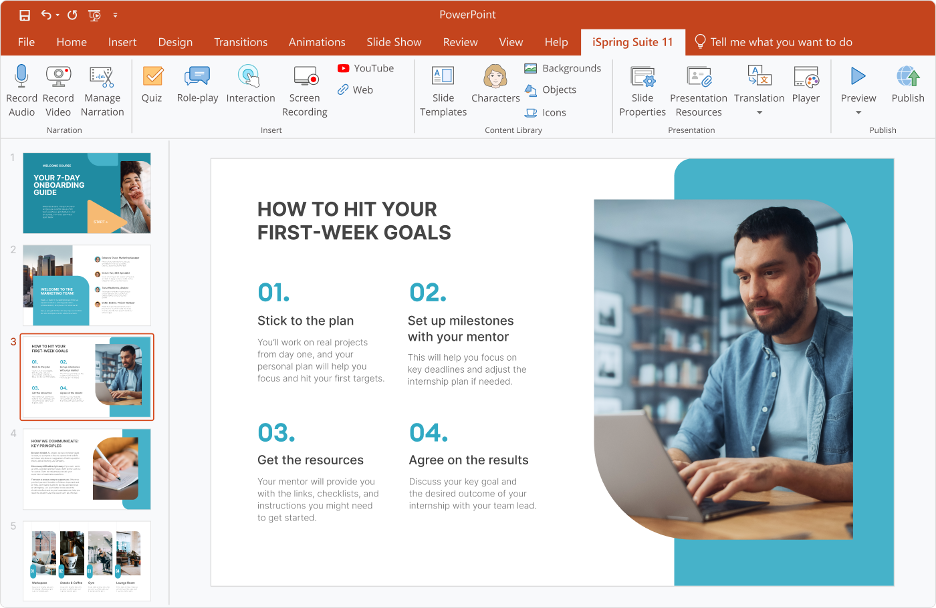
So what does this integration actually do? Beyond keeping your original transitions, animations, and SmartArt intact, it adds new options that make your slides interactive.
You can insert quizzes, branching scenarios, role-plays, and even narration, all from the iSpring tab. For example, instead of a static slide that lists “5 customer objections,” you can turn it into a clickable interaction where learners choose an objection and see how to respond.
And yes, when you publish, iSpring makes the deck SCORM-compliant, so it reports scores, progress, and completions to your LMS, something plain PowerPoint can never do.
Feature #2: Course Publishing & Standards Support
iSpring Suite lets you convert your PowerPoint slides into fully compliant eLearning courses. From right inside PowerPoint, you can export your work in all major standards including SCORM 1.2, SCORM 2004, xAPI, cmi5, and AICC.
This ensures your course will run smoothly on virtually any learning management system (LMS).v
But you’re not limited to LMS delivery.
You can also publish courses in HTML5 to embed them on your website, export them as MP4 videos for YouTube or intranet use, or push them directly into iSpring Learn LMS or iSpring Cloud with one click.
Learners can then access your content on desktop, tablet, or mobile without losing animations, quizzes, or interactions.
This flexibility means you can start small, like hosting a course on your site and scale up to LMS delivery later without rebuilding your content.
Read our step by step guide to converting PPT to E-Learning with iSpring Suite
Feature #3: Quizzes & Assessments
iSpring Suite lets you build interactive quizzes and knowledge checks directly inside PowerPoint. You can add over 14 question types, including multiple-choice, drag-and-drop, hotspots, matching, and short answers.
Just open the quiz builder from the iSpring tab in PowerPoint, create your questions, and drop them right into your slides. You can also branch learners to different slides based on their answers, set time limits, add penalties for mistakes, and give instant feedback.
For example, a sales trainer can design a role-based quiz where wrong answers send learners to an explanation slide before they move on. Once published, the LMS tracks all quiz results and reports progress.
This feature turns a plain presentation into a measurable training module, so you know exactly how learners engage with your material.
Feature #4: Role-Play Simulations
Role-play simulations in iSpring Suite are interactive scenarios where learners practice real conversations by making choices step by step. Instead of reading about a situation in slides, learners get placed in it and respond as if they were part of the dialogue.
Learners see a character on screen, maybe a client, colleague, or manager, along with a dialogue prompt. Below, they get several response options. Choosing an answer changes the direction of the conversation.
If they respond well, the character reacts positively and the story moves forward. A wrong choice might lead to objections, penalties, or even a failed outcome. Voiceovers and character emotions make the exchange feel more like a real conversation.
You can use this feature in many ways. HR teams can design simulations for workplace ethics and harassment prevention. Sales coaches can train reps on handling objections or closing deals. Customer service managers can teach employees how to respond to difficult clients.
In every case, learners practice in a safe, controlled environment before applying skills in real life.
Feature #5: Interactions
The Interactions feature in iSpring Suite lets you add ready-made interactive elements to your courses. Instead of showing information on plain slides, you can use templates like timelines, FAQs, catalogs, or flowcharts to present content in a way that learners can click, explore, and control.
When learners open the course, these interactions aren’t static images. They see a clickable timeline, expandable FAQ sections, or a product catalog they can scroll through. The course feels alive because learners interact directly with the content instead of just reading through slides.
As a course creator, you can use interactions to simplify complex processes, explain step-by-step workflows, or make policies easier to digest. For example, a consultant can turn a compliance checklist into a clean, interactive FAQ.
Most importantly, all these interactive elements remain fully functional once you export the presentation as a SCORM-compliant or HTML5 course.
Feature #6: Video & Screencast Recording
iSpring Suite comes with a built-in video studio that lets you record screencasts and create video lessons directly from PowerPoint. You can capture your whole screen or just one application window while adding narration with your microphone.
The tool automatically highlights clicks, keystrokes, and actions so learners can easily follow along.
The editor works like a timeline. You can cut out mistakes, add annotations, overlay text or shapes, and even show two videos at once with picture-in-picture. That means you can record yourself explaining while also showing your screen in real time.
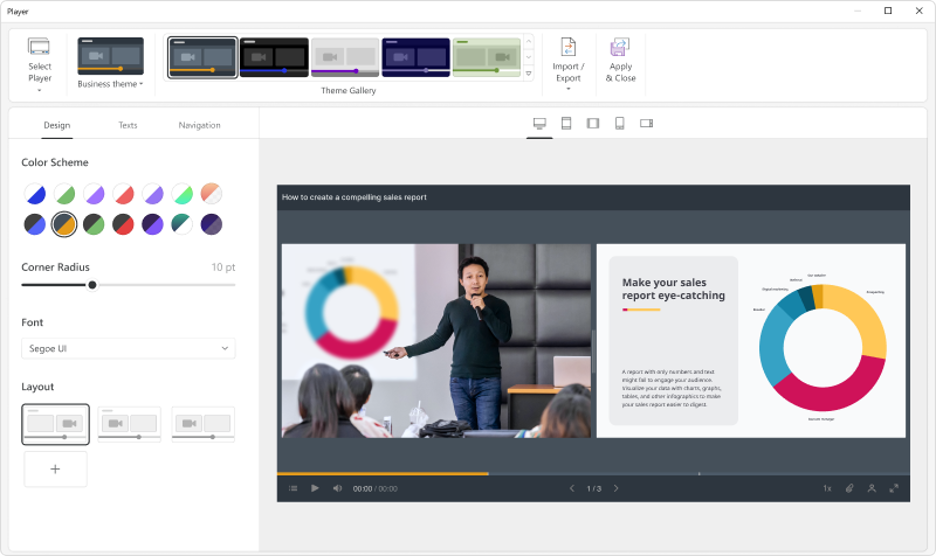
For course creators, this feature is invaluable when you need to demonstrate software, walk through a process, or build a step-by-step tutorial.
A coach teaching sales techniques, for instance, could combine a screencast of a CRM walkthrough with a video of themselves explaining the strategy.
Everything exports cleanly and stays interactive inside your published course.
Read our screen recording guide for PowerPoint
Feature #7: Content Library & Templates
iSpring Suite gives you access to a massive Content Library with over 134,000 assets including characters, backgrounds, icons, templates, and objects that you can drop right into your PowerPoint courses. This means you don’t need to hire a designer or waste hours searching for stock images.
The library includes ready-made slide templates like timelines, tables of contents, quizzes, and checklists. You can pick one, replace the placeholder text with your own content, and have a professional-looking course slide ready in minutes.
For visuals, you get thousands of characters in different poses and emotions, plus high-quality locations like offices, hospitals, and classrooms.
These assets help you make your courses look polished and engaging, even if you’re not a design expert.
For example, a trainer building a compliance course could use a serious-looking character in a corporate office setting, while a coach might choose warmer templates and icons for a more personal touch.
Read: Guide to recording your PowerPoint presentation with audio & video
Feature #8: Character Builder
With iSpring’s Character Builder, you can design unique avatars that match your training scenario. Instead of relying only on stock photos, you can customize characters by choosing facial features, hairstyles, clothing, and accessories. You can even adjust skin tones, expressions, and poses to fit the tone of your course.
These characters appear directly inside your slides, quizzes, interactions, and role-play simulations. For example, you can drop them into a branching dialogue to act as a customer, use them in a quiz to make questions feel more real, or place them on a slide to guide learners through a scenario.
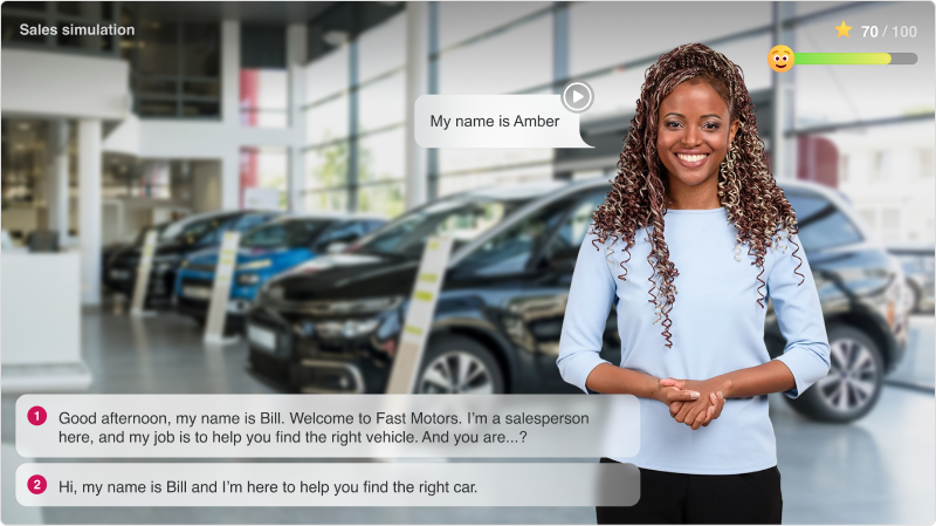
This makes training far more relatable.
A hospital can create avatars of doctors, nurses, and patients that mirror their workforce, while a sales coach might design professional avatars in business attire. Because it all happens inside PowerPoint, once you publish, these characters stay fully integrated across devices and LMSs.
Feature #9: AI Capabilities (Suite Max)
If you subscribe to iSpring Suite Max, you get access to an AI assistant built right into the PowerPoint ribbon. This isn’t a separate tool—you work with it while building your slides and courses.
The AI helps you write and edit text, summarize content, and generate quiz questions without leaving PowerPoint. For example, if you paste in a long client case study, the AI can shorten it into a clear training scenario or turn it into multiple-choice questions. It also improves readability by simplifying language and highlighting key ideas.
The AI can also automatically create lists, apply headings, or emphasize important fragments of your slides, saving you hours of manual formatting. For solo coaches, trainers, or consultants who don’t have an instructional designer on their team, these AI tools act like a built-in helper to speed up course development and keep quality consistent.
Feature #10: Localization & Accessibility
If you already deliver training across countries, iSpring Suite makes it much easier to adapt your content. The tool supports XLIFF 2.1, which means you can export all the text from your slides, quizzes, and role-plays into a translation file, send it to your translator, and then import it back without breaking your design.
You can also use text-to-speech in 52 languages to create quick voiceovers, so you don’t need to hire native speakers every time. For instance, you can build a sales training in English, then add Spanish or German narration with just a few clicks.
On top of that, iSpring outputs courses that are WCAG 2.1 AA compliant, so learners with disabilities can take them without issues. Screen reader support, high-contrast text, and accessible layouts are built in.
This matters if you train in corporate or government settings, where accessibility compliance is often mandatory.
Feature #11: Collaboration (Suite Max & Cloud)
Course creation often involves more than one person. You might have a subject matter expert drafting content, a designer polishing slides, and a manager reviewing everything. With iSpring Suite Max, you don’t have to email endless PowerPoint files back and forth. Instead, you can upload your project to iSpring Cloud and invite others to work on it.
Team members can review slides, add quiz questions, tweak role-plays, or leave comments in real time. Stakeholders can log in through a link, see the course in progress, and give feedback without needing iSpring installed. This speeds up approvals and cuts down on version confusion.
The collaboration works directly inside the browser, so all you need is an internet connection. For distributed teams, this makes it possible to finish a polished, compliant course much faster compared to working in isolation.

Is the iSpring Suite Worth Using For PowerPoint Conversion To E-Learning?
iSpring Suite isn’t just another eLearning tool, it’s a bridge between the slides you already have and the structured courses you want to deliver.
If you’ve spent years creating PowerPoint decks, this is the fastest way to turn them into interactive, SCORM-compliant training without reinventing the wheel.
But if you’re starting from scratch and need hosting, payments, and community features, you’ll save time going straight to a full LMS.
The key is knowing where your content lives today, because that single decision determines whether iSpring Suite is your best next step.

Frequently Asked Questions (FAQs)
- Can I use iSpring Suite on a Mac without Windows?
No, iSpring Suite only works with Windows and PowerPoint. Mac users need to use Boot Camp, Parallels, or switch to iSpring Cloud. - Does iSpring Suite host my courses?
No, it only creates courses. You need an LMS (like iSpring Learn, TalentLMS, Moodle, etc.) or web hosting to deliver them. - Do learners need PowerPoint installed to view courses?
No, once published, courses run in browsers, LMSs, or as MP4/HTML5 files. Learners never see PowerPoint. - Can I sell courses made with iSpring Suite?
Yes, but you’ll need an LMS or course platform that supports payments (e.g., Thinkific, Kajabi, or iSpring Learn). - How does iSpring Suite handle large slide decks?
It optimizes content for HTML5 and LMS delivery, so even 100+ slide presentations publish into lightweight, mobile-friendly courses. - Does iSpring Suite support accessibility?
Yes, it produces WCAG 2.1 AA compliant courses with screen reader support, high contrast, and accessible layouts. - Can I track learner progress without an LMS?
Partially — you can export reports to email or server, but for full tracking you need an LMS. - Is iSpring Suite good for microlearning?
Yes, you can create short, focused courses or use iSpring Cloud for quick mobile-friendly modules. - How often does iSpring update its features?
Every month. Recent updates added custom fonts for quizzes, flexible course completion rules, and new character packs. - How does iSpring Suite compare to Articulate Storyline or Captivate?
iSpring is easier for PowerPoint users and faster for conversions, but Storyline and Captivate offer more advanced design flexibility.
Table of Contents
Related Posts
10Web.io Review (2026) | Is This AI Website Builder Worth The Hype? Pricing & Pros & Cons
Kartra Review (2026): Pricing, Features And Pros & Cons
What Is Course Container & Is It Still Worth Using (2026)