

TL;DR: Best AI Presentation Makers for Creators (2026)
AI presentation makers build a slide deck from a prompt, your notes, or a document. Then edit the draft, apply your branding, and export it.
Best overall: Gamma, for decks you share as a link or PDF
Best for editable PowerPoint files: Alai
Best for turning course material into slides: Gemini Notebook (formerly NotebookLM)
Best for research-first decks: Manus
Best inside PowerPoint or Google Slides: Plus AI
Best for Google Workspace users: Gemini in Google Slides
Best for team brand consistency: Beautiful.ai
Best for slides plus marketing graphics: Canva
Free plans worth using: Gamma (400 one-time credits), Gemini Notebook (free with a Google account), Manus (300 credits a day), and Alai (adds a watermark).
My take: Start with Gamma. Switch to Alai when a client needs an editable PowerPoint file, and use Gemini Notebook when the content already sits in your course files.
As an e-learning consultant, I’ve sat through thousands of presentations, as a presenter and in the audience.
The most common problem I see is experts who know their subject but can’t turn it into clear slides. AI presentation tools fix the design side of that problem. The argument still has to come from you.
I’ve tested the leading tools on real projects this year. For each one, I cover what it does well, where it fails, what it costs, and who should use it.
Take my free course: Presenting for Impact
The Best AI Presentation Makers: Quick Comparison Table (2026)
Let me first give you a bird’s eye view of the top AI presentation software and their core strengths and weaknesses.
| Tool | Best for | Biggest weakness | Free plan | Starting price |
|---|---|---|---|---|
| Gamma | Decks you share as a web link or PDF | PowerPoint export breaks layouts | Yes, 400 one-time credits | Free plan, paid from $8/mo billed annually |
| Alai | Decks you hand over as editable PowerPoint files | Thin drafts from short prompts | Yes, with a watermark | Free plan, paid from $20/mo |
| Beautiful.ai | Teams where several people build decks under one brand | Auto-layout blocks precise placement | No, 14-day trial | $12/mo billed annually, no free plan |
| Manus | Decks on topics you haven’t researched yet | Slow or failed runs under load | Yes, 300 credits a day | Free daily credits, Pro from $20/mo |
| Gemini Notebook | Slides built from your course files, transcripts, and reports | Plain design, needs your sources | Yes | Free with a Google account, higher limits from $4.99/mo |
| Gemini in Google Slides | Teams on Google Workspace Business Standard or higher | Plain Google Slides themes | No | Workspace Business Standard at $14/user/mo, or Google AI Pro at $19.99/mo |
| Plus AI | Detailed decks built inside PowerPoint or Google Slides | Flat visual design | No, 7-day trial | $10/mo billed annually, 7-day trial |
| Canva | Slides, social graphics, and lead magnets from one account | Generic AI drafts | Yes | Free plan, Pro from $15/mo billed annually |
| Microsoft Copilot | Organizations already on Microsoft 365 | Repetitive layouts, extra license | No | $21/user/mo billed annually, plus a Microsoft 365 plan |
| Pitch | Proposals where you want to see which slides a client read | Templates limit layouts | Yes, up to 5 members | Free plan, Plus from $13/mo billed annually |
| Prezi | Frameworks and curriculum maps | Canvas takes time to learn | Yes, with a watermark | Free plan, Standard from $7/mo billed annually |
What Is an AI Presentation Tool?
An AI presentation tool takes a topic, document, URL, notes, or data, plus your instructions, to create a full slide deck for your presentation. If you don’t specify, the tool picks the slide order, layouts, and images as well.
Most AI presentation tools also allow you to edit the slides they generate by changing the text content, altering the design, adding new elements, and enhancing the overall look of the presentation.
Once you’re happy with the edits, the platform allows you to publish the slides online or export them as PowerPoint files.
AI presentation platforms are great for generating a quick presentation draft that you can then polish and fine-tune according to your needs.
The Mistake People Make When Using AI Presentation Software
Most people type a one-line prompt such as “Create a 10-slide presentation about content marketing.” The result is generic, because the tool knows nothing about the audience or the argument.
My first tests went the same way. The output improved once I gave each tool a specific topic, the audience, my key points, my data, and the outcome I wanted.
| Brief element | Weak prompt | Strong brief |
|---|---|---|
| Topic | Content marketing | How course creators can turn one webinar into a month of content |
| Audience | Not mentioned | Coaches with 1,000 to 5,000 subscribers who already run webinars |
| Key points | Not mentioned | Three points in my own words, plus my 4-step repurposing framework |
| Evidence | Not mentioned | Put my webinar attendance numbers on slide 4 as a chart |
| Outcome | Not mentioned | Viewers book a strategy call by the last slide |
With that brief, the tool charts your data, puts your main argument first, and gives your best insight its own slide. For more prompt examples, see my list of ChatGPT prompts for course creators.
Read: How to deliver impactful virtual presentations
How to Choose the Right AI Presentation Maker
Check these five things before you pick a tool.
| Factor | What to check | Strongest tools |
|---|---|---|
| Content quality | The first draft follows a logical story instead of filling a template | Gamma, Manus, Gemini Notebook |
| Design | The deck looks professional without manual design work | Gamma, Alai, Beautiful.ai |
| Brand consistency | Your colors, fonts, and logo apply to each slide automatically | Beautiful.ai, Pitch, Plus AI |
| PowerPoint export | The exported file keeps its layout and stays editable | Alai, Plus AI, Microsoft Copilot |
| Starting point | The tool works from what you have, a prompt, your documents, or an existing deck | Gemini Notebook for documents, Plus AI and Gemini in Google Slides for existing decks |
For consultants, coaches, and course creators, content quality comes first, because clients judge your expertise by how clearly you explain it. PowerPoint export only matters when someone else edits the file.
Read: The Best AI Tools for Course Creators and Entrepreneurs
The Best Free AI Presentation Tools for Beginners
Seven tools on this list have free plans that produce usable decks.
| Tool | What the free plan includes | Best free use |
|---|---|---|
| Gamma | 400 one-time credits, up to 10 slides per prompt | A full deck from a prompt or document |
| Gemini Notebook | 100 notebooks, 50 sources each | Slides from course material or research |
| Manus | 300 daily credits, 1 concurrent task | A researched deck from one prompt |
| Alai | Up to 10 slides per prompt, one-time credits, with a watermark | Comparing layout options before you pay |
| Canva | Up to 20 AI uses a month | A launch deck plus social graphics |
| Pitch | Up to 5 members, 100 one-time AI credits | Simple shared decks for a small team |
| Prezi | Watermarked, public sharing only | Trying the zoomable canvas |
For a beginner, I’d use Gamma for new decks and Gemini Notebook for decks built from existing material.
ChatGPT and Claude vs. Dedicated AI Presentation Tools
General assistants like ChatGPT and Claude now build slide decks and export PowerPoint files. I use them for quick internal decks.
Their output is less consistent and harder to edit than a dedicated tool’s. Here’s a prompt I gave ChatGPT Plus.
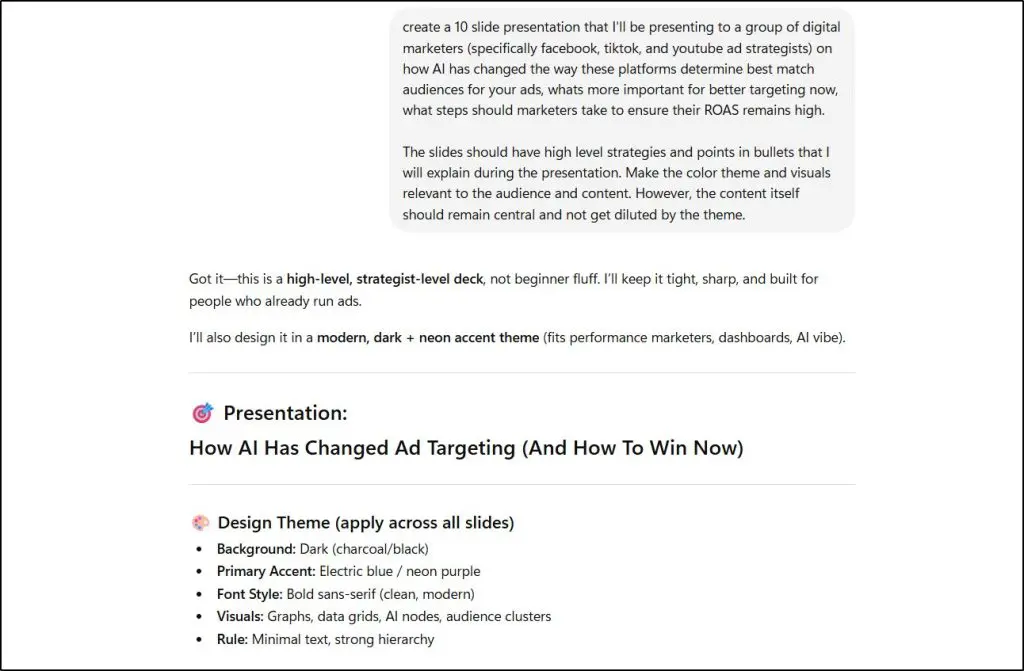
Here’s the deck ChatGPT Plus returned.
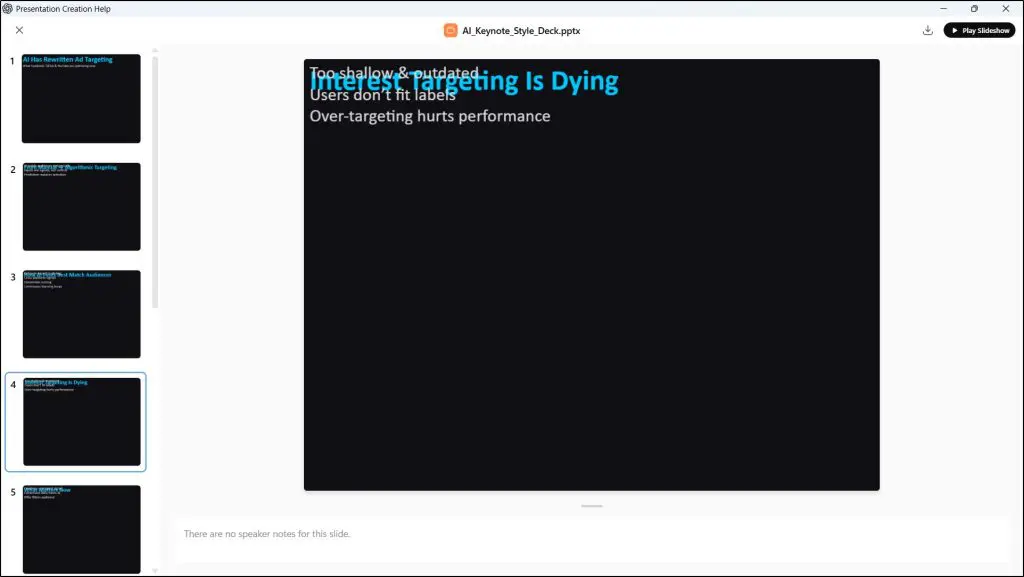
A dedicated tool would turn the same prompt into a cleaner deck. ChatGPT needs a much longer prompt to get close.
Of the two, Claude Design produces better-looking slides. The catch is that Claude Design builds in HTML, and converting the result to PowerPoint or Canva can break complex layouts.
I use ChatGPT and Claude for outlines, slide copy, and speaker notes, and a dedicated tool for client proposals, launch decks, and investor pitches. My guide to generative AI use cases covers other ways creators use these assistants.
Two tools on this list connect to the assistants directly. Gamma has connectors for Claude and ChatGPT, and Plus AI offers an MCP server that AI assistants can use.
The Best AI Presentation Design Tools for Course Creators, Consultants, and Entrepreneurs (2026)
I rank the 11 tools below by how useful they are for course creators, coaches, and consultants.
I removed Slidebean in this update because Slidebean only builds startup fundraising decks. I also left out Tome, which no longer offers its slide product.
1. Gamma – Best Overall for Fast First Drafts
- Best for: Decks you share as a web link or PDF
- Not for: Clients who expect a PowerPoint file
- Works with: Web links, PDF, PowerPoint, Google Slides, plus Claude and ChatGPT connectors
- Starting price: Free plan, paid from $8/mo billed annually
- Key features: Decks from prompts, documents, URLs, or notes, card layouts, AI images, viewer analytics, custom domains, API, and an MCP server
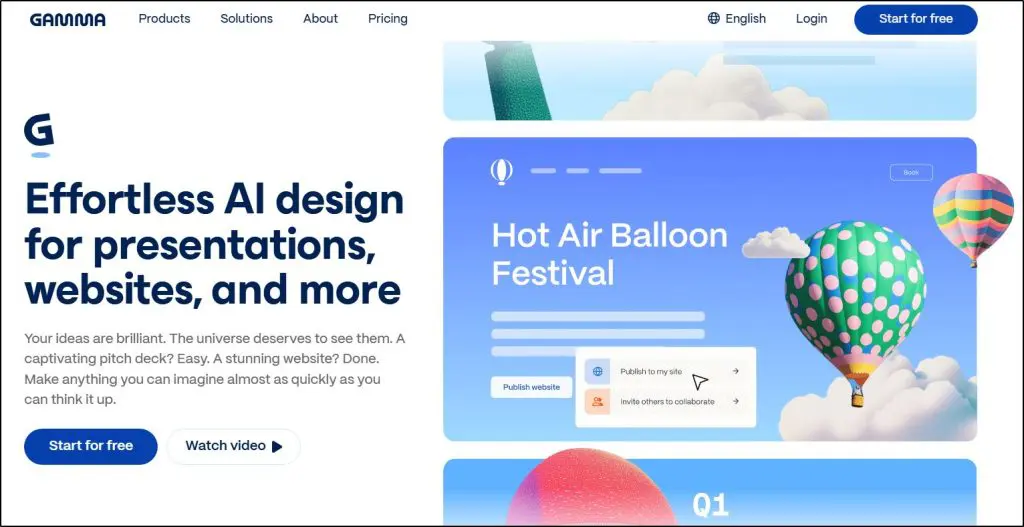
Gamma is an AI presentation maker that turns a prompt, your notes, a document, or a web page into a complete slide deck in about a minute.
Gamma understands how a presentation should flow, so a sales pitch comes back as problem, solution, proof, and offer without you spelling it out.
For example, you can paste the notes from your last webinar, ask for a 12-slide version with a call to action at the end, and get a draft that only needs light editing. Gamma also connects to Claude and ChatGPT, so you can build a deck from inside a chat.
Its weak spot is PowerPoint. Gamma’s decks are built for sharing as a web link or PDF, and when you export them to PowerPoint, fonts and layouts often shift.
Overall I recommend Gamma as the first tool to try for most course creators, coaches, and consultants. If your clients expect an editable PowerPoint file, look at Alai instead.
| Pros | Cons |
|---|---|
| Best first drafts in the category | PowerPoint export breaks layouts |
| Builds from prompts, documents, URLs, or notes | Card format differs from standard slides |
| Claude and ChatGPT connectors on all plans | Branding and analytics need Pro |
| 400 free credits to start | Heavy use burns through credits |
Gamma pricing plans:
| Plan | Billed monthly | Billed annually (per month) | Key limits |
|---|---|---|---|
| Free | $0 | $0 | 400 one-time credits, up to 10 slides per prompt |
| Plus | $10 | $8 | 1,000 credits/mo, up to 100 slides per prompt |
| Pro | $20 | $15 | 4,000 credits/mo |
| Ultra | $100 | – | 20,000 credits/mo |
The 400 free credits don’t refill. Upgrade to Plus to remove the Gamma badge, or to Pro for custom branding, viewer analytics, and custom domains.
Gamma features by plan:
| Feature | Free | Plus | Pro | Ultra |
|---|---|---|---|---|
| AI credits | 400 one-time | 1,000/mo | 4,000/mo | 20,000/mo |
| Slides per prompt | 10 | 100 | 100 | 100 |
| PPTX and Google Slides export | ✓ | ✓ | ✓ | ✓ |
| Remove "Made with Gamma" badge | ✗ | ✓ | ✓ | ✓ |
| Custom branding | ✗ | ✗ | ✓ | ✓ |
| Viewer analytics | ✗ | ✗ | ✓ | ✓ |
| Custom domains | ✗ | ✗ | Up to 10 | Up to 100 |
| API access | ✗ | ✗ | ✓ | ✓ |
| MCP server for Claude and ChatGPT | ✓ | ✓ | ✓ | ✓ |
2. Alai – Best for Clean PowerPoint Export
- Best for: Decks you hand over as editable PowerPoint files
- Not for: Decks you only share as web links
- Works with: PowerPoint and PDF export, PowerPoint import
- Starting price: Free plan, paid from $20/mo
- Key features: Decks from prompts, PDFs, URLs, or PowerPoint files, four layout options per slide, deck-wide AI edits, a business visuals library, and PowerPoint export
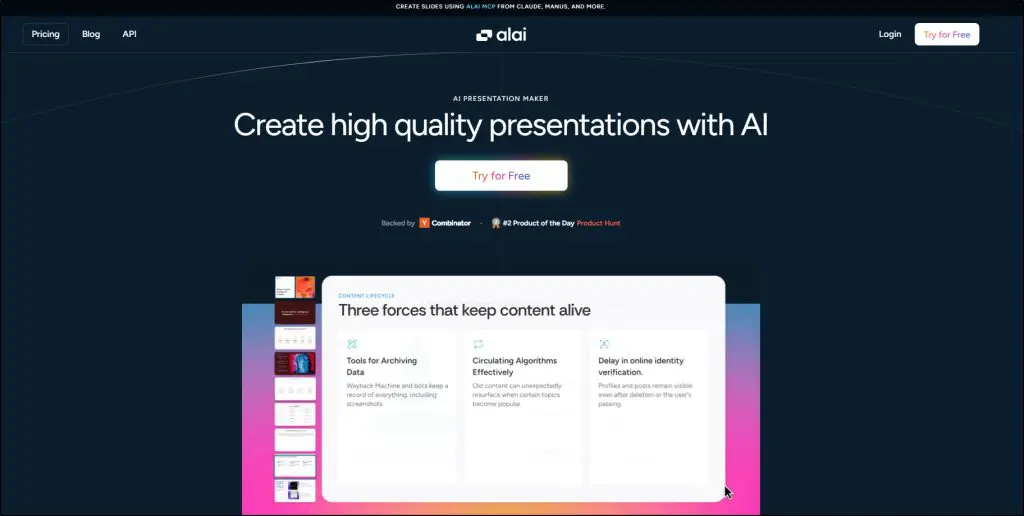
Alai is an AI presentation maker built for people who need a proper PowerPoint file at the end.
Decks move into PowerPoint with their layouts intact, so a client or colleague can edit them without rebuilding slides.
For example, when you generate a slide, Alai gives you four layout options for the same content and you pick the one you like. When you change a slide later, it keeps the rest of the deck consistent in fonts, colors, and tone.
Its first drafts aren’t as rich as Gamma’s when you start from a short prompt, so give it a detailed brief or your own document.
I recommend Alai for consultants and trainers who hand over editable decks. If you mostly share decks as links, Gamma is the better pick.
| Pros | Cons |
|---|---|
| PowerPoint export keeps layouts | Thin drafts from short prompts |
| Four layout options per slide | Free credits don’t renew |
| Edits stay consistent across the deck | Watermark on the free plan |
| Ready-made business visuals | Credits drain on large decks |
Alai pricing plans:
| Plan | Billed monthly | Key limits |
|---|---|---|
| Free | $0 | Up to 10 slides per prompt, one-time credits |
| Plus | $20 | Up to 20 slides per prompt, monthly credits |
| Pro | $30 | Up to 50 slides per prompt, more monthly credits |
| Ultra | $80 | Up to 50 slides per prompt, 5,000 credits/mo |
Plans differ by slides per prompt and monthly credits. Pro allows 50 slides per prompt, enough for most client decks.
Alai features by plan:
| Feature | Free | Plus | Pro | Ultra |
|---|---|---|---|---|
| Slides per prompt | 10 | 20 | 50 | 50 |
| Credits renew monthly | ✗ | ✓ | ✓ | ✓ |
| PDF and PowerPoint export | ✓ | ✓ | ✓ | ✓ |
| Watermark-free slides | ✗ | ✓ | ✓ | ✓ |
| Support | Regular | Priority (Discord and email) | Priority from founders | Direct feature requests |
Read: How to record a PowerPoint presentation with audio and video
3. Beautiful.ai – Best for Team Brand Consistency
- Best for: Teams where several people build decks under one brand
- Not for: Solo presenters who want layout control
- Works with: PowerPoint import and export, PDF, share links
- Starting price: $12/mo billed annually, no free plan
- Key features: Smart Slides auto-layout, brand themes, locked slides, AI drafting and translation, viewer analytics, and PowerPoint import and export
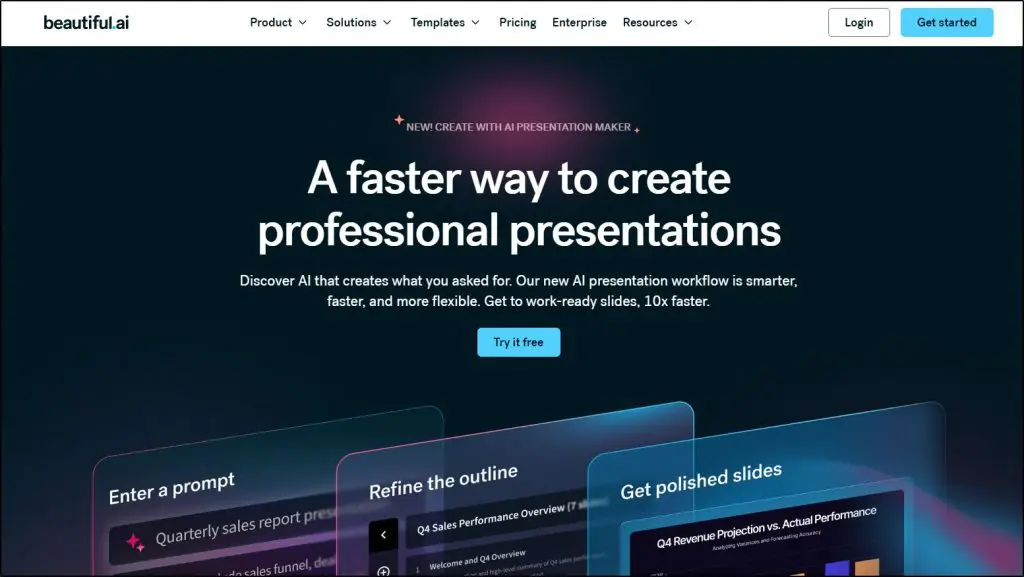
Beautiful.ai is a presentation tool that designs your slides for you as you add content.
Its layout adjusts automatically as you type, and the Team plan locks in your brand colors, fonts, and key slides so every deck your team sends looks the same.
For example, a coaching business with five associates can give each person the same branded template and stop worrying about off-brand client decks.
The same automatic layout gets in the way when you want to place something exactly, and its AI-written first drafts are generic. There’s also no free plan, only a 14-day trial that needs a card.
I wouldn’t recommend it to solo creators. For teams that send a lot of branded decks, it’s one of the best options on this list.
| Pros | Cons |
|---|---|
| Slides can’t get cluttered | Blocks precise placement |
| Brand controls for teams | Generic AI drafts |
| Viewer analytics on all plans | No free plan |
| AI translation on Team | Team pricing is per user |
Beautiful.ai pricing plans:
| Plan | Billed monthly | Billed annually (per month) | Key limits |
|---|---|---|---|
| Pro | – | $12 | 1 user |
| Team | $50 | $40 | 2-20 users, price per user |
| Enterprise | Custom | Custom | 20+ users |
Pro covers one user. Teams of 2 to 20 need Team for shared themes, locked slides, and collaboration.
Beautiful.ai features by plan:
| Feature | Pro | Team | Enterprise |
|---|---|---|---|
| Unlimited AI generation and AI images | ✓ | ✓ | ✓ |
| PowerPoint import and export | ✓ | ✓ | ✓ |
| Viewer analytics | ✓ | ✓ | ✓ |
| Shared branded themes and asset library | ✗ | ✓ | ✓ |
| Locked slides and version control | ✗ | ✓ | ✓ |
| AI translation in 100+ languages | ✗ | ✓ | ✓ |
| SSO and SCIM | ✗ | ✗ | ✓ |
4. Manus – Best for Research-First Decks
- Best for: Decks on topics you haven’t researched yet
- Not for: Teams that need shared brand controls
- Works with: PowerPoint, Google Slides, PDF, share links
- Starting price: Free daily credits, Pro from $20/mo
- Key features: Web research before building, Wide Research, varied style templates, slide-level Refine and Redesign, and PowerPoint and Google Slides export
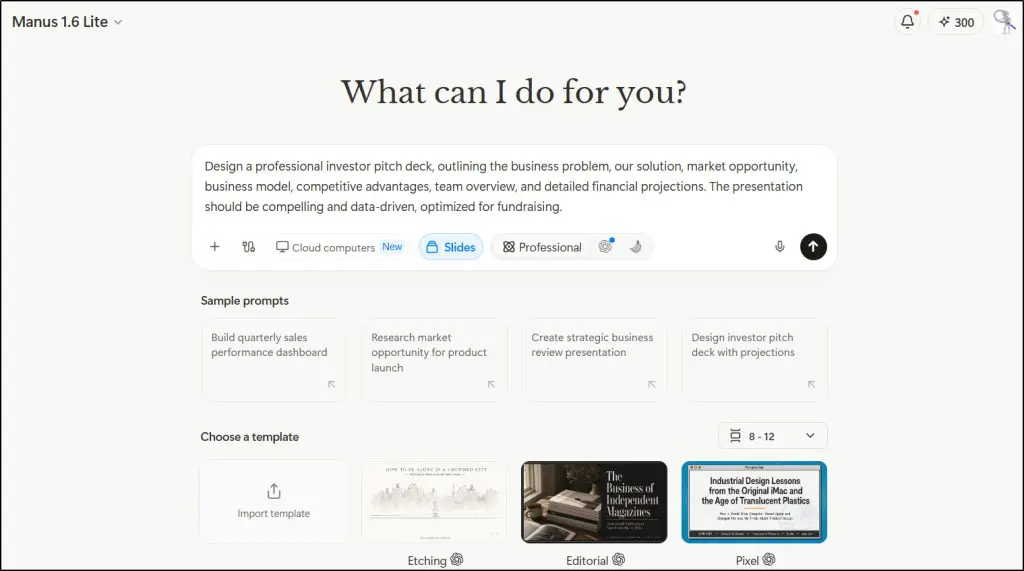
Manus is an AI agent that handles many kinds of tasks, including researching a topic and turning it into a slide deck.
Before it builds a single slide, Manus searches the web, pulls the key facts together, and builds the deck around them.
For example, I asked it for an investor pitch for a company called CattleTrace. It came back with ten slides that included a comparison table, team cards, a revenue roadmap, and financial projections, all in a consistent navy and orange design.

From there, you can refine, redesign, or restyle any slide from a side panel without starting over.

Manus gives you less design control than Gamma or Alai, and some of my runs were slow or failed when its servers were busy.
I recommend Manus when you need a presentation on a topic you haven’t researched yet. If you already have the content, a dedicated tool like Gamma is faster.
| Pros | Cons |
|---|---|
| Researches the topic before building | Less layout control |
| Consistent colors and fonts | Slow or failed runs under load |
| Slide-level edit controls | Research tasks use many credits |
| Exports to PowerPoint and Google Slides | Shared templates only on Team |
Manus pricing plans:
| Plan | Billed monthly | Key limits |
|---|---|---|
| Free | $0 | 300 daily credits, 1 concurrent task |
| Pro | $20 | 4,000 credits/mo |
| Pro (8,000 credits) | $40 | 8,000 credits/mo |
| Team | $20 | Per seat, shared credit pool |
The 300 free daily credits cover light use. Pro adds Wide Research and 4,000 credits a month.
Manus features by plan:
| Feature | Free | Pro | Pro (8,000 credits) | Team |
|---|---|---|---|---|
| Credits | 300 a day | 4,000/mo | 8,000/mo | Shared pool |
| Slide generation and Wide Research | Limited | ✓ | ✓ | ✓ |
| Concurrent tasks | 1 | 20 | 20 | 20 |
| Scheduled automations | 2 | 20 | 20 | 20 |
| Shared slide templates | ✗ | ✗ | ✗ | ✓ |
| SSO and team admin controls | ✗ | ✗ | ✗ | ✓ |
5. Gemini Notebook (formerly NotebookLM) – Best for Turning Course Material Into Slides

- Best for: Slides built from your course files, transcripts, and reports
- Not for: Starting from a blank prompt
- Works with: PDFs, Google Docs, YouTube videos, web pages, PDF and PowerPoint export
- Starting price: Free with a Google account, higher limits from $4.99/mo
- Key features: Slide decks from your own sources, PDF and PowerPoint export, audio and video overviews, and up to 300 sources per notebook on paid plans
Gemini Notebook (previously NotebookLM) is Google’s deep research AI tool that, among other things, allows you to create excellent presentations from your data.
Its core strength is the ability to process large datasets and make sense of complex information.
For example, you can give it a full 300-page report and it can process and understand its core findings in just a few minutes. From there, you can ask it specific questions about the report and turn it into a presentation easily.
Its design templates aren’t as versatile as dedicated presentation tools, but it still gives you a range of design templates to choose from.
I won’t recommend it as dedicated design software, but if you have large data sets and want to simplify that information for your audience or your own learning, Gemini Notebook can do an excellent job for you.
| Pros | Cons |
|---|---|
| Slides come from your own sources | Plain design |
| Free with a Google account | Can’t start from a blank prompt |
| Reuses course material in one step | PowerPoint files only partly editable |
| Audio and video overviews too | Few layout options |
Gemini Notebook pricing plans:
| Plan | Billed monthly | Key limits |
|---|---|---|
| Standard | $0 | 100 notebooks, 50 sources each |
| Plus (Google AI Plus) | $4.99 | 200 notebooks, 100 sources each |
| Pro (Google AI Pro) | $19.99 | 500 notebooks, 300 sources each |
The free plan allows 100 notebooks with 50 sources each. Paid Google AI Plus and Pro plans raise those limits, and Workspace Business Standard gives teams five times the free limits.
Gemini Notebook features by plan:
| Feature | Standard | Plus (Google AI Plus) | Pro (Google AI Pro) |
|---|---|---|---|
| Notebooks | 100 | 200 | 500 |
| Sources per notebook | 50 | 100 | 300 |
| Slide decks from your sources | ✓ | ✓ | ✓ |
| PDF and PowerPoint export | ✓ | ✓ | ✓ |
Read: How to create an online course, step by step
6. Gemini in Google Slides – Best for Google Workspace Users
- Best for: Teams on Google Workspace Business Standard or higher
- Not for: Distinctive visual design
- Works with: Google Slides and Google Drive
- Starting price: Workspace Business Standard at $14/user/mo, or Google AI Pro at $19.99/mo
- Key features: Full editable decks from one prompt, Drive files as sources, reference-deck styling, AI images, and speaker notes inside Google Slides
Gemini in Google Slides is Google’s AI assistant built into Slides. Gemini can create a full, editable presentation from one prompt and use your Google Drive files as source material.
It’s quite convenient because everything happens inside the Google Slides file you already use, so there’s nothing to export, convert, or learn.
The designs follow Google’s standard themes, so they look plain next to Gamma or Alai. You also need Workspace Business Standard or higher, or a Google AI Pro plan.
If your team already works in Google Workspace, I’d try Gemini before paying for another tool. If design quality matters most, choose Gamma.
| Pros | Cons |
|---|---|
| Full decks inside Google Slides | Plain designs |
| Uses your Drive files as sources | Not on Business Starter |
| No export or conversion | English (US) only at launch |
| Included in Business Standard | Less design variety than Gamma |
Gemini in Google Slides pricing plans:
| Plan | Billed monthly | Key limits |
|---|---|---|
| Business Starter | $7 | Per user |
| Business Standard | $14 | Per user |
| Business Plus | $22 | Per user |
Teams get Gemini in Slides with Business Standard at $14 per user a month. Individuals get it with Google AI Pro at $19.99/mo.
Gemini in Google Slides features by plan:
| Feature | Business Starter | Business Standard | Business Plus |
|---|---|---|---|
| Gemini in Docs, Sheets, and Slides | ✗ | ✓ | ✓ |
| Full presentations from one prompt in Slides | ✗ | ✓ | ✓ |
| Gemini AI images in Slides | ✗ | ✓ | ✓ |
| Gemini Notebook access | Basic | Expanded (5x limits) | Expanded (5x limits) |
7. Plus AI – Best AI Inside PowerPoint and Google Slides

- Best for: Detailed decks built inside PowerPoint or Google Slides
- Not for: Creators who want a web-based editor
- Works with: Google Slides, PowerPoint, AI assistants through its MCP server
- Starting price: $10/mo billed annually, 7-day trial
- Key features: Generates inside Google Slides and PowerPoint, 100K+ character prompts, document uploads, edits to existing decks, MCP server, and Presentation API
Plus AI is an add-on that brings AI slide generation into Google Slides and PowerPoint.
You can upload PDFs or Word documents and write prompts longer than 100,000 characters. This means the platform works from your full context instead of a one-line request.
If you’re a consultant, you can upload a client report, describe the audience and the decision they need to make, and get slides built straight into the firm’s existing PowerPoint template. You can also upload an old deck and ask Plus AI to tighten or restructure it.
Its designs are flatter than Gamma’s, and there’s no free plan, only a 7-day trial that needs a card.
I recommend Plus AI if you want to stay in PowerPoint or Google Slides and still get serious AI help.
| Pros | Cons |
|---|---|
| Works inside Google Slides and PowerPoint | Flatter design than Gamma |
| Long prompts and document uploads | No free plan |
| Edits existing decks | Uploads need Pro |
| MCP server and API on Pro | Branding controls start on Team |
Plus AI pricing plans:
| Plan | Billed monthly | Billed annually (per month) | Key limits |
|---|---|---|---|
| Basic | $15 | $10 | 1,500 AI credits/mo |
| Pro | $25 | $20 | 3,000 AI credits/mo |
| Team | $40 | $30 | 6,000 AI credits/mo |
| Max | $240 | $200 | Unlimited AI credits |
Basic doesn’t allow document uploads or long prompts. Choose Pro if you’ll brief it with files.
Plus AI features by plan:
| Feature | Basic | Pro | Team | Max |
|---|---|---|---|---|
| Works in Google Slides and PowerPoint | ✓ | ✓ | ✓ | ✓ |
| AI credits a month | 1,500 | 3,000 | 6,000 | Unlimited |
| Document upload (PDF, docx, txt) | ✗ | ✓ | ✓ | ✓ |
| 100K+ character prompts | ✗ | ✓ | ✓ | ✓ |
| MCP server and Presentation API | ✗ | ✓ | ✓ | ✓ |
| Custom and team-wide branding | ✗ | ✗ | ✓ | ✓ |
Read: The best AI voice generators for creators and edupreneurs
8. Canva – Best for Slides Plus Marketing Graphics
- Best for: Slides, social graphics, and lead magnets from one account
- Not for: Content-heavy decks
- Works with: Web, PDF, PowerPoint export on Pro
- Starting price: Free plan, Pro from $15/mo billed annually
- Key features: Magic Design deck generation, template and asset library, Magic Charts, Brand Kits, real-time collaboration, and PowerPoint export on Pro
Canva is a design platform for presentations, social media graphics, videos, and print materials, and Magic Design is its AI presentation generator.
As a course creator, you can use Canva to build a launch deck, the Instagram graphics to promote it, and a lead magnet PDF in one place, with the same brand kit across all of them.
The AI slide generation itself is weak.
Its Magic Design feature works with short prompts, which means the generated decks are often quite generic, and you’ll need to replace a lot of the content. But Canva’s editor, templates, and charts are excellent once you start editing by hand.
I don’t recommend Canva as your main AI presentation tool. If presentations are one part of a bigger content workload, though, it’s the most useful tool on this list.
| Pros | Cons |
|---|---|
| Slides and marketing assets in one account | Generic AI drafts |
| Large template and asset library | Short prompt input |
| Brand Kits and collaboration | Shared AI allowance |
| Free plan available | PowerPoint export shifts layouts |
Canva pricing plans:
| Plan | Billed monthly | Billed annually (per month) | Key limits |
|---|---|---|---|
| Free | $0 | $0 | Up to 20 AI uses a month |
| Pro | $18 | $15 | 1 person, up to 200 Premium AI uses a month |
| Business | $25 | $20.83 | Per person, up to 400 Premium AI uses a month |
| Enterprise | Custom | Custom | Custom |
The free plan handles simple decks. Pro adds Brand Kits, more AI uses, and PowerPoint export.
Canva features by plan:
| Feature | Free | Pro | Business | Enterprise |
|---|---|---|---|---|
| Standard AI tools | Up to 20 uses, shared | Not counted | Unlimited | Unlimited |
| Premium AI tools | Shared with Standard | Up to 200 uses | Up to 400 uses | Up to 400 uses |
| Ultra AI tools | ✗ | Up to 20 uses | Up to 40 uses | Up to 40 uses |
| AI Pass add-on | ✗ | ✓ | ✓ | Not listed |
| PowerPoint export | ✗ | ✓ | ✓ | ✓ |
9. Microsoft Copilot – Best for Microsoft 365 Teams

- Best for: Organizations already on Microsoft 365
- Not for: Buying AI only for presentations
- Works with: PowerPoint, Word, Excel, Outlook, Teams
- Starting price: $21/user/mo billed annually, plus a Microsoft 365 plan
- Key features: Slides from prompts, Word-to-PowerPoint conversion, speaker notes, and Copilot in Word, Excel, Outlook, and Teams
Microsoft 365 Copilot is Microsoft’s AI assistant inside PowerPoint, Word, Excel, Outlook, and Teams.
If you write your thinking in Word, Copilot can convert a report into a first-draft presentation in about a minute.
For example, a consultant can turn a 20-page strategy report into a client deck, then ask Copilot to write the speaker notes.
The designs are basic. Copilot uses standard PowerPoint templates, the layouts repeat from slide to slide, and you pay for Copilot on top of your Microsoft 365 plan.
I’d only recommend Copilot if your organization already runs on Microsoft 365. Paying for it only to make presentations isn’t worth it.
| Pros | Cons |
|---|---|
| Built into PowerPoint | Repetitive layouts |
| Turns Word documents into decks | Separate Microsoft 365 plan required |
| Works across Microsoft 365 apps | Rarely chooses charts or visuals |
| Enterprise security and admin | Costly for presentations alone |
Microsoft Copilot pricing plans:
| Plan | Billed annually (per month) | Key limits |
|---|---|---|
| Copilot Business | $21 | 1-300 users, plus a Microsoft 365 business plan |
| Copilot Enterprise | $30 | Plus a Microsoft 365 enterprise plan |
Copilot Business lists at $21 per user a month on annual billing, for 1 to 300 users. Larger organizations use Copilot Enterprise.
Microsoft Copilot features by plan:
| Feature | Copilot Business | Copilot Enterprise |
|---|---|---|
| Copilot in PowerPoint, Word, Excel, Outlook, and Teams | ✓ | ✓ |
| Users | 1-300 | No cap |
| Separate Microsoft 365 plan required | ✓ | ✓ |
10. Pitch – Best for Tracking How Clients Read Your Deck

- Best for: Proposals where you want to see which slides a client read
- Not for: Solo creators on a tight budget
- Works with: Web links, PDF, PowerPoint export
- Starting price: Free plan, Plus from $13/mo billed annually
- Key features: AI deck drafts, brand templates, tracked links with slide analytics, Pitch rooms, AI text editing, and real-time collaboration
Pitch is a presentation tool for teams that send decks to clients and prospects.
Pitch’s tracked links show who opened your deck, which slides they looked at, and how long they spent on each one.
For example, if a prospect spent six minutes on your coaching method and skipped the pricing slide, you know exactly what to talk about on the follow-up call.
Its brand templates keep decks consistent but limit how freely you can design, and the analytics only come with the Team plan and above.
I recommend Pitch for coaches and consultants who send proposals regularly. Solo creators who mostly present live won’t get much from it.
| Pros | Cons |
|---|---|
| Slide-level analytics on tracked links | Templates limit layouts |
| Brand templates | Analytics start on Team |
| Pitch rooms for client files | Small AI credit allowance |
| Free plan for up to 5 members | Costly for solo creators |
Pitch pricing plans:
| Plan | Billed monthly | Billed annually (per month) | Key limits |
|---|---|---|---|
| Free | $0 | $0 | Up to 5 members, 100 one-time AI credits |
| Plus | $15 | $13 | 1 seat, 6,000 AI credits a year |
| Team | $23 | $19 | Per seat, up to 25 members |
| Business | $30 | $25 | Per seat, up to 200 members |
Plus covers one person but has no link analytics. Analytics and Pitch rooms start on Team.
Pitch features by plan:
| Feature | Free | Plus | Team | Business |
|---|---|---|---|---|
| AI credits | 100 one-time | 6,000/yr | 6,000/seat/yr | 9,000/seat/yr |
| Unbranded exports and custom fonts | ✗ | ✓ | ✓ | ✓ |
| Advanced link analytics | ✗ | ✗ | 25 links | Unlimited |
| Pitch rooms | ✗ | ✗ | 2 | Unlimited |
| External guests | 2 | 5 | 25 | Unlimited |
11. Prezi – Best for Non-Linear Presentations
- Best for: Frameworks and curriculum maps
- Not for: Step-by-step, linear content
- Works with: Web, Prezi Video, PDF
- Starting price: Free plan, Standard from $7/mo billed annually
- Key features: Zoomable canvas, Prezi AI drafting and layout suggestions, Prezi Video, and brand kits and analytics on Teams
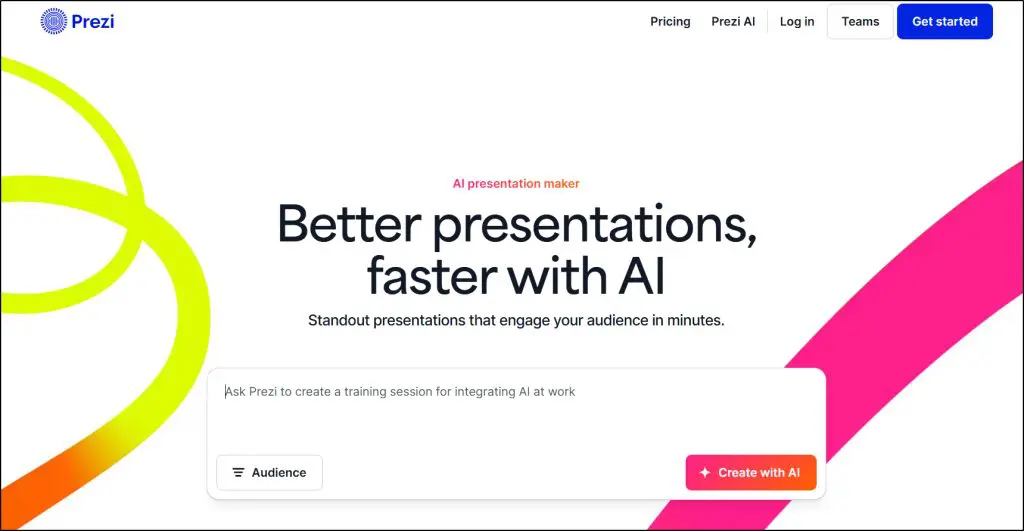
Prezi is a presentation tool that uses one large zoomable canvas instead of a row of slides.
It helps you show how ideas connect in a flowing motion. You lay out your whole topic on the canvas and zoom into each part as you talk.
I’ve used this format to present learning frameworks and curriculum maps, where the audience needs to see how each piece links to the others.
Prezi’s AI is basic, and the canvas takes time to learn. For simple, step-by-step content, the zooming gets distracting.
I recommend Prezi only for frameworks and curriculum presentations. For everything else, a standard slide tool works better.
| Pros | Cons |
|---|---|
| Shows how ideas connect | Takes time to learn |
| Suits frameworks and curricula | Zooming distracts on linear content |
| Low-cost Standard plan | Basic AI |
| EDU discount with a school email | Free plan is watermarked and public |
Prezi pricing plans:
| Plan | Billed annually (per month) | Key limits |
|---|---|---|
| Basic | $0 | Watermarked, public sharing only |
| Standard | $7 | AI generation with a credit cap |
| Plus | $19 | No AI credit cap |
| Teams | $39 | Per user |
Standard caps AI generation. Choose Plus if you’ll use AI regularly.
Prezi features by plan:
| Feature | Basic | Standard | Plus | Teams |
|---|---|---|---|---|
| Prezi AI generation | ✗ | Capped | ✓ | Unlimited |
| Watermark-free and private sharing | ✗ | ✓ | ✓ | ✓ |
| Narrated video and chat-based refinement | ✗ | ✗ | ✗ | ✓ |
| Brand kit and viewer analytics | ✗ | ✗ | ✗ | ✓ |
Read: My top 8 strategies for teaching adult learners
How to Pick the Right Tool for Your Situation
Match the tool to what you present and who edits the file next.
| Your situation | Choose | Why |
|---|---|---|
| Building decks from your own notes as a coach or consultant | Gamma | Strongest first drafts from notes, documents, and prompts |
| Handing clients an editable PowerPoint file | Alai | Exports keep their layout |
| Turning existing lessons into slides | Gemini Notebook | Builds slides only from your files |
| Presenting on a topic you haven’t researched yet | Manus | Researches the web before it builds |
| Running webinars and launches with many marketing assets | Canva | Slides, social graphics, and lead magnets in one account |
| Working on a team where all decks must match the brand | Beautiful.ai or Pitch | Brand rules apply automatically, and Pitch adds slide analytics |
| Sending proposals and tracking what clients read | Pitch | Slide-level link analytics |
| Using Google Workspace | Gemini in Google Slides, then Plus AI | Full decks inside Slides, with Plus AI for long briefs |
| Using Microsoft 365 | Microsoft Copilot or Plus AI | Word-to-deck conversion inside PowerPoint |
| Teaching frameworks where connections matter | Prezi | The canvas shows how ideas relate |
Most creators need one tool. Start with Gamma, and add Alai or Gemini Notebook only when a project needs an editable PowerPoint file or starts from existing material.
Whichever tool you pick, a detailed brief produces better slides than a one-line prompt, for webinar slides, masterclass decks, and course lessons alike. My guide to PowerPoint for e-learning covers the design rules that still apply after AI builds the draft.

Jeff Cobb, Founder of Learning Revolution
Jeff Cobb is an expert in online education and the business of adult lifelong learning. Over the past 20+ years he has built a thriving career based on that expertise – as an entrepreneur, a consultant, an author, and a speaker. Learning Revolution is a place where Jeff curates tips, insights, and resources to help you build a thriving expertise-based business. Learn more about Jeff Cobb here.
Frequently Asked Questions
What is the best AI presentation maker?
Gamma is the best AI presentation maker for most course creators, coaches, and consultants. The tool turns prompts, notes, documents, and URLs into structured decks faster than any other tool I’ve tested. Choose Alai instead if you need editable PowerPoint files, or Gemini Notebook if your content already exists in documents.
What is the best free AI presentation tool?
Gamma has the best free plan for new decks, with 400 one-time credits and no card required. Gemini Notebook, formerly NotebookLM, is free with a Google account and builds slides from your own files. Manus gives 300 free credits a day, and Alai has a free plan with a watermark.
Which AI presentation tool exports the best PowerPoint files?
Alai produces the cleanest PowerPoint exports among the dedicated generators. Plus AI and Microsoft Copilot avoid export problems because they work inside PowerPoint itself. Gamma and Canva both export to PowerPoint, but layouts and fonts often shift, so check each slide before you send the file.
Which AI presentation tool is best for course creators and educators?
Gemini Notebook, formerly NotebookLM, is best for turning existing course material, transcripts, and workbooks into slides, because it works only from your files. Gamma is best for new lesson and webinar decks. Canva suits creators who also need marketing graphics, and Prezi suits framework-heavy lessons.
Which AI presentation tool is best for consultants and coaches?
Gamma is the best starting point for consultants and coaches who build decks from their own notes. Alai fits when clients expect editable PowerPoint files. Pitch shows which slides a prospect read through tracked links, and Beautiful.ai keeps decks on brand when several associates present.
Can ChatGPT or Claude make presentations?
Yes. ChatGPT and Claude can build slide decks and export PowerPoint files, and Claude Design produces better-looking slides from a good prompt. Their output is less consistent and harder to edit than a dedicated tool’s, so use them for outlines, slide copy, and speaker notes rather than final client decks.
Can Gemini create a full presentation in Google Slides?
Yes. Gemini in Google Slides can build a full, editable deck from one prompt, using your Drive files and a reference deck for style. The feature comes with Workspace Business Standard and Plus, Enterprise Standard and Plus, and Google AI Pro and Ultra. It works in English (US) only for now.
Do I need design skills to use an AI presentation maker?
No. Gamma, Alai, and Beautiful.ai choose layouts, spacing, and visual hierarchy for you, so slides look professional without design training. The presenter still decides what to say, who the audience is, and what they should do after the last slide, because no tool supplies the argument.
Table of Contents